Selecting Items on Estimates
Overview
- When adding parts to an Estimate, a series of select and edit pages guides you to select the Part, Inks, Service (Printing or Sheeting) and Substrate.
- These pages differ based on what is selected.
- By default, the Next button is enabled on each page until the final page.
- If the Edit page is changed the Save button is enabled and becomes the Active button. When the Save button is clicked, the Next button becomes active (that is, press Enter twice).
- The rule of thumb for adding a new Part (as opposed to increasing the Repeat Qty) is when the Size, Colour, Service (Printing/cutting) or Substrate differs.
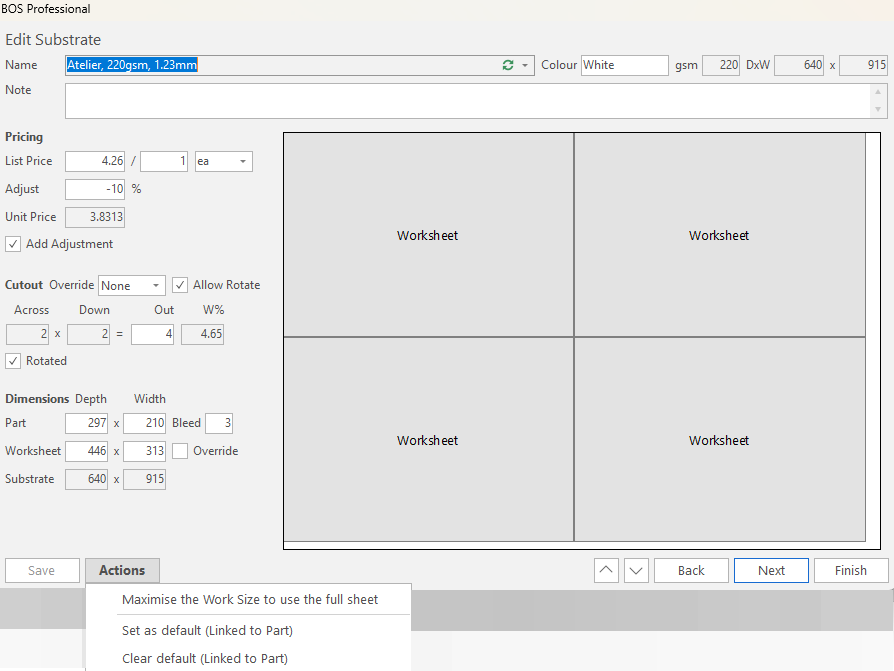
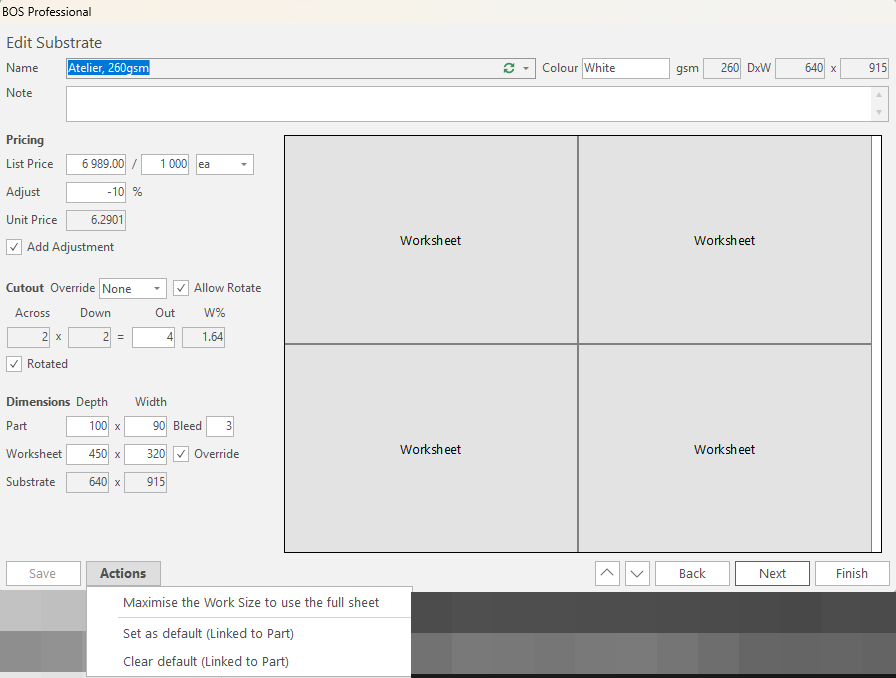
- The Substrate name is not editable on the Edit Substrate page.
Process
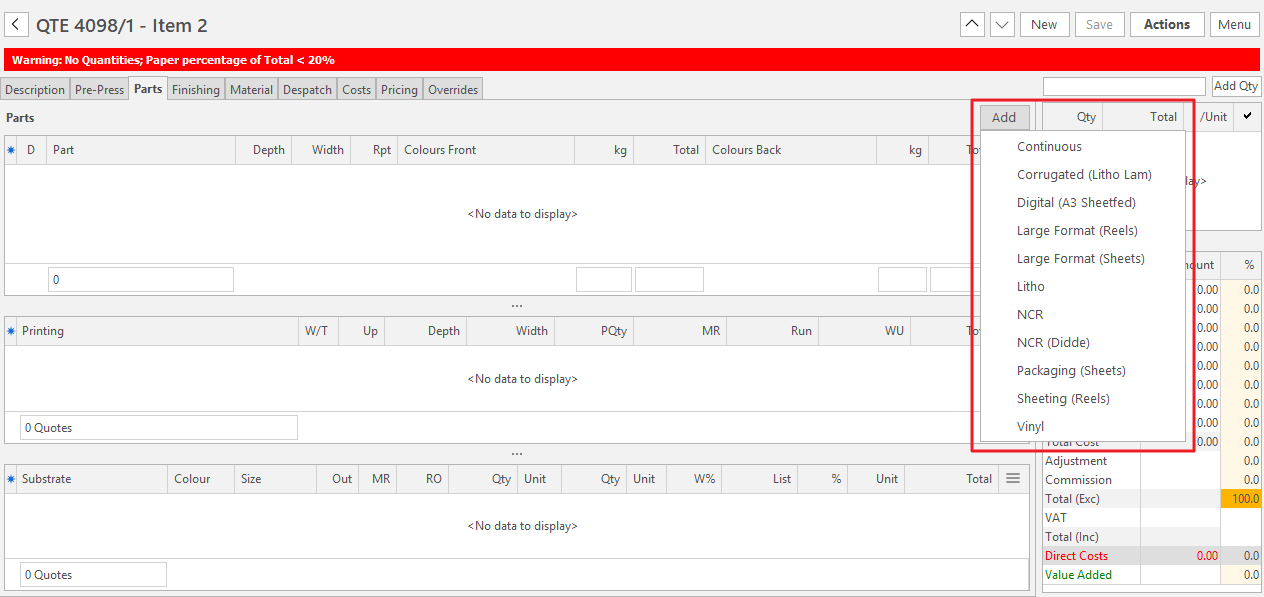
- Click Add (button) to add a Part and select the Printing Type.
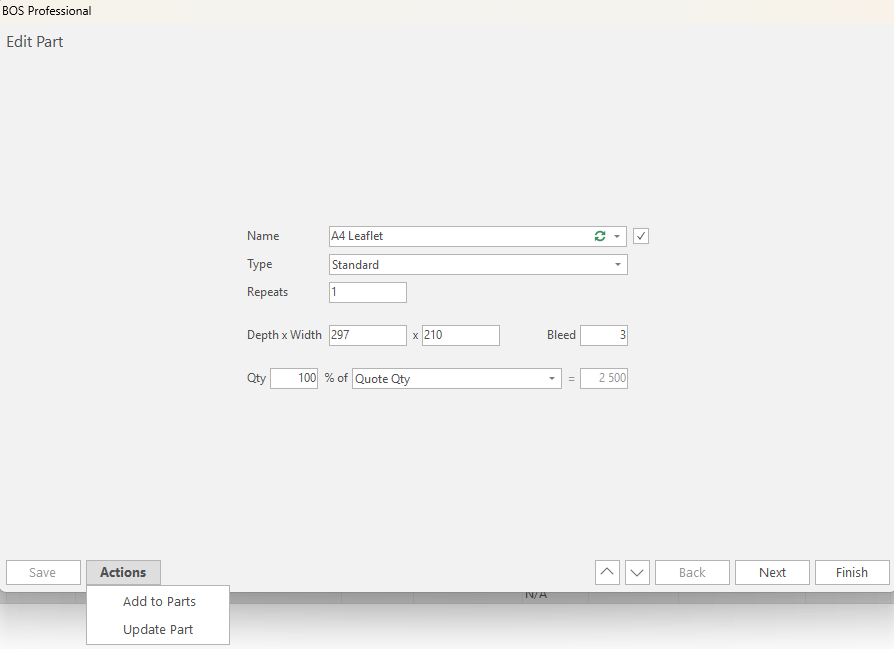
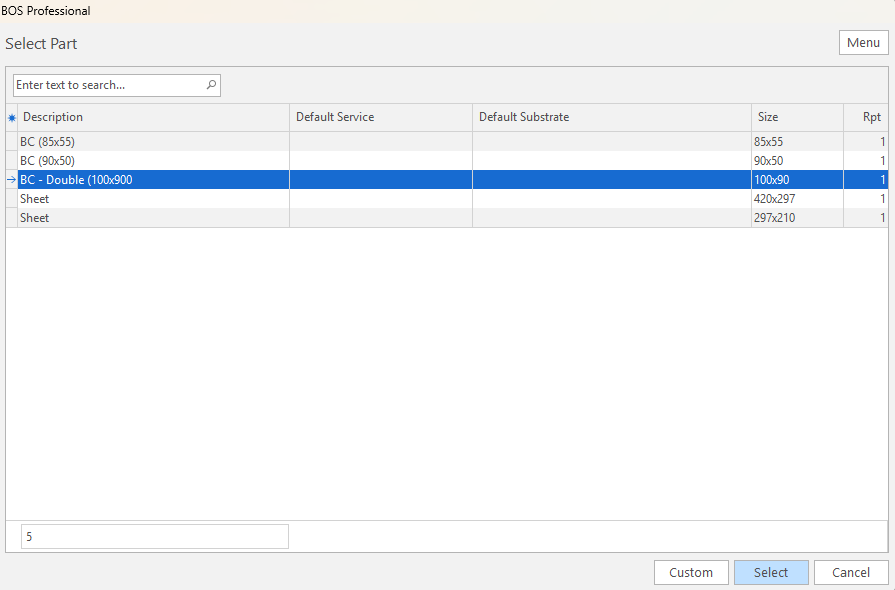
- Select the Part to add.
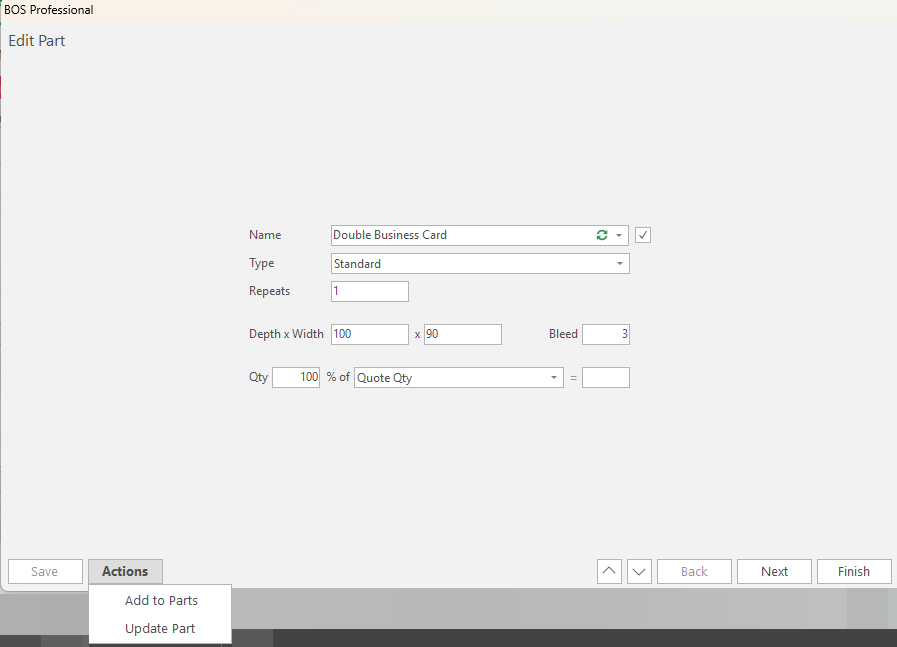
- Edit the Part if needed. If the part is edited, the Save button is activated. The Part can also be updated by selecting an option from Actions (button).
Services
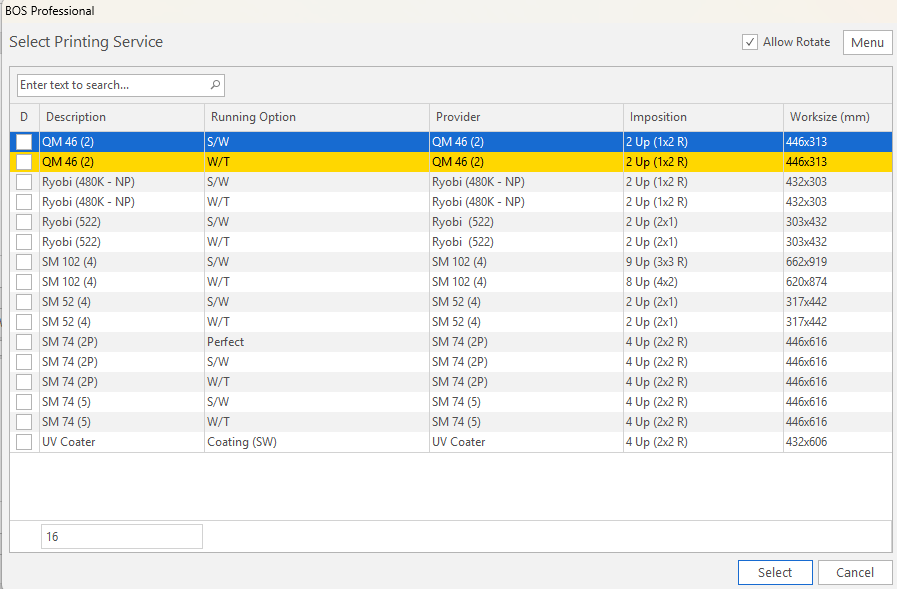
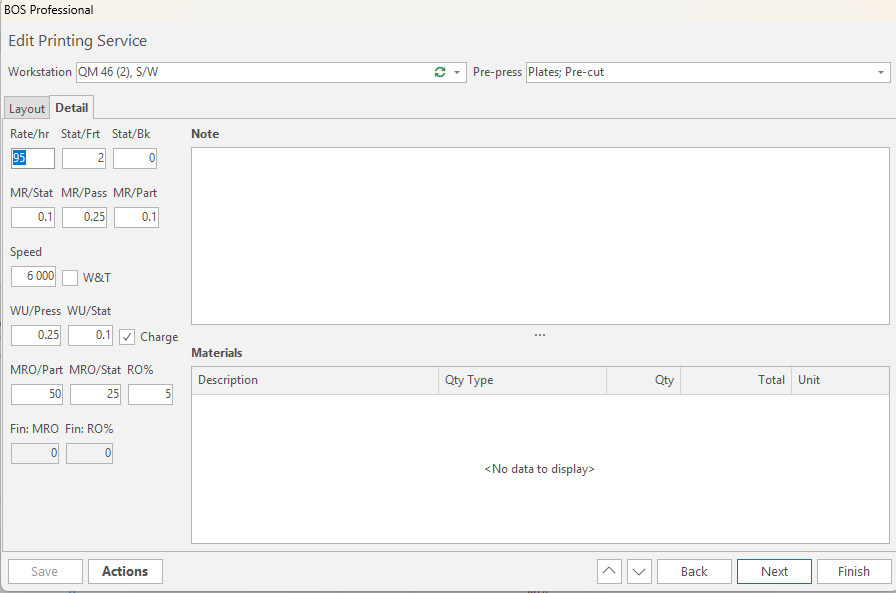
Select a Printing Service
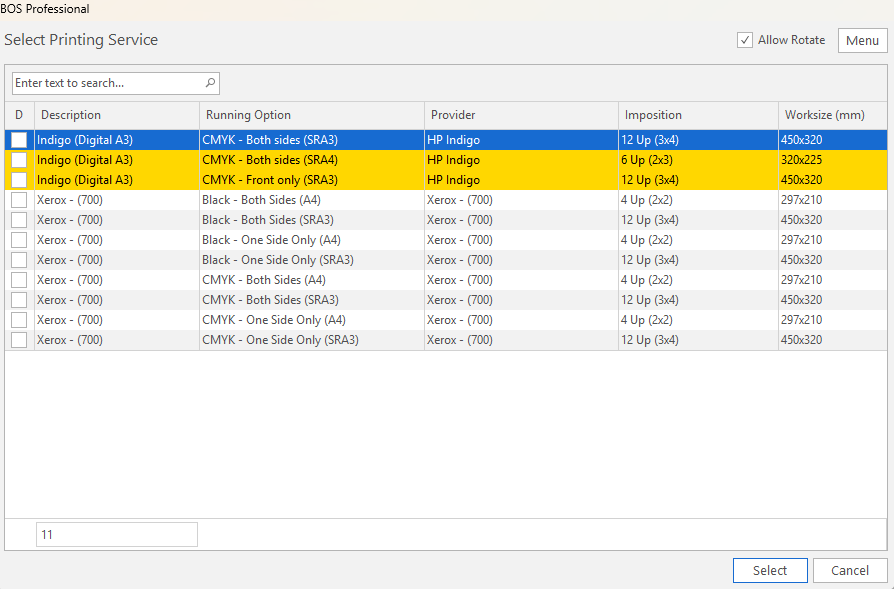
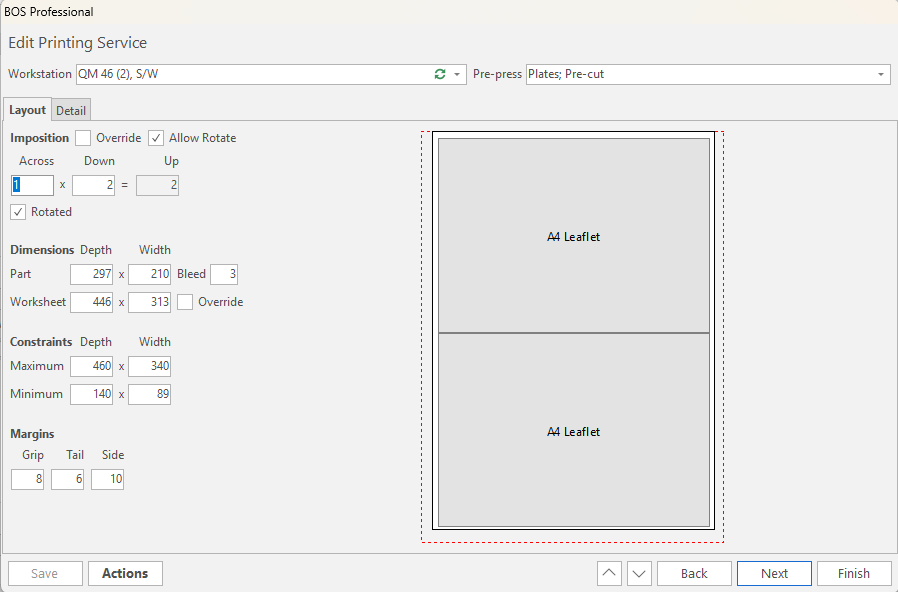
Select a Workstation
- Only the presses that are large enough to accommodate the Part appear.
- The filter to Allow Rotate is set from the Part.
- All the running options for the selected Press are highlighted when a record is selected.
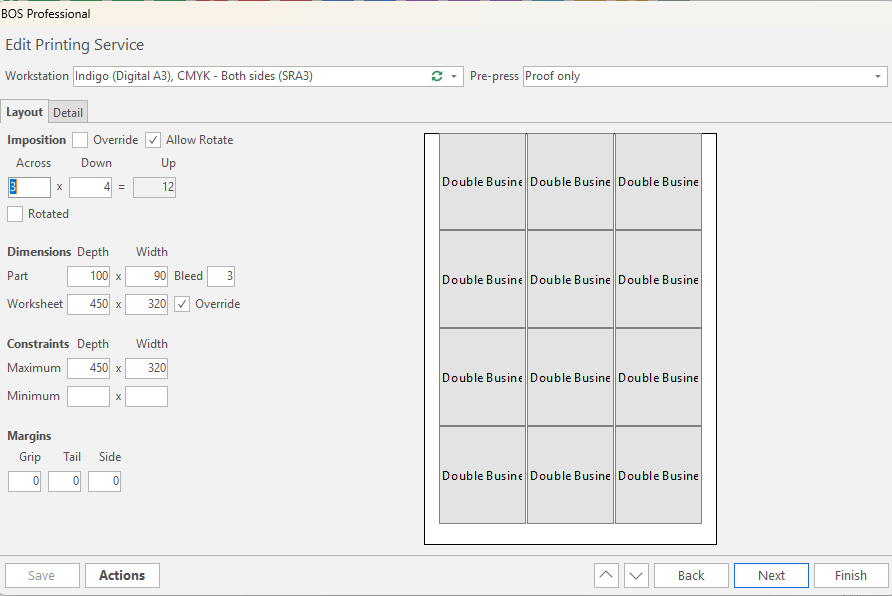
- The default imposition is the maximum quantity that can fit on the maximum size. For Work and Turn, it is the maximum even imposition.
- If the Ink selection is on the front only, Perfecting options do not appear.
- If the Run Type =Web (Sheets/hr), the Work Depth must match the Max Depth. The Max Depth = Repeat length of the Cylinder.
- If the Ink = Use Press Options, the Maximum Size is changed to the Default size, if the Default size has a value.
- If a printed Part has a Width or Depth of 0, the imposition is 0 up and the imposition and cutting diagrams are cleared. A warning appears when you click Next.
- An imposition of more than 500 up shows as a single labelled block (for example, Labels - 1200 Up) instead of drawing every item.
Fields on the Press lookup
- Imposition: The default maximum imposition that can fit on the press. For a Work and Turn option, it is the maximum even imposition.
- Work size: The Work Size (Depth x Width) of the default imposition.
Overriding the Imposition
- You can override the imposition, which lets you add the Qty Up and the Work Size.
- When you select this option, the margins are cleared.
- If the Work Size that you enter is larger than the maximum size, the work size reverts to the maximum size.
Overriding the Work Size
- Overriding the Work Size depends on the maximum size of the Press.
- If a Qty Across/Down is added that does not fit on the fixed Work Size, the imposition reverts to the maximum Qty Up that can fit on the work size.
Overprint
The maximum Work Size cannot be larger than the Work Size of the Part that is overprinted.
Actions
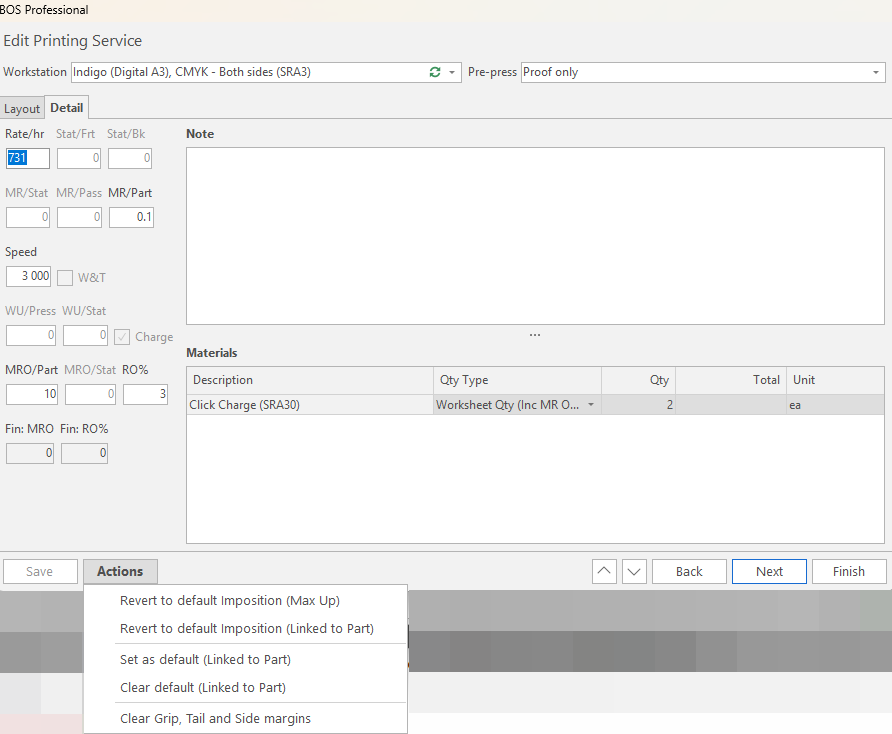
- Revert to default Imposition (Max Up): Reverts to the maximum Imposition for the running option.
- Revert to default Imposition (Linked to Part): Reverts to the default Imposition linked to the Part.
- Reload the selected Service: Updates all the values from the linked Service.
- Set as default (Linked to Part)
- Clear default (Linked to Part)
- Clear Grip, Tail and Side margins
Errors
Run Type = Web - Sheets/hr – Work Depth does not equal Max Depth.
Warnings
You can Work and Turn if the Qty Across is an even number and the inks on the front and back are the same.
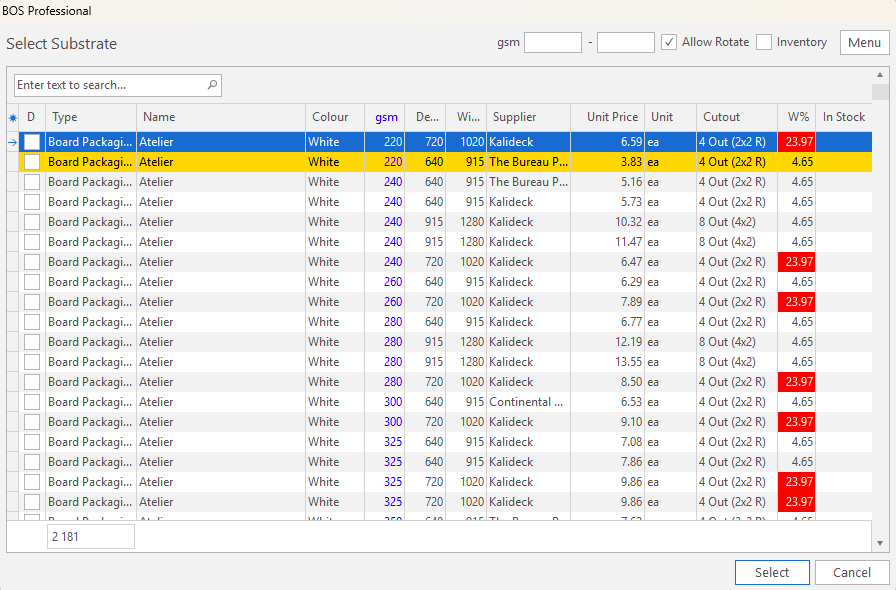
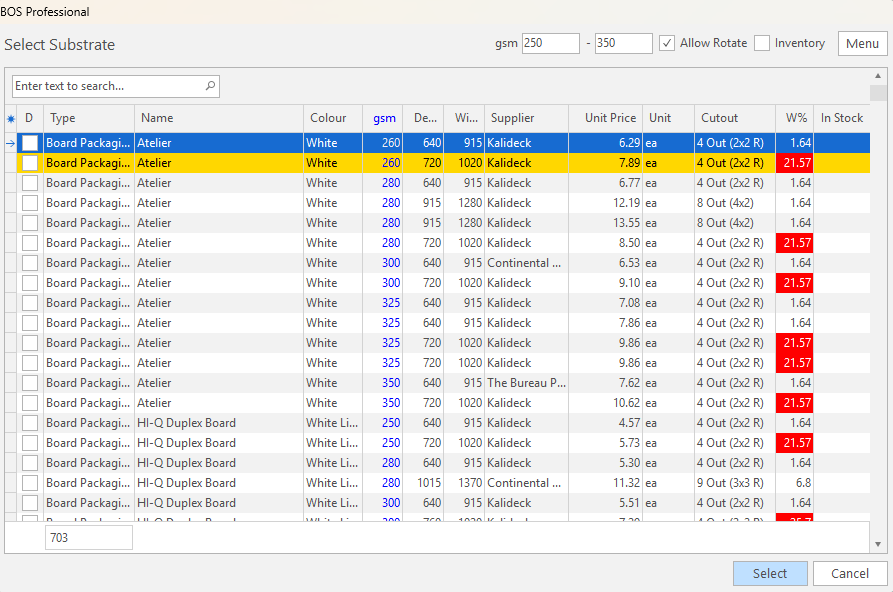
Select a Substrate
Edit Substrate
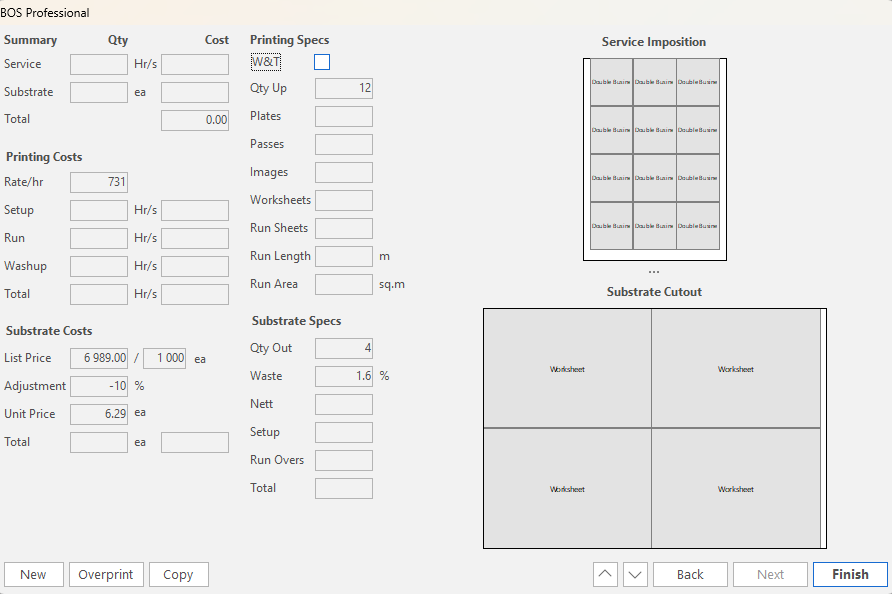
Summary
Part Added
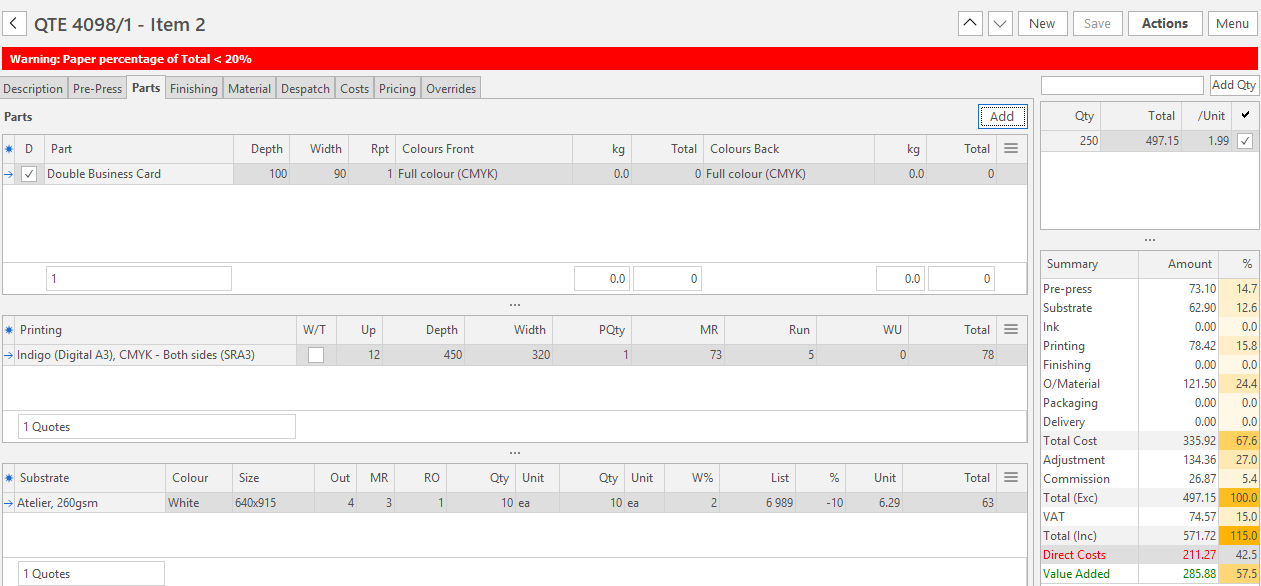
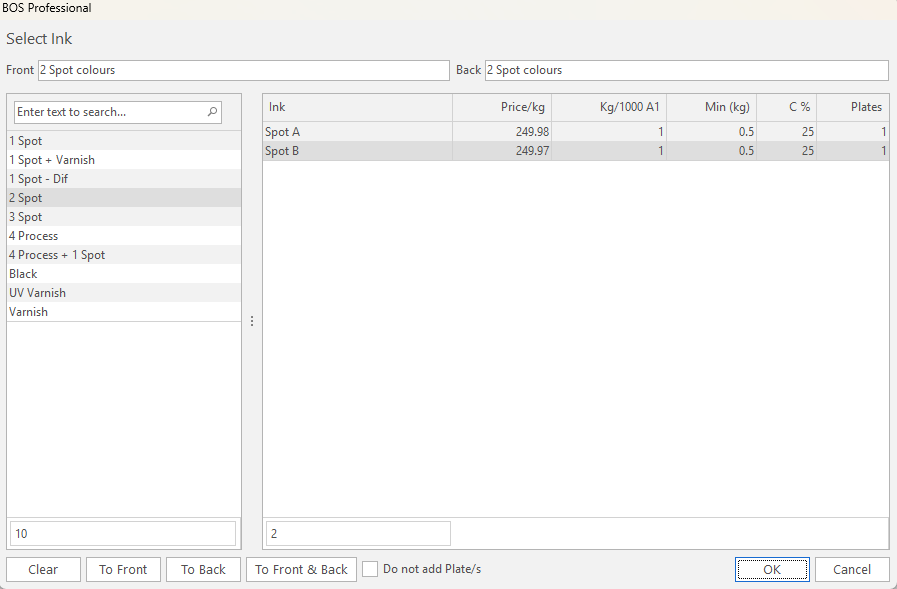
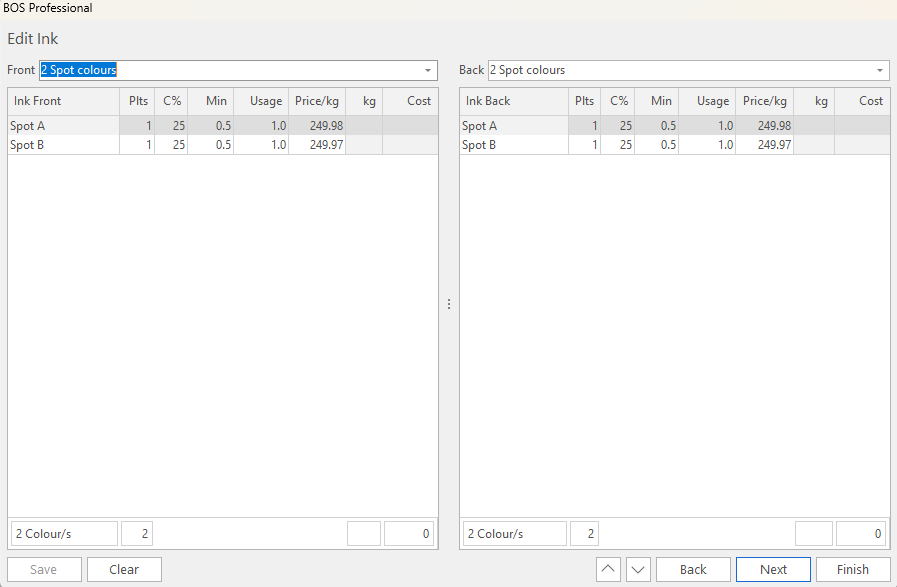
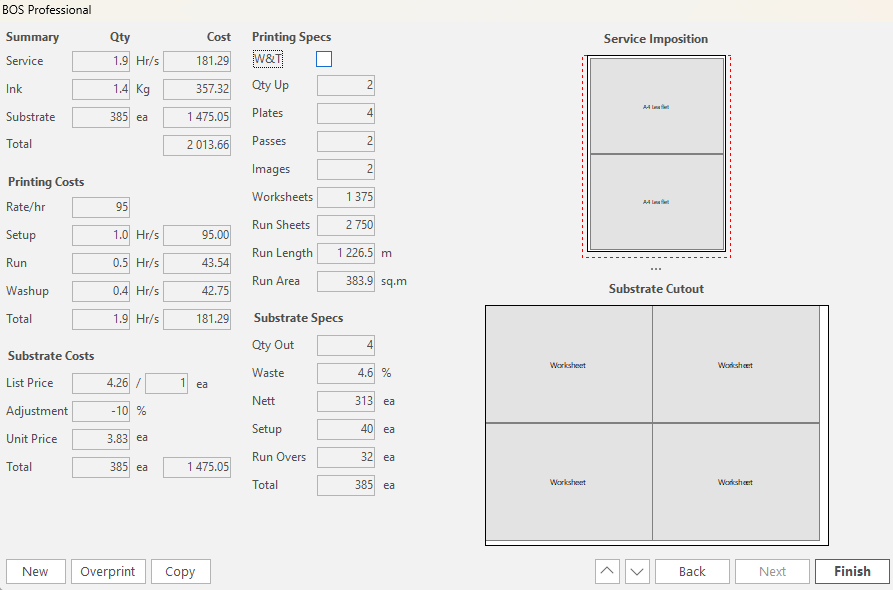
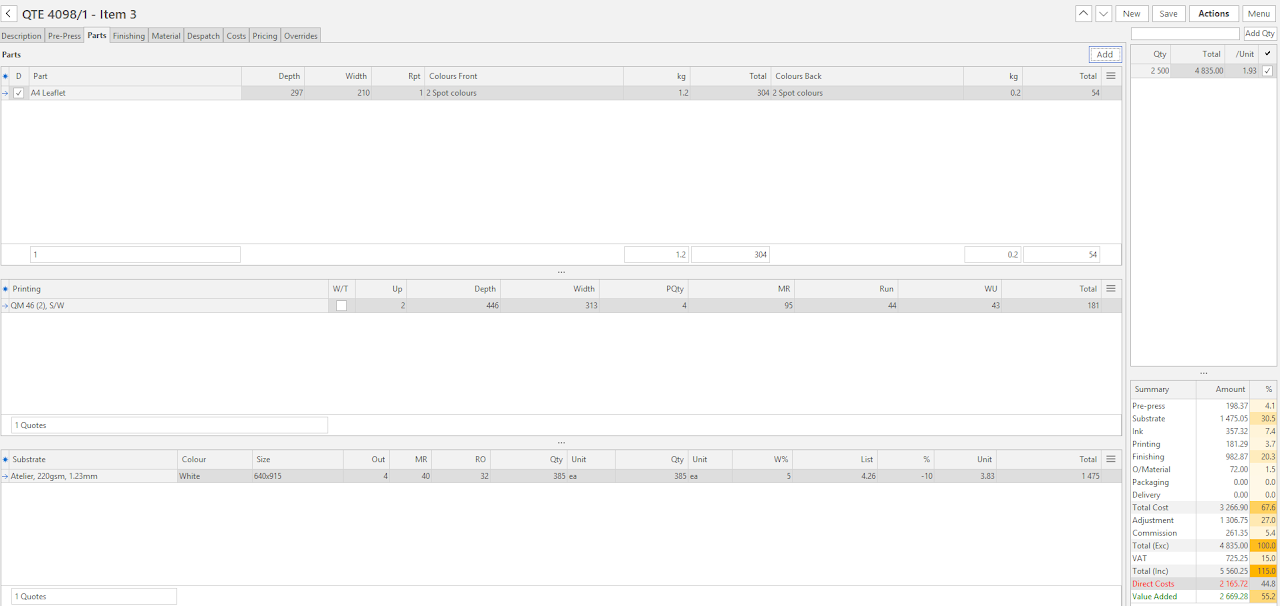
Example Screenshots where Ink is selected