
PoS - Orders Tutorial
Overview
- The Point of Sale (PoS) module works like a cash register and records and processes sales in real time. It supports the creation of custom payment methods and the automatic accounting of tips, discounts and fees.
- The PoS module is essential in situations where customers purchase or pay for items in person.
💡These tutorials explain how to use the PoS system from initiating orders to receiving payments.
Creating and Editing Orders
How to Create a New Order
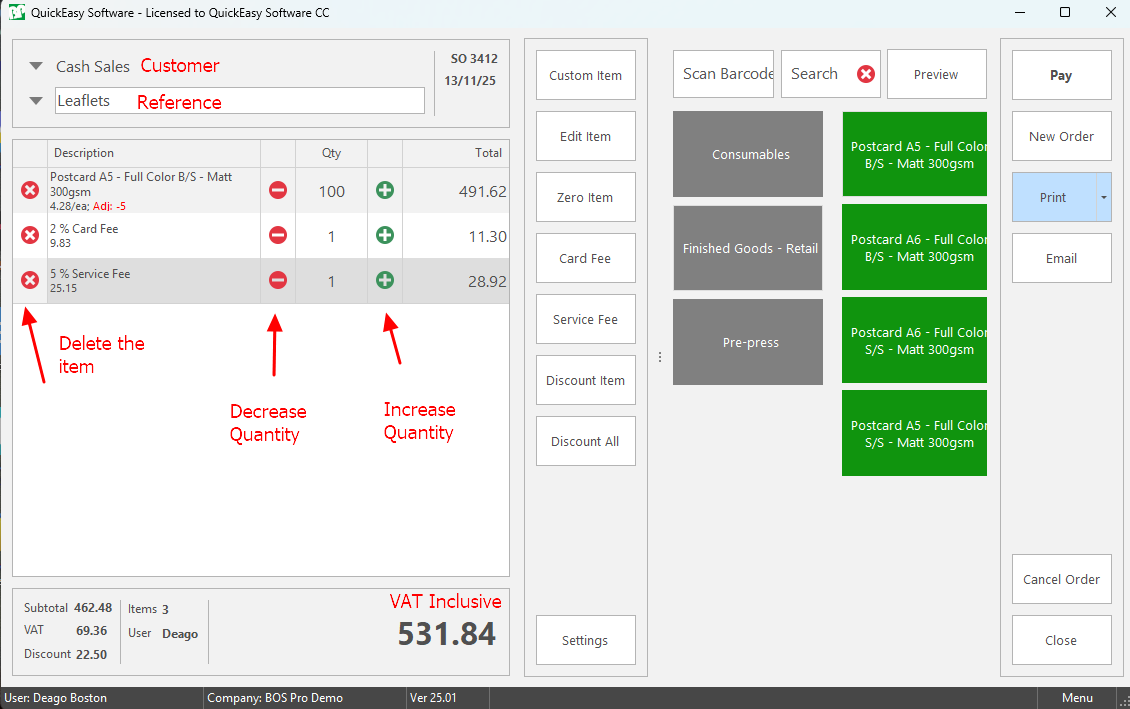
- Log in to the PoS module.
- Click New Order (button).
- The order number and date are automatically completed.
- Customer = Click the arrow to select a customer from the first dropdown list (defaults to Cash Sales).
- Reference = Click the arrow to select a reference from the second dropdown list.
- Add the items by scanning the item with a barcode, or by selecting an item from the central panel:
- Click a Category (grey block): In this case: Consumables, Finished Goods - Retail, Pre-press.
- Double-click an item (green block) to add it. The options depend on the main category selected.
- Click the plus or minus signs to change the quantity.
- Note: Items can be added by barcode through scanning or entering the code into the Scan Barcode field. Items can be searched for by name through the Search field.
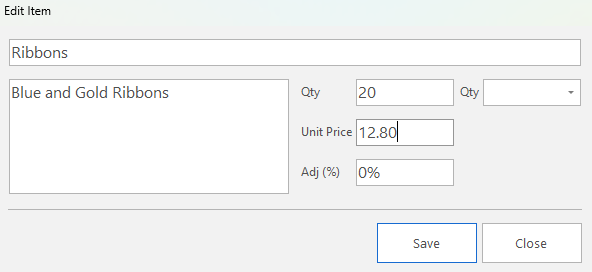
- To add a custom item, click Custom Item on the central panel and complete the popup block. For example:
- (Optional) Use these commands to work with the items:
- Edit Item: Lets you edit the selected entry (e.g. change the description or unit price).
- Zero Item: Sets the unit price to zero.
- Card Fee: Adds a percentage fee for processing a credit card.
- Enter the applicable percentage in the block (e.g. 2 for 2%).
- Click the green checkmark to accept the fee.
- Click the red cross to cancel.
- Service Fee: Adds a percentage service fee.
- Enter the applicable percentage in the block (e.g. 10 for 10%).
- Click the green checkmark to accept the fee.
- Click the red cross to cancel.
- Discount Item: Applies a percentage discount to the selected items.
- Enter the percentage in the block (e.g. 5 for 5%).
- Click the green checkmark to accept the fee.
- Click the red cross to cancel.
- Discount All: Applies a percentage discount to all the items.
- Enter the percentage in the block (e.g. 5 for 5%).
- Click the green checkmark to accept the fee.
- Click the red cross to cancel.
- The subtotal (bottom left) displays the VAT exclusive total.
- The large total displays the VAT inclusive total.
How to Remove an Item
- Create or open an existing order.
- Navigate to the Order Summary in the left section.
- Locate the desired item.
- Click the X on the far left of the line item to remove it.
How to Select or Change the Customer on an Order
- Create or open an order.
- Navigate to the Order Summary in the left section.
- Locate the Customer at the top of the order summary section.
- Select the dropdown arrow next to the Customer's name.
- Select the desired Customer.
How to Cancel an Order
- Open an existing order.
- Click Cancel Order (button).
How to Update an Existing Order
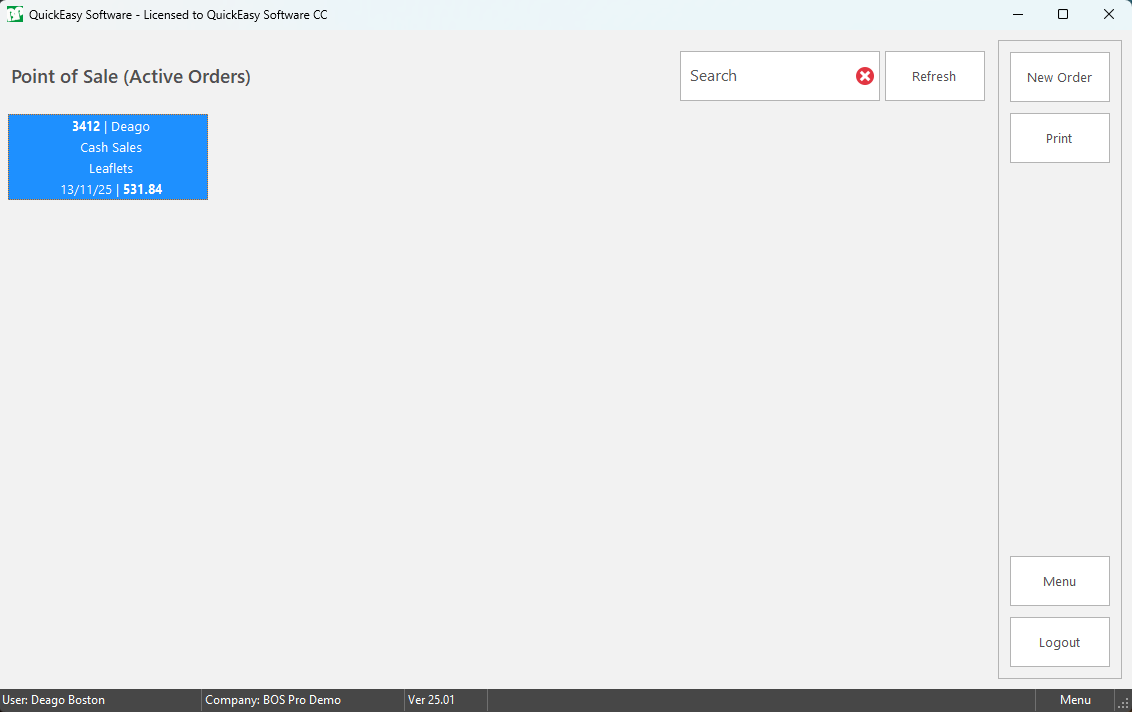
- Locate the desired order from the Main Menu.
- Double-click the order card (shown in blue on the screenshot) to edit the order.
- Add or remove items as needed.
How to Print an Invoice
- Create or open an order.
- Click Print (button), or
- Click the arrow on the Print button to preview the slip or to select a printer.
Receiving Payment
How to Create a Payment for an Order
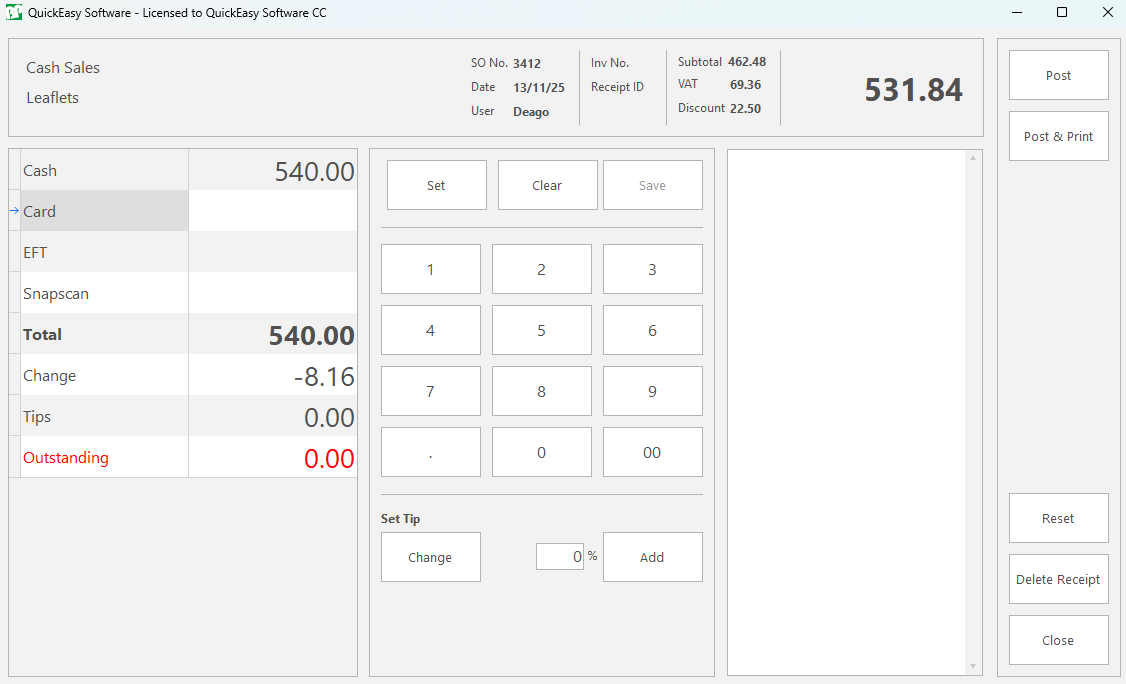
- Create or open an order.
- Click Pay (button).
- Click the block with the applicable payment method.
- Enter the amount paid into the corresponding input field.
- Note: Select the payment type and click Set (button) to automatically enter the outstanding amount.
- Enter any tip amount into the appropriate Tip (field).
- Click Save (button) to calculate the change.
- Click Post (button) to create a linked receipt or Post & Print (button) to create and print the receipt.
How to Print a Receipt
- Create or open an existing order.
- Click Pay (button).
- Enter the payment, tip, and calculate any change.
- Click Post & Print (button) to create and print the receipt.
How to Delete a Receipt
- Create or open an order.
- Click Pay (button).
- Click Delete Receipt (button).
Miscellaneous Functions
How to Transfer an Order
- Log in to the PoS module.
- Select an existing order.
- Select Menu (button) in the bottom right corner > Transfer selected Order to another User.
- Select User = Select a user from the dropdown list.
- Click Checkmark (button).
How to Add an Existing Sales Order into the PoS Interface
- Log in to the PoS module.
- Click Menu (button) in the bottom right corner > Add Sales Orders to Point of Sale (POS).
- Navigate to the SO No. field.
- Enter the SO No. of the desired order into the input field.
- Click Checkmark (button).