
Point of Sale - Setup Tutorials
Overview
- The Point of Sale (PoS) module enables the processing of sales transactions at the point of purchase.
- It serves as an interface where sales can be recorded and processed seamlessly in real time.
- It supports the creation of custom payment methods and the automatic accounting of tips, discounts and fees.
- The PoS module is essential when dealing with customer-facing retail transactions, ensuring an accurate and efficient accounting of sales transactions. This page details the settings and configuration needed to run the PoS module.
💡This page lists the settings and explains how to set up the PoS module.
Settings
User Settings
- Point of Sale: Access Allowed: The options are Yes or No.
- Point of Sale: Add Custom Items - Access Allowed: The options are Yes or No.
- Point of Sale: Cancel Orders - Access Allowed: The options are Yes or No.
- Point of Sale: Cashups - Access Allowed:
- The options are None, User and Supervisor.
- Supervisor rights are required to change the status of a Cashup to Complete.
- Point of Sale: Decrease Qty - Access Allowed: The options are Yes or No.
- Point of Sale: Default: Inventory Location: The options are the list of inventory locations.
- Point of Sale: Delete Items - Access Allowed: The options are Yes or No.
- Point of Sale: Delete Receipts - Access Allowed: The options are Yes or No.
- Point of Sale: Edit Items - Access Allowed: The options are Yes or No.
- Point of Sale: Edit Prices - Access Allowed: The options are Yes or No.
- Point of Sale: Import Sales Orders to PoS - Access Allowed: The options are Yes or No.
- Point of Sale: Login - PIN No. = Enter a value to be set as the login PIN.
- Point of Sale: Transfer orders to another user - Access Allowed: The options are Yes or No.
- Point of Sale: View Transactions from other users:
- The options are None, Read-only and Full Access.
- Full Access rights are required to edit other users' transactions.
General Settings
- Currencies: Denominations = Set up currency denominations.
- Point of Sale (POS): Caption: User-defined Numberfield 1 = Enter text captioning the first user field for Sales Orders in the PoS.
- Point of Sale (POS): Caption: User-defined Numberfield 2 = Enter text captioning the second user field for Sales Orders in the PoS.
- Point of Sale (POS): Caption: User-defined Numberfield 3 = Enter text captioning the third user field for Sales Orders in the PoS.
- Point of Sale (POS): Customer used for Cash Sales: Sets a default customer for PoS Sales Orders (normally Cash Sales).
- Point of Sale (POS): Job Category for POS transactions: Sets the default Sales Order Job Category for PoS sales.
- Point of Sale (POS): Ledger Entry Type for Customer Receipts = Select an Entry Type (normally Customer Receipts).
- Point of Sale (POS): Ledger Entry Type for Tips paid, Ledger Entry Type for Cash up Surplus and Ledger Entry Type for Cash up Shortfall = Select the Entry Types for the tips paid, the surplus and the shortfall. When a cash-up is closed, each amount is posted to the ledger with its Entry Type.
- Note: Only older databases have these three settings, and the older Ledger Entry Type for Rounding Discount and Template used to print the Cash up settings. New databases do not get them.
- Point of Sale (POS): Login - Activate User Login: The options are Yes or No.
- Point of Sale (POS): Login - Idle time before User is logged out (Seconds) = Enter a numeric value.
- Point of Sale (POS): Lookup list for Reference field = Edit to open up a lookup list where pre-selected references can be added or removed.
- Point of Sale (POS): Service Category = Select a Service Category to show on the PoS.
- Point of Sale (POS): Template used to print Pro-Forma: .rtm template used for printing Sales Order in the PoS.
- Point of Sale (POS): Template used to print Receipts: .rtm template used for printing customer receipts in the PoS.
How to Set Up PoS Payment Methods
- Payment Methods are set up using position-sensitive line items and preset defaults.
- Each payment method requires a Description, Dr Account and Default.
- You must add line items for each payment method, and for Total, Change, Tips and Outstanding.
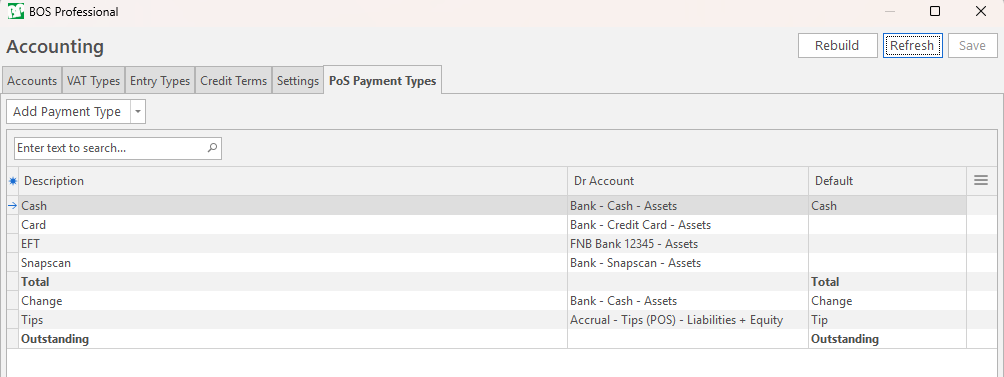
How to Add Payment Methods
Ensure all Payment Methods are listed above the Total line item.
Line items can be reordered by right-clicking a line item and selecting Move Up or Move Down.
- Navigate to Main Menu > Setup > Accounting > PoS Payment Types (tab).
- Click Add Payment Type (button) to create a new line item.
- Under Description (column), enter the name of the payment method (e.g. EFT).
- Under the Dr Account (column), select the appropriate account to debit for this payment method (e.g. Bank 1234 - Assets).
- Leave the Default (column) blank for all payment methods, except for Cash, which must have the default set to Cash.
How to Add Total Function
- Create a new line item and enter Total in the Description (column).
- Leave the Dr Account (column) blank.
- Set the Default (column) to Total.
How to Add Change Function
Ensure Change is listed below the Total line item and above the Outstanding line item.
- Create a new line item and enter Change in the Description (column).
- Under the Dr Account (column), select the same account used for the Cash payment type.
- Set the Default (column) to Change.
How to Add Tips Function
Ensure Tips are listed below the Change line item and above the Outstanding line item.
- Create a new line item and enter Tips in the Description (column).
- Under the Dr Account (column), select the appropriate Dr Account (e.g. Accrual - Tips).
- Set the Default (column) to Tip.
How to Add Outstanding Function
- Create a new line item and enter Outstanding in the Description (column).
- Leave the Dr Account (column) blank.
- Set the Default (column) to Outstanding.
- Make sure Outstanding is the last line item.
Summary
The PoS Payment Types should include these fields:
- Description > Dr Account > Default
- Cash > Cash - Assets > Cash
- EFT > Bank 12345 - Assets > n/a
- Total > n/a > Total
- Change > Cash - Assets > Change
- Cash Tips > Cash Tips Payable - Liabilities > Tip
- Card Tips > Card Tips Payable - Liabilities > Tip
- Outstanding > n/a > Outstanding
How to Set Up Denominations for PoS Cashups
The Point of Sale - Cashups module uses currency denominations to account accurately for cash on hand. The module uses the denominations set up to track the specific quantity of each currency denomination held.
- Navigate to Main Menu > Setup > Accounting > Settings (tab).
- Click the arrow next to Currencies to expand the group.
- Click Edit next to Denominations.
- Enter the Currency in words and symbols (e.g. Two Hundred Rand - R200) under the Description (column).
- Enter the value of the Currency in numbers under the Value (column).
- Add an Image of the denomination by selecting the dropdown menu under the Image (column), right-clicking and selecting Load or Paste.
- Note: Find specimen images on the website of your central bank (e.g. The South African Reserve Bank).
How to Set Up Items on PoS
The PoS module displays items from the materials list that are categorised as POS or Finished Goods & POS by type. Setting an item type to POS displays the item on the PoS module sales. Setting an item type to Finished Goods & POS lets you use the item in Quotations and Sales Orders outside the PoS module.
- Navigate to Main Menu > Materials > Setup Materials.
- Double-click the desired Material.
- Click Edit (button).
- Navigate to Detail (tab).
- Locate the Type (field).
- Click the dropdown and select either POS or Finished Goods & POS.
How to Set Up Price Ranges for Items
Price Ranges allow for the pricing of units based on the quantity purchased within specified intervals. When the item with a Price Range is selected in the PoS module, the Preview Item (window) pops up to help you select quantities accurately.
- Navigate to Main Menu > Materials > Setup Materials.
- Double-click the desired Material.
- Click Edit (button).
- Locate the Price Type (field).
- Click the dropdown icon.
- Select Price Range.
- Navigate to Costs & Prices (tab).
- Under Cost & Selling Prices (section), enter the Starting and Ending Quantities of the price into the Qty From (column) and Qty To (column).
- Enter the unit selling price into the Sell Price (column).
How to Set Up Fixed Quantity Prices for Items
Fixed Quantity prices are where specific prices are assigned to a Fixed Quantity of Items without available pricing for intermediate quantities. When the Item with a Fix Quantity is selected in the PoS module, the Preview Item (window) pops up to help you select quantities accurately.
- Navigate to Main Menu > Materials > Setup Materials.
- Double-click the desired Material.
- Click Edit (button).
- Locate the Price Type (field).
- Click the dropdown icon.
- Select Fixed Qty.
- Navigate to Costs & Prices (tab).
- Under Cost & Selling Prices, enter the desired selling quantity into the Qty (column).
- Enter the total selling price into the Sell Price (column).
How to use Batch Updates when Setting Sell Prices
The Batch Update within the Cost & Selling Prices (section) adjusts Selling Prices based on a specified Markup or Gross Profit Percentage.
Additionally, it rounds either the VAT Inclusive or Exclusive Selling Price to the nearest specified value.
- Navigate to Main Menu > Materials > Setup Materials.
- Double-click the desired Material.
- Click Edit (button).
- Navigate to Costs & Prices (tab).
- Under Cost & Selling Prices (section), locate Batch Update.
- Select the dropdown adjacent to Set Sell Price and select either MU (Markup) or GP (Gross Profit).
- Locate the input field directly to the right to set the MU or GP percentage.
- Select the dropdown adjacent to Round to and select either VAT Exc. or VAT Inc.
- Locate the input field directly to the right to set the Round Up value.
- Shift-left-click to select multiple selling prices.
- Select Update (button).
How to Set Up Barcode for Items
The PoS module allows items to be found using a barcode and uses the Selling Price of an Item linked to the Barcode.
- Navigate to Main Menu > Materials > Setup Materials.
- Double-click the desired material.
- Click Edit (button).
- Navigate to Costs & Prices (tab).
- Under Cost & Selling Prices (section), locate the Field Chooser (*) and check Barcode (checkbox).
- Enter the code into the Barcode (column).