Job tracking is done using a separate lightweight executable (Tracker.exe), which is by default disconnected from the Database.
When you log in, a connection is made and when you log out, the database is disconnected. This module supports touchscreen input (minimum resolution 1024x768px) and input from Barcode Scanners.
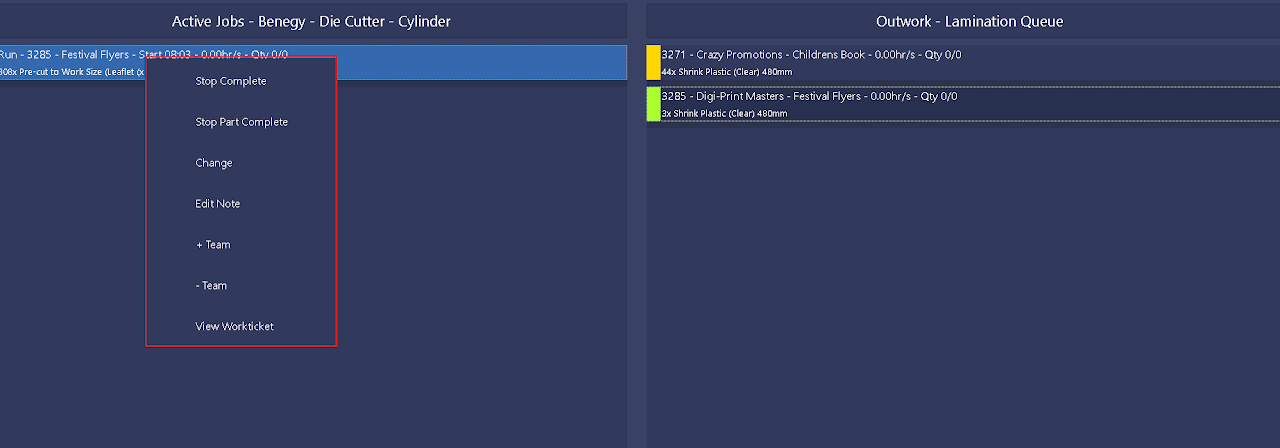
Jobs can be tracked for teams. After starting the clock, you can increase or decrease the team size as required by clicking the selected job to open the context menu.
During lunch or tea breaks, you can Pause all the Active Users and Teams and then Resume tracking at the end of the break.
For barcode scanning, the bcCode39 barcode type is recommended as the easiest to use (check digit not required) and the easiest for scanners to recognise.
Up to 43 alphanumeric characters can be added to this barcode type, but for tracking purposes, you only add numeric characters to the barcode – PIN No., WO No. or Service ID. More at https://en.wikipedia.org/wiki/Code_39.
Open BOS Professional > Main Menu > Setup > Settings & Defaults > Settings (tab)
Info
This setting is also available on the login screen of the Tracker app, however, that setting is only valid for that session. Setting the logout time here, saves the setting.
Note
The defaults are the values for new databases and new users. Your database may have different values.
Open BOS Professional > Main Menu > Office > My Organisation > Staff (tab) > Double-click a staff member name > Settings (tab).
Setting
Description
Default
Tracker > Custom Firebird Stored Procedure - Create a File
Enter the name of a custom Firebird Stored Procedure, which is fired when the Execute button is clicked.
If the setting is blank, it is ignored.
The Input Parameters must be the same as those of the Execute Procedure (STAFFID, WOID, WOPROCID, COMPLETEID), and it must return the following Output Parameters:
FILENAME varchar(250): Must return the full path and filename of the file to be created. If the FILENAME parameter returns an empty or null string, the file is not created.
FILECONTENT blob: Optional – content is not required for the file to be created.
COMPLETEID integer – 0 = Part Complete; 1 = Complete
Output Parameter
TIMELOGID integer
The simplest method is to copy and rename the default procedure so that the parameters are already there. Always prefix the name of any custom tables, procedures or triggers with CUSTOM_... to differentiate them from the system tables, procedures or triggers.
Blank
Tracker > Digital Delivery Notes - Access Allowed
Options are Yes or No. Allows users access to Delivery notes.
No
Tracker > Enter a Note on Stop
Options are Yes or No. Lets you enter a note when a timekeeping record is stopped.
Select from Queue (Touch): Operators select a Job from the Planning Board Queue in the right-hand panel where Tasks are listed in the same order as they are arranged on the Planning Board. The Queue defaults according to the Cost Centre the Operator is linked to, but they may select a different Queue. Tasks that are New or Waiting are not displayed in the Queue.
Enter WO No. (Scan or Keypad): Operators must scan or manually enter the Work Order Number.
Enter Service ID (Scan or Keypad): Operators must scan or manually enter a Service Number.
Note: When using Barcode Scanners or manually entering the numbers, the first task in the Planning Board Stage to which the Operators' Cost Centre is linked is automatically selected. For the above two options (Enter WO No. or Enter Service ID), operators cannot enter production codes, inventory quantities or notes.
Select from Queue (Touch)
Tracker > Timekeeping: Set Status on Stop
Determines how the Planning Board Status is updated when a task is stopped. The options are:
N/A: No confirmation message appears, and the status is not updated.
Confirm: You are prompted to confirm that the task is complete. If confirmed (Yes), the task is set to Complete, else (No) the task is set to Part Complete.
Complete: The task is set to Complete without displaying a confirmation message.
Part Complete: The task is set to Partially Complete without displaying a confirmation message.
Confirm
Tracker > Timekeeping: Use the Cost Centre linked to the Service
The setting only applies when the job is a Service. The options are:
Yes: The Cost Centre linked to the Service is used.
No: By default, the Cost Centre linked to the Operator is selected to calculate the Actual Cost.
No
Tracker Login (PIN)
Field to enter a pin to give the user access to the Tracker App.
This screen appears after you successfully log in on the Tracker Login Screen.
Field
Description
Active Stage Display (Left Panel)
If a job is active (Busy, Ready or Part-Complete), it appears on the left with a description of the Stage.
The Active Jobs appear in the following format:
WO No - Prod Code - Team Qty - Service - Reference - Started - Hours
WO No: The Work Order Number (numerical only).
Production Code: Only displayed when the Timekeeping is not linked to a Work Order, truncated to 20 characters.
Team Qty: Only displayed when the Team quantity exceeds one (e.g. x4).
Service: Only displayed if a Work Order Service is selected. Information is truncated to 10 characters.
Reference: The Work Order Reference which is truncated to 20 characters.
Started: The time at which the timekeeping was started.
Hours: The Duration since the start and the current time in hours.
Examples:
1234 - x5 - Trim to si... - BigCompany Friday S... - Start 12:05 - 2.54hr/s
Downtime - Mainten... - Start 12:05 - 2.54hr/s
Below the Stage name in the left panel are details of the job. Clicking the job displays a context menu (see screenshot below). The options depend on the settings and whether a job was already started:
Stop Complete: Stops the job and marks it complete.
Stop Part Complete: Stops the job and marks it partially complete.
Change: Stops the current job, requests the quantities completed or partially completed / Displays a screen with the next stages for you to select one.
Edit Note: Brings up a note editor.
+ Team: Lets you add one for every press to the number of team members.
- Team: Lets you subtract one for every press from the number of team members.
If the Team size is updated within 30 seconds of starting, the active Timekeeping Record is updated, else the active record is closed and a new timekeeping record is created.
View Workticket: Opens the PDF output of the work ticket. The work ticket must be uploaded first from the desktop app as follows:
From editing a Work Order: click Output (button) > Upload Workticket (.pdf) and select one of the options listed there (e.g. Work Ticket, Work Ticket - Labels).
Stage / Select A Stage (Right Panel)
The name of the Active Stage appears on the top banner on the right.
Below the top banner are the details of the job.
The Active Stage field is clickable and changes as follows when clicked:
The top bar changes to: Select a Stage.
Below that, the stages are listed for you to select a stage.
Start (button)
Starts the selected job.
Start Downtime (button)
Starts recording downtime.
Logout (button)
Logs you out of the Tracker App: Asks for a confirmation, then closes the app.