
Declutter Your BOS Professional Database: Keep It Lean, Fast and Useful
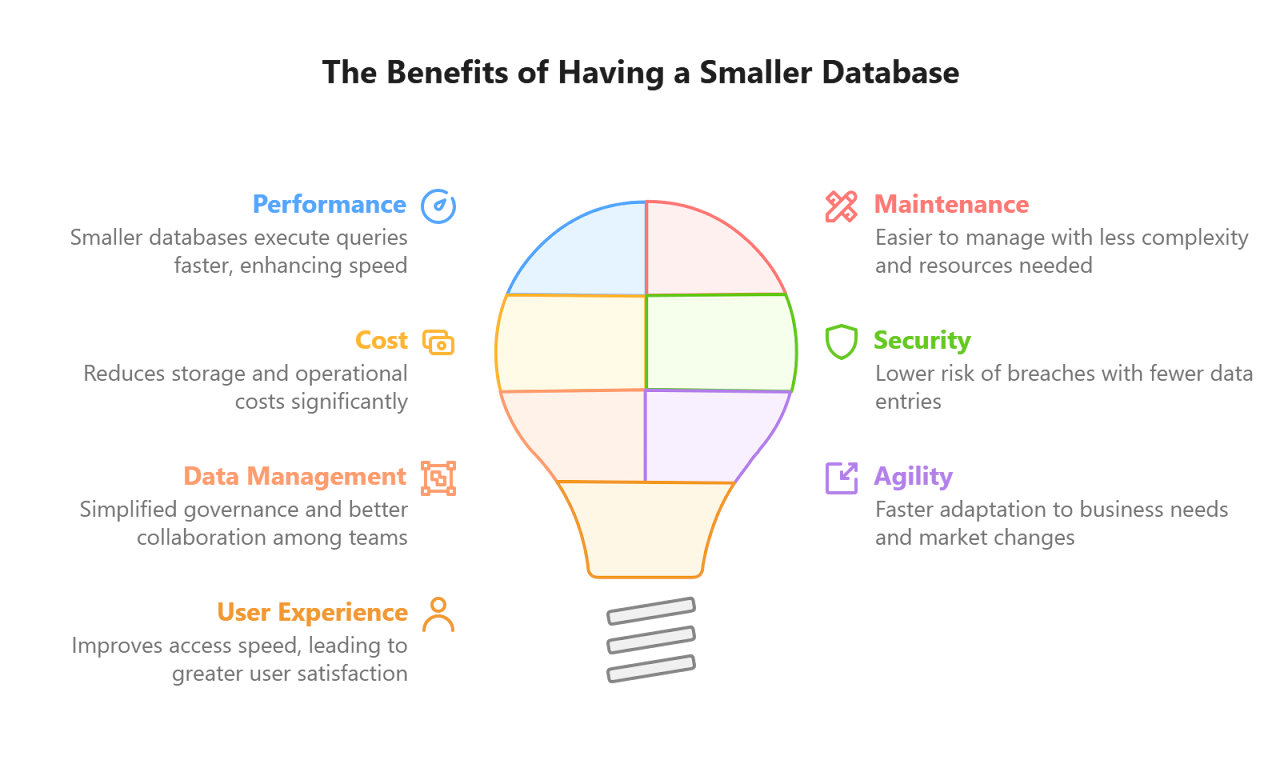
Just like a filing cabinet, your BOS Professional database benefits from regular housekeeping. Removing outdated, blank or unnecessary records can make your database easier to search, simpler to manage and more focused on the information your team actually uses. A smaller, cleaner database also improves system performance.
This knowledge blog highlights practical areas where you can start tidying up. It also introduces useful features you may not be using yet and shows how to get more value from the tools already available to you.
1. Start with Attachments
The Attachments module brings together the files and images added to transactions and records, including item, customer and supplier records. Over time, this area can collect documents that are expired, duplicated, incomplete or no longer relevant.
Useful attachment features to know
- Attachments can include issued and expiry dates, which is useful for documents such as memberships, work visas, licences or compliance records.
- Status options help you manage attachment lifecycles. Attachments can be marked as Pending, Active or Expired, with Active as the default status.
- The description field is hyperlinked, so clicking it opens the attachment in a web browser.
- The right-click context menu lets you open the linked transaction, customer or supplier, and provides options to edit or delete the attachment.
- Selected attachments can be emailed directly by clicking the Email button.
What to clean up
A good place to begin is with attachments that have expired or are several years old and no longer serve a business purpose. These records may no longer support current transactions, customers or suppliers, and removing them can make it easier to find the documents that still matter.
You may also see blank attachment records. These are usually created when someone starts adding an attachment but leaves the process before selecting a file or image. Blank attachments are indicated by the word (blank) in the description column and can safely be deleted.
At present, attachments are deleted one at a time. To remove an attachment, right-click it and select Delete, then confirm the deletion. You can also select the entry and press Ctrl + Delete on your keyboard.
2. Review Sent Emails
Emails sent from BOS Professional are stored in Sent folders. If you select the Sent folder, No Date next to Set and click the View button, you may find thousands of entries going back several years.
Unlike attachments, this module lets you delete multiple emails at once. Select the emails you no longer need and click the Delete button to remove them.
Because BOS Professional does not store attachments to emails, deleting sent email records may not free up as much space as expected. However, some businesses use the BCC field to send a blind copy to a dedicated email address for attachment retention. If yours does, it is also worth reviewing and clearing that mailbox periodically.
3. Manage Audit Trails
Audit trails are valuable because they record changes to transactions, including updates, status changes and deletions. Each audit entry is timestamped, helping you understand what changed and when.
How to view audits
To display audits, click Audits under Reports, then select the relevant module from the dropdown list next to the word Audits. Click the View button to display the records. When you finish viewing the entries, double-click the Audits tab to minimise it.
Choose how long to keep audit history
Audit records can grow quickly across multiple modules. If your team rarely reviews older audit trails, or only needs recent audit information, consider adjusting the retention setting.
Go to Settings & Defaults and update the general setting General > Delete Audits older than (Enter number of months). Enter the number of months of audit history you want to retain. For example, setting this to three months lets you keep recent audit records available while avoiding years of unused audit data.
When the first user logs in each day, BOS Professional checks whether any audit entries are older than today’s date plus the number of months entered in the setting. Entries outside the selected retention period are then deleted automatically.
From version 26.02, two similar general settings delete old PDF documents: Quotations > Delete Quotations (PDF Docs) older than (Enter number of months) and Work Orders > Delete Worktickets (PDF Docs) older than (Enter number of months). Both default to 6 months, and the delete runs when users log in.
Make Database Housekeeping Part of Your Routine
Database clutter builds up gradually, so the best approach is to make cleanup a regular habit. Schedule time to review attachments, sent emails and audit retention settings, especially after several years of using BOS Professional.
A cleaner database helps your team work with greater confidence, spend less time searching through outdated information and get more value from the features already built into BOS Professional.
If you need help deciding what to keep, what to delete or which settings are best for your business, contact our support team and we will gladly guide you through the process.
Not seeing these features? Contact support for assistance.