
Work Orders Edit View Tutorial
Overview
Work Orders (WO) are the work instructions which are given to the production facility.
- Work Orders are also known as Work Tickets, Job Cards and Routing Forms.
- Work Orders can be created directly in the module (e.g. to replenish stock or make a sample).
- Work Orders can also be created by copying Estimates or Sales Orders.
💡These tutorials explain how to create and edit Work Orders.
How to Create a Work Order
This procedure provides a blank and unlinked Work Order for you to complete as needed.
- Navigate to Work Orders (Main Menu > Production > Work Orders).
- Click New (button) > New Work Order.
- Fill in the details as follows:
- Status Bar:
- Status = Select a status from the dropdown list in the first field (Default = Pending).
- Production Location = Select a location from the dropdown list in the second field.
- Status Note = Enter any note on the third field (optional).
- Req Date = Select the date and time that matches the Customer's deadline in the two fields provided.
- Due Date = Select the date and time by which production must be finished to meet the Customer's deadline.
- Header:
- Date: The date defaults to today. You can edit it if necessary.
- Customer = Select a customer from the dropdown list of customers. If the Work Order is created for inventory, select Internal or a similar name that you use for in-house production.
- Contact = Select the customer's contact person from the dropdown list.
- Rep = Select a rep from the dropdown list of reps.
- Reference & Note = Enter a reference in the top block and a note in the bottom block. The reference is normally a description of what you are producing (e.g. Brochures).
- Qty = Enter the quantity of the item that you are producing.
- Deliver to = Select the Customer's Delivery Address from the dropdown list.
- Controller = Select the person who controls production from the dropdown list of users.
- Category = Select a Header Category from the dropdown list.
- Order No. = Enter an order number in the block provided if applicable.
- Type = Select Production or Design from the dropdown list.
- Details: Complete the applicable tabs as described below:
- Output
- Specification & Notes
- Materials
- Services
- JDF Switch
- Status Bar:
- Click Save (button).
How to Complete Output (tab)
Details about the finished product (what you are producing) is entered in Output (tab).
If you select to add an existing Sales Order, all the tabs are auto filled using the details from the Sales Order.
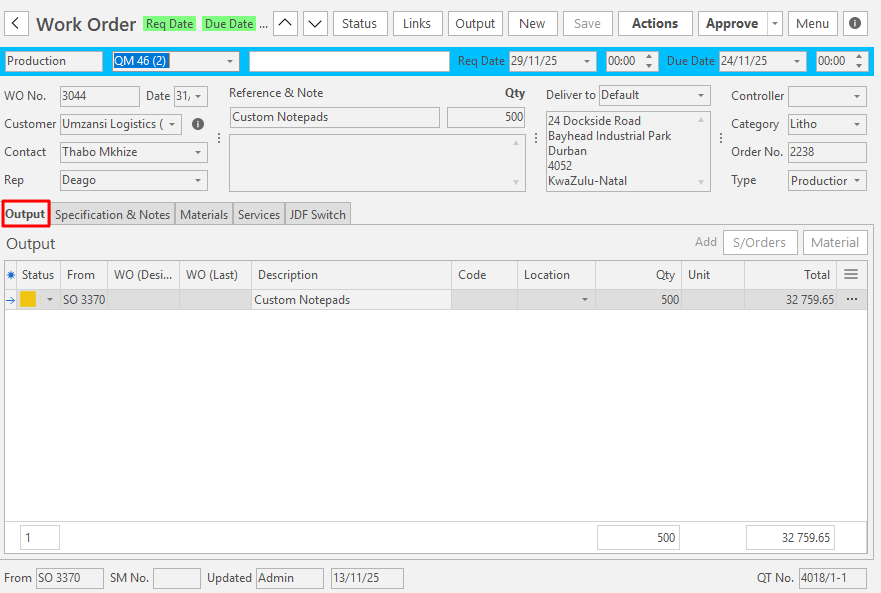
- From a Sales Order:
- Click S/Orders (button).
- Select the Sales Order from the list of available Sales Orders on the popup.
- Click Add (button) on the popup.
- Click Close (button).
- From a Material:
- Click Material (button) on the right.
- On the popup:
- Enter the name of the material or part thereof in the Search block.
- Click View (button) to display a list of materials that contain the phrase entered the search block.
- Click the applicable material on the displayed list.
- Click Select (button).
- Enter the quantity that must be produced in the Qty field:
- Note: If the item is linked to a costing or an estimate, this quantity equals the number of times you are producing the selected option (e.g. if you select an item that is 2 000 business cards and you are printing 2 000 business cards, the quantity is 1. If 2 000 is the highest option and you are printing 4 000 cards, the quantity is 2 (2 x 2 000 = 4 000)).
- Click Add (button).
How to Complete Specifications & Notes (tab)
If the Work Order is copied from a Sales Order, or a Sales Order is added, this tab is auto filled with details from the Sales Order.
If the Work Order is created from a material, any specification details or notes can be filled in on this tab.
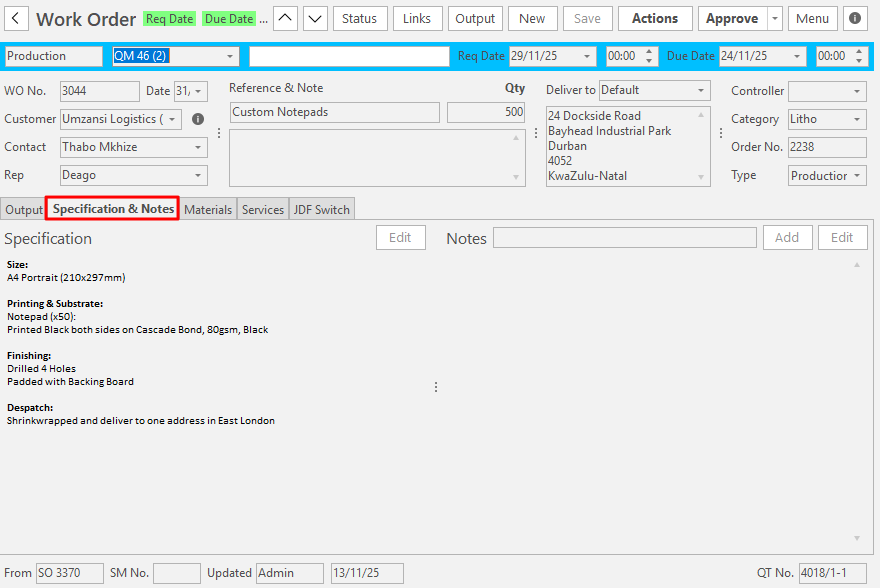
- Click Edit (button) to the right of Specification.
- A rich-text editor is opened to enter any specification information for the production team.
- Click Save (button) on the popup after you enter the information.
- Click Close (button) to close the rich-text editor.
- Notes = Enter the note and click Add (button).
- Note: The notes can be edited by clicking Edit (button). All the notes become editable and can be overtyped or edited in the note block.
How to Complete Materials (tab)
If the Work Order is copied from a Sales Order, or a Sales Order is added, this tab is auto filled with details from the Sales Order.
On this tab you enter the materials that are required to produce the Output as specified on Output (tab).
If the material is part of an estimate, a popup to Update Work Order from an estimate may appear. From this popup, you can search for and select the applicable Estimate and change the quantity.
Alternatively, close the popup to leave the estimates unchanged.
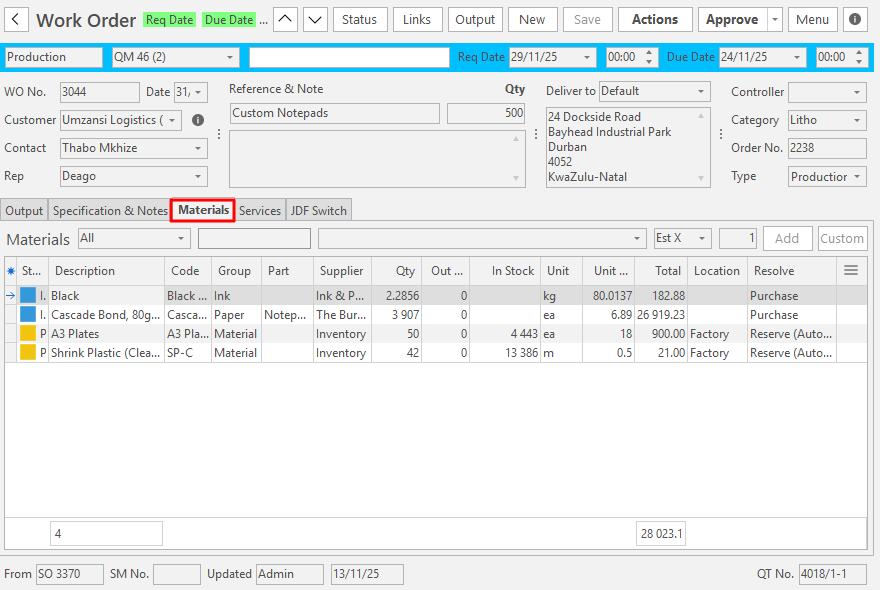
- Add a Material as follows:
- Select a Category in the first block next to Materials.
- Enter the name or part of the name in the second block to filter the list (optional).
- Select the material from the dropdown list of Materials in the third block.
- Select the Quantity Type in the fourth block from the dropdown list:
- Fixed: The quantity is fixed regardless of the Output Quantity.
- Est X: The quantity is multiplied by the Estimate Quantity. The material must be linked to an estimate; else the quantity is zero.
- Est /: The quantity is multiplied by the Estimate Quantity per Unit. The material must be linked to an estimate; else the quantity is zero.
- Click Add (button).
- Add a Custom item as follows:
- Click Custom (button) on the right.
- On the popup, fill in the details as follows:
- Name = Enter a name for the material in the first block that spans the popup.
- Supplier = Select a supplier from the dropdown list of suppliers.
- Component = Enter a component name for the material.
- Group = Enter a name for the Group the material belongs to (e.g. Ink, Paper, Material).
- Resolve = Select one of these options from the dropdown list:
- Purchase: A Purchase Order must be created to purchase the stock (the item appears when you click Actions (button) > Copy to Purchase Order).
- Reserve Stock: The stock is available, and the specified quantity is reserved for this order.
- Issue Stock: The stock is issued to this Work Order (the item appears when you click Actions (button) > Copy to Materials Movement (Issue Materials)).
- Instructions = Click Edit (button) to open a rich-text editor. Enter any instructions, click Save (button) and Close (button) to close the rich-text editor.
- Quantity = Select an option from the dropdown list:
- Fixed Qty = Enter the quantity in the second block. This quantity is fixed regardless of the item quantity.
- Item Qty = Fill in the three fields below Item Qty:
- Setup Qty = The quantity of materials used during setup.
- Unit Qty = The quantity of materials needed to produce 1 unit of output.
- Min Qty = The minimum quantity of materials. If the unit quantity is lower than the minimum quantity, the minimum quantity is used.
- Cost = Enter the Cost per Unit.
- Weight = Enter the weight and select a unit for the weight in the adjacent dropdown list.
- Click Save (button).
- Click Close (button).
- Repeat Steps 1 or 2 until all the required materials are added.
- Note: You can right-click an entry and select Delete Item or Edit Item as needed.
How to Complete Services (tab)
If the Work Order is copied from a Sales Order, or a Sales Order is added (see Output (tab)), this tab is auto filled with details from the Sales Order.
This tab is for you to enter the services that are required to produce the Output as specified on Output (tab).
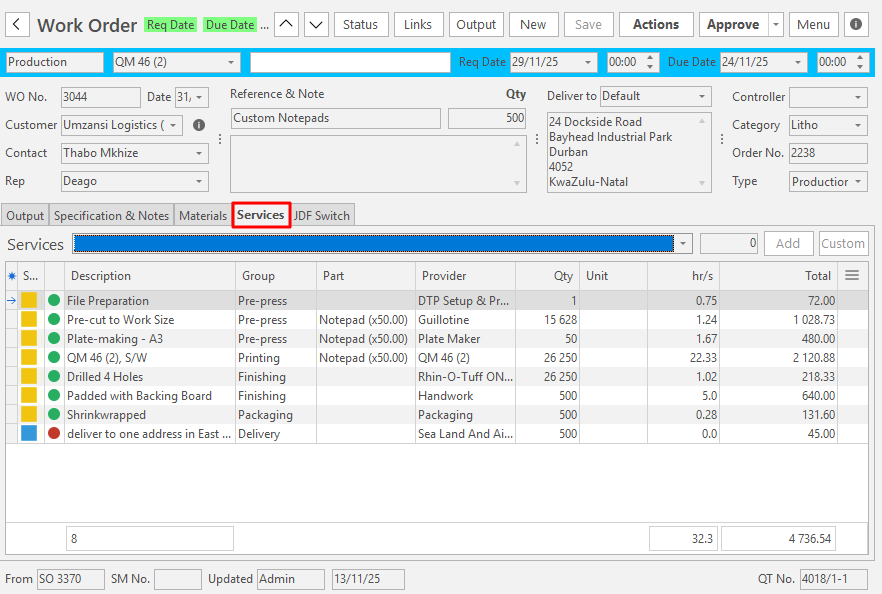
- Add a Service as follows:
- Services = Select a service.
- Enter the Quantity of this service that is required (number or hours) in the adjacent block.
- Click Add (button).
- Add a Custom Service as follows:
- Click Custom (button).
- On the popup, fill in the details as follows:
- Name = Enter a name for the service in the first block that spans the popup.
- Component = Enter a component name for the material.
- Group = Enter a name for the Group the material belongs to (e.g. Pre-press, Printing, Finishing, Packaging).
- Cost Centre = Select a Cost Centre from the dropdown list, or
- Supplier = Select a supplier from the dropdown list if the service is outsourced.
- Production Time = Enter the following information in the blocks provided:
- Setup (hr) = The time taken to set up the service.
- Speed = The quantity that can be produced in the time entered in the /hr field.
- /hr = The time in hours that it takes to produce the quantity filled in for Speed.
- Production Costs = Enter the following information in the blocks provided:
- Setup Cost = The cost of setting up the service (charged once).
- Unit Cost = The cost per unit produced.
- Instructions = Click Edit (button) to open a rich-text editor. Enter any instructions. Click Save (button). Click Close (button) to close the popup.
- Quantity = Select Fixed Qty or Item Qty from the dropdown list and enter the quantity of the service required in the adjacent block.
- Qty up = The quantity produced in the additional hours.
- Multiply by = The additional hours needed for the service.
- For example: Add a Custom Service with a Cost Centre Hourly Rate of R500, Setup Cost of R120, Setup Duration of 1 hour, Unit Setup Cost of R5 and an Output quantity of 23 units:
- Production hours: 23 units x 1 (Multiply by) / 1 (Qty Up) = 23 hours.
- Production Time: Setup (hr) 1 = R500.
- Production Speed: 2 units an hour = 23 units / 2 per hour x R500 hourly rate = R5 750.
- Production Costs: Setup Cost R120 (once) + Unit Cost R5 x 23 units = R235.
- R500 (2) + R5 750 (3) + R235 (4) = R6 485 Total Cost.
- If we change this scenario to Qty Up = 2 and Multiply by = 3, the calculation changes as follows.
- Production hours: 23 units x 3 (Multiply by) / 2 (Qty Up) = 34.50 hours.
- Production Time: Setup (hr) 1 = R500.
- Production Speed: 2 units an hour = 34.5 units / 2 per hour x R500 hourly rate = R8 625.
- Production Costs: Setup Cost R120 (once) + Unit Cost R5 x 34.5 units = R292.50.
- R500 (2) + R8 625 (3) + R292.50 (4) = R9 417.50 Total Cost.
- For example: Add a Custom Service with a Cost Centre Hourly Rate of R500, Setup Cost of R120, Setup Duration of 1 hour, Unit Setup Cost of R5 and an Output quantity of 23 units:
- Click Save (button).
- Click Close (button).
- Repeat Steps 1 or 2 until all the required services are added.
- Note: You can right-click an entry and select Delete Item or Edit Item as needed.
- Note: To rearrange the services so they appear in the order that they must be executed, right-click a service and select Move Up or Move Down.
How to Complete the JDF Switch (tab)
This tab creates the data that is uploaded to Switch. It also records the progress notes received back from Switch.
The tab is auto filled from the estimate information, where applicable.
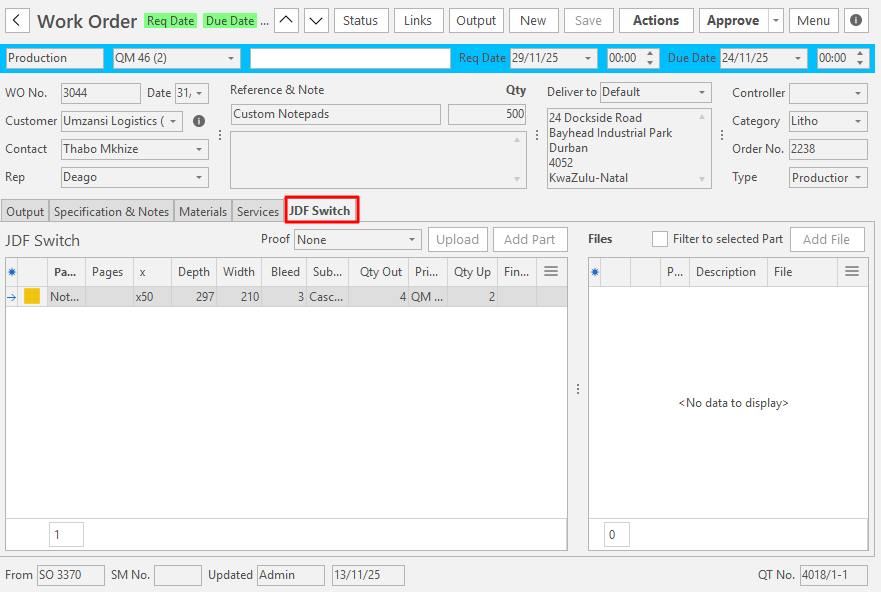
- See JDF Switch for more information on this tab.
How to Create a Work Order from a Material
This procedure is generally used when you create stock rather than creating an item for a specific customer.
If the material is part of an estimate, a popup to Update Work Order from an estimate may appear after Step 3. From this popup, you can search for and select the applicable Estimate and change the quantity. Alternatively, close the popup to leave the estimates unchanged.
- Navigate to Work Orders (Main Menu > Production > Work Orders).
- Click New (button) > New Work Order from Material.
- On the popup:
- Enter the name of the material or part thereof in the Search block.
- Click View (button) to display a list of materials that contain the phrase entered the search block.
- Click the applicable material.
- Click Select (button).
- Enter the quantity to make in the Qty Field:
- Note: If the item is linked to a costing or an estimate, this quantity equals the number of times you are producing the selected option (e.g. if you select an item that is 2 000 business cards and you are printing 2 000 business cards, the quantity is 1 (1 x 2 000). If 2 000 was the highest option and you are printing 4 000 cards, the quantity is 2 (2 x 2 000).
- Click Add (button).
- Edit any of the fields on the Work Order as needed. See How to Create a Work Order above for detailed explanations.
How to Create a Work Order from a Sales Order
Any Notes and Specifications added to the Sales Order are also copied to the Work Order.
- Navigate to Sales Orders (Main Menu > Customers > Sales Orders).
- Click View (button) if a list of Sales Orders is not already displayed.
- Right-click the Sales Order you want to copy and select Copy to Work Order.
- Note: You can also copy a Sales Order while editing it by clicking Actions (button) > Copy to Work Order.
- On the popup, select the items you want to copy by checking and unchecking the corresponding checkboxes.
- Note: Every Work Order has only one finished good, so each item you check becomes its own Work Order. A message shows how many Work Orders were created and linked to the Sales Order.
- Note: The Resolve option for the item must be set to Produce for it to appear on the list.
- Note: Only items or quantities that are not yet copied to a Work Order appear on the list.
- Click Copy (button).
How to Create a Work Order from a Quotation / Estimate
- Navigate to Quotations (Main Menu > Customers > Quotations).
- Set the date as needed and click View (button) to display a list of Quotations.
- Double-click the applicable Quotation to edit it.
- Right-click the applicable Item on the Item section of the Quotation and select Open Estimate.
- If the estimate has an Input section (parts that must be produced), click Actions (button) > Copy to Work Order.
- Note: If the Quotation is older than 30 days, you are alerted and asked to confirm the copy.
- Note: If the Quotation is already accepted, you are alerted and asked to confirm the copy.
- Confirm that you want to copy the Quotation to the Work Order.
How to Edit a Work Order
Whether a Work Order can be edited depends on multiple factors, including statuses and user permissions.
- Display a list of Work Order transactions.
- Right-click the Work Order you want to edit and select Edit.
- If editable, make any changes. If not editable, you may need to change the Status to Pending first.
Additional Work Order Functions
How to Add Attachments to Work Orders
A list of attachments appears on the Work Order's header to the right. Attachments can be edited or deleted by right-clicking the attachment and selecting Edit or Delete.
- Edit a Work Order.
- Click Actions (button) > Add Attachment.
- Complete the popup as follows:
- Status = Select a Status (Pending, Active, Expired) from the dropdown list.
- Type = Select one of these types from the dropdown list:
- Agreement
- Artwork
- Image (.jpg, .png)
- Other
- Quotation
- Specification
- Signature
- Description = Enter a description of the attachment.
- URL/Filename (Click the ... button to browse your local network) = You can paste / type a URL or browse to your local network and select the file to upload.
- Expires = Select an expiry date on the calendar.
- Click Save (button) if not greyed out.
- Click Close (button).
How to Create a Linked Non-conformance Report (NCR)
- Edit a Work Order.
- Click Actions (button) > Create a linked NCR > Select one of these options:
- Customer Issue
- Despatch
- Finishing
- Installation
- Materials
- Outwork
- Pre-press
- Printing
- Confirm that you want to create a linked NCR.
- You are transferred to the Edit NCR interface, where you can complete the report.
How to Update the Work Order from an Estimate
Use this feature if the estimate is updated and the Work Order was created before that update. Work Orders are not automatically updated from revised Estimates.
- Edit a Work Order.
- Click Actions (button) > Update Work Order from Estimate.
- On the popup, search for the linked Estimate if necessary (the number may be prefilled).
- Select a Type from the dropdown list and enter a number or phrase in the adjacent fields.
- Click View (button).
- Click the applicable Estimate.
- Click Select (button).
- Note: There is no confirmation; the Work Order is updated.
How to Update the Work Order from a Source Transaction
Use this feature if the Source Document was edited, or if you want to link the Work Order to a different Source Transaction.
- Edit a Work Order.
- Click Actions (button) > Update the From Transaction.
- Select the applicable transaction from the dropdown list (Quotation, Sales Order, Campaign).
- Enter the Transaction Number in the adjacent block and the Version Number if the applicable transaction is a Quotation.
- Click Update (button).
- A warning explains that updating the From Transaction breaks the links to downstream transactions. Click Yes to continue, or Cancel to keep the current links. The popup closes once the update is done.
How to Download Progress from JDF Switch
- Edit a Work Order.
- Click Actions (button) > Download Progress from JDF Switch.
- From the popup (file navigator), select the applicable .xml file.
- Click Open (button).
- Click JDF Switch (tab) to view the information.
How to Set the Output Cost Ratio by Quantity
Apportions the costs according to the quantity.
For example, if you combine six business card orders on one sheet, your Work order has six output items. This action apportions the cost to all the output items according to their quantities.
- Edit a Work Order.
- Click Actions (button) > Set Output Cost Ratio by Quantity.
How to Set the Output Quantity to the Work Order Quantity
In certain circumstances, you may receive a warning that the Work Order quantity does not match the Output quantity. This procedure aligns the quantities.
- Edit a Work Order.
- Click Actions (button) > Set the Output Qty to the Work Order Qty.
- Note: There is no confirmation. The Output quantity is changed.
How to Change a Work Order's Status
Work Order Statuses affect Production Planning, and their statuses are changed as the job proceeds through production.
If you change the status directly, the job might lose its place in production (e.g. a Work Order with the status of Production appears on the Production Board. When the status is Ready it appears on the Tracker App (if applicable) for operators to perform the various tasks.
- Edit a Work Order.
- Click Status (button) on the top row of buttons and select a status from the dropdown list of available statuses.
How to Export a Work Ticket to Display on the Mobile or Tracker Apps
The uploaded work ticket can be viewed and deleted from the Actions button.
- Edit a Work Order.
- Click Output (button) > Upload Workticket (.pdf) and select one of the options from the dropdown list.