
Email Tutorial
Overview
- Emails can be sent directly from the various modules of BOS Professional.
- The recipients are the contact people added to Customer and Supplier records.
- When emails are created, they are placed in the Outbox from where they can be checked and sent.
- The Email module includes the same basic functions as most email software such as To, CC and BCC fields.
- Emails can only be sent from BOS Professional. You cannot receive emails in BOS Professional.
- Emails that cannot be sent are moved to the Failed folder.
- Both the email body and subject can be pre-written and individualised.
💡These tutorials explain how to create and send emails, and how to create email templates.
How to Create Email Stationery
- Navigate to Settings.
- Enter Output in the search block.
- Next to the setting: Output (Print, PDF, Email) > Output Templates: click Edit in the Value column.
- Click Code (tab) (it is open by default).
- Use the HTML commands displayed on the left to create a template on the right (see example below).
- These tags can be used in the main Message body of the email template:
- [COMPANY]: The name of the Company linked to the recipient.
- [TITLE]: The recipient's Title.
- [FIRSTNAME]: The recipient's First Name.
- [SURNAME]: The recipient's Surname.
- [LISTNAME]: The recipient's full name: First Name & Surname.
- [REP]: The Sales Representative linked to the recipient's Company.
- Click Save (button).
- Click Preview (tab) to see what the email looks like.
- Click Close (button).
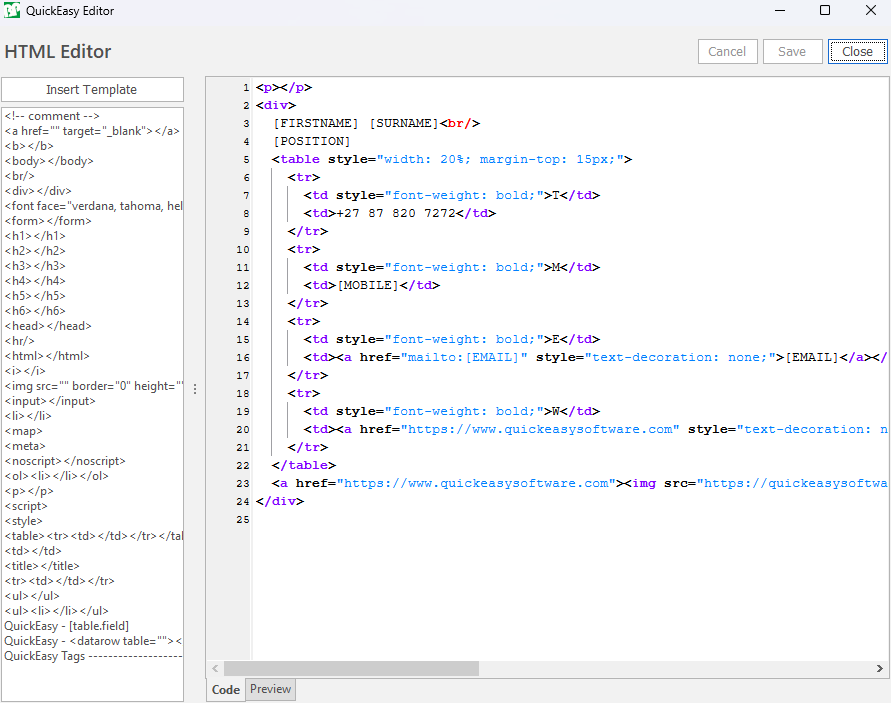
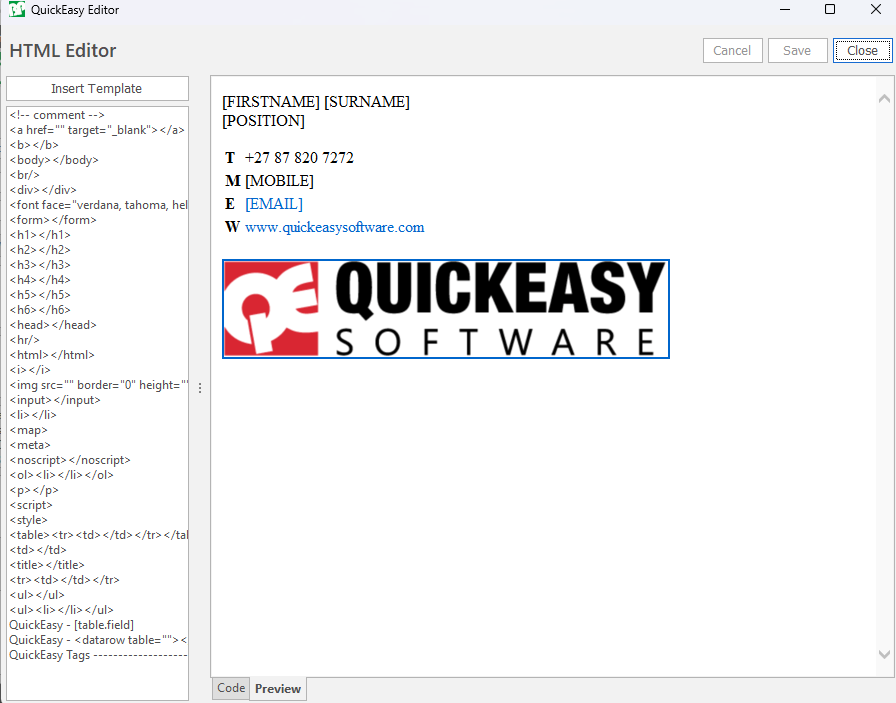
Script:
<p></p>
<div>
[FIRSTNAME] [SURNAME]<br/>
[POSITION]
<table style="width: 20%; margin-top: 15px;">
<tr>
<td style="font-weight: bold;">T</td>
<td>+27 87 820 7272</td>
</tr>
<tr>
<td style="font-weight: bold;">M</td>
<td>[MOBILE]</td>
</tr>
<tr>
<td style="font-weight: bold;">E</td>
<td><a href="mailto:[EMAIL]" style="text-decoration: none;">[EMAIL]</a></td>
</tr>
<tr>
<td style="font-weight: bold;">W</td>
<td><a href="https://www.quickeasysoftware.com" style="text-decoration: none;">www.quickeasysoftware.com</a></td>
</tr>
</table>
<a href="https://www.quickeasysoftware.com"><img src="https://quickeasysoftware.com/wp-content/uploads/2023/07/Signature-QE-Logo-1.png" alt="Logo" style="max-width: 250px; margin-top: 20px;"></a>
</div>
How to Send a Single Email
Info
A single email can also be sent to a Static Group of recipients by adding a group instead of an individual to the To, CC or BCC fields.
- Navigate to Emails.
- Click New (button).
- Click the people icon next to the To, CC and BCC fields. Select a contact person on the popup and click one of these address buttons to add them:
- TO: The person who the email is addressed to.
- CC: Normally the person you send the email to for their information (e.g. the manager of the department).
- BCC: The people you want to include in the email without the recipient knowing about it. Also used for group emails so that customers do not see other customers' email addresses.
- Note: Emails can only be sent to people who are on the contact list, you cannot type in an email address.
- On the right, edit the From Address or Name if applicable.
- Content type = Select one of these options:
- Plain text: Lets you enter the message.
- HTML = Paste the HTML code in the block.
- Stationery: Uses the stationery to send the email (see above).
- Note: In version 26.05 and later, with Use WYSIWYG HTML Editor set to Yes, there is no Content type field: the Subject has its own row, you write the message on the Editor page, and the email is sent as HTML. Sent Items show exactly as they were sent, and are read-only (see HTML Editor).
- Complete the rest of the email as you would an ordinary email.
- Add an attachment, if necessary, by clicking Load (button) on the Attachments row.
- Click Send (button).
Bulk Emails
Contact groups
Info
Contact Groups can be static or dynamic.
Static Contact Groups: The recipients are manually added or removed.
Dynamic Contact Groups: Recipients are determined by an SQL query.
How to Create a Static Group
- Navigate to Contact Groups.
- Click New (button).
- Static = Check the checkbox (it is checked by default).
- Click Add (button).
- Name = Enter a name for the group.
- Continue adding recipients by repeating Steps 3 and 4.
- Click Save (button).
How to Create a Dynamic Group
- Navigate to Contact Groups.
- Click New (button).
- Static = Uncheck the checkbox (it is checked by default).
- Click Edit SQL (button).
- Click Template (button).
- Edit the template to select the specific recipients you need.
- Click Test (button) to check if the SQL query is valid.
- Click Save (button).
- Click Close (button).
How to Send a Template Email to a Group
In this context a template is an email that is saved in the templates folder so that it can be used again.
To create a template: Select the templates from the dropdown list next to folder. Click New (button) and add a subject. Complete the rest of the email as you normally would but leave all the To, CC, and BCC fields blank.- Navigate to Emails.
- Click Menu (button) > Send Email to Contact Group.
- Click a template on the popup list.
- Click Next (button).
- Select the Group or Groups the email must be sent to.
- Click Next (button).
- Select whether to send an Email or SMS from the dropdown list.
- Click Next (button).
- If the query has a problem, an error message appears. Otherwise, the email is generated.
- Click Finish (button).
How to View Failed Emails
- Navigate to Emails.
- Folder = Select Failed.
- Click View (button).