Outsourced Items Tutorial
Overview
An outsourced (outwork) estimate prices a job that a supplier produces for you. You set up its lookup lists and services once, then add the estimate to Quotations.
💡These tutorials explain how to set up the lookup lists and services for outsourced estimates, and how to add an outsourced estimate to a Quotation.
For every field, button and tab on the estimate, see Outsourced Estimates.
How to Set Up the Lookup Lists
- Navigate to Main Menu > Setup > Settings & Defaults and click the Settings tab.
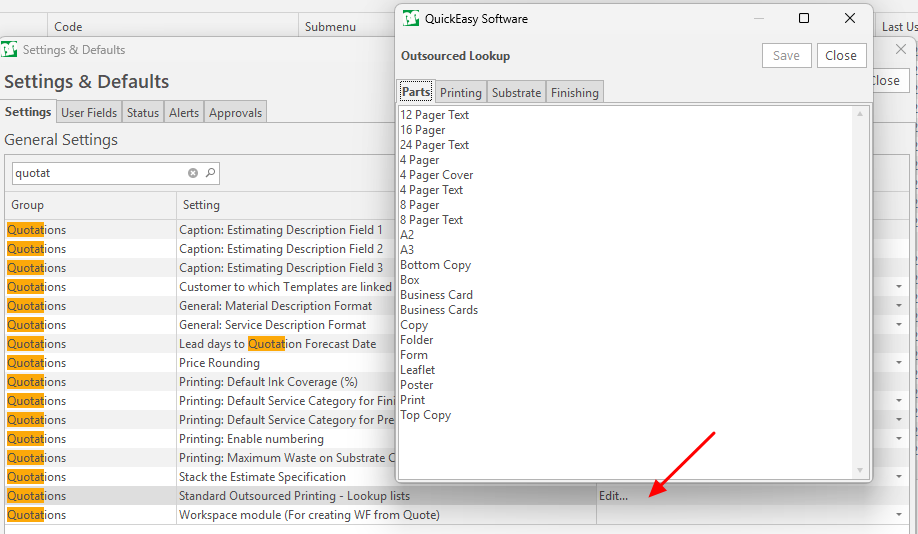
- Find the setting Quotations > Standard Outsourced Printing - Lookup lists and click Edit in the Value column.
- Create the lookup lists on the Parts, Printing, Substrate and Finishing tabs, one entry per line.
How to Import Lookup Items from the Online Library
Substrate and Finishing items can be imported from the Online Library. The items must also be imported into the Material Categories.
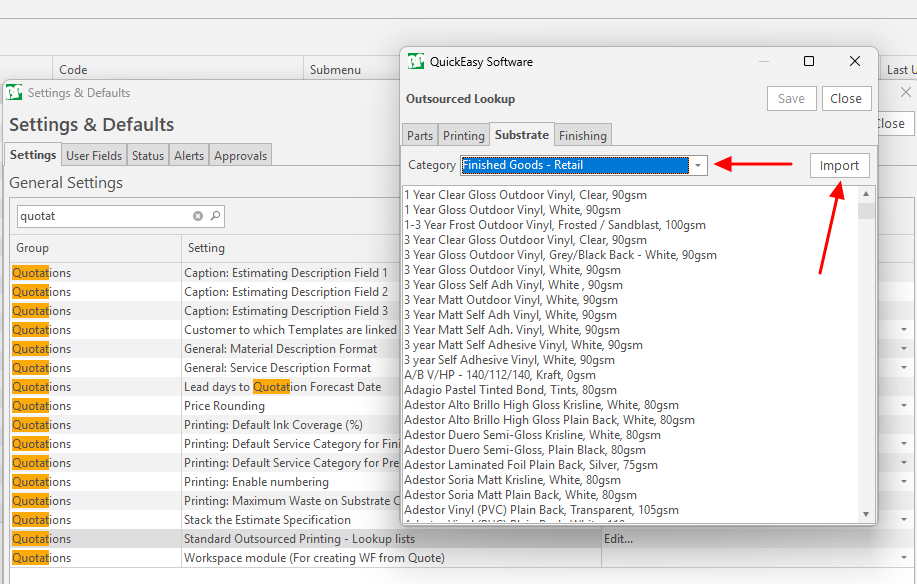
- Navigate to Main Menu > Setup > Settings & Defaults and click Edit next to Quotations > Standard Outsourced Printing - Lookup lists.
- Click Substrate (tab).
- Category = Select the relevant category.
- Click Import (button) to load the imported items into the lookup list.
- Confirm the import.
How to Set Up a Service for Outsourced Estimates
- Navigate to Main Menu > Setup > Services.
- Double-click a service to edit it.
- Description = Enter a description.
- Definition = Enter the definition. It appears in the Pre-Press remarks field and on the Quotation Letter.
- Service Category = Select the category.
- Check Add this Service to the Quote Description.
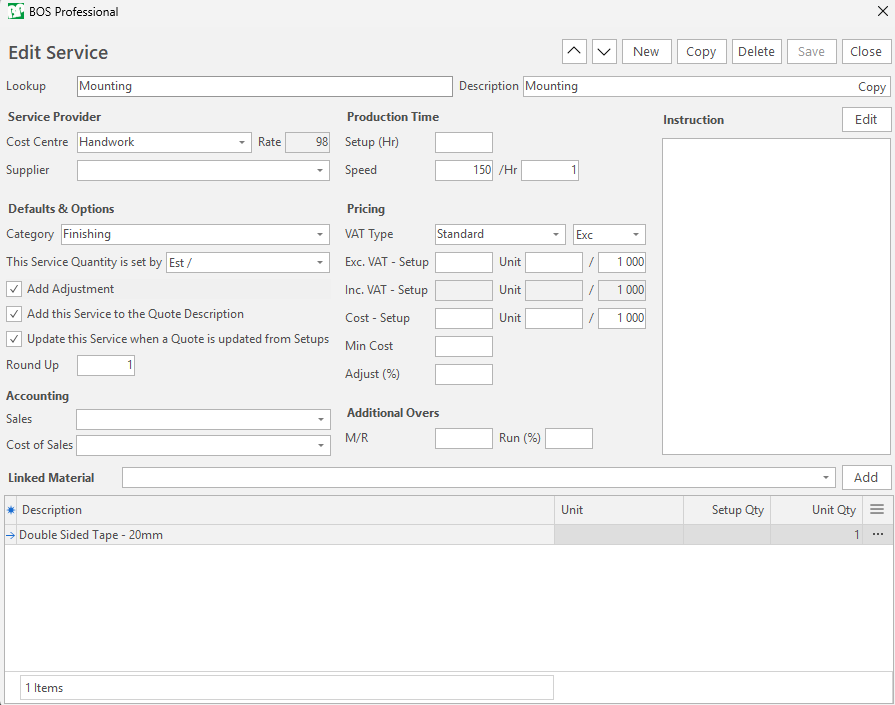
See Services for every field.
How to Add an Outsourced Estimate to a Quotation
You can add the estimate to a new Quotation, or to an existing one in a Pending status.
- Create or open the Quotation (see How to Create a Quotation).
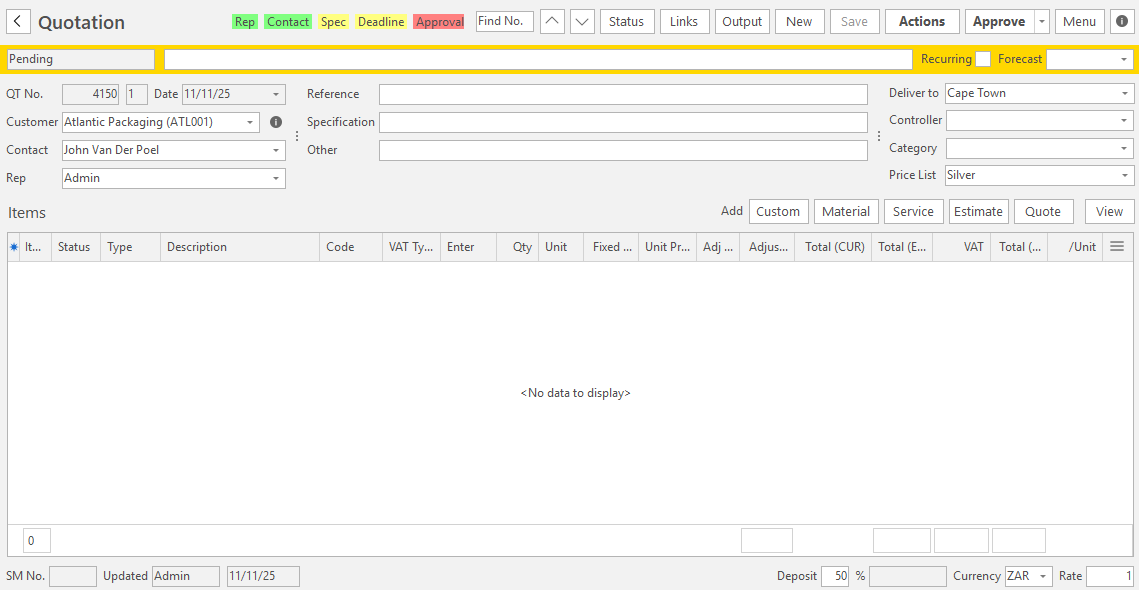
- Click Estimate (button) > Outsourced.
- Complete the tabs as described below, then close the estimate to return to the Quotation.
Description (tab)
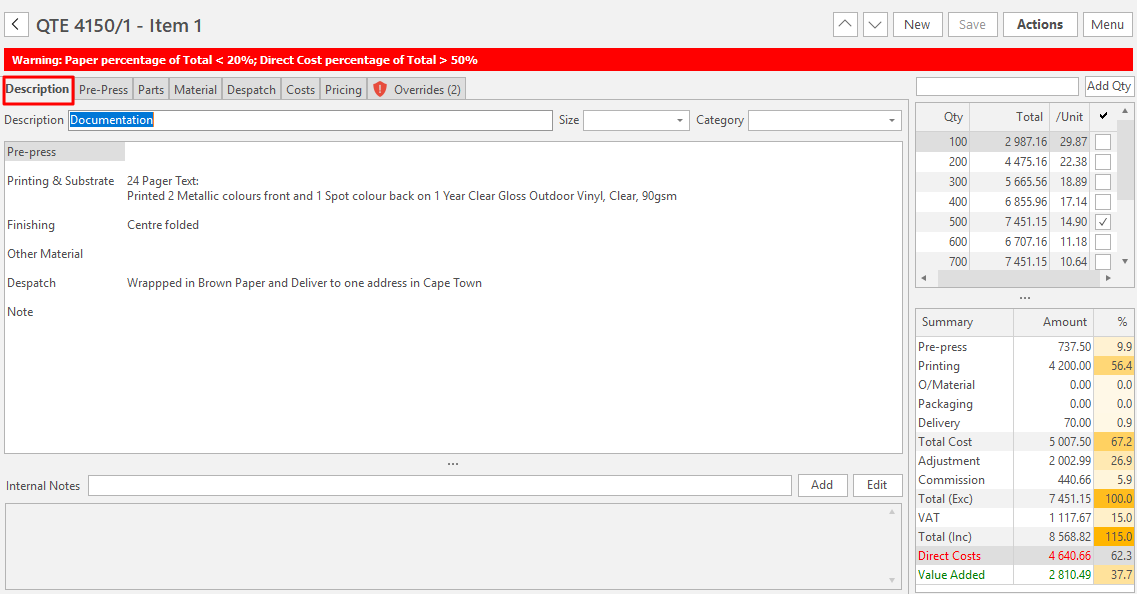
- Description = Enter a description of the estimated item. This description appears in the Quotation Letter (the Quotation that is sent to the customer).
- Size = Select a size from the dropdown list.
- Category = Select a category from the dropdown list.
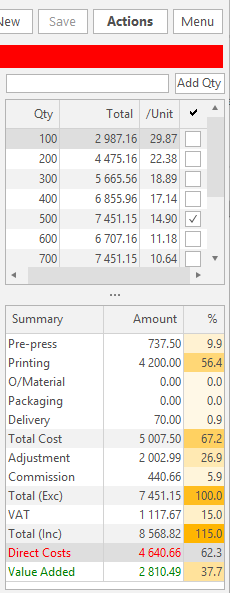
- Qty = Enter a quantity and click Add Qty. Repeat this step to add additional quantities.
- Default Qty = In the summary section check the quantity that is the default quantity.
- Note: The default quantity determines the price, and the other quantities appear for comparison.
- Click Save (button).
If numbering is enabled (the setting Quotations > Printing: Enable numbering), you can add a range of numbers to the description.
Pre-Press (tab)
- Select a service and enter its quantity in the next block.
- Click Add (button), or click the arrow on Add to add a custom item or edit the item as you add it.
- Check D to include the item in the estimate description, and A to include it in the estimate.
- Enter any remarks in the comment field.

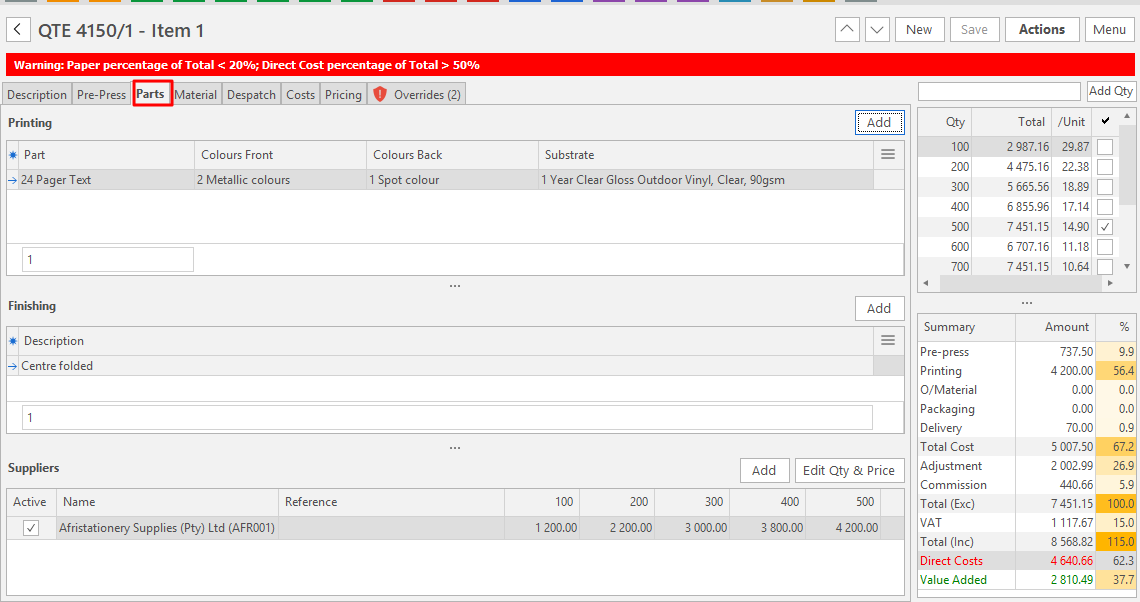
Parts (tab)
- Click Add (button) next to Printing and complete the new line:
- Part = Select the Part.
- Colours Front and Colours Back = Select the colours.
- Substrate = Select the Substrate.
- Click Add (button) next to Finishing. Description = Select the finishing.
- Click Add (button) next to Suppliers and complete the new line:
- Active = Check it if this supplier is used.
- Name = Select the supplier.
- Reference = Enter a reference.
- Quantity columns = Enter the supplier's price for each quantity. With more than five quantities, click Edit Qty & Price (button).
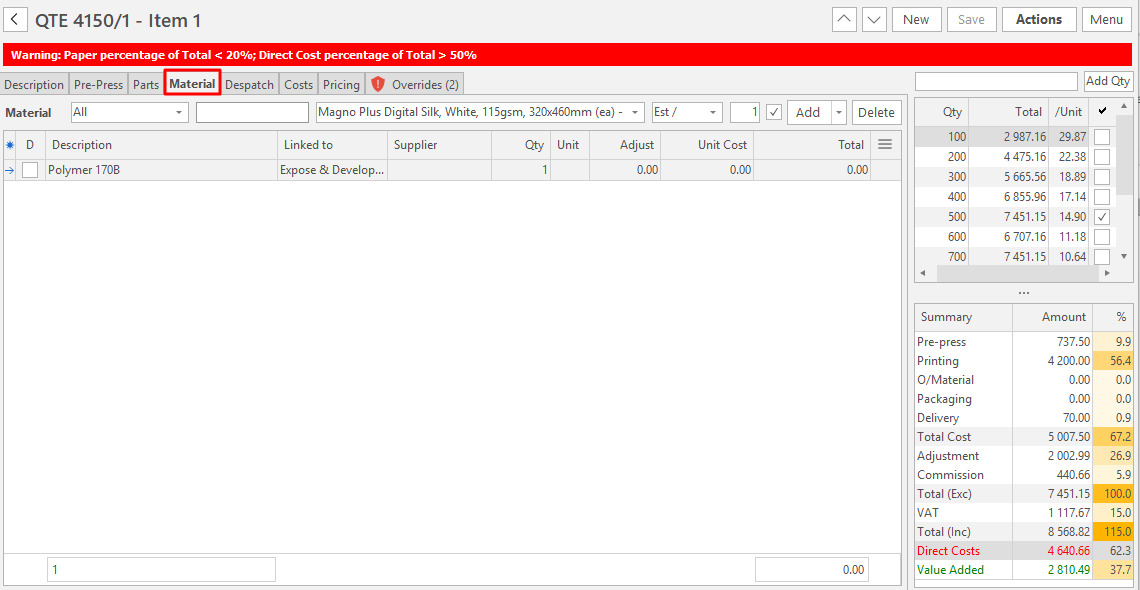
Material (tab)
- Check the materials filled in from the setup.
- To add a material, select it (the two buttons before the list filter it), select its quantity type (Fixed, Est X or Est /) and click Add (button).
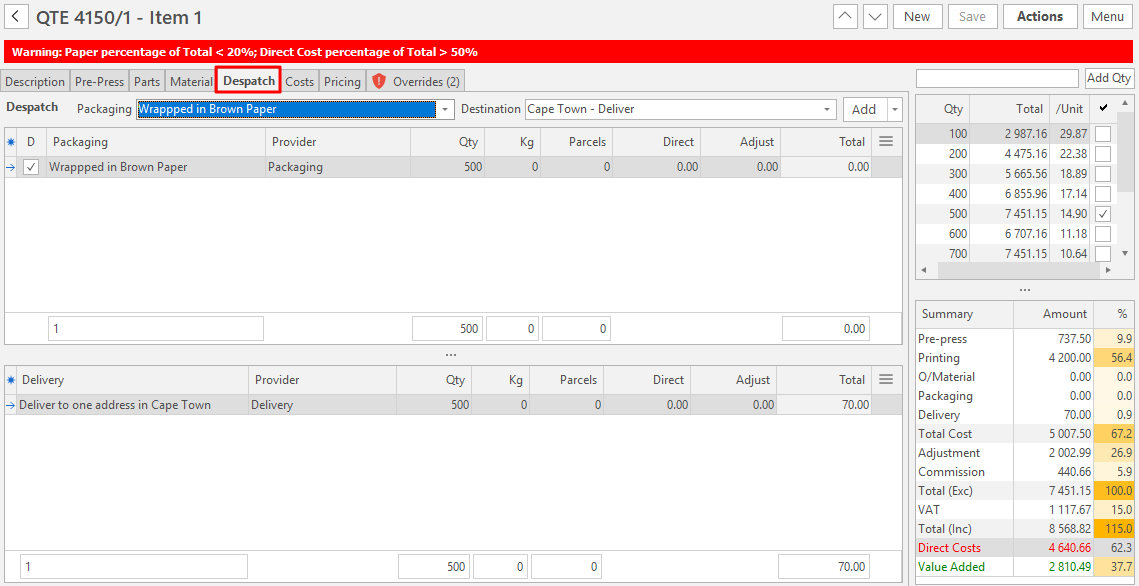
Despatch (tab)
- Packaging = Select the packaging.
- Destination = Select the delivery option.
- Click Add (button).
Pricing (tab)
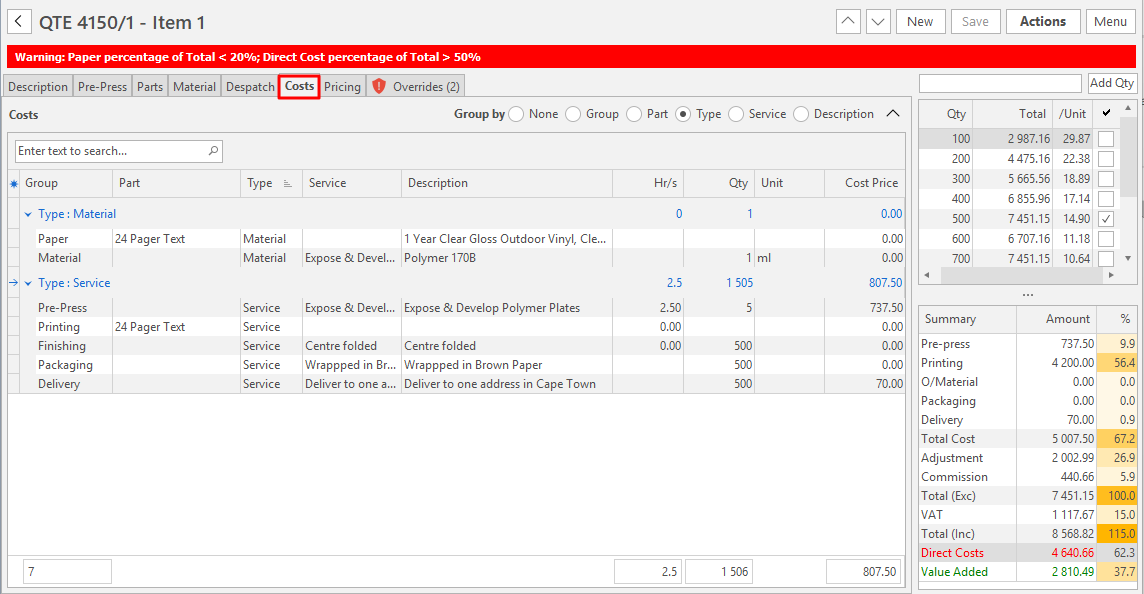
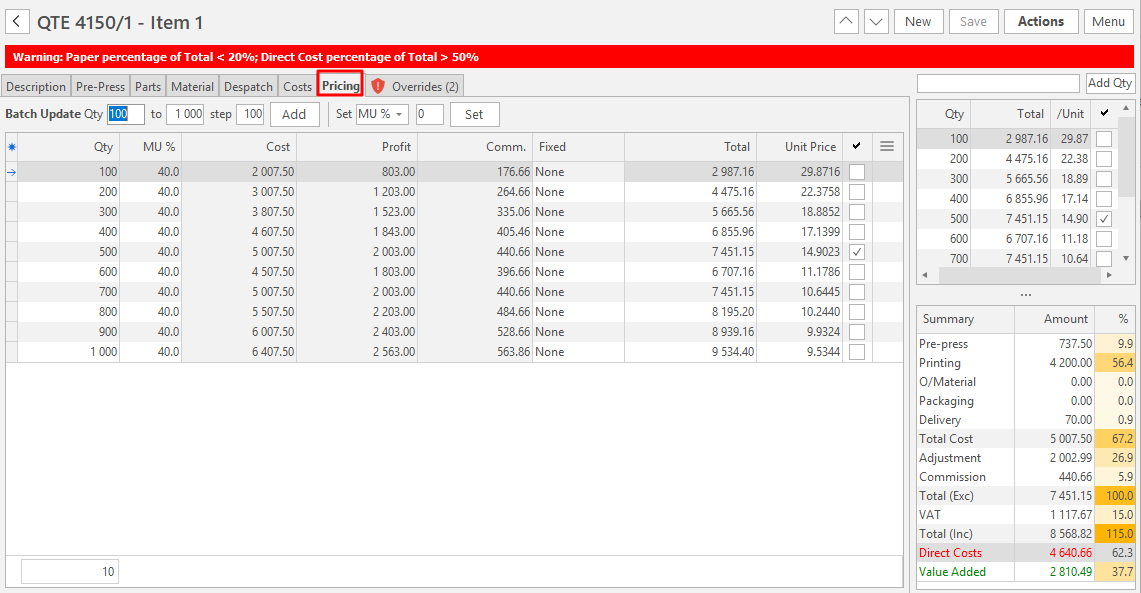
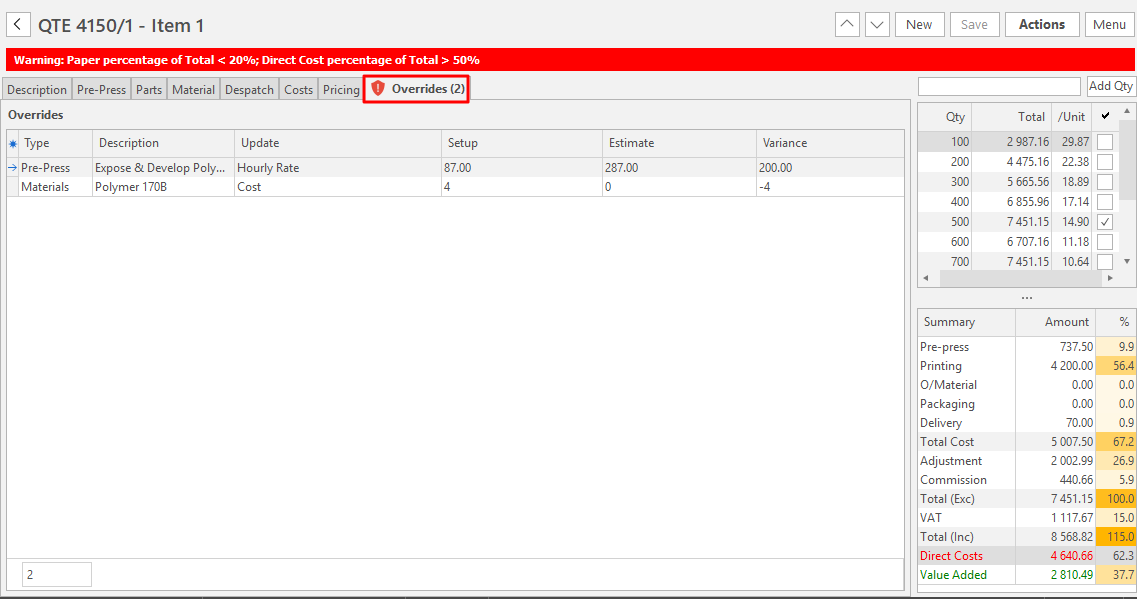
- Check the costs, markup and sell price of each quantity. The Costs tab shows the costs in detail, and the Overrides tab every field changed from its default.
- To add a range of quantities, fill in Qty (for example, 100), Qty to (for example, 1 000) and Step (for example, 100, which adds 100, 200, 300 … 900, 1 000) next to Batch Update, and click Add (button).
- Check the default quantity, here or in the summary section.
Check the Description
- Click Description (tab). The descriptions of the items on the other tabs are added to it.
- Check or uncheck an item's D checkbox to include or leave out its description. The setting Quotations > General: Material Description Format sets how material lines are described.
- To add internal notes, enter a name next to Internal Notes and click Add or Edit.