
Mobile App - Sign In and Basic Features
💡This page explains how to sign in to the mobile app, the top bar, and the Home screen and how to rearrange, hide and restore its tiles.
Overview
The mobile app opens in a browser on a mobile device or desktop computer. It links to the same database as BOS Professional.
If you are linked to more than one database, you select one when you sign in.
The mobile app is located at this address: https://bospro.quickeasysoftware.com/
Sign In Interface Explained
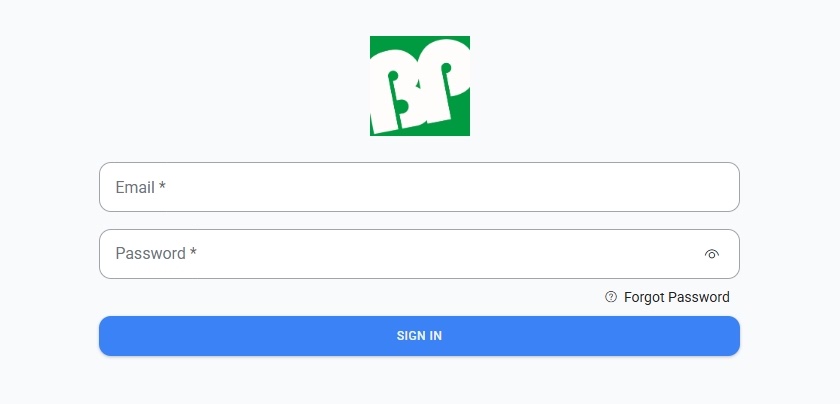
The Sign In screen appears when you open the mobile app, after you sign out and after you request a new password. If you are already signed in, the app opens straight away instead.
| Field | Description |
|---|---|
| Email (field) | Enter your email address. Required, and must be a valid email address. |
| Password (field) | Enter your password. Required. The password is hidden as you enter it. |
| Eye (icon) | Shows or hides the password you entered. |
| Forgot Password (link) | Opens the Forgot Password screen, where you can request a new password by email (see Forgot Password Screen Explained). |
| Sign In (button) | Signs you in. You can also press Enter. What opens next:
|
Change Password Screen Explained
The Change Password screen opens automatically in place of the Sign In screen when your account must change its password – the first time you sign in with a new account, or when you sign in with a new password sent by email. You cannot skip it.
| Field | Description |
|---|---|
| New password (field) |
|
| Verify Password (field) | Enter the new password again. If the two passwords differ, "Passwords do not match" appears below it. |
| Eye (icons) | Show or hide the password in each field. |
| Save Password (button) |
|
Forgot Password Screen Explained
Tap Forgot Password (link) on the Sign In screen to request a new temporary password by email.
| Field | Description |
|---|---|
| Back arrow (icon) | Returns to the Sign In screen without sending anything. |
| Email (field) | Enter your email address. Required, and must be a valid email address ("Please Input Email" appears if it is blank, and "Incorrect format" if it is not a valid email address). |
| Send email (button) |
|
When you sign in with the new password, the Change Password screen opens so that you can choose your own password.
Select Database Popup Explained
If your account is linked to more than one company database, the Select Database popup opens after you sign in (or change your password). You must choose a database – tapping outside the popup does not close it.
| Field | Description |
|---|---|
| Database (dropdown list) | Lists each database you are linked to by its short name. |
| Confirm (button) | Opens the mobile app on the selected database. The button is only available once a database is selected. |
Staying Signed In
- The mobile app remembers your sign-in on the device for 7 days. After that you are signed out automatically and returned to the Sign In screen.
- If your session ends while you are using the app (most commonly because you signed in more than 7 days ago), the Session Expired popup appears. Tap OK (button) – the app reloads and the Sign In screen opens.
- Tapping Sign Out in the menu signs you out immediately, without asking you to confirm. It clears the remembered sign-in on that device and returns you to the Sign In screen.
- To switch to a different database, sign out and sign in again.
Top Bar Explained
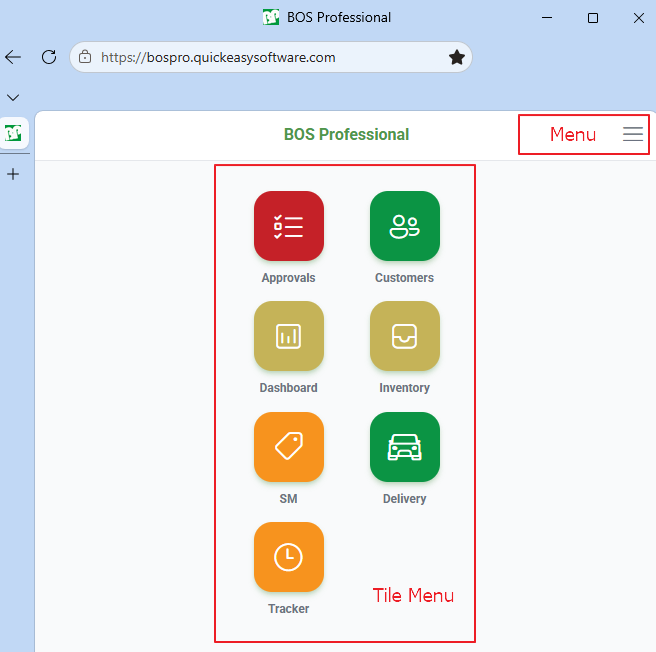
The top bar appears at the top of every screen except the Sign In screen.
| Button | Description |
|---|---|
| Back arrow (left corner) |
|
| Page title | The name of the current screen. |
| Menu (three stripes) (right corner) | Displays your username and the name of the company database you are signed in to (for information only), and these options:
|
Home Screen
- The Home screen is the mobile app's launcher and the first screen you see after you sign in (and select a database, if you are linked to more than one). It displays a tile for each module – tap a tile to open that module.
- You can rearrange, hide and resize the tiles to suit the way you work; your layout is remembered on that device.
Tiles
By default, the tiles appear in this order, two per row. Each tile is a rounded, coloured square with an icon and a bold label:
| Tile | Description |
|---|---|
| Approvals | Red tile with a checklist icon. Opens Approvals. |
| Customers | Green tile with a people icon. Opens Customers. |
| Dashboard | Gold tile with a chart icon. Opens the Dashboard, a read-only page of report charts – see Mobile App Dashboard Tutorial. |
| Inventory | Gold tile with a box icon. Opens Inventory. |
| SM | Orange tile with a tags icon. Opens Service Manager. |
| Delivery | Green tile with a car icon. Opens Delivery (digital Delivery Notes). |
| Tracker | Orange tile with a clock icon. Opens Tracker (shop-floor timekeeping). |
Access Restricted Popup
If you open Customers, SM (Service Manager), Inventory or Delivery without access, you are returned to the Home screen and the Access Restricted popup displays "You do not have permission to access the <module> module. Please contact your system administrator if you require access." Tap OK (button) to close the popup – you are already on the Home screen. Access is set by an administrator on the desktop app (see Settings & Permissions).
Access is only checked when you tap a tile, and only these four modules have an access setting. Approvals, Dashboard and Tracker have no access setting – every signed-in user can open them.
Access is set per staff member on the desktop app – see Settings & Permissions.
Editing the Home Screen Layout
Buttons Explained
Press and hold anywhere on the tiles for about half a second to switch to edit mode (phones that support it vibrate briefly). In edit mode the tiles jiggle, tapping a tile does not open the module and these controls appear:
| Button | Description |
|---|---|
| Items per row: 1 / 2 / 3 | Sets the number of tiles displayed per row. |
| × | Appears on each tile. Hides the tile and moves it to the Hidden Menus section. |
| + | Appears on each tile in the Hidden Menus (Tap + to restore) section. Restores the tile to the Home screen. |
| Reset | Clears all your customisation and restores the default layout – all tiles visible, in the default order, two per row. |
| Done | Saves the layout and leaves edit mode. |
For step-by-step instructions, see How to Customise Your Display in the Mobile App Sign In and Basic Features Tutorial.
Where the Layout Is Saved
- Moving a tile is saved immediately. Tap Done to save your other changes (hidden tiles and tiles per row) and leave edit mode.
- The layout is saved in the browser on the device you are using – it does not follow you to another device or browser, and clearing the browser's site data restores the default layout.
Troubleshooting
- Unable to Sign In: Check your email/password and read the message above the Sign In button (see Troubleshooting: Mobile App). If you forget your password, tap Forgot Password (link) and follow the prompts.
- Camera Not Working: Ensure the app has permission to use your camera.
- Missing a Feature:
- Check that you are in the correct database if you have multiple databases assigned to you. The name of the database appears below your name when you tap the menu in the corner.
- Check with your admin that you are granted the necessary access in BOS Professional to use that feature.
- Check the staff settings (see Settings & Permissions) to see if the feature was activated (e.g. if you added the setting but forgot to check the checkbox in the Value column).
- Data is not Updating: Tap Refresh on your browser.
- Error Message Displayed: Read the popup error message and take the action needed to fix the error.