
Dashboard
Overview
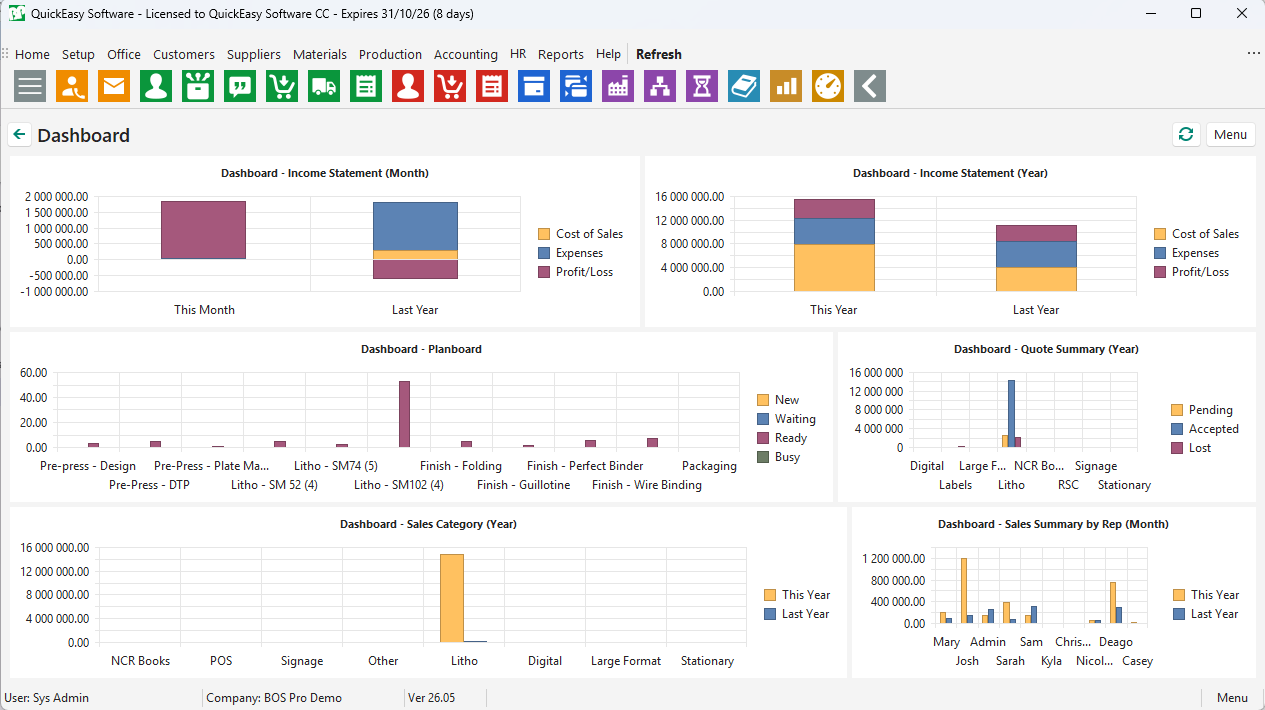
The Dashboard shows the charts of selected custom reports as they stand today, side by side on one screen. Each user chooses their own Dashboard reports and layout.
Dashboard reports cannot be filtered, so reports that show today's figures work best, for example, the active Quotations or this month's sales by rep. Dashboard reports are usually named with the word "Dashboard" first, which makes them easy to find in the list.
The same Dashboard reports appear in the Mobile App. The Production Planning module has its own Dashboard.
For more about Dashboards and charts, see Custom Reports: Turn BOS Professional Data into Business Insights.
Settings
User Settings
The defaults are the values for new databases and new users. Your database may have different values.
The reports fill the rows from left to right, in the order of the IDs. The Dashboard shows as many reports as the rows and columns allow, so 2 rows and 3 columns show the first 6 IDs. With 0 rows, the Dashboard is empty. A report ID that is listed twice is shown once.
| Setting | Description | Default |
|---|---|---|
| Reports & Dashboard > Dashboard - Reports (ReportID eg. 1,2,3) | The IDs of the reports on the Dashboard, separated by commas, in the order they appear. Find the IDs in Edit Reports (see Edit Reports List). | None |
| Reports & Dashboard > Dashboard - Rows | The number of rows of charts. | 0 |
| Reports & Dashboard > Dashboard - Columns | The number of charts in each row. | 0 |
| Reports & Dashboard > Dashboard - Automatic Refresh | Yes or No. Yes refreshes the Dashboard every 5 minutes. If your system is slow, set it to No and click the refresh button instead. | No |
| Reports & Dashboard > Reports - Access Allowed | The reports you can view (see Custom Reports). | None |
Buttons Explained
| Button | Description |
|---|---|
| Refresh (circular arrows) | Refreshes all the charts. |
| Menu |
|
Right-click Options
Right-click a chart for these options:
| Option | Description |
|---|---|
| View Description | Shows the report's description. |
| Open Report | Opens the report on the Custom Reports screen, where you can filter it and see its data. |
| Show Category Captions, Show Series Captions | Show or hide the category labels along the bottom of the chart and the values along its side. Only while Customise Charts is on. |
Customising the Charts
While Customise Charts is on, each chart shows two buttons, and splitters appear between the charts:
- Customize Chart: opens a popup. On the Series tab, check or uncheck the fields to show or hide them. Use Sort by at the bottom to choose the field that sets the order. The Data Groups tab is usually empty.
- The diagram name, for example, Column diagram: select another chart type. For example, if a column chart's labels look cramped, try a bar diagram.
- Splitters: drag them to resize the charts.
- Click Menu > Save to keep your changes.
- The changes only apply to your Dashboard.
- To change a report's chart type for everyone, edit the report (see Edit Report).
How to Set Up Your Dashboard
Users without access to Edit Reports can ask their administrator for the report IDs.
- Navigate to Custom Reports, click Menu (button) and select Edit Reports.
- Add the ID column with the Field Chooser (*) and note the IDs of the reports you want.
- Navigate to Main Menu > Office > My Organisation, double-click your name and click Settings (tab).
- Enter the IDs, separated by commas, in Reports & Dashboard > Dashboard - Reports (ReportID eg. 1,2,3).
- Set Dashboard - Rows and Dashboard - Columns, and choose whether the Dashboard refreshes automatically.
- Open the Dashboard.