
Branches
Overview
- The Branch feature can be used to manage companies with multiple branches or subsidiaries.
- Separate numbering sequences (On Customer Invoices and Customer Credit Notes) can be used if the branches have their own VAT and Registration numbers.
- If Branches are not added to the database, the Branch fields are suppressed.
- If Branches are added to the database, every transaction in the database must be linked to a branch.
- When adding Branches to an existing database, all the existing transactions must be linked to a branch. Use Actions (button) > Link all Transactions to the selected Branch (see Buttons Explained). Earlier versions needed an SQL script for this.
Branches Tab
Buttons Explained
Link all Transactions to the selected Branch replaces the branch on every transaction, including transactions already linked to another branch. Use it only when you first add Branches to an existing database.
| Button | Description |
|---|---|
| Add Branch | Creates a branch and opens its popup (see Creating a branch). |
| Actions | A submenu with these options:
|
Fields Explained
| Field | Description |
|---|---|
| Name | The name of the branch. |
| Code | The code of the branch. |
| Menu (...) | A submenu with these options:
|
Creating a Branch
Branches can be created by clicking Add Branch (button) and completing the details on the popup form.
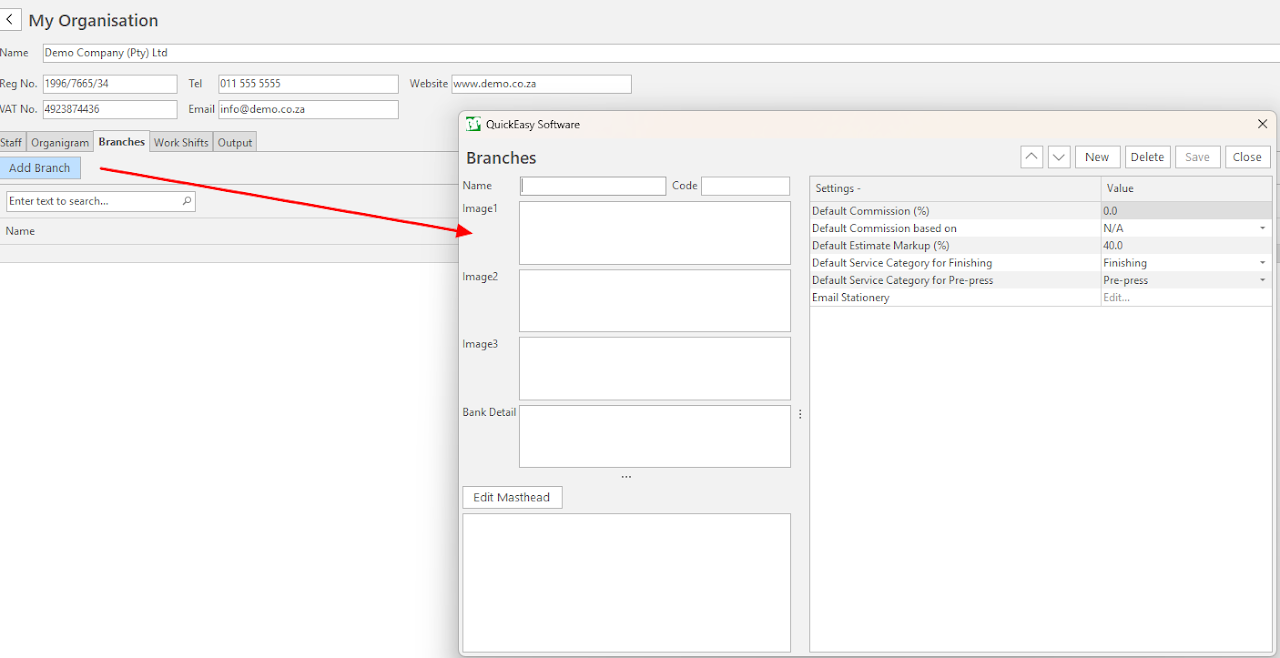
The branch details appear on templates such as Customer Invoices and Quotations.
- Masthead: A description of the company details such as an address, company registration number, VAT number. This information appears on output documentation.
- Image 1–3: Images can be uploaded for each division that has its own logo.
Settings
Staff Settings
- Staff Settings > Branch Transactions - Access Allowed: This setting can be used to restrict users to transact in one branch only (Own). When it is set to All, you can select any Branch which is valid for the Entry Type.
- Users can be linked to a branch in the Staff Edit Form. This link is mandatory when the user is restricted to one branch only. When users can transact in all branches, the selected branch is the default branch when creating new transactions.
Branch Settings
Branch Settings are unique to each branch.
- Default Commission (%): Enter the commission amount.
- Default Commission based on: Select one of these options:
- % of Profit
- % of Value Added
- % of Selling Price
- % of Cost Price
- 2nd Adjustment
- N/A
- Default Estimate Markup (%): Enter the markup.
- Default Service Category for Finishing: Provides a dropdown list to select a category.
- Default Service Category for Pre-press: Provides a dropdown list to select a category.
- Email Stationery: [Edit] Opens an HTML Editor allowing input and testing for the format.
General Settings
The defaults are the values for new databases and new users. Your database may have different values.
| Setting | Description | Default |
|---|---|---|
| General Settings > Accounting > Use a Branch level sequence for Inv No. and CC No. | (Y/N - Default = N) | No |
This setting must be set to Yes when Branches are separate VAT entities.
This setting applies to:
- Customer Invoices
- Customer Credit Notes
When this setting is set to Yes, from the branches interface click Actions (button) > Update all Generators to create the additional generators required for each branch.
The Branch linked to a Transaction cannot be changed after the transaction is created.
Linking Branches
If branches are not created, these features are suppressed.
- Customers, Staff members, Suppliers, Materials and Entry Types can be linked to a specific branch to keep them separate.
- This linking helps to isolate records to use on branch-linked transactions.
Linking Users
- Users can be linked to a Branch on the Staff Edit form.
- Linking is mandatory if the user is restricted to one branch only.
- When users can transact in all branches, leave the selection blank.
- When a Quotation is created, the branch is not assigned by default if you are not linked to a branch.
Linking Customers
- When customers are linked to a branch, they can only be used in transactions that are linked to the same branch.
Linking Entry Types
- If a branch is linked to an Entry Type, it can only be used for transactions related to that branch.
- However, the following Entry Types cannot be linked to a branch, but their numbering sequence can be changed in some cases:
Linking Cost Centres
- Cost Centres can be set up for branches by selecting a branch for the Cost Centre.
Linking Printing Types
- Linking a branch to a Printing Type restricts the Presses linked to the Printing Type to the selected branch.
Linking Material Categories
- Linking a branch to a Material Category restricts the materials in that category to the selected branch.
Linking Service Categories
- Linking a branch to a Service Category restricts the Services in that category to the selected branch.