
Production Planning Board Tutorial
Overview
Production Planning assists organisations in managing all their production tasks. The Board, also known as the Planning Board, displays a summary of all the jobs that are currently in production or queued to enter production.
💡These tutorials explain the Board's features and related functions.
How to Understand the Board
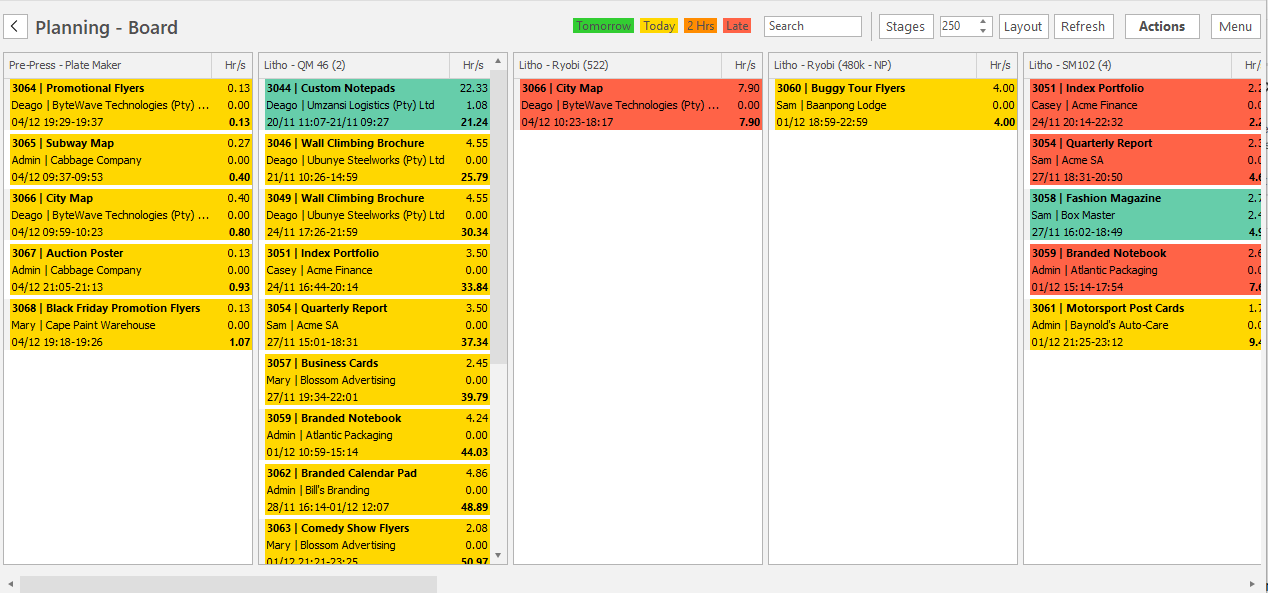
- The Board is made up of columns.
- Each column is headed by the name of the Stage.
- Each job is summarised in a colour-coded block according to its planning Status. The selected filters (e.g. Stages, layout, column width) determine the layout of these blocks. They include some or all of the following information:
- Line 1:
- Work Order Number.
- Description of the job.
- Estimated Hours the job will take.
- Line 2 (Not shown in Compact Mode):
- Name of the Rep.
- Name of the Customer.
- The Actual Hours spent on the job.
- Line 3 (Not shown in Compact Mode):
- The scheduled Start Date.
- The scheduled Start Time.
- The cumulative Outstanding Hours for the stage up to the end of that job.
- Line 4 (Only shown in Extended Mode):
- Lists the tasks that must be completed in detail.
- Line 1:
- The sequence of the blocks depends on the order selected but generally works like this:
- The Jobs below a Stage are sorted by the jobs that must be done next.
- The Stages are sorted based on their hierarchy (that is, which Stage must be completed first).
How to Customise the Board
How to Change the Column Sizes
- Navigate to the Board.
- Click the arrows on the side of the block that shows a number (usually 250) to increase or decrease the width of the columns.
How to Show or Hide Certain Stages
- Navigate to the Board.
- Click Stages (button) and check/uncheck the stages you want to display.
- Note: You can also use the options on the list to show All the stages or All (Not Empty).
Working with the Board
How to Reset the Board
- From the Board, click Actions (button) > Reset Planning Board.
- Confirm the following actions:
- Job Due Dates will be set to Required Dates (Set Due Date = Req Date): The internal due dates are changed to match the dates by which customers require the goods. However, due to production constraints, some due dates are adjusted and may be later than the required dates. Those dates are marked in red.
- Task Start and Finish Dates will be set from the Work Order Due Dates (Set Start/Finish from WO Due Date): The start dates are adjusted in accordance with the new due dates.
- Task Start Dates will be aligned from now in each Stage (Set Start/Finish from Now (Stages)): Tasks that are first in the queue are set to start now. Other tasks are adjusted accordingly.
- Task Start Dates will be adjusted to avoid task dependency conflicts (Set Start/Finish by Dependency (Stages)): The start dates are adjusted to match the completion date of prior stages that affect the task.
How to Adjust the Jobs Based on Time
Sets the start time for the next job in the queue to now.
Adjusts the other times accordingly.
Useful when a job finishes ahead of schedule, and you want to adjust the schedule, so the machine and operators are not idle.
- Navigate to the Board.
- Click Actions (button) > Set Start/Finish from Now (Stages).
- Confirm the change on the popup.
How to Adjust the Jobs Based on Dependencies
This process adjusts the dates based on the tasks that must first be completed (the dependency).
- Navigate to the Board.
- Click Actions (button) > Set Start/Finish by Dependency (Stages).
- Confirm the change on the popup.
How to Order All Stages by Start Date
The jobs are ordered by their Start Dates, regardless of their statuses.
- Navigate to the Board.
- Click Actions (button) > Order by Start Date.
- Confirm the change on the popup.
How to Order all Stages by Status and Start Date
The jobs are first ordered by their statuses and then by their Start Dates.
- Navigate to the Board.
- Click Actions (button) > Order by Status > Start Date.
- Confirm the change on the popup.
How to Edit Job Statuses
From the Board, right-click an entry and select View Status Key to see the hierarchy of Statuses.
- Navigate to the Board.
- Right-click an entry you want to change and select one of these options:
- Next Status: Changes the status to the next stage in the hierarchy.
- Previous Status: Changes the status to the previous stage in the hierarchy.
- Complete: Everything is made. The job is complete.
How to Start or Stop Timekeeping for a Job via the Board
- Navigate to the Board.
- Right-click an entry and select one of the following under the Timekeeping heading:
- Start:
- Starts a Timekeeping record.
- Sets the task's Status to Busy.
- Changes the background colour of the entry accordingly.
- Stop (Complete):
- Stops the Timekeeping record.
- Sets the job's Status to Complete.
- Changes the background colour of the entry accordingly.
- Stop (Part Complete):
- Stops the Timekeeping record.
- Sets the job's Status to Partially Complete.
- Changes the background colour of the entry accordingly.
- Start:
How to Highlight a Job
- Navigate to the Board.
- Right-click an entry and select Highlight.
- The job is highlighted in black across all the stages.
- Note: Repeat Step 2 (uncheck Highlight) to remove the highlight.
Viewing Linked Transactions and Features
How to View/Edit Jobs
- Navigate to the Board.
- Right-click an entry and select View/Edit Job.
- See Jobs Tutorial for more information on this feature.
How to View a Kanban Board
The Kanban Board shows only the selected Stage with columns for each of the production Statuses.
Tasks can be dragged from one Status column to the next.
- Navigate to the Board.
- Right-click an entry and select Open Kanban Board.
How to View the Linked Work Order
- Navigate to the Board.
- Right-click an entry and select Open Work Order.