
Grid Views
Overview
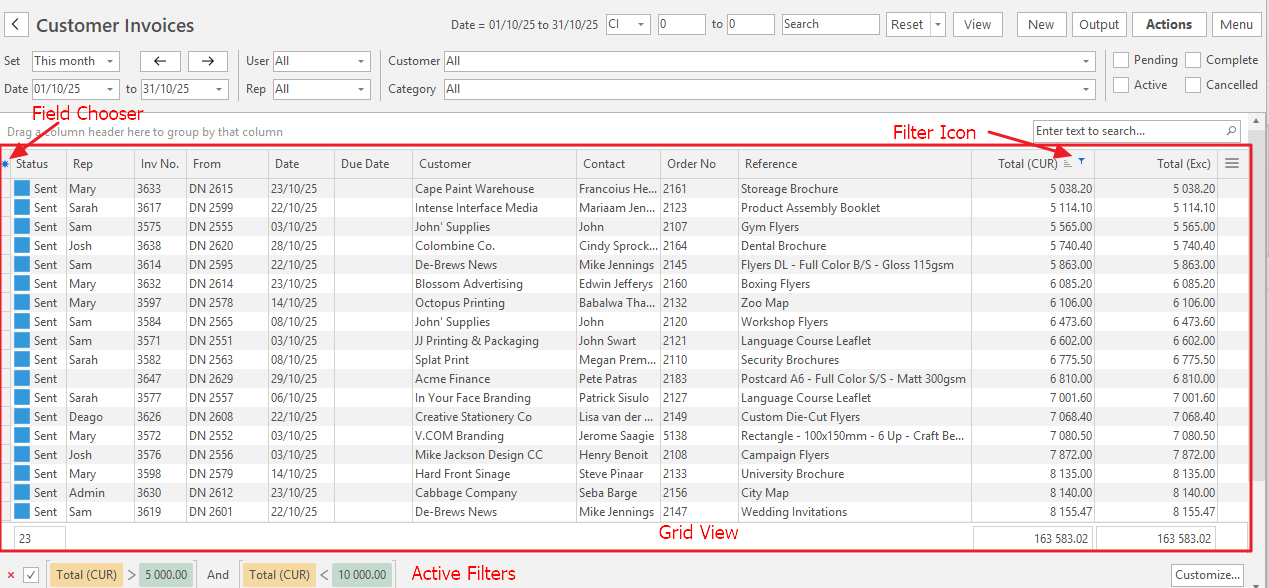
- Data appears as tables, much like spreadsheets, using columns (Fields) and rows (Records).
- The columns represent the various fields or attributes of the data, whereas the rows represent individual records or instances of the data.
- To show records in the grid, set a Data Filter (optional) and click View (button), which is normally at the top right of the window.
Settings
User Settings
Note
The defaults are the values for new databases and new users. Your database may have different values.
| Setting | Description | Default |
|---|---|---|
| General > Save Grid (All Users) - Access Allowed | Yes or No. Whether you can save a grid layout, or a Dashboard chart, for all users. Without it, the message "Access Denied. See Staff Settings > General > Save Grid (All Users) - Access Allowed" appears. Saving a layout for yourself does not need it. | No |
| General > Export Grids and Email Excel - Access Allowed | Yes or No. Whether you can use Export Grid and Email Excel on a list's Menu button, and Email Excel on a Planning Board Stage (version 26.05 and later). Without it, the message "Access denied - See Staff Settings > Export Grids and Email Excel - Access Allowed." appears. | No |
| General > Local drives - Access Allowed | Yes or No. Whether you can save to, or select files from, the drives of your own computer. Export Grid needs it; without it, the message "Access denied to local drives - See Staff Settings > Local drives - Access Allowed." appears. On an attachment, the button that browses for a local file is hidden. | No |
Column Layout
The layout and appearance of the columns can be changed as follows:
Resizing
- The width of columns can be resized by dragging the dividing line between columns left or right.
Best Fit
- To adjust a single column, right-click a column header and select Best Fit. This feature adjusts the column width to fit the widest content.
- To adjust all the columns, right-click a column header and select Best Fit (all columns).
Reordering
- Columns can be moved by clicking and holding the column header and then moving the column until green arrows appear. Release the mouse button to place the column there.
Ascending/Descending Order
- The records in columns can be sorted in ascending or descending order by clicking the column header.
Adding and Removing Columns
- To add or remove columns click the Field Chooser (*) in the first column. Check the checkboxes to add columns and uncheck the checkboxes to remove columns.
- To remove a single column, right-click its header and select Remove This Column.
Grid Search
Search Bar
- The Search bar appears at the left of the workspace, directly above the grid.
- It only appears after the grid is populated (that is, after View (button) is clicked).
- Full or part keywords can be entered the search block. The feature looks for the text in either all the records or only in the reference fields.
- Applying grouping filters may temporarily suppress the search bar.
Removing a Search Keyword
- To remove the search filter, click the x in the Search block. (The x turns red when you hover your mouse over it.)
Column Grouping
Group by Field
- Entries in a column can be grouped by right-clicking a column header and selecting Group By This Field.
- When grouped, the grouped column is switched to become the first column and the entries become headers that can be collapsed or expanded.
Removing 'Group by Field'
- To remove the Group by Field feature, right-click the column header and select Remove from Grouping.
- Alternatively, drag the column header back into the grid. However, using this option leaves the grouping field active.
Group by Box
- This feature allows multiple layers of grouping. The records are grouped in the order in which the column headers are selected.
- Right-click a column header and select Group by Box.
- An empty field appears above the grid.
- Drag the columns into this field in the order that you want to group them.
- Use the small arrows next to the headers to collapse or expand the groups.
Group by Box-Reorder
- Groups can be changed by clicking and holding a header and dragging it to a new position.
Removing a Field from a Group
- Right-click a header and select Remove from Grouping.
Clear Group by Box
- To remove the feature, right-click an empty space in the grouping bar and select Clear Grouping.
Filtering
Records in a column can be filtered by clicking the small filter icon in the right corner of the column header.
A dropdown list appears with all the entries. Check or uncheck the entries to display. The following options are also available:
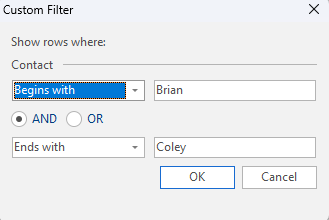
- Custom: Lets you customise the filters (see below).
- Blanks: Displays records with no entries. Only available if some records are empty and some are completed.
- NonBlanks: Displays only records with entries. Only available if some records are empty and some are completed.
- Date options (e.g. yesterday, today): Only applicable to date columns.
Custom Filters
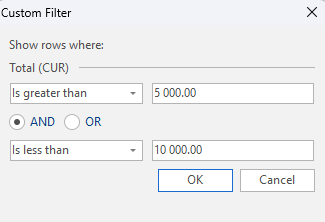
Click the Custom option to open a popup to apply multiple filtering options.
Saving Custom Filters
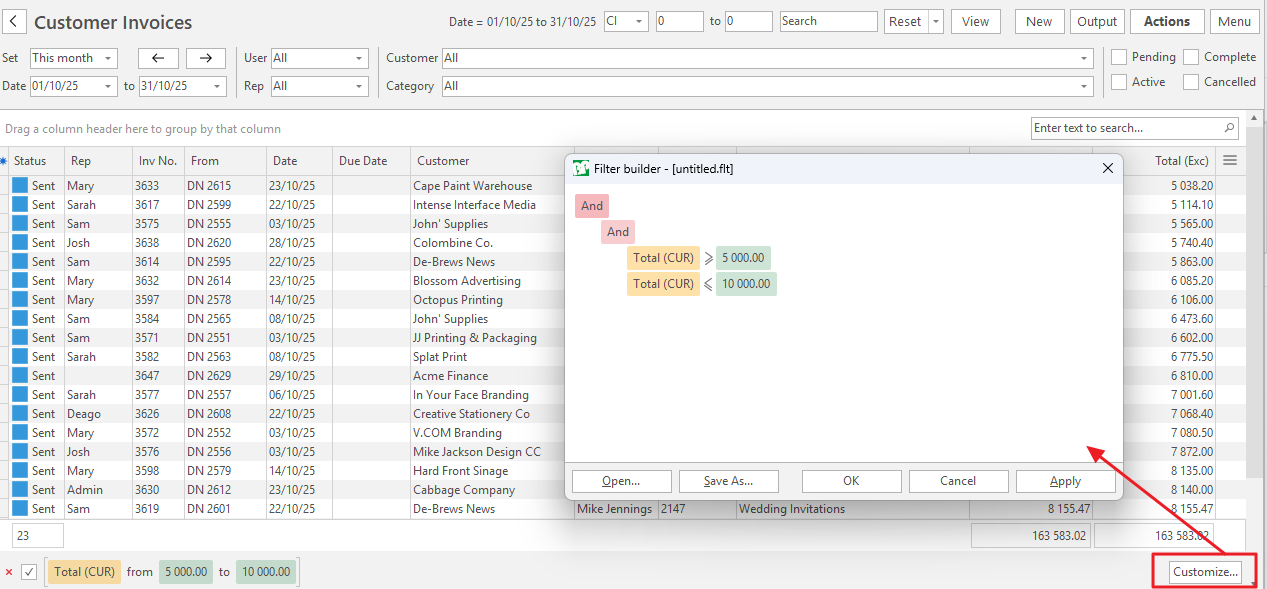
- Custom Filters can be expanded and saved by clicking Customize (button) in the bottom left corner of the display.
- The button only appears after a custom filter is created.
Removing Filters
Active filters appear in the footer. Click the red X next to the filters to clear them.
Alternatively look for the column that has a blue filter icon, click the icon and click All on the dropdown list.
Saving and Restoring Layouts
- The grids have default layouts with the most used columns exposed, and the rest hidden. This layout is named the Default Grid.
- You can change this layout and save those changes.
- The functions to save or restore the grid are under Menu (button).
- Different modules have different save and restore features and include one or more of these options:
- Save Grid
- Save Grid: Saves the grid for the current user.
- Save Grid (All Users): Saves the grid for all the users.
- Restore Grid
- Restore Grid: Restores the grid for the current user to the last saved grid.
- Restore Default Grid: Restores the grid for the current user to the default grid. Requires a restart to apply the changes.
- Restore Default Grid (All Users): Restores the grid for all the users. Requires a restart to apply the changes.
- Save Grid