
Timekeeping Tutorial
Overview
The Timekeeping module lets you manage and view timekeeping records created in the Tracker App or directly in BOS Professional's Timekeeping module. To keep operations running smoothly, we recommend that you manage timekeeping daily and alert operators to any issues (e.g. if they forget to stop a job).
You can use this module to capture manual timesheets; however, we recommend you use the Tracker App instead and only use the module to view and edit timekeeping records.
💡These tutorials explain how to display, filter, edit and manually capture timekeeping records.
How to View a List of Timekeeping Records
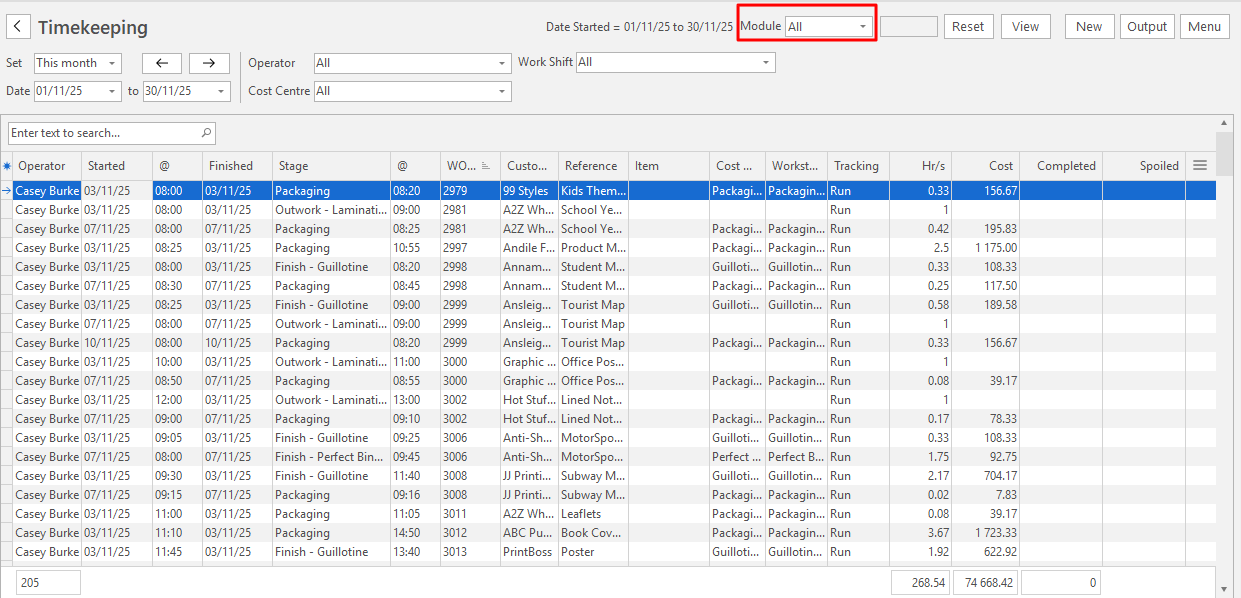
- Navigate to Timekeeping.
- Select any of the filters (as described in the topics below, e.g. Dates, Operators, Cost Centres).
- Click View (button).
How to View Unlinked Timekeeping Records
Timekeeping records are unlinked when they are captured but not linked to a Work Order.
- Navigate to Timekeeping.
- Click the block next to Module (on the top row – see screenshot above) and select Not Linked.
- Set any of the other filters as required.
- Click View (button).
How to View NCR Timekeeping Records
Non-conformance Report (NCR) records are for jobs that are not part of standard production (e.g. reprinting something because it had an ink smudge on it).
- Navigate to Timekeeping.
- Click the block next to Module and select NCR.
- Set any of the other filters as required.
- Click View (button).
How to View Timekeeping Records for a Specific Work Order
This filter lets you see all the time spent on a specific Work Order across all the shifts.
- Navigate to Timekeeping.
- Click the arrow in the field next to Module and select WO.
- Enter the Work Order number in the field adjacent to WO.
- Set any of the other filters as required.
- Note: Choose these filters first to display the Work Order, then refine the filters as needed: Set = No Date, Operator = All, Cost Centre = All, Work Shift = All.
- Click View (button).
How to Filter Timekeeping Records by Date
- Navigate to Timekeeping.
- Set = Select an option (e.g. Today, Yesterday, This Week).
- Refine the dates if needed in the date fields.
- Click View (button).
How to View Timekeeping Records for a Specific Operator
- Navigate to Timekeeping.
- Click the block next to Operator and select a specific operator from the dropdown list.
- Set any of the other filters as needed.
- Click View (button).
How to View Timekeeping Records for a Specific Work Shift
- Navigate to Timekeeping.
- Click the block next to Work Shift and select a specific Work Shift from the dropdown list.
- Set any of the other filters as needed.
- Click View (button).
How to View Timekeeping Records for a Specific Cost Centre
- Navigate to Timekeeping.
- Click the block next to Cost Centre and select a specific Cost Centre from the dropdown list.
- Set any of the other filters as needed.
- Click View (button).
How to Manually Capture an Unlinked Timekeeping Record
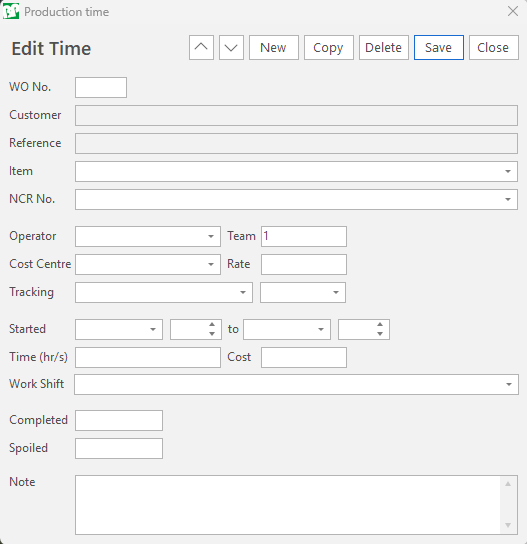
An unlinked Timekeeping Record is not linked to a Work Order; therefore, the Work Order Number field is left blank.
The fields not mentioned are either calculated automatically once the Save button is clicked or not applicable to unlinked timekeeping records.
- Navigate to Timekeeping.
- Click New (button).
- Fill in the Edit Time popup as follows:
- WO No. = Enter a Work Order number if applicable. The Customer and Reference fields are filled in from the Work Order.
- NCR No. = Select an applicable option: Not linked to NCR or NCR Pending.
- Item = If a Work Order is selected, you can select an item from the dropdown list of items on the Work Order.
- Operator = Select an operator from the dropdown list.
- Team = Enter the number of team members.
- Cost Centre = Select a Cost Centre from the dropdown list if applicable.
- Rate = If a Cost Centre was not selected, enter an hourly rate in the block.
- Note: The rate is usually auto filled in after the Cost Centre is chosen.
- Tracking = Select a product or process that is being tracked (only applicable if a Cost Centre was selected).
- In the second field next to Tracking, select one of the tracking options if applicable:
- Setup
- Run
- Washup
- Downtime
- Started = Select a date (Field 1) and time (Field 2) that the timekeeping record was started.
- to = Select a date (Field 1) and time (Field 2) that the timekeeping record ended.
- Work Shift = Select a Work Shift from the dropdown list.
- Completed = Enter the number of products that were completed.
- Spoiled = Enter the number of products that were spoiled.
- Note = Enter any note about the record.
How to Capture a Linked Timekeeping Record
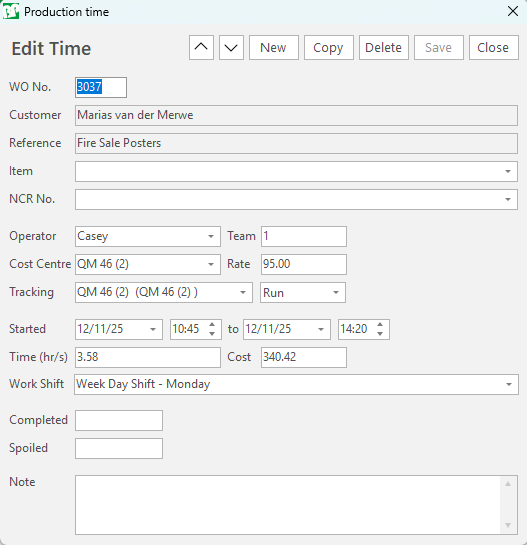
A manually captured timekeeping record can be linked to a Work Order if you enter the Work Order Number in the block provided.
The fields not mentioned here are either calculated automatically once the Save button is clicked or filled in automatically from the Work Order information.
- Navigate to Timekeeping.
- Click New (button).
- Fill in the Edit Time popup as follows:
- WO No. = Enter the Work Order number.
- Click Save (button) to autofill the Work Order information.
- Item = Select an item from the dropdown list.
- NCR No. = Select an applicable option: Not linked to NCR or NCR Pending.
- Operator = Select an operator from the dropdown list.
- Team = Enter the number of team members.
- Cost Centre = Select a Cost Centre from the dropdown list if applicable.
- Rate = If a Cost Centre was not selected, enter an hourly rate in the block.
- Note: The rate is usually auto filled in after the Cost Centre is chosen.
- Select a product or process that is being tracked in the first field next to Tracking (only applicable if a Cost Centre was selected).
- In the second field next to Tracking, select one of the tracking options if applicable:
- Setup
- Run
- Washup
- Downtime
- Started = Select a date (Field 1) and time (Field 2) that the timekeeping record was started.
- to = Select a date (Field 1) and time (Field 2) that the timekeeping record ended.
- Work Shift = Select a Work Shift from the dropdown list.
- Completed = Enter the number of products that were completed.
- Spoiled = Enter the number of products that were spoiled.
- Note = Enter any note about the record.
How to Edit a Timekeeping Record
- Display a list of Timekeeping Records.
- Right-click the applicable entry and select Edit.
- Edit any of the fields as needed.
- Click Save (button).
- Click Close (button) to close the Edit Time popup.
How to Copy a Timekeeping Record
- Display a list of Timekeeping Records.
- Right-click the applicable entry and select Edit.
- On the popup, click Copy (button).
- Confirm that you want to copy the record.
- Edit any of the details as needed.
- Notes:
- The Start Date and Time are changed to the date and time when you copied the record.
- The End Date and Time are cleared.
- If you do not supply the End Time, the duration is set to 1 second.
- You can edit the record later and adjust the time. In this case, the duration is recalculated after you click Save (button).
- Notes:
- Click Save (button).
- Click Close (button) to close the Edit Time popup.
How to Delete a Timekeeping Record
- Display a list of Timekeeping Records.
- Right-click the record you want to delete and select Delete.
- Confirm that you want to delete the entry.
How to Open the Linked Work Order
- Display a list of Timekeeping Records.
- Right-click the applicable record and select Open linked Work Order.