
Item and Transaction Views Tutorial
Overview
In accounting, entries are fundamental records that capture all financial transactions within an organisation. Each entry affects at least two accounts by adhering to the double-entry accounting system.
Entries can contain details such as specific items bought, or totals.
💡These tutorials explain how to display the transaction totals and item details.
How to View Transaction Items
- Navigate to Main Menu > Accounting > Ledger.
- Filter = Select Transaction Items.
- Dates = Select a date range from the dropdown list next to Set, or select your own dates on the calendar.
- Entry Type = Select All to view all the transactions, or select a specific Entry Type (e.g. Customer Invoices, Supplier Payments, General Expenses).
- You might also be able to select a customer, General Ledger or Supplier Account next to Account.
- Note: Your choice of accounts depends on which Entry Type you choose.
- Click View (button).
How to View a List of Transactions
- Navigate to Main Menu > Accounting > Ledger.
- Filter = Select Transactions.
- Dates = Select a date range from the dropdown list next to Set, or select your own dates on the calendar.
- Entry Type = Select All to view all the transactions, or select a specific Entry Type (e.g. Customer Invoices, Supplier Payments, General Expenses).
- You might also be able to select a customer, General Ledger or Supplier Account next to Account depending on the selected Entry Type.
- Click View (button).
How to Apply Various Date Filters
- Display a list of transactions or transaction items.
- Select one of the three filters (radio buttons) below the date field:
- Transaction: Displays transactions containing the selected dates.
- Period: Displays transactions posted to the periods covered by those dates.
- Created: Displays transactions created during those dates.
- Click View (button) to apply the filters.
- Note: You might not see a difference in the reports using these filters if the Transaction, Period and Created Dates are the same.
How to Filter Transaction Items by Status
Info
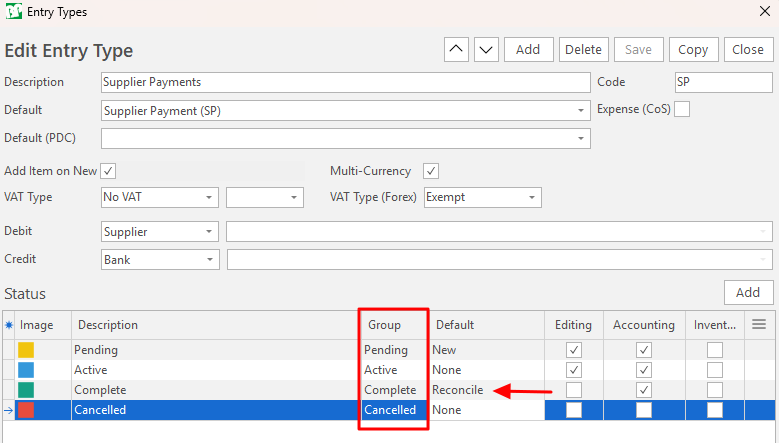
The statuses are filtered on the selected group. Select Reconcile for the Complete (final) status.
- Display a list of transactions or transaction items.
- Next to Status (on the right) select:
- Pending to only see transactions that are pending.
- Active to only see transactions that are active.
- Reconcile to only see transactions that are reconciled.
- Cancelled to see all cancelled transactions.
- Click View (button) to apply the filters.
How to Filter Transaction Items by Currency
- Display a list of transactions or transaction items.
- If you use multiple currencies, select a currency from the dropdown list next to Currency.
- Note: If you only use one currency, this option is unavailable.
- Click View (button).
How to View Paid Customer and Supplier Transactions
- Display a list of transactions or transaction items.
- Entry Type = Select an Entry Type that involves customers or suppliers.
- On the right, check the checkbox next to Allocated.
- Click View (button).
How to View Outstanding Customer and Supplier Transactions
- Display a list of transactions or transaction items.
- Entry Type = Select an Entry Type that involves customers or suppliers.
- On the right, check the checkbox next to Outstanding.
- Click View (button).
How to Search for Transactions
- Display a list of transactions or transaction items.
- Search for a transaction in the two boxes next to Reset (button):
- Enter its Ledger ID in the smaller box, or
- Enter a reference, name or description in the larger box.
- Click View (button).
How to View Potential Trial Errors
- Navigate to Main Menu > Accounting > Ledger.
- Entry Type = Select All.
- Set = Select No Date.
- On the right, check the checkbox next to Trial errors.
- Click View (button).
Output
How to Print the List of Transaction Items
- Display a list of transactions or transaction items.
- Click Output (button) and select one of these options:
- Print: Prints the report to the default printer.
- Print (Show Dialogue): Lets you select a printer or a .pdf printer.
How to Preview Transaction Items
- Display a list of transactions or transaction items.
- Click Output (button) > Preview.
- Note: You can click the printer icon to print the list to a printer of your choice, including PDF.
How to Email a List of Transaction Items
- Display a list of transactions or transaction items.
- Click Menu (button) > Email Excel to email the list of Transaction Items in Excel format, or
- Click Output (button) > Email to email the list of Transaction Items in PDF format.