
Copy Rules
Overview
Transactions may be copied to duplicate them (e.g. Quotation to a Quotation), or to create the next transaction in the workflow (e.g. Quotation to a Sales Order). The order in which transactions follow each other is described in Transaction Flows.
The rules governing the conditions under which a transaction may be copied are referred to as Copy Rules.
These rules differ depending on the transactions involved and determine:
- When the transaction may be copied, which usually depends on the transaction's Status.
- Which items can be copied and whether they can be copied only once or more than once.
- Whether the new transaction is opened or not.
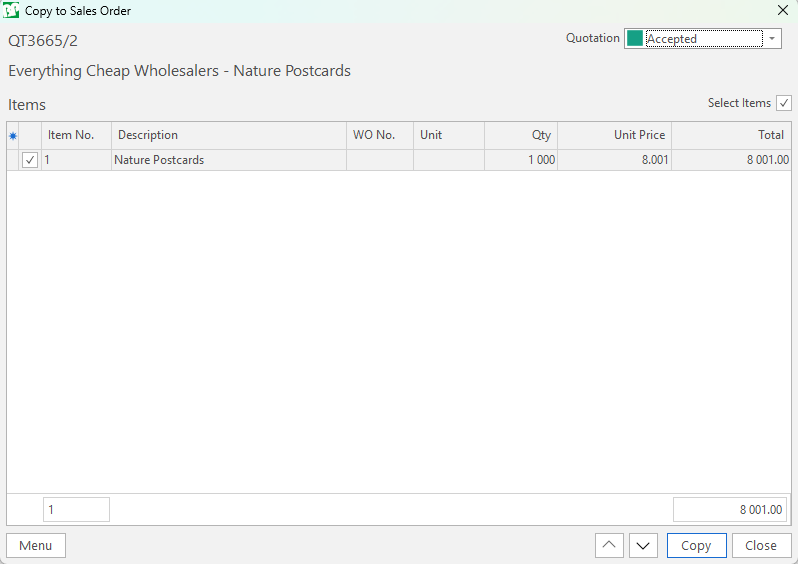
- When a transaction is copied, a popup form opens.
- Certain of the fields can be edited (e.g. Select Items, Statuses).
See Copy Popup.
Additional fields can be added (e.g. Code) using the Field Chooser (*).
User Access
Users must be granted access to copy transactions. The options are Yes (grants access) or No (revokes access).
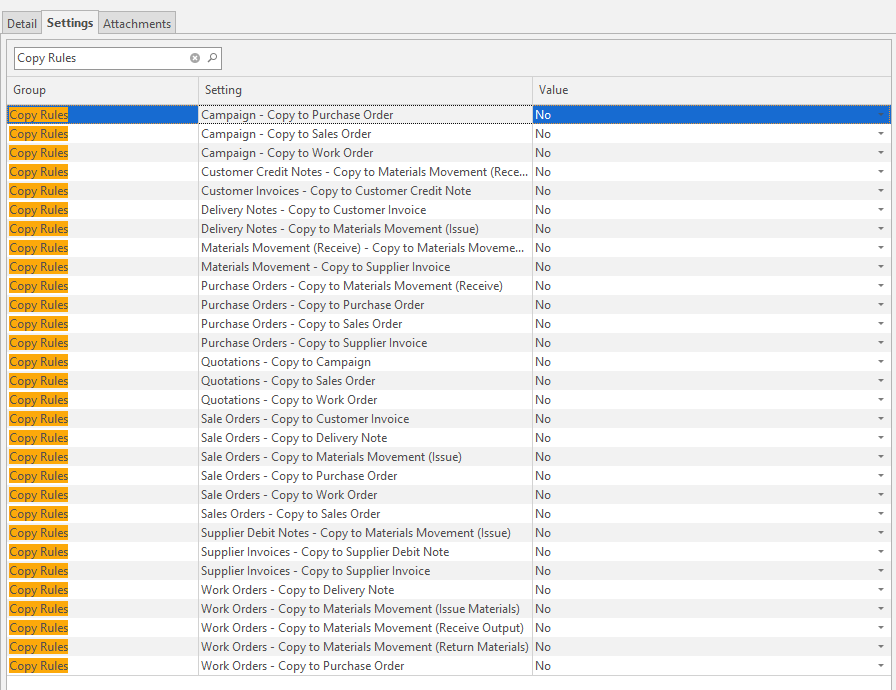
- Copy Rules default to No, except Quotations - Copy to Quotation (copying a Quotation to a new Quotation), which defaults to Yes.
- When a Copy Rule is No, its copy option is hidden on the transaction's menus.
- All the Copy Rules can be seen by entering Copy Rules in the search block. They are in the Copy Rules group.
- To give a new user the same Copy Rules as another user, copy the Copy Rules group of settings (see Copy Settings Popup).
Copy Rules Explained
Each Copy Rule allows one copy, from the first transaction to the second.
| Copy From | Copy Rules |
|---|---|
| Quotations |
|
| Campaign |
|
| Sale Orders |
|
| Work Orders |
|
| Delivery Notes |
|
| Customer Invoices |
|
| Customer Credit Notes |
|
| Purchase Orders |
|
| Materials Movement |
|
| Supplier Invoices |
|
| Supplier Debit Notes |
|
Copy Popup
The popup's caption shows the transaction you copy to (for example, "Copy to Delivery Note"). The fields that appear depend on the copy.
Buttons Explained
| Button | Description |
|---|---|
| Arrows | The up and down arrows next to Copy. Move to the previous or next transaction on the list, to copy it instead. |
| Refresh | Makes the Copy button available again. Not shown on every copy. |
| Menu | The grid layout options:
|
| Copy | Creates the new transaction with the selected items, and sets the statuses selected on the popup.
|
| Close | Closes the popup without copying. |
Filters Explained
| Filter | Description |
|---|---|
| Select Items | A checkbox. Checks or unchecks all the items. |
| Outstanding Qty | A checkbox, on most copies. If checked, each item shows only the quantity not yet copied to that type of transaction (for example, the quantity not yet on a Purchase Order), and only items with an outstanding quantity are selected. |
| Copy Adjustment | A checkbox. It appears only on some copies, for example, Sales Order to Purchase Order. If checked, the items' adjustment is copied too. |
Fields Explained
| Field | Description |
|---|---|
| Number | The number of the transaction you copy (for example, SO1234, or QT1234/1 for a Quotation version). |
| Customer | The customer and the transaction's reference. On a Work Order, the reference only. |
| Status fields | One field for each transaction with a status that changes when you copy (for example, Sales Order and Work Order when a Sales Order is copied to a Delivery Note). See Status Changes When Copying. |
| Switch Status | A button next to the status fields, on Sales Order to Delivery Note and to Customer Invoice. Switches the status fields between the default statuses and the current (unchanged) statuses. |
| Warning | An orange bar at the top of the popup. It appears when a status on the popup, or the status a linked Work Order changes to, removes the Sales Order or Work Order from the Planning Board (for example, "Changing the Work Order Status to 'Complete' will delete it from the Planning Board"). |
| Items | The items you can copy. On some copies, the heading shows which items are listed:
|
| Select | A checkbox on each item. Check the items to copy. |
| Item No. | The item's line number. |
| Description | The item's description. |
| WO No. | The Work Order already linked to the item. |
| Unit | The item's unit. |
| Qty | The quantity to copy. |
| Unit Price | The item's unit price. Hidden on copies to a Delivery Note. |
| Total | The item's total. Hidden on copies to a Delivery Note. |
| Totals | Below the items: the number of items and their total. |
| Hidden fields | Can be added with the Field Chooser (*): Code, Process, Quote No., Ver, % and SO ItemID. |
| Open new Transaction | A checkbox. If checked, the new transaction opens after the copy. |
Status Changes When Copying
When you copy, the status of the transaction you copy from (and of linked transactions) can change. The popup shows each status, and you can change it before you click Copy.
- The popup suggests the Default Status for the step, when one is set (for example, Delivered on a Sales Order copied to a Delivery Note). Default Statuses are set on each transaction's Status tab (see Sales Orders: Default Statuses).
- When a user's setting Change ... Status up only is Yes (for Quotations, Sales Orders, Work Orders and Purchase Orders), the list shows only the current status and the statuses after it.
Status Changes Explained
| Copy | Statuses on the Popup |
|---|---|
| Quotation to Sales Order or Work Order | Quotation |
| Sales Order to Work Order | Sales Order (default: Work Order) |
| Sales Order to Purchase Order | Sales Order |
| Sales Order to Materials Movement (Issue) | Sales Order (default: Inventory Issued) |
| Sales Order to Delivery Note | Sales Order (default: Delivered) and Work Order |
| Sales Order to Customer Invoice | Sales Order (default: Invoiced) and Work Order |
| Delivery Note to Customer Invoice | Sales Order, Work Order and Delivery Note |
| Work Order to Delivery Note | Sales Order and Work Order |
| Work Order to Purchase Order or Materials Movement | Work Order |
| Purchase Order to Supplier Invoice | Purchase Order |
| Purchase Order to Materials Movement (Receive or Return) | Purchase Order and Work Order |
| Customer Invoice to Customer Credit Note | Customer Invoice |
| Supplier Invoice to Supplier Debit Note | Supplier Invoice |
What Is Copied
The new transaction gets a new number, today's date, your name as the user who created it, and the New status of its module. It is linked to the transaction it was copied from, so both appear in Linked Transactions.
Header Details Explained
| Copy | Header Details Copied |
|---|---|
| Quotation to Sales Order | Customer, contact, rep, Branch, category, currency and exchange rate, VAT %, the three references, Credit Terms, delivery address, delivery method, Service Manager ticket, and the assigned staff member (as the Sales Order's foreman). |
| Sales Order or Quotation to Work Order | Customer, contact, rep, Branch, category, reference, delivery address, delivery method, Service Manager ticket and the assigned staff member. The item becomes the Work Order's output. |
| Sales Order to Delivery Note | Customer, contact, rep, Branch, customer order number, reference, delivery address, Campaign, Service Manager ticket, Credit Terms, due date and delivery method. |
| Work Order to Delivery Note | The same as from the Sales Order, without the Credit Terms. The Delivery Note is linked to the Work Order and its Sales Order. |
| Sales Order or Delivery Note to Customer Invoice | Customer, contact, rep, category, Branch, currency and exchange rate, VAT %, customer order number, reference (all three from a Sales Order), delivery address, Credit Terms, Campaign, Service Manager ticket and delivery method.
|
| Customer Invoice to Customer Credit Note | Customer, contact, rep, Branch, category, reference, currency and exchange rate, VAT %, note, Campaign and Service Manager ticket. |
| Sales Order or Work Order to Purchase Order | Currency and exchange rate, VAT %, reference, specification, Branch, category, date required, Campaign, Service Manager ticket and NCR, and the link to the Sales Order and Work Order. With the General Settings below, also the Sales Order's due date and delivery address. The supplier is not copied: select it on the new Purchase Order. |
| Purchase Order to Sales Order | Customer, currency and exchange rate, VAT %, Branch, reference, due date, note, status note, Where Now, customer order number, Campaign, Service Manager ticket, category and date required. |
| Purchase Order or Materials Movement to Supplier Invoice | Supplier, contact, VAT %, Branch, currency and exchange rate, Credit Terms, reference, note, category, Campaign, Service Manager ticket, and the links to the Purchase Order, Sales Order and Work Order. |
| Supplier Invoice to Supplier Debit Note | Supplier, contact, invoice number, reference, VAT %, currency and exchange rate, Branch, note, category, Campaign, Service Manager ticket, and the links to the Purchase Order, Sales Order and Work Order. |
| To a Materials Movement | Customer or supplier, reference, note, Branch, Campaign, Service Manager ticket and NCR, and the links to the Sales Order, Purchase Order, Work Order, Delivery Note or credit note. |
| Sales Order to Sales Order, Purchase Order to Purchase Order | All the header details and the items, as a new transaction. |
| Supplier Invoice to Supplier Invoice | The supplier and the items. |
General Settings
These General Settings add details to some copies (see Settings):
- Copy Sales Order Due Date to Purchase Order
- Copy Sales Order Delivery Address to Purchase Order
- Copy Due Date from Sales Order Items
- Copy Sales Order Required Date to Work Order Required Date (Disables Work Order Required Date)
- Copy Work Order Due Date to Sales Order Due Date (Disables Sales Order Due Date)
- Note: Versions before 26.05 show "Sale Order" in this caption.
When a Copy Is Not Allowed
A message explains why the copy stopped:
- "Copy not allowed - the Approval has not been approved." The transaction has an Approval that is not approved yet (see Approvals). The check applies to Quotations, Sales Orders, Work Orders, Purchase Orders, Supplier Invoices, Materials Movements and Campaigns.
- "Copy not allowed - the checklist has not been approved." The Quotation's checklist is not approved (see Checklists).
- "Copy to Sales Order not allowed - the selected Quotation has already been Accepted." The Quotation's status is in the Complete group.
- "The Branch is blank. Sales Orders must be linked to a Branch before they can be copied to another Transaction" (and the same for Campaigns). When Branches are used, every transaction must have a Branch (see Branches).
- "The selected Customer does not have access to Sales Orders." (or Quotations). The customer does not have access to that type of transaction (see Customers List View).
- "Copy not allowed - the MMR is not linked to a Purchase Order." Only a Materials Movement (Receive) linked to a Purchase Order can be copied to a Supplier Invoice.