
Online Library Tutorial
Overview
- Use the Online Library to import standard materials and prices from a central repository which is regularly updated.
- The Updated field in the grid view is the date the material was last updated on the central server.
- Prices are always imported in the Local Currency.
💡These tutorials explain how to use the online library.
How to Set Up the Server Connection
- Navigate to Settings (Main Menu > Setup > Settings & Defaults > Settings (tab)).
- Enter online in the search block.
- System > Online Library Server Address = Enter 13.244.36.238 in the Value column.
- Click Save (button) to update this setting.
How to Import Records
- Navigate to Materials (Main Menu > Materials > Setup Materials).
- Click Menu (button) > Online Library.
- Click Connect (button) on the popup.
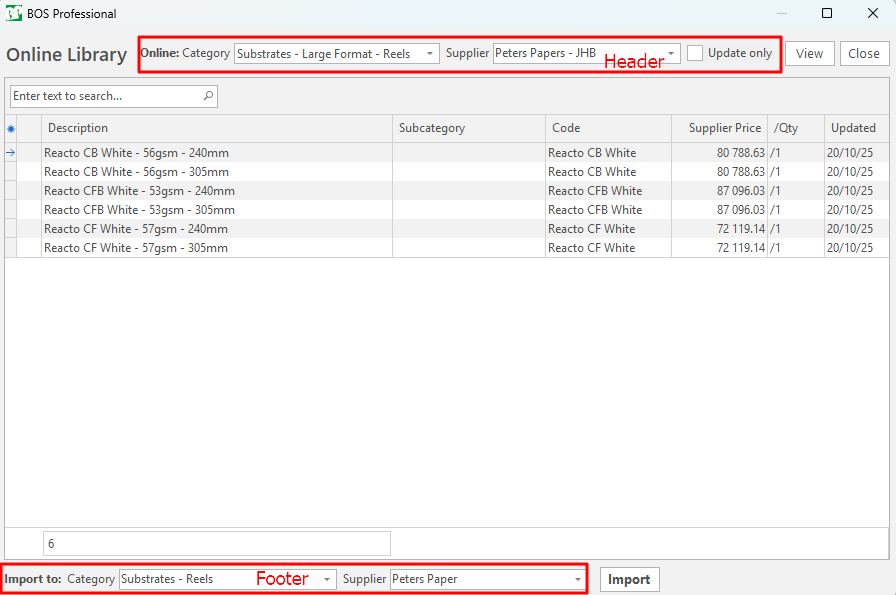
- Select a Category and Supplier on the Header.
- Select a Category and Supplier on the Footer.
- Note: If the category or Supplier does not exist, they must first be created before the import can be completed.
- Note: After the initial import, these fields default to the previous selection.
- Click View (button) to see the available records.
- Note: A blue block at the extreme left of the item indicates that the material already exists in the local database.
- Select the records to import. Use Shift + left-click to select a continuous block. Use Ctrl + left-click to select random records.
- Click Import (button).
- Confirm that you want to import the record.
- Accept the disclaimer.
- A popup shows the status of the import. Click OK.
- Note: The change can be seen in the Cost & Prices (tab) of the imported or updated material.
How to View Updated Supplier Prices
- Navigate to Main Menu > Materials > Setup Materials.
- Double-click any of the records that were imported or updated to open it.
- Click Costs & Prices (tab).
- The imported Supplier Prices show under the heading Supplier Prices.