
Point of Sale Interface
Overview
- The Point of Sale (PoS) module works like a cash register and allows sales to be recorded and processed in real time. It supports the creation of custom payment methods and the automatic accounting of tips, discounts and fees.
- The PoS module is essential when in situations where customers purchase or pay for items in person.
Login Screen
Buttons Explained
| Button | Description |
|---|---|
| Number Pad | Buttons from 0 to 9 that let you enter the PIN. |
| Clear | Clears the entered PIN. |
| Login | Enters the PoS system. |
| Exit | Returns to the BOS Professional Main Menu. |
Main Menu
Info
The Main Menu displays a list of active Sales Orders linked to PoS in a card view format.
Buttons Explained
| Button | Description |
|---|---|
| Refresh | Refreshes list of Sales Orders. |
| New Order | Creates a new Sales Order. |
| Prints the Pro-Forma Invoice for the selected Sales Order. | |
| Menu |
|
| Logout | Returns to the login screen. |
Sales Order View
Info
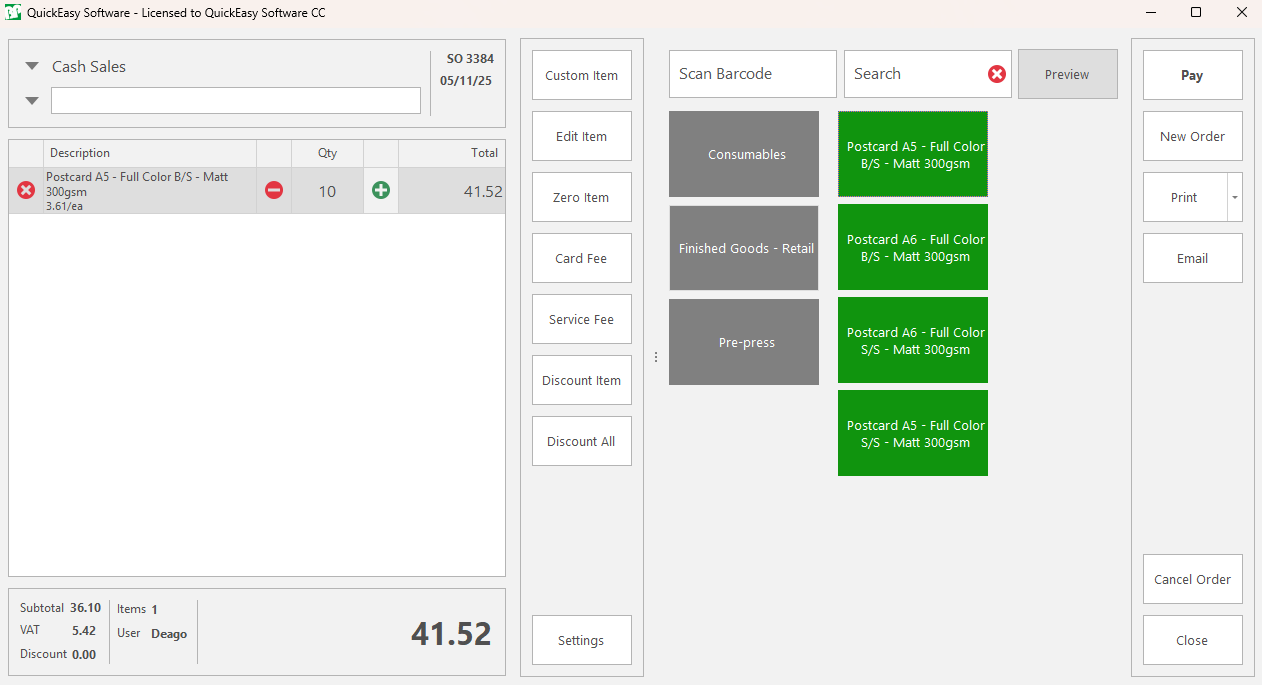
Touch or double-click a Sales Order card to open the order. Creating a new order opens the Sales Order view.
Buttons Explained
| Button | Description |
|---|---|
| Custom Item | Adds a custom item. |
| Edit Item | Allows the editing of an Item's Name, Quantity, Unit Price and Adjustment percentage. |
| Zero Item | Sets the Price of the selected item to zero. |
| Card Fee | Adds a Card Fee as a percentage of the total. |
| Service Fee | Adds a Service Fee as a percentage of the total. |
| Discount Item | Discounts selected item as a percentage. |
| Discount All | Discounts all Items as a percentage. |
| Settings |
|
| Preview |
|
| Pay | Moves the transaction into the payment section. |
| New Order | Creates a new Sales Order. |
| |
| Displays the Email menu. | |
| Cancel Order | Changes the Sales Order's status to cancelled. |
| Close | Returns to the Main Menu. |
Input Fields Explained
| Field | Description |
|---|---|
| Reference | Select or enter a reference for the Sales Order. |
| User-Defined Number Field 1, 2 & 3 | Enter a numeric value for the user-defined caption. |
| Scan Barcode | Scan or enter a barcode number linked to an item. |
| Search | Searches the list of items. |
Payment View
Info
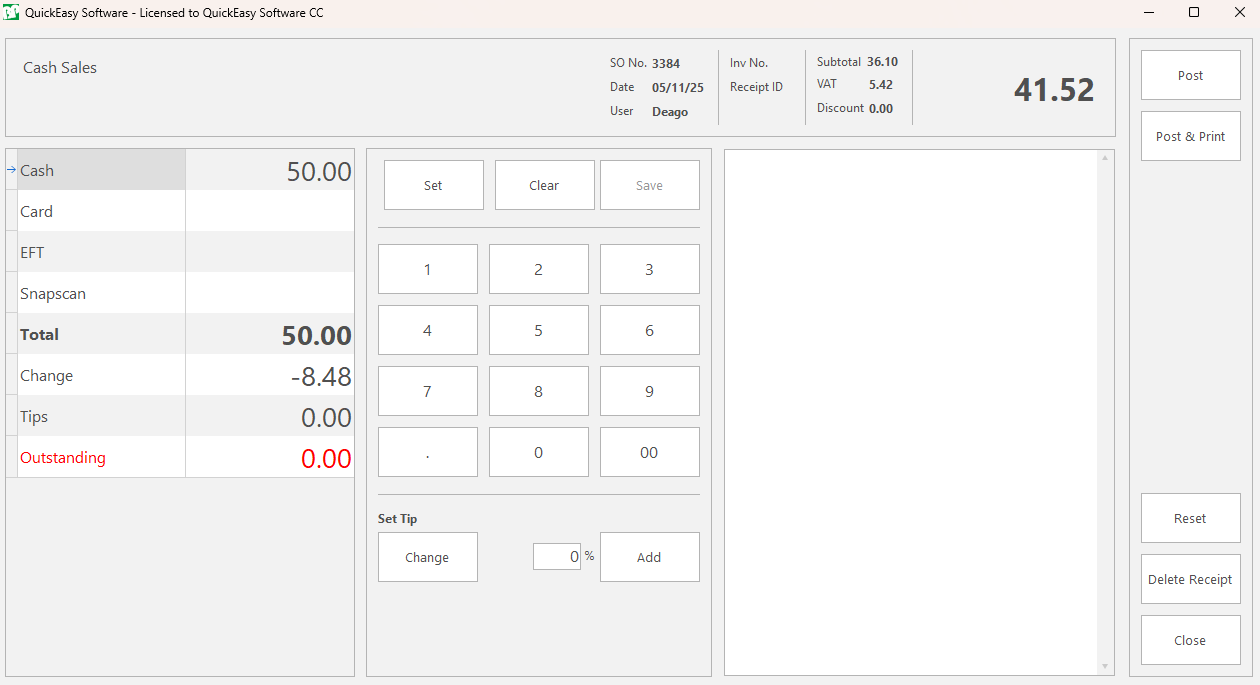
Click Pay (button) in the Sales Order view to access the payment section of the PoS interface.
Buttons Explained
| Button | Description |
|---|---|
| Set | Sets the selected payment method to the outstanding amount. |
| Clear | Clears any value entered into the selected payment method or tip. |
| Save | Saves entered values and calculates the required change. |
| Number Pad | Buttons from 0 to 9 that let you enter the amount received. |
| Change | Calculates the required change. |
| Add | Adds a percentage to the Tip field. |
| Post | Creates a linked Customer Invoice and Customer Receipt. |
| Post & Print | Creates a linked Customer Invoice, Customer Receipt and prints the receipt. |
| Reset | Deletes the linked Customer Receipt and resets the payment amount and payment type. |
| Delete Receipt | Deletes the linked Customer Receipt. |
| Close |
|
Input Fields Explained
| Field | Description |
|---|---|
| Payment Methods | Enter the value received next to the payment type (e.g. Cash, Card, EFT). |
| Tips | Enter the tip amount. |
| % | Adds a percentage to the Tip field. |