Custom Reports
Overview
Custom reports show your BOS Professional data the way you need it, as a list with an optional chart. Each report is an SQL query with its own columns, filters, chart and output template.
Custom reports use two screens:
- Custom Reports: where you select a report, set its filters and view it (see Custom Reports Screen).
- Edit Reports: where reports are created and edited (see Edit Reports).
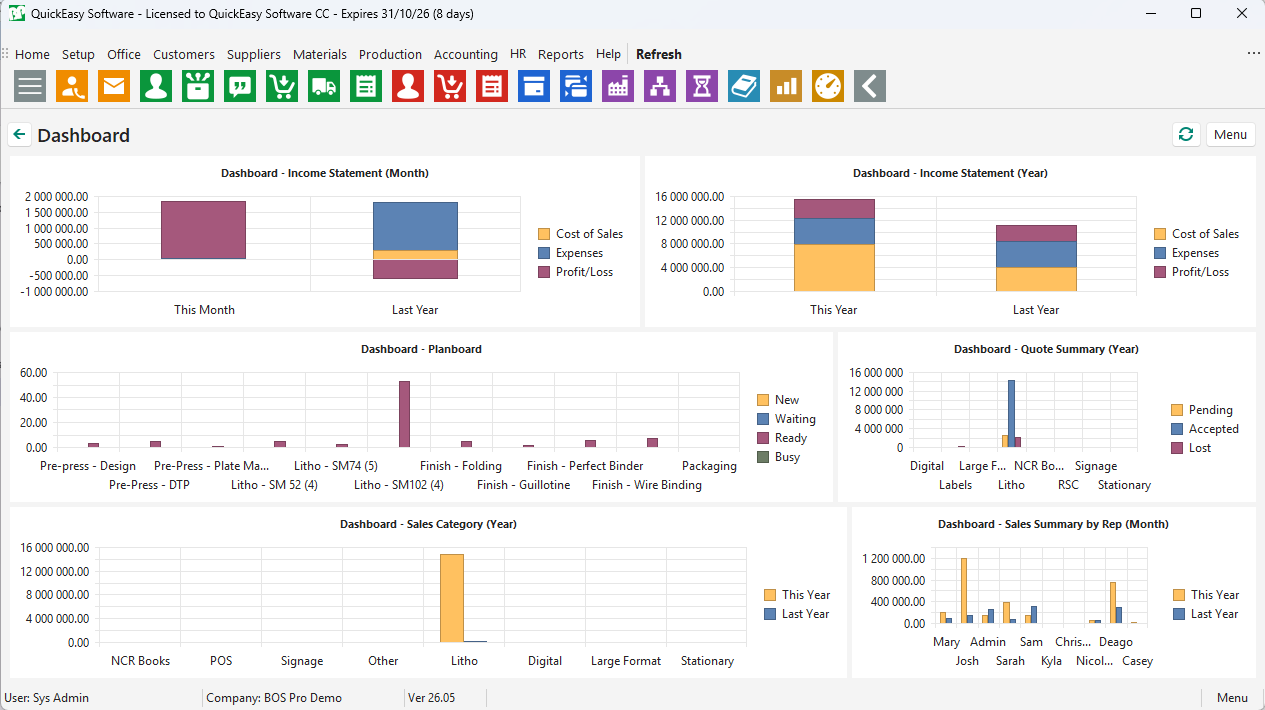
The same reports can appear on your Dashboard.
Creating custom reports for clients is one of the services QuickEasy offers. Contact support if you would like a report created or changed.
Settings
User Settings
The defaults are the values for new databases and new users. Your database may have different values.
| Setting | Description | Default |
|---|---|---|
| Reports & Dashboard > Reports - Access Allowed | The reports you can view. Click Edit... to select them. | None |
| Reports & Dashboard > Edit Reports - Access Allowed | Yes or No. Whether you can open Edit Reports. | No |
| Reports & Dashboard > Dashboard - Reports (ReportID eg. 1,2,3) | The IDs of the reports on your Dashboard, separated by commas. | None |
| Reports & Dashboard > Dashboard - Rows, Dashboard - Columns | The number of rows and columns of charts on your Dashboard. | 0 |
| Reports & Dashboard > Dashboard - Automatic Refresh | Yes or No. Whether the Dashboard refreshes automatically. If your system is slow, set it to No and click Refresh instead. | No |
Custom Reports Screen
Select a report from the dropdown list, set its filters and click View. The list only contains the reports you have access to.
Buttons Explained
| Button | Description |
|---|---|
| View | Runs the selected report. |
| Reset | Clears the report and its filters. |
| Left and right arrows | Move the date range back or forward, and run the report again. |
| Output | Prints, previews or emails the report using its output template. Only available when the report has a template. |
| Actions | Runs an Action on the selected rows. Only appears when the report has Actions (version 26.04 and later). |
| i | Shows the report's description. |
| Menu |
|
Right-click Options
Drilldown only works when the report has a drilldown set up (see Edit Report).
Right-click a row of the report for these options:
- DrillDown: opens the linked record. You can also double-click the row.
- Print: prints the report.
- The report's Actions, if it has any.
Filters Explained
The filters depend on the report: each report shows only the filters its SQL query uses.
Some reports show only your own records. These reports show "Active User" and your name in the filter text, and have no filter to change it.
| Filter | Description |
|---|---|
| Date range | A date range dropdown list with start and end dates. |
| Lookup filter | One of these, depending on the report:
|
| Transaction number | A transaction number, for example, a QT, SO, WO, PO, CI, SI or DN number. |
Data and Chart Tabs
When the report has a chart, it opens with two tabs: Data shows the rows and Chart shows the chart. The chart type is set on the report (see Chart Tab).
Edit Reports
Edit Reports lists the custom reports. You need the Edit Reports - Access Allowed setting to open it.
Edit Reports List
Buttons Explained
| Button | Description |
|---|---|
| Refresh | Refreshes the list. |
| New | Creates a report. |
| Load | Loads a report from a .qer file. |
Fields Explained
| Field | Description |
|---|---|
| ID | Hidden by default. The report's number, used for the Dashboard and in Actions. |
| Report | The report's name. |
| Template | Whether the report has an output template. |
| Drilldown - Module, Drilldown - Fieldname | Where a row drills down to. |
| Chart Type | The report's chart. |
| HTML | Hidden by default. Whether the report has an HTML email body. The email body is edited in the HTML Editor. |
| Menu (...) | A submenu with these options:
|
Edit Report
Double-click a report to open it.
Buttons Explained
| Button | Description |
|---|---|
| Arrows | Move to the previous or next report. |
| Edit SQL | Opens the SQL Editor for the report's query. The Tables, Fields and Parameters lists on the left help you write the query, and Test runs it. When you save, the Fields tab is updated with the query's fields.
|
| New, Copy, Delete | Create, copy or delete a report. |
| Save | Saves the report and updates the Fields tab from the SQL query. If the SQL is invalid, the message "Invalid SQL, fields not updated." appears. |
Fields Explained
Fields marked in green (✎) can be edited.
| Field | Description |
|---|---|
| Name | The report's name, as listed on the Custom Reports screen. |
| Description | The report's description, shown by the i button. |
| Template | The report's output template (.rtm file). Click Load from file to load a template, or Clear to remove it. |
| Drilldown: Module | The module a row opens when you drill down:
|
| Drilldown: Fieldname | The field that holds the ID of the record to open, for example, the Sales Order's ID. |
| Chart Type | The chart shown on the Chart tab:
|
Fields Tab
- The Fields tab lists the fields that the SQL query returns.
- Each field becomes a column on the report.
- New fields get default settings from their data type. For example, numbers are right-aligned with 2 decimals and a Sum.
Fields Explained
| Column | Description |
|---|---|
| Field Name | The field's name in the SQL query. |
| Data Type | The field's data type, for example, Text, Numerical, Integer or Date. |
| Caption | The column heading on the report. |
| Editor | How the value is shown:
|
| Decimals | The number of decimals shown. |
| Alignment | Left, Right or Centre. |
| Summary | The total shown below the column:
|
| Visible | Whether the column is shown. |
| Merge | Merges cells with the same value in the column. |
| Pivot | Filter, Data, Row or Column. Unused for now. |
Chart Tab
Select the fields for the report's chart:
- Category: the field shown along the axis, for example, the month or the customer. The report only has a Chart tab when a category is selected.
- Series: the number fields shown as bars, columns, lines or slices.
SQL Parameters
The report's filters come from the parameters in its SQL query. For example, :DATESTART and :DATEEND add the date range, and :CUSID adds the Customer filter.
Parameters Explained
A report shows one lookup filter. If the query uses several of the lookup parameters, only the first one gets a filter.
| Parameter | Filter |
|---|---|
:DATESTART, :DATEEND | The start and end of the date range. |
:REPID, :OPERATORID, :USERID | Rep, Operator or User. |
:CUSID, :SUPID | Customer or Supplier. |
:CCENTREID, :ACCOUNTID | Cost Centre or Account. |
:MATCATID, :CATEGORYID | Mat Category or Job Category. |
:BRANCHID | Branch. |
:QUOTEID, :SOID, :WOID, :POID, :INVID, :SUPINVID, :DELID, :CCMAINID, :SCMAINID, :STOCKMOVEMENTID, :STRMAINID | The transaction number (QT, SO, WO, PO, CI, SI, DN, CC, SC, MM or TO). |
:ACTIVEUSERID | No filter. The report uses the logged-in user, so each user sees their own records. |
Dashboard
- The Dashboard shows the charts of selected custom reports as they stand today.
- Choose your Dashboard reports with the Dashboard - Reports setting, using the report IDs from Edit Reports.
- For the layout, refresh and chart options, see Dashboard.