
Mobile App - Approvals
Overview
The mobile app opens in a browser on a mobile device or desktop computer. It links to the same database as BOS Professional.
If you are linked to more than one database, you select one when you sign in.
The Approvals module lets you review and approve transactions that require approval.
There are no access controls. However, you only see the transactions that you have authority to approve.
The Approvals module has two screens: the list of transactions awaiting approval, and a detail screen for each transaction with two tabs, Approval and Items.
A transaction only appears if:
- The transaction must be approved.
- The transaction is in its approval status (for example, Active).
- Some of its items that require manual approval are not yet approved.
- You can approve one or more of those items, as a user or as an admin.
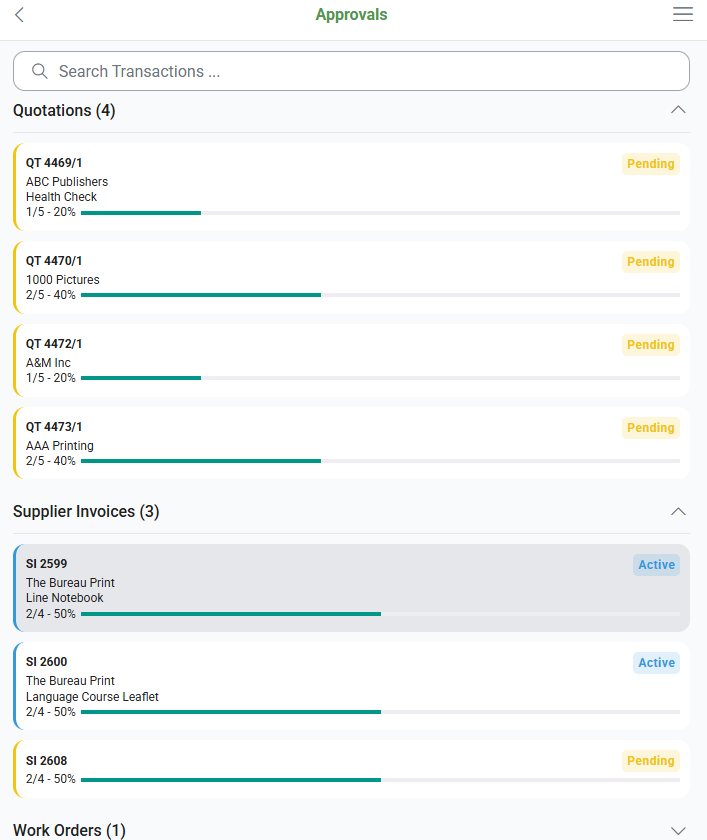
Transactions List View
Displays all the qualifying Transactions, grouped by Transaction Type.
- Search: Filters the list as you enter text. You can search by transaction type and document number, company or reference.
- Header: Lists the Transaction Type and the number of transactions. Tap the header to switch to the Transactions Detail View of that transaction.
Transactions Detail View
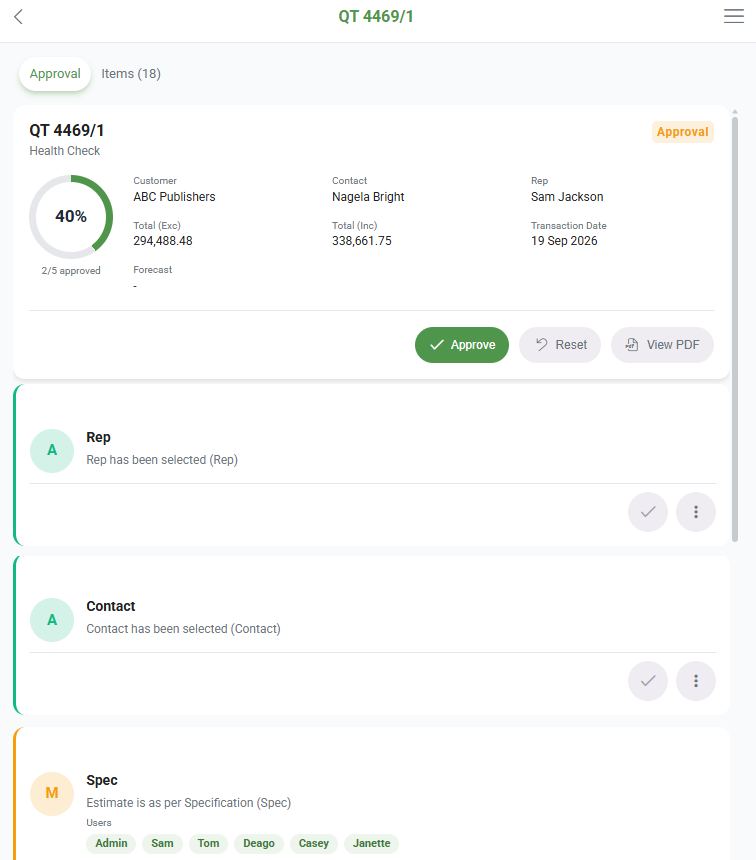
The view has two tabs: Approval (the default tab) and Items (<count>). The buttons and fields below are on the Approval tab.
When all the checklist items are approved, the transaction is removed from the mobile app.
Buttons Explained
| Button | Description |
|---|---|
| < | Navigates back to the Transactions List View. |
| Approve | Approves all the checklist items at once, after you confirm. |
| Reset | Resets every checklist item to its default status, after you confirm. Automatic approval items are approved again immediately. |
| View PDF | Opens the transaction's PDF in a new tab. Only for Quotations and Work Orders, if a PDF was created. |
| Checkmark (next to approval item) | Approves the checklist item and shows a message saying whether the approval succeeded or failed. |
| Actions (three dots next to approval item) |
|
Fields Explained
| Field | Description |
|---|---|
| Transaction Code and Number | The transaction code and number. |
| Status | The word Approval, colour-coded to match the transaction's status. |
| Customer / Supplier | Name of the customer or Supplier. |
| Contact | The contact person selected on the transaction. |
| Rep | The rep selected on the transaction. |
| Total (Exc) / Total (Inc) | The transaction total, excluding and including VAT. Work orders show one Total. |
| Transaction Date | The date of the transaction. |
| Forecast / Due Date / Required Date | Depending on the transaction type, the forecast, due or required date on the transaction. |
| Progress ring | The approval process as a percentage, with the number of items approved / the number of approval items below it (e.g. 3/5 approved). |
| Colour-coded approval items | Each checklist item shows its Code and Description, and a round badge showing the item type:
|
| Users | Tags showing who can approve or decline the transaction. |
| Dependencies | Tags showing which items must be approved first. |
| Note | The note added to the checklist item. |
Add Note Popup
| Field / Button | Description |
|---|---|
| Note | Opens a notepad for you to add a note. |
| Save | Adds the note and refreshes the checklist. |
| Cancel | Closes the popup and discards the note. |
Items Tab
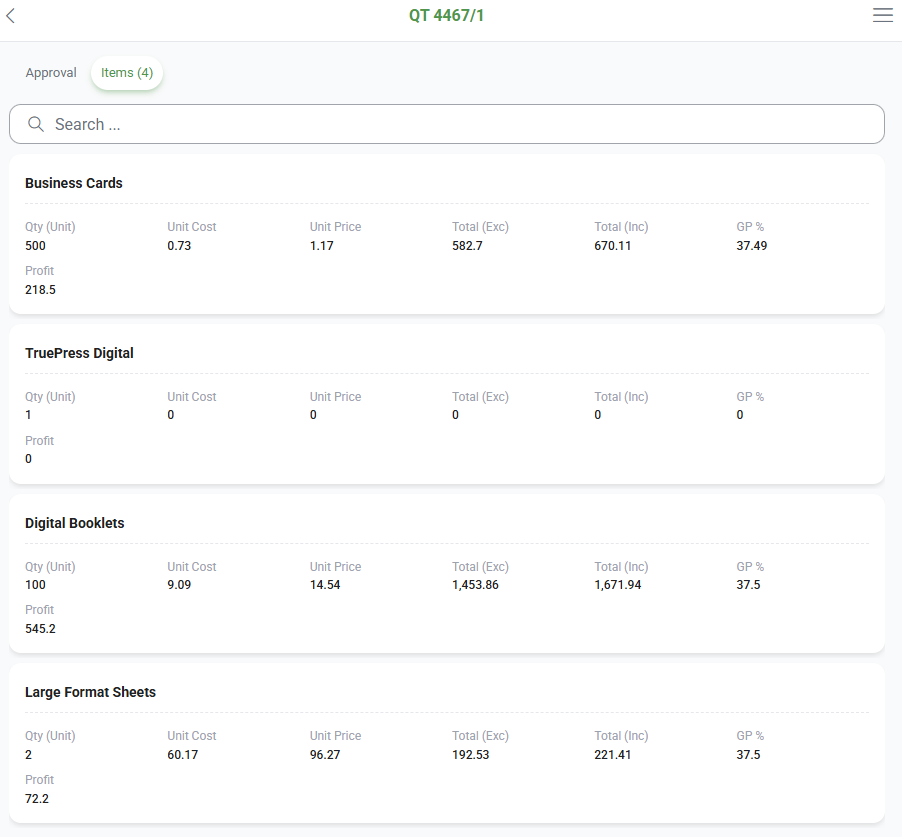
Fields Explained
| Field | Description |
|---|---|
| Description | The item's description. |
| Qty (Unit) | The quantity and unit of the item. |
| Unit Cost | The cost per unit. |
| Unit Price | The selling price per unit. |
| Total | The item's total on transactions that do not use VAT. Appears instead of Total (Exc) / Total (Inc). |
| Total (Exc) / Total (Inc) | The item's VAT exclusive and inclusive prices. |
| GP % | The gross profit percentage. Only shown on Quotations and Sales Orders. |
| Profit | The profit amount. Only shown on Quotations and Sales Orders. |