
Production Planning Materials Tutorial
Overview
Production Planning assists organisations in managing all their production materials. The Materials interface displays the status of all the materials that are needed for the upcoming jobs.
💡These tutorials explain the Materials View and the related functions.
How to View a List of Materials
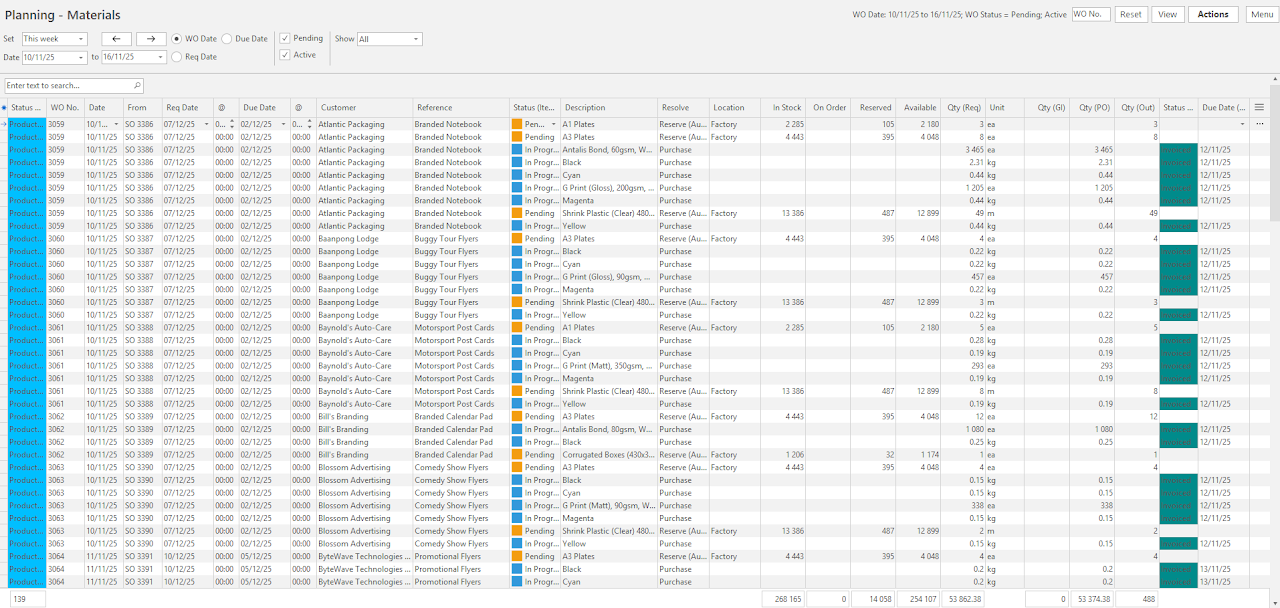
- Navigate to Main Menu > Production > Planning Board > Menu (button) > Materials.
- Adjust the filters as required.
- Click View (button).
How to Change Material Statuses
- Display a list of materials.
- Select the entries you want to change. Use Shift + left-click to select a continuous block. Use Ctrl + left-click to select random records.
- Click Actions (button) > Batch Update.
- Update = Select Status (Item).
- Status = Select a status.
- Click Update (button).
- Confirm the change on the popup.
Filtering Views
How to View Materials by Their Work Order Dates
- Navigate to Materials.
- Select a date option next to Set.
- Click WO Date (radio button).
- Click View (button).
How to View Materials by Their Required Dates
- Navigate to Materials.
- Select a date option next to Set.
- Click Req Date (radio button).
- Click View (button).
How to View Materials by Their Due Dates
- Navigate to Materials.
- Select a date option next to Set.
- Click the Due Date (radio button).
- Click View (button).
How to View Materials that are Pending
- Navigate to Materials.
- Select a date option next to Set.
- Click the checkbox next to Pending.
- Uncheck all the other checkboxes.
- Click View (button).
How to View Materials that are Active
- Navigate to Materials.
- Select a date option next to Set.
- Click the checkbox next to Active.
- Uncheck all the other checkboxes.
- Click View (button).
How to View Active Materials
- Navigate to Materials.
- Select a date option next to Set.
- From the dropdown list next to Show, select Active Materials.
- Click View (button).
How to View Jobs that have all the Materials
- Navigate to Materials.
- Select a date option next to Set.
- From the dropdown list next to Show, select Complete.
- Click View (button).
How to View Jobs Where Materials are Outstanding
- Navigate to Materials.
- Select a date option next to Set.
- From the dropdown list next to Show, select Outstanding.
- Click View (button).
Viewing Detailed Information
How to View or Edit all the Components of a Job (Materials)
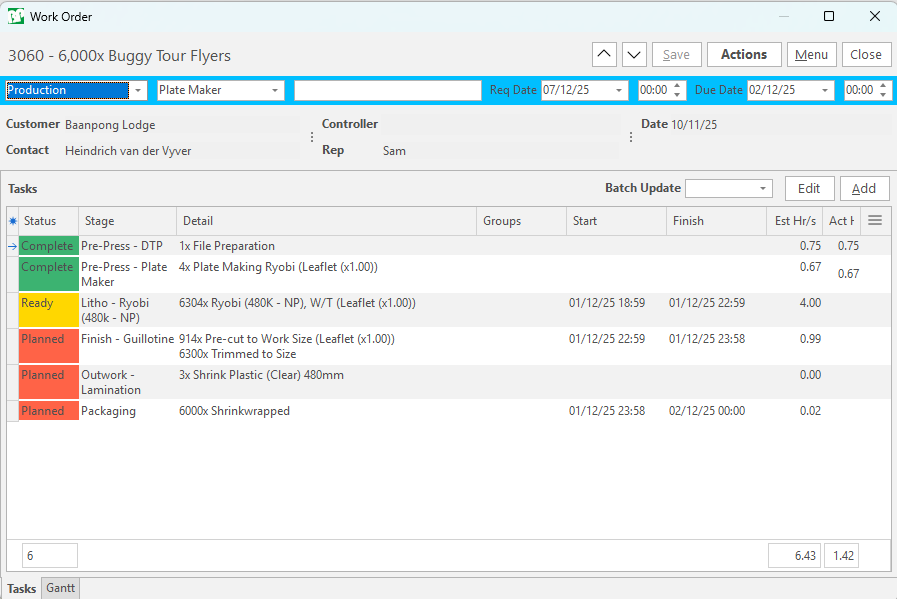
- Display a list of materials as per the screenshot above.
- Right-click an entry and select View/Edit Job.
- You are switched to the View/Edit Job interface. This view lists all the stages the job must go through, along with the expected times, quantities and progress.
How to View a Task's Timekeeping
- Display a list of materials.
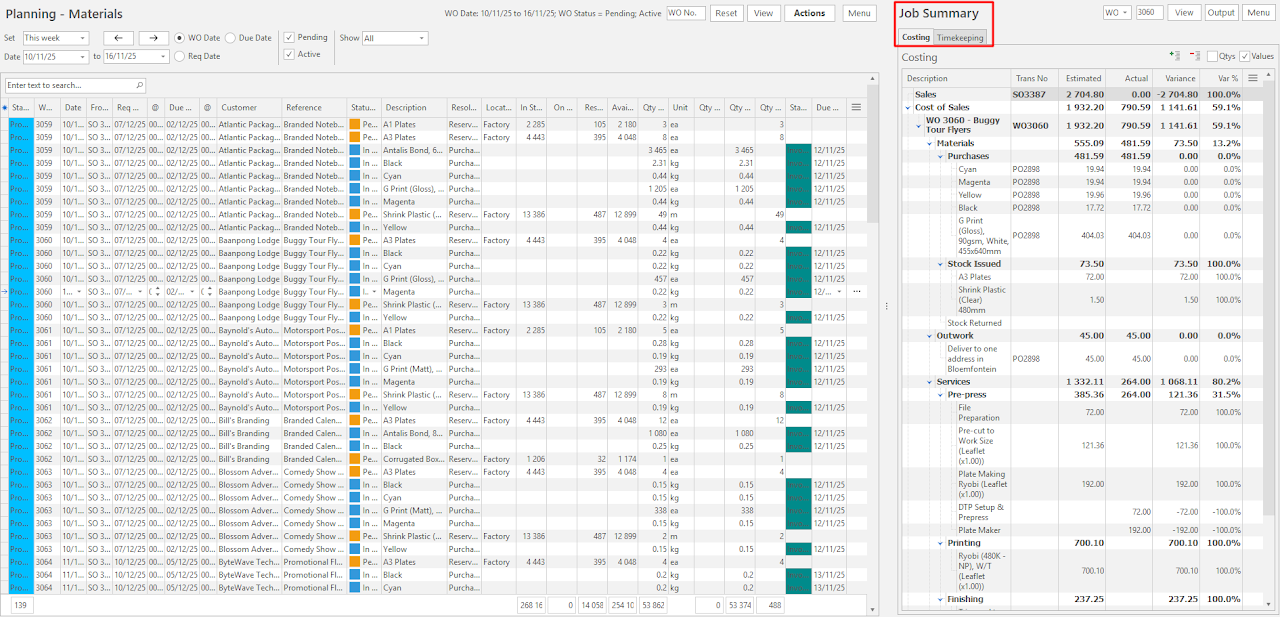
- Right-click an entry and select View Job Summary. (See screenshot above.)
- On the Job Summary, which opens on the right, click Timekeeping (tab).
- Note: You can drag the Job Summary panel to the left using the vertical ellipses in the centre to increase the width. You can double-click the Job Summary tab on the right to close the Job Summary.
How to View a Task's Costing Information
- Display a list of materials.
- Right-click an entry and select View Job Summary.
- On the Job Summary, which opens on the right, click Costing (tab).
- Note: You can drag the Job Summary panel to the left using the vertical ellipses in the centre to increase the width. You can double-click the Job Summary tab on the right to close the Job Summary.
- Use the included functions to customise the costing display as follows:
- Use the + - to expand or collapse the view.
- Check the checkbox next to Qtys to display quantities instead of values.
- Check the checkbox next to Values to display values instead of quantities.
How to View the Linked Work Order
- Display a list of materials.
- Right-click an entry and select Open Work Order.
- The Work Order opens.