Organigram
Overview
Use the Organigram to define the company structure, including Departments, Heads and Staff in a hierarchical structure. It integrates with other modules (e.g. Work Processes) by providing departmental lookup lists and other functions.
Fields and Buttons Explained
| Button | Description |
|---|---|
| Add to Organigram (button) | Provides a dropdown list of the types to select one to add. |
| Type | The available types are:
|
| Status |
|
| Name | The name of the department or the staff member. This field can only be edited for Department Types. |
| Description | A short description of the function of the entity or person. |
| Updated | The date of the last update, and the user who updated the entry. |
Views
- The organigram can be viewed in Tree, Grid or Chart View.
- Views can be changed from the Menu button.
Tree View
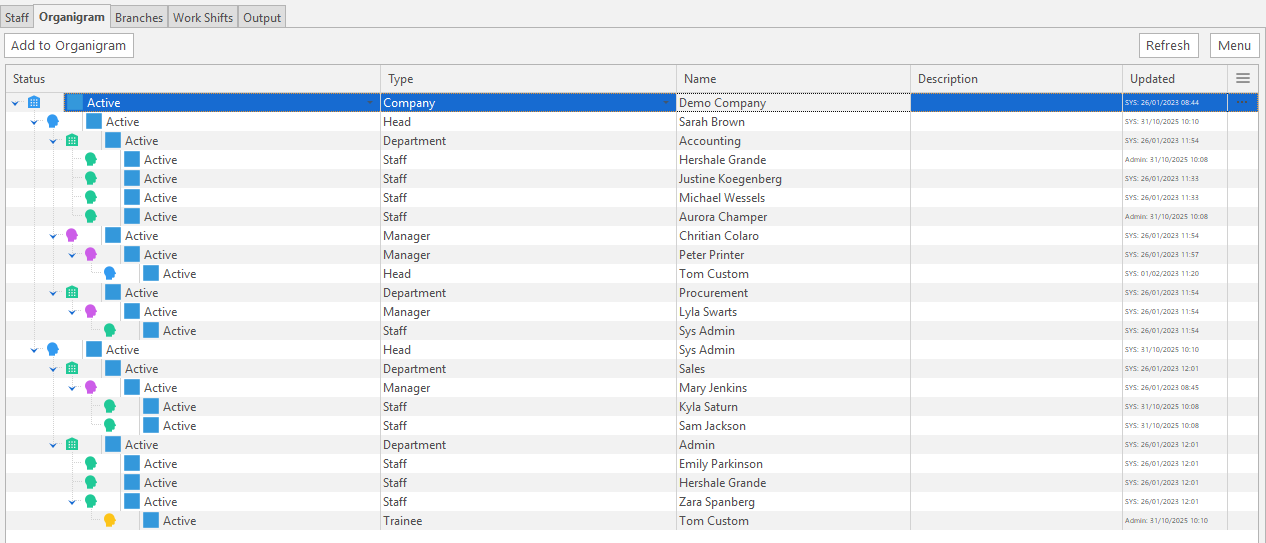
- Change the order of entries by right-clicking a record and selecting Move Up (Ctrl + U) or Move Down (Ctrl + D).
- Nest items by dragging and dropping them.
- Drag an item to the left of the parent icon to remove it from the group.
Grid View
- The Grid view is ordered by Company, Branch, Department and Name.
- The allocations of Branch, Company or Department are taken from the Tree View.
- Data Filters are provided for Company, Type and Status.
- Entries cannot be added or deleted in this view.
- The Status, Name and Description fields can be edited.
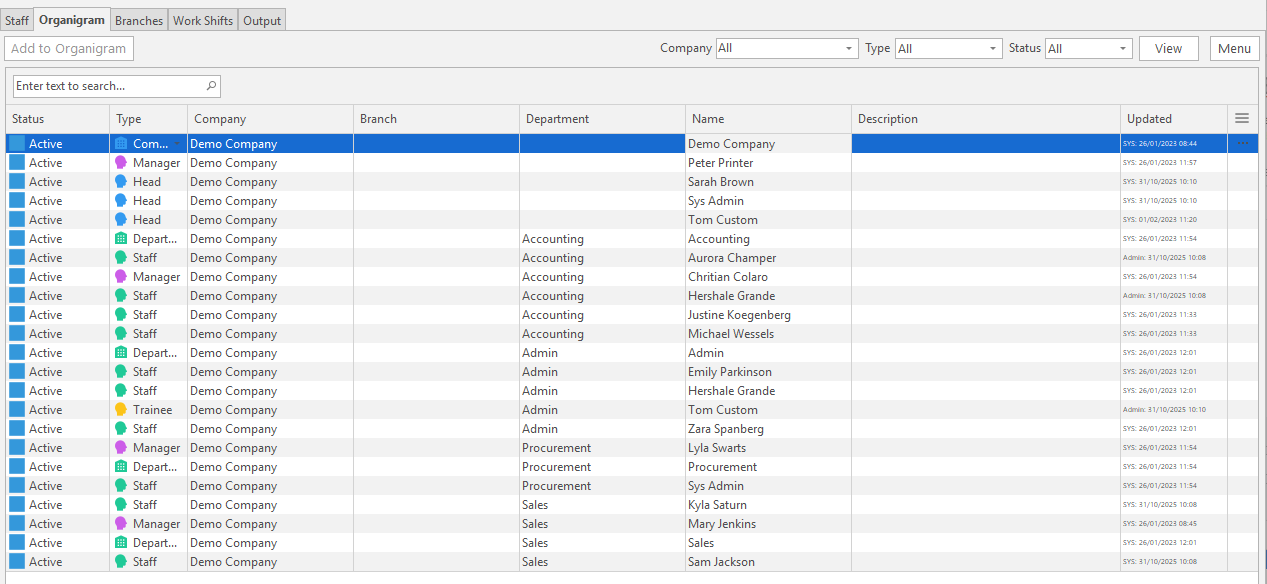
Chart View
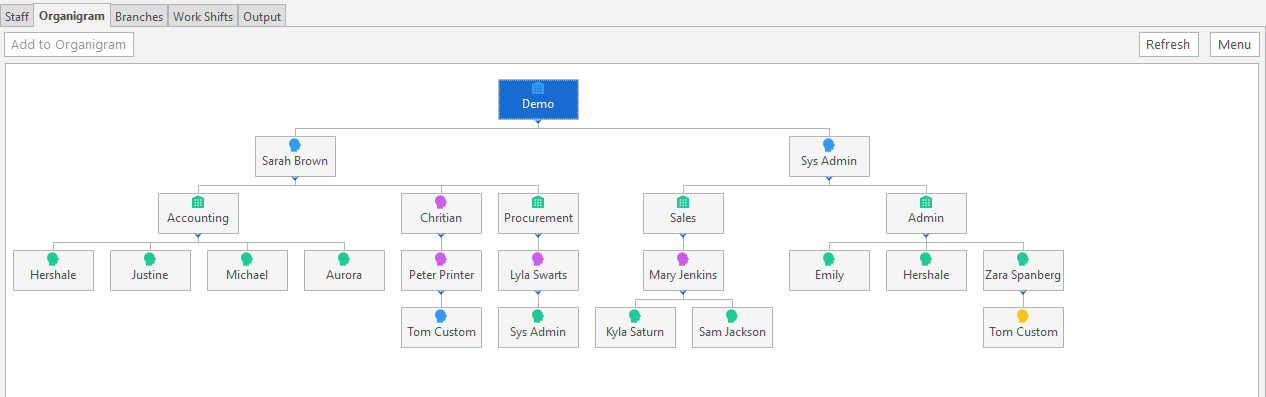
- The chart view displays all the records, with colour-coded icons based on statuses.
- Entries can be dragged and dropped to change the structure.
- Right-click the chart to open a popup menu with these functions:
- Full Expand
- Full Collapse
- Rotated
- Zoom