Mobile App - Delivery
💡This page explains the screens for viewing, delivering and completing your digital Delivery Notes on the mobile app. For step-by-step instructions, see the Mobile App Delivery Tutorial.
Overview
The mobile app opens in a browser on a mobile device or desktop computer. It links to the same database as BOS Professional.
If you are linked to more than one database, you select one when you sign in.
Delivery lists the Delivery Notes assigned to you and captures proof of delivery on the spot. On the mobile app, you can:
- Search your Delivery Notes and see at a glance which ones are signed.
- View a Delivery Note's details and items.
- Capture the receiver's name and signature as a digitally signed delivery confirmation, which also completes the delivery.
- Set a Delivery Note's status to Complete without a signature.
- Edit the Delivery Note's note and open the delivery address in Google Maps.
Delivery notes are not created on the mobile app.
Only active Delivery Notes assigned to you appear. Access to Delivery is controlled by the Digital Delivery Notes - Access Allowed setting on the desktop app. See Settings & Permissions.
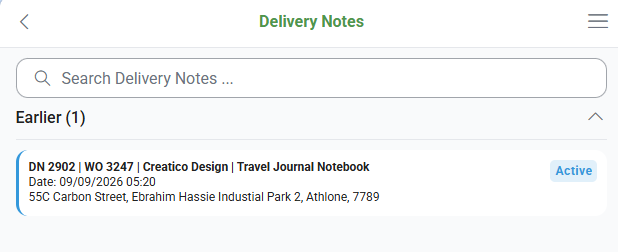
List of Delivery Notes
- The Delivery Notes screen groups your Delivery Notes by due date (the delivery date) under the headings Earlier (due before today, so overdue), Today, Tomorrow and Later.
- The number of Delivery Notes in each group appears in brackets.
- Only the Today group is expanded when the screen opens. Tap a group heading to expand or collapse it.
- Within each group, Delivery Notes that still need a signature are listed first.
Fields Explained
| Field | Description |
|---|---|
| Search Delivery Notes ... |
|
| Delivery note |
|
Delivery Note Actions
Buttons Explained
Tapping a Delivery Note on the list opens a menu with these options:
| Button | Description |
|---|---|
| View Detail | Opens the Delivery Note's detail screen. |
| Navigate | Opens the delivery address in Google Maps. |
| Set To Complete |
|
| Deliver |
|
| View Digitally Signed | Displays the signed delivery confirmation. Disabled if the Delivery Note is not signed. |
Delivery Note Detail
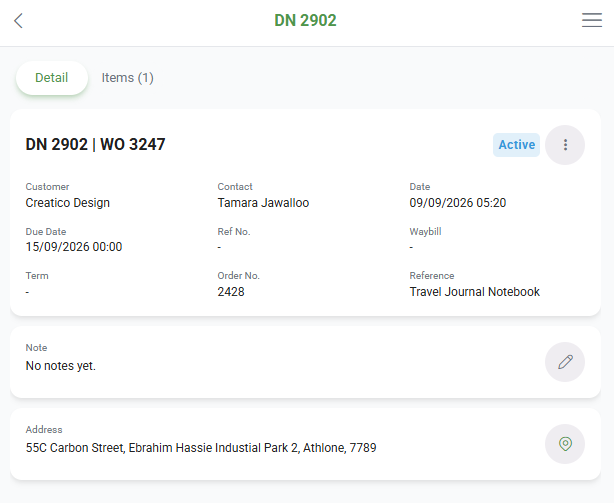
The screen has two tabs, Detail and Items. Tap back to return to the list.
Detail Tab
Fields Explained
| Field | Description |
|---|---|
| Header |
|
| Customer, Contact | The customer and contact person on the Delivery Note. |
| Date, Due Date | The Delivery Note's date and its due date (the date it must be delivered). |
| Ref No., Waybill, Term, Order No., Reference | The reference number, waybill number, Credit Term, customer order number and reference filled in on the Delivery Note. |
| Note | The Delivery Note's note. Tap the pencil icon to edit it. |
| Address | The delivery address. Tap the map icon to open the address in Google Maps. |
Items Tab
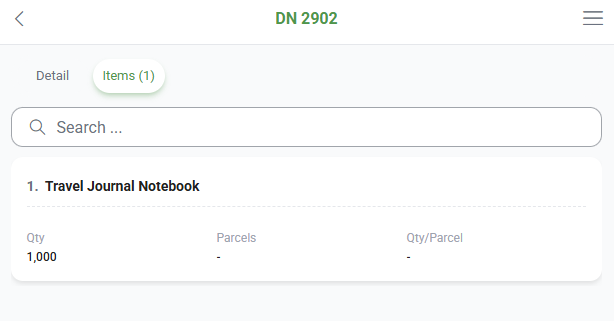
- The tab caption shows the number of items, for example, Items (3).
- Lists each item's line number and description with its Qty, Parcels and Qty/Parcel.
- Enter any part of the order number, description, quantity, parcels or quantity per parcel in Search ... to filter the items.