Mobile App - Customers
Overview
The mobile app opens in a browser on a mobile device or desktop computer. It links to the same database as BOS Professional.
If you are linked to more than one database, you select one when you sign in.
The Customers interface is a directory of companies. It lets you view, add and edit customer records, their contacts and their addresses, and (if you have access) view their accounting details. It also lets you tap an icon to phone, email or navigate to the customer.
You open it by tapping the Customers tile on the Home screen. Access is controlled by the Customers - Access Allowed setting, which also determines whether you see all customers or only your own.
All information displayed on these screenshots is made up. Any likeness to real people or companies is coincidental.
Customer List
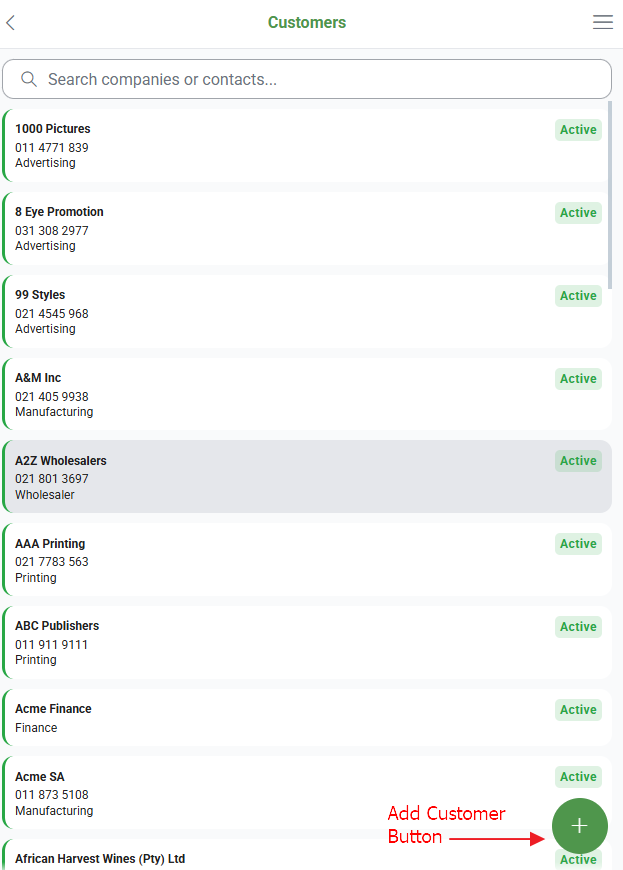
Displays a list of customers:
- Company name (in bold).
- A status tag, colour-coded according to the customer's status: green for Active, amber for any other status.
- Customer telephone number.
- Customer Category.
Buttons Explained
| Button | Description |
|---|---|
| Search | Filters the list as you enter text, by company, contact, telephone or rep. |
| + (Add Customer Button) | Opens the New Customer popup to add a new customer record (see Customer Form). Once the customer is added, its Customer Detail page opens. |
| Customer (card) | Tapping a customer displays a menu:
|
Customer Form
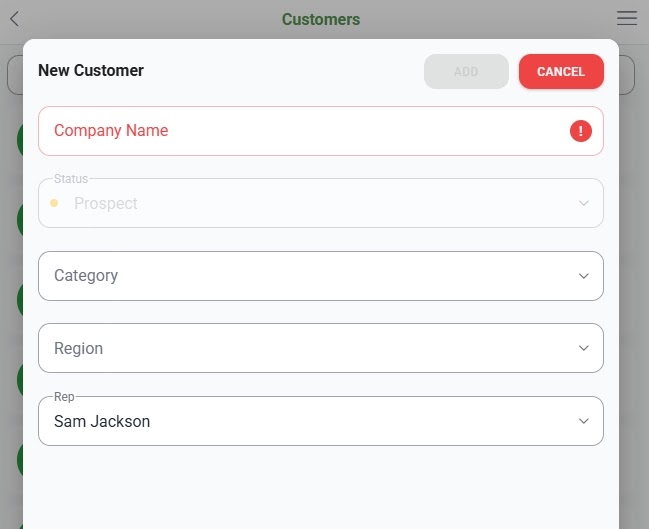
Use the customer form to add a new customer (New Customer popup) or edit an existing one (Edit Customer popup).
Buttons Explained
| Button | Description |
|---|---|
| Add |
|
| Save |
|
| Cancel | Closes the New Customer popup without adding the customer. |
| Close | Closes the Edit Customer popup and saves any changes you made. |
Fields Explained
| Field | Description |
|---|---|
| Company Name | The name of the customer. Required, up to 100 characters. |
| Status | The customer's status: Active or Prospect. |
| Category | The customer's category. Select from the list, which you can search. |
| Region | The customer's region. Select from the list, which you can search. |
| Rep | The rep assigned to the customer. Select from the list, which you can search. |
Customer Detail
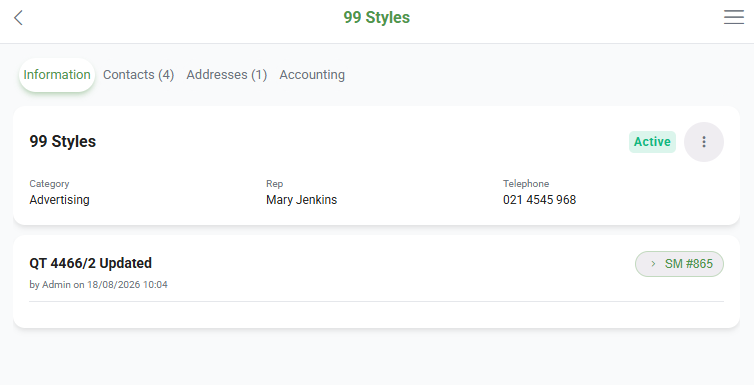
The customer's details are split over these tabs:
- Information
- Contacts
- Addresses
- Accounting, if you have permission to view it.
The Contacts and Addresses tabs show how many records each one holds. Tap the back button to return to the customer list.
Information Tab
Fields Explained
| Field | Description |
|---|---|
| Company | Displays the name of the customer. This field can be edited by tapping Actions (three dots) > Edit, which opens the Edit Customer popup (see Customer Form). |
| Status | The customer's current status, shown as a tag (green for Active, amber for any other status). It can be changed on the Edit Customer popup. |
| Category | The customer's category. |
| Region | The customer's region. |
| Rep | The rep assigned to the customer. |
| Telephone |
|
| Latest Activity | The activity type and description, an SM # link to the related service ticket, who logged it and when ("by <user> on <date>"), and the note.
|
Contacts Tab
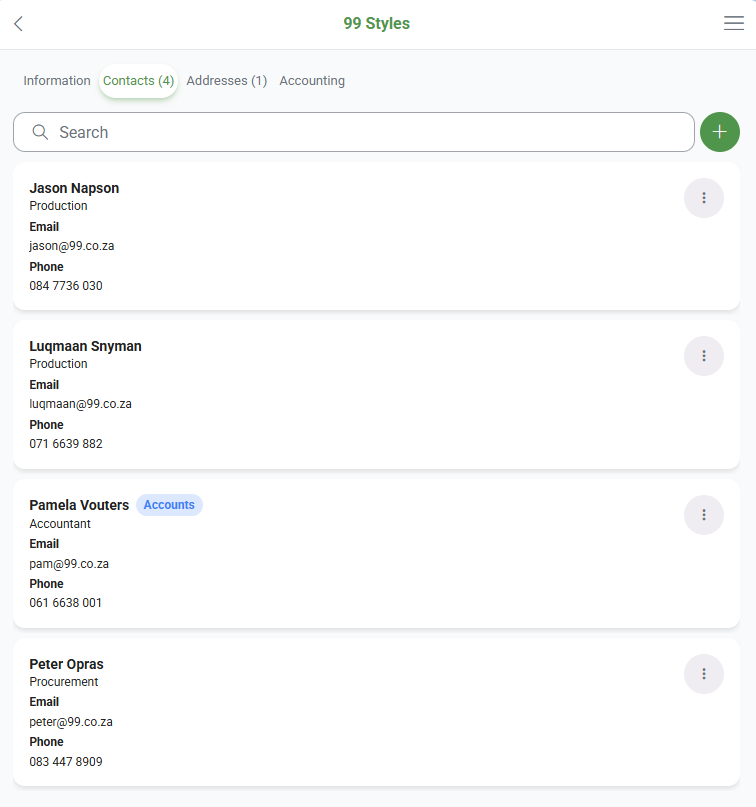
Tap + Add Contact (button) to add a contact. Use the search box to filter contacts by name, job position or email.
Fields Explained
Displays a list of contacts as follows:
| Field | Description |
|---|---|
| Name and Position |
|
| Tapping Actions (three dots) > Email opens your default email and inserts the email address. | |
| Phone | Tapping Actions (three dots) > Call from a mobile device enters the number for you to call the contact. The phone number must be entered in this format: +27 82 123 4567. |
Contact Form
Buttons Explained
| Button | Description |
|---|---|
| Add | Adds the contact. The button stays disabled until something changes. |
Fields Explained
| Field | Description |
|---|---|
| Title | The contact's title. Up to 20 characters. |
| First name | The contact's first name. Up to 50 characters. |
| Surname | The contact's surname. Up to 50 characters. |
| Display as | The name displayed for the contact. Up to 100 characters. Tap FS (button) to fill it in from the First name and Surname. |
| Position | The contact's job position. Select from the list, which you can search. |
| The contact's email address. Up to 150 characters. | |
| Mobile | The contact's mobile number. |
Addresses Tab
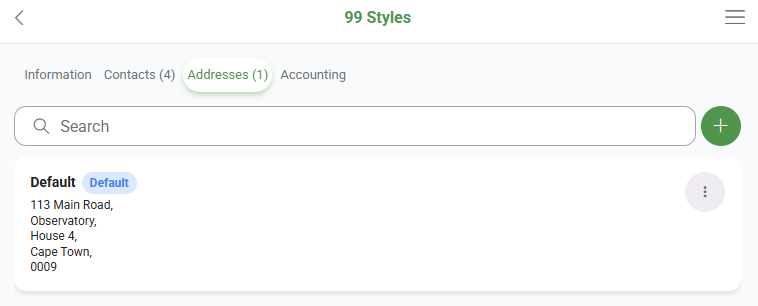
Tap + Add Address (button) to add an address. Use the search box to filter addresses by lookup name or address text.
Buttons Explained
| Button | Description |
|---|---|
| Actions (three dots) | Opens a menu:
|
Fields Explained
Displays a list of addresses as follows:
| Field | Description |
|---|---|
| Lookup | The address's short name. A Default badge next to it shows the customer's default address. |
| Address | The full address. |
Address Form
Buttons Explained
| Button | Description |
|---|---|
| Add | Adds the address. The button stays disabled until something changes. |
Fields Explained
The first address you add to a customer automatically becomes the default address.
| Field | Description |
|---|---|
| Lookup | A short name for the address. Up to 50 characters. |
| Address | The full address. Up to 1 500 characters. |
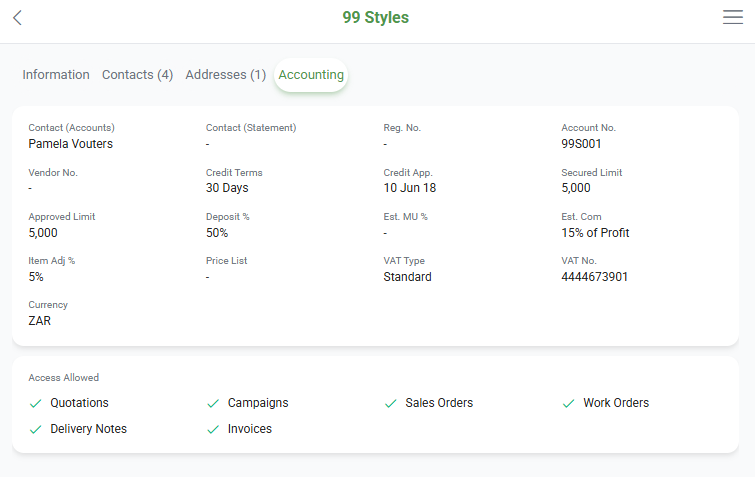
Accounting Tab
Displayed only if the Customers Accounting - Access Allowed setting is on for you. The information on this tab is read-only.
Fields Explained
| Field | Description |
|---|---|
| Contact (Accounts) | The person to contact for accounts. |
| Contact (Statement) | The person statements are sent to. If a contact is not selected, statements are sent to the Accounts contact. |
| Reg. No. | The organisation's registration number or the individual's identity number. |
| Account No. | The customer's account number. |
| Vendor No. | The vendor number. |
| Credit Terms | The Credit Terms selected for the customer. |
| Credit App. | The date of the credit application. |
| Secured Limit | The credit limit that is secured. |
| Approved Limit | The full credit limit, which includes the secured limit and any unsecured limit. |
| Deposit % | The deposit percentage the customer must pay. |
| Est. MU % | The percentage markup applied to standard estimates (e.g. 23 for 23%). |
| Est. Com | The estimated commission, and what the percentage is applied to: % of Profit, % of Value Added, % of Selling Price, % of Cost Price, 2nd Adjustment or N/A. |
| Item Adj % | The percentage added to an item's price. It can be positive (e.g. 5 for 5%) or negative (e.g. -5 for -5%). |
| Price List | The Price List selected for the customer. |
| VAT Type | The VAT Type selected for the customer. |
| VAT No. | The customer's VAT registration number. |
| Currency | The currency selected for the customer. |
| Access Allowed | A checklist showing, with a tick or a cross, whether the customer is allowed each of these transaction types: Quotations, Campaigns, Sales Orders, Work Orders, Delivery Notes and Invoices. |
| Warning | A warning for staff who capture or fulfil the customer's orders (not meant for the customer). It is the same warning that appears on customer transactions in the desktop app. |