
Linking Transactions
Overview
- Transactions are created in a hierarchy which is referred to as a Transaction Flow. For example, Quotations > Sales Order > Work Order > Delivery Note > Customer Invoice.
- To prevent errors and save time, a transaction can be copied to create the next transaction in the Transaction Flow.
- When transactions are copied, they are automatically linked into a Transaction Flow on both a Header and an Item level. For example, a Quotation could be copied to a Sales Order, then an item can be added to the Sales Order from a different Quotation with the following results:
- The Sales Order header is linked to the Quotation from which it was copied.
- The Items are linked to their respective Quotations from which they were copied.
- The Linked Transactions list includes the Sales Order and both Quotations.
- All the transactions in a specific chain are listed under the Links button in Edit View (the interface from which a transaction is created or edited). The list is clickable for quick navigation to one of the linked transactions.
- List Views (a list of transactions) often provide columns to include the linked transaction numbers. These columns may be hidden and can be exposed using the Field Chooser (*) in the first column. Exposing these columns can highlight information such as Customer Invoices for which the Delivery Note column is blank.
- Certain List Views also have an option to View linked Transactions.
- This feature is accessed by right-clicking a line and selecting View linked Transactions.
- It opens a panel on the right and provides a summary of all the linked transactions.
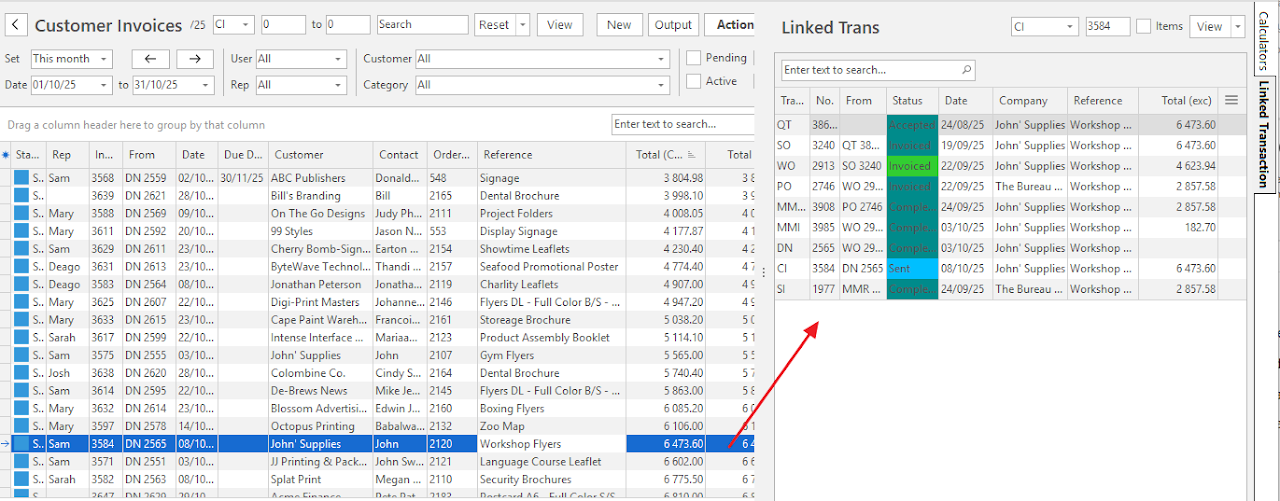
Linked Transactions Screen
The Linked Transactions screen lists every transaction in a transaction's flow, across all the modules. It also opens from a custom report's drilldown (see Edit Report in Custom Reports).
Info
Double-click a row to open the transaction, or use the Menu (...) column (see below). Menu (button) offers Reset Data Filter and the grid layout options.
- Select the module of the transaction:
- QT (Quotation)
- SO (Sales Order)
- WO (Work Order)
- PO (Purchase Order)
- MM (Materials Movement)
- DN (Delivery Note)
- CI (Customer Invoice)
- CC (Customer Credit Note)
- SI (Supplier Invoice)
- SDN (Supplier Debit Note)
- CPN (Campaign)
- Enter the transaction number.
- Check Items to list the linked lines instead of the transactions.
- Click View (button).
Fields Explained
Note
These columns are hidden by default: Ver, User and Unallocated.
| Column | Description |
|---|---|
| Trans, No. | The transaction type and number. |
| From | The transaction it was copied from. |
| Status, Date | The transaction's status, in its status colour, and date. |
| Company, Reference | The customer or supplier, and the reference. |
| Total (exc) | The transaction total, excluding tax. |
| Resolve, Location, Description, Qty, Unit Price, Total | Items only. The line's details. |
| Menu (...) | Click it once to show the eye icon, then click the eye icon to open the transaction. |