Mobile App - Inventory

Overview

The mobile app opens in a browser on a mobile device or desktop computer. It links to the same database as BOS Professional.

If you are linked to more than one database, you select one when you sign in.

Inventory provides a detailed overview of the materials an organisation currently holds in stock. On the mobile app, you can:

  • Search and access specific inventory materials.
  • Monitor stock levels, material availability and specific storage locations.
  • View product specifications, pricing details and real-time stock quantities.

Inventory is a lookup tool and is read-only: you cannot update quantities, add batches or edit materials from the mobile app.

Note

Access to Inventory is controlled by the Inventory - Access Allowed setting on the desktop app. See Settings & Permissions.

Interface Explained

Field Description
Search Bar
  • Enter any part of the material's description, code, category, subcategory, location, quantity in stock or unit to filter and display matching inventory materials.
Scanner
  • Tap the scan icon (next to the search bar) to open the QR/Barcode Scanner and point your mobile device's camera at the barcode or QR code. The scanner reads both barcodes and QR codes.
  • The live camera view shows a frame with the hint "Align the barcode or QR code within the frame." A checkmark briefly confirms a successful scan. The scanner closes and the decoded value is entered in the search bar, which filters the list.
  • Tap the flashlight icon to switch the torch on or off (only on devices that support it). Tap the close (×) button to cancel.
  • You must grant permission to use your camera.
  • On a desktop you must hold the item with the code facing the PC's camera.
Materials list
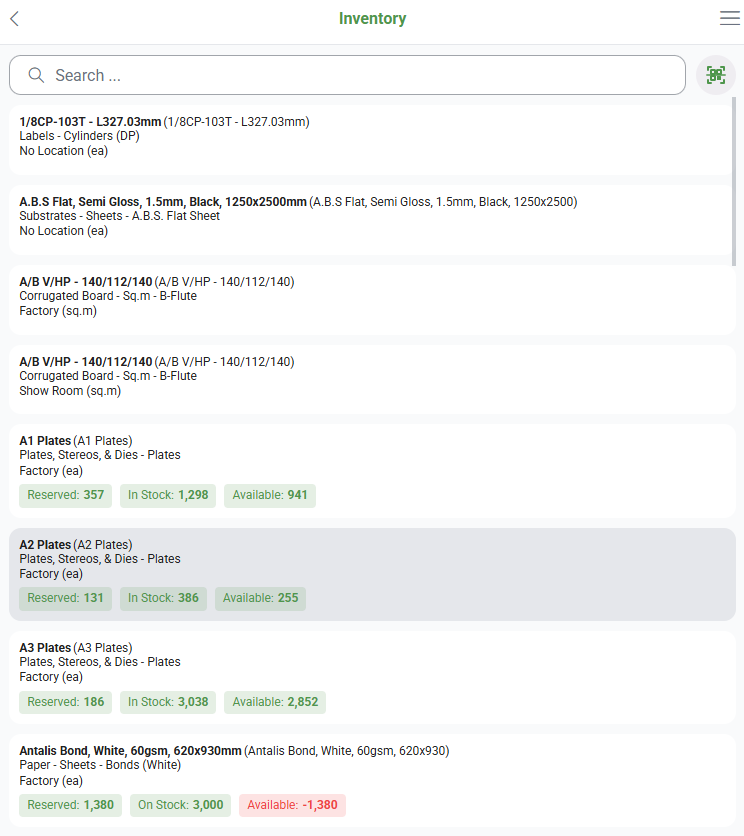
  • Displays a list of materials that are inventory items.
  • This list matches the Materials view on the desktop app when the Inventory Items checkbox is checked.
  • Each item shows its description and code, category and subcategory, location and unit, and four quantities: Reserved, On Stock, In Stock and Available. A quantity appears in red when it is zero or negative, and in green otherwise.
    • Note: The quantity labelled On Stock shows the quantity on order.
  • More information can be seen by tapping an item on the list.
Inventory list in the mobile app, showing each material with its category, location and unit, and Reserved, In Stock and Available quantities
  • The additional detail appears on one page, divided into these sections:
    • Information: Displays the description, code, availability (In Stock in green / Out of Stock in red), category and subcategory, followed by the Specification and Instruction.
    • Pricing: Displays one row per unit of measure: the Unit, the VAT exclusive (Exc) and VAT inclusive (Inc) Sell Price in the local currency, and the quantity that is included in that unit (/Qty).
    • Inventory:
      • Displays the location name.
      • Displays these quantities for each location:
        • Reserved
        • On Order
        • In Stock
        • Available
  • The pricing and inventory grids are read-only. On a narrow screen, drag them sideways to see all the columns.
  • Tap back to return to the inventory list.
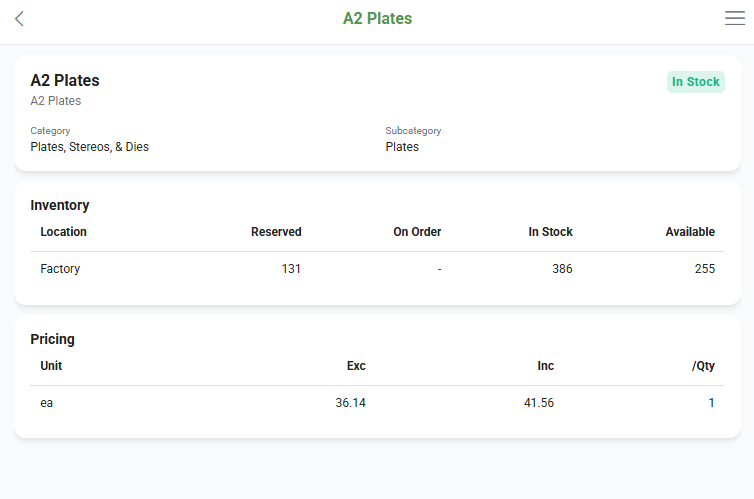
Inventory detail page in the mobile app, showing the material information, the Inventory grid per location and the Pricing grid

Report an issue with this page

For more useful feedback, select the text on the page you're reporting about, then click Feedback again — or continue without selecting anything.