Job Summary
Overview
- The production modules assist organisations in managing all their production tasks.
- A feature of production is the job summary. This summary displays a detailed breakdown of actual and expected costs for a job.
Settings
User Settings
Note
The defaults are the values for new databases and new users. Your database may have different values.
| Setting | Description | Default |
|---|---|---|
| Job Summary > Job Summary - Access Allowed | One of these options:
| None |
| Job Summary > Open Job Summary in the Main Panel | Yes or No. Yes opens the Job Summary as a tab in the main panel, with a Back button. No opens it on the side, next to the screen you came from. | No |
Buttons Explained
| Button | Description |
|---|---|
| View | Updates the display with recent changes. |
| Output | Options to Print, Preview or Email the job summary. |
| Menu |
|
Costing Tab Explained
Buttons and Filters
| Button | Description |
|---|---|
| + - | Expands or collapses the headings. |
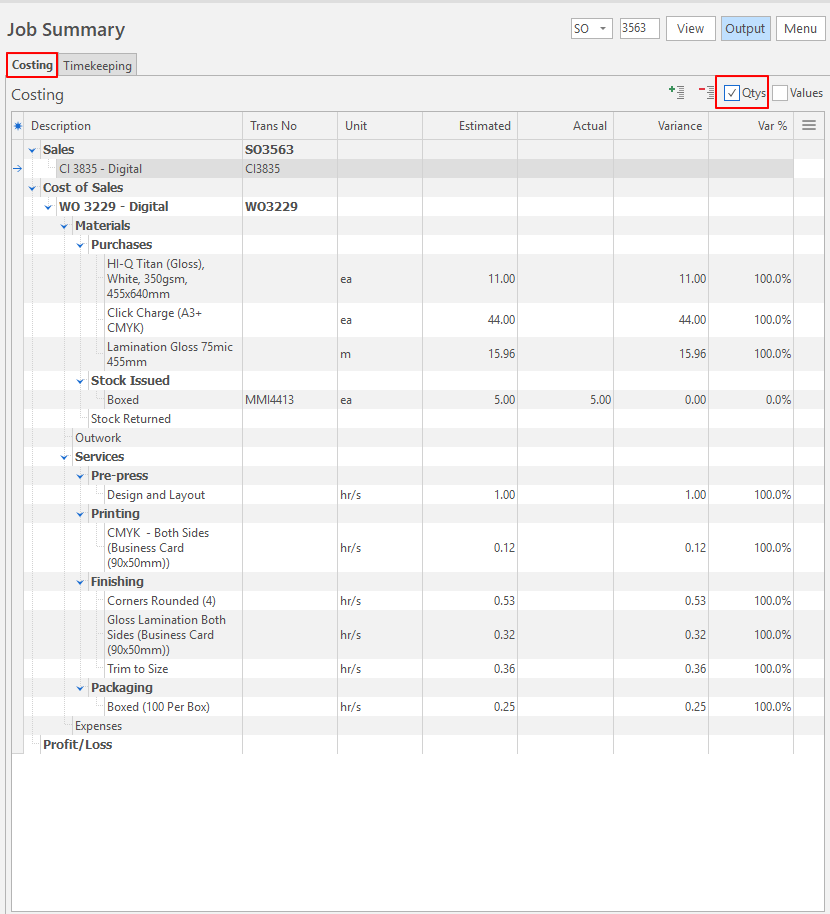
| Qtys | Checkbox. If checked, the unit and quantities appear instead of the values. |
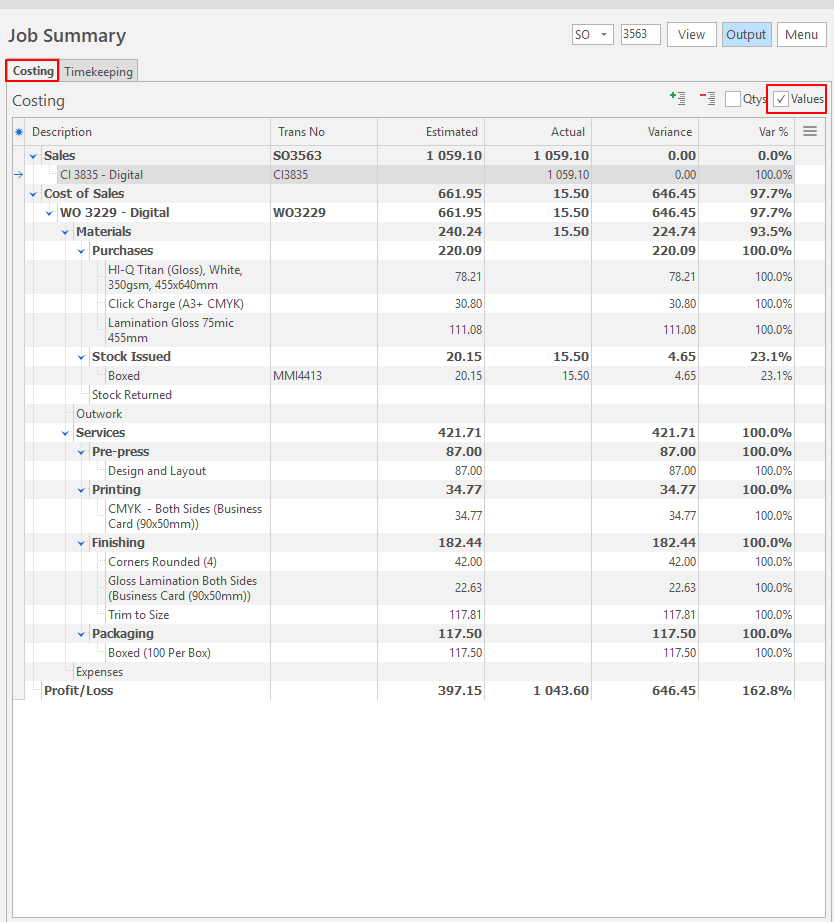
| Values | Checkbox. If checked, the values appear instead of the quantities. |
Fields Explained
| Field | Description |
|---|---|
| Field Chooser (*) | Used to add or remove columns. |
| Description | A description of the job. |
| Trans No | The transaction code and number. |
| Unit | Applies to quantities (Qtys) only. The unit for the entry. |
| Estimated | The estimated value earned or spent. |
| Actual | The actual value earned or spent. |
| PARENTID | The system-generated number for the parent entry. |
| Variance | The amount difference between the estimated and actual amounts. |
| Var % | The percentage difference between the estimated and actual amounts. |
| Menu (...) | Displays the Open xxx option, where xxx is the transaction code and number. It opens the listed transaction. |
Examples
Timekeeping Tab Explained
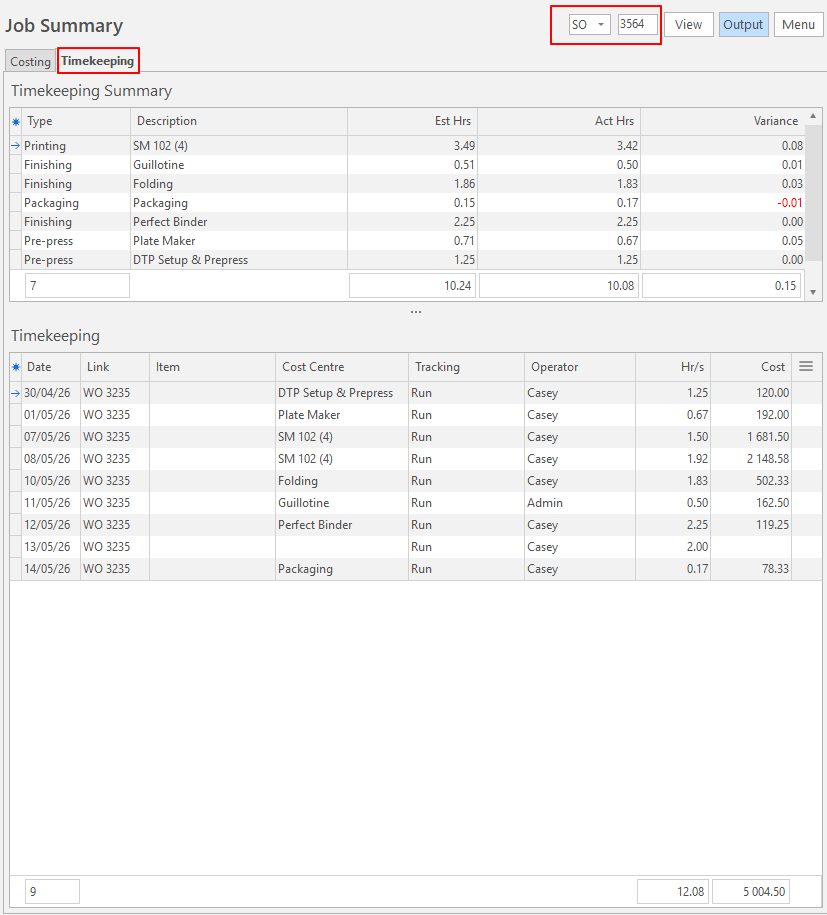
Timekeeping Summary: Fields Explained
| Field | Description |
|---|---|
| Field Chooser (*) | Used to add or remove columns. |
| ID | The system-generated number for the entry. |
| Type | The type of job (e.g. Finishing, Packaging). |
| Description | The description of the job. |
| Est Hrs | The estimated number of hours the job should take. |
| Act Hrs | The actual hours the job took. |
| Variance |
|
Timekeeping: Fields Explained
| Field | Description |
|---|---|
| Field Chooser (*) | Used to add or remove columns. |
| Type | The type of job (e.g. Finishing, Packaging). |
| Date | The date of the timekeeping entry. |
| Link | The transaction that the timekeeping is linked to. |
| Item | The item that was selected on the timekeeping record (if any). |
| Cost Centre | The linked Cost Centre. |
| Tracking | The type of tracking done (e.g. run, washup). |
| Operator | The name of the operator who recorded the timekeeping. |
| Rate | The rate for the Cost Centre. |
| Hr/s | The number of hours it took. |
| Cost | The number of hours multiplied by the rate. |
| Menu (...) | Click the final column to display an eye, click the eye to open the timekeeping record. |
Example