
Production Planning Calendar Tutorial
Overview
Production Planning assists organisations in managing all their production tasks. The Calendar provides a snapshot of the outstanding jobs.
💡These tutorials explain the Calendar and related functions.
How to Understand the Calendar
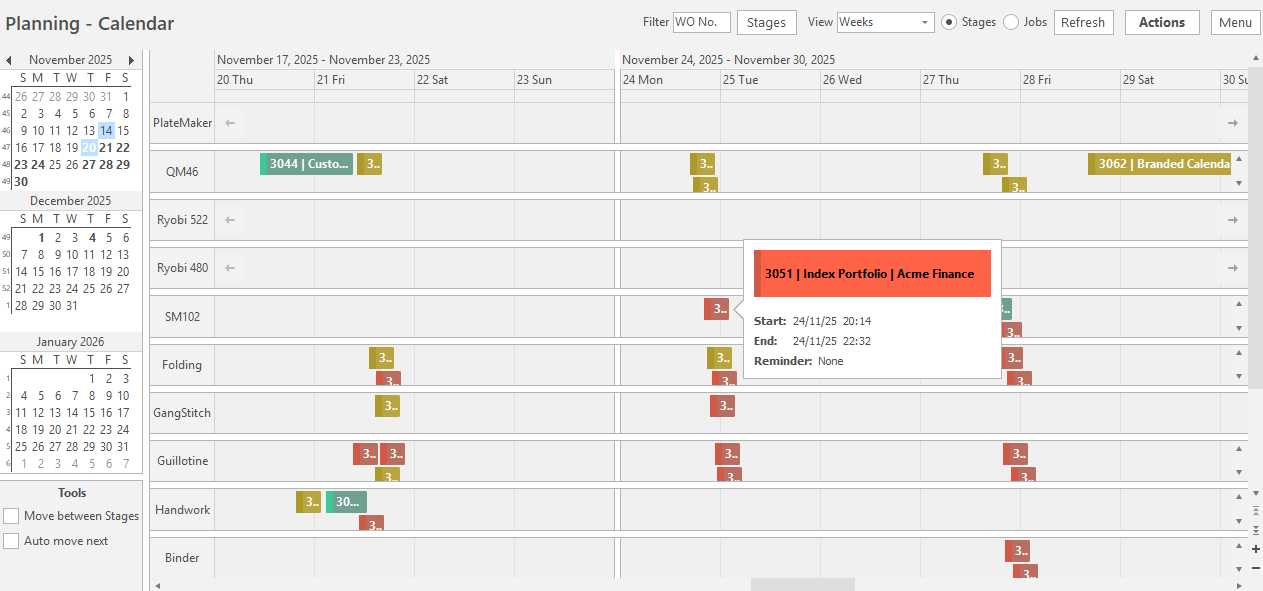
- The Calendar provides a snapshot of the tasks to perform that day.
- More detail about each task can be seen by holding your mouse over the task or by right-clicking the task and selecting one of these options:
- View/Edit Job: Opens the job and lists the tasks. See Jobs Tutorial for more information on this feature.
- View on Board: Opens the Planning Board with the particular job highlighted in black.
- Open Work Order: Opens the linked Work Order.
- Tasks can be dragged to different dates.
Customising the Calendar Display
How to View the Stages on the Calendar
- Navigate to the Calendar.
- Click Stages (radio button).
How to View Jobs on the Calendar
- Navigate to the Calendar.
- Click Jobs (radio button).
How to View Certain Stages
- Navigate to the Calendar.
- Click Stages (button) and check or uncheck the applicable Stages or make a global selection:
- All
- All (Not Empty)
- Unselect All (you must then reselect the Stages you want to view)
How to Customise the Intervals
- Navigate to the Calendar.
- View: = Select an option from the dropdown list.
- Weeks
- Days (15 min)
- Days (6 min)
How to Choose a Different Date
- Navigate to the Calendar.
- On the left are mini calendars for three months.
- Click any Date to display the Stages or Jobs (as per the radio buttons) for that day.
- Click the arrows next to the first month to adjust the calendars one-month forwards or backwards.
How to Move Jobs between Stages
- Navigate to the Calendar.
- On the left, check the checkbox Move between Stages.
- Drag and drop the job from one stage to another.
How to Automatically Move Jobs between Time Slots
- Navigate to the Calendar.
- Check the checkbox next to Auto move next.
- When a job is moved (dragged and dropped on the Calendar), the other jobs are automatically moved up into the now-empty slot.