Statuses

Overview

  • Records and transactions are managed using statuses.
  • For example, statuses mark customers, suppliers and materials active or inactive.
  • Statuses can also mark transactions pending, complete or reconciled.

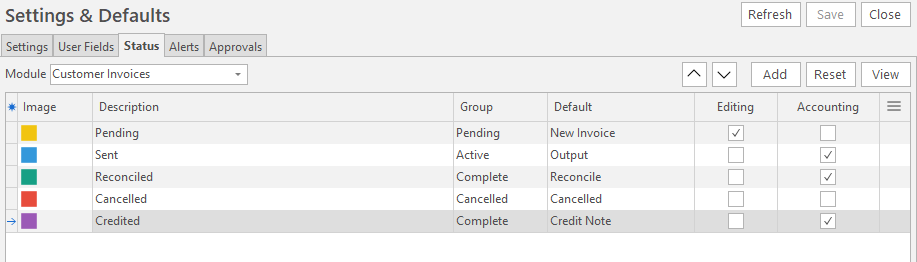
Each module has its own Statuses which can be customised.

Navigation

Main Menu > Setup > Settings & Defaults > Status (tab)

Buttons and Filters Explained

Button Description
Module (filter)
  • Provides a dropdown list of all the modules for which statuses can be set.
  • Certain modules have fixed statuses, and those modules do not appear on the dropdown list.
AddAdds a line in which a new status can be entered.
ViewRefreshes the display.

Fields Explained

Info

Fields marked in green (✎) can be edited.

Field Description
Field Chooser (*)Lets you add or remove columns.
IDThe system-generated number for the status.
ImageA colour selector for the status.
DescriptionA user-defined description for the status.
GroupThere are four status groups. Although you can create an unlimited number of statuses, each status must be allocated to one of these groups:
  • 🟨 Pending
  • 🟦 Active
  • 🟩 Complete
  • πŸŸ₯ Cancelled
DefaultDefault statuses manage certain conditions (see Default Statuses below).
EditingCheckbox:
  • Checked: Records (e.g. transactions, service tickets) can be edited while in this status.
  • Unchecked: Records cannot be edited and become read-only.
  • For example, check this checkbox for Pending transactions. Uncheck it for Completed or Reconciled transactions.
AccountingCheckbox:
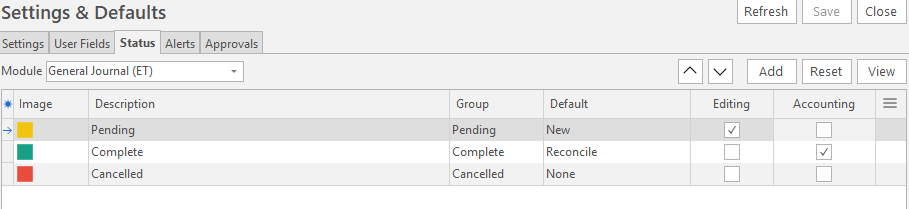
  • Checked: Transactions are posted to the ledger.
  • Unchecked: Transactions are not posted to the ledger.
  • For example, uncheck this checkbox for Pending or Cancelled transactions. Check it for Active (optional) or Completed transactions.
InventoryCheckbox:
  • Checked: The transaction updates inventory.
  • Unchecked: The transaction does not update inventory.
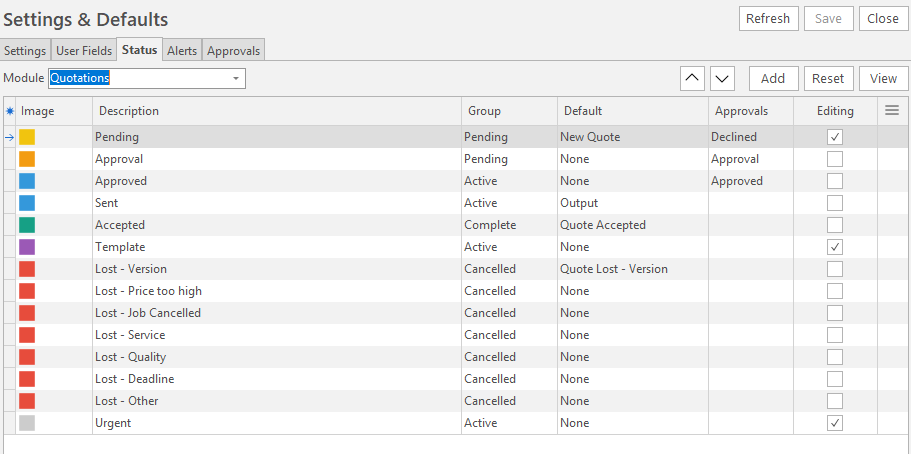
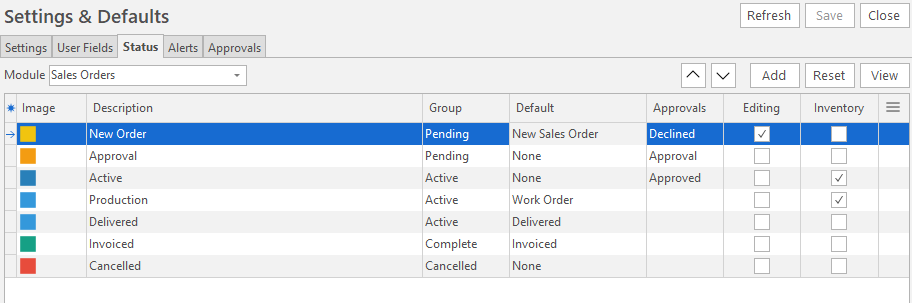
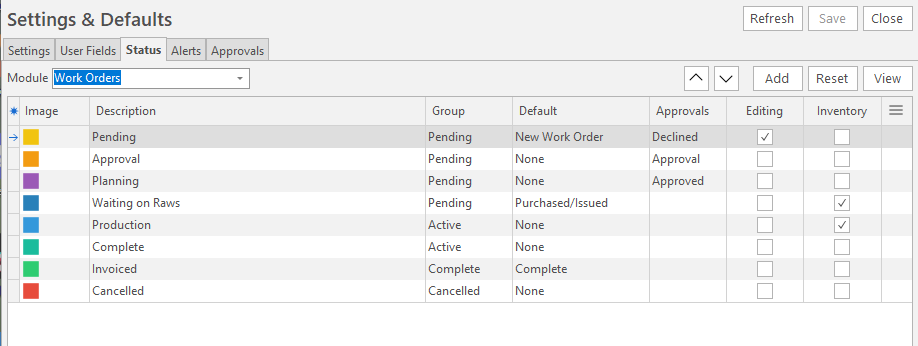
  • This option depends on the transaction and whether the inventory update is permanent (issued, received), or temporary (reserve). See screenshots below for some examples.
Approvals
  • If checklists and approvals are used, this feature changes the transaction's status as it is approved or declined.
  • Statuses can be selected for the following:
    • Approval: Select this option for the status that starts the approval, for example, a Pending status with Editing unchecked (see Setting up Approvals).
    • Approved: Select this option for Complete statuses on transactions that should no longer be edited.
    • Declined: Depending on the transaction, select this option for Pending statuses (so the transaction can be edited) or select this option for Cancelled statuses (so the transaction is set to a Cancelled status if not approved).

Menu (...)
  • A submenu with the following functions:
    • Move Up
    • Move Down
    • Delete
  • Once a status is used it cannot be deleted.

Default Statuses

Info

The different modules have their own default statuses. Here is an alphabetical list of all the defaults.

Status Description
Batch Complete
  • Work Orders in this status are excluded from the Batch Tracking Report.
Credit Note
  • The status when a credit note is issued by copying the original Customer Invoice.
  • Allocate this default to a status in the Complete group.
Debit Note
  • The status when a debit note is issued by copying the original Supplier Invoice.
  • Allocate this default to a status in the Complete group.
Delivered
  • The status when the order is delivered.
  • Allocate this default to a status in the Complete group.
  • Applies to Sales Orders.
Inventory Issued
  • The status when inventory is issued to the transaction.
  • Allocate this default to a status in the Active or Complete groups.
  • Applies to Sales Orders.
Invoiced
  • The status when the customer is invoiced.
  • Allocate this default to a status in the Complete group.
  • Applies to Sales Orders.
New
  • The default status for a new transaction or record.
  • This default is mandatory, so the system knows which status to allocate to new entries.
  • Applies to all modules.
  • The name of the transaction may be appended to the word β€œNew” (e.g. New Sales Order).
None
  • Used for statuses that do not have one of the defaults listed below.
  • Applies to all transactions.
Output
  • The transaction is previewed, printed or emailed.
  • Allocate this default to a status in the Complete group (e.g. once a Quotation is printed or emailed, it should not be changed).
  • If the transaction is already in a Complete or Cancelled status, accessing Output does not change the transaction's status.
  • Applies to all transactions.
Output Received
  • This default indicates the Work Order is complete and the finished goods are issued.
  • Applies to Work Orders.
Purchased/Issued
  • This default indicates that the stock or services needed are ordered.
  • Allocate this default to a status in the Active or Pending groups.
  • Applies to Work Orders.
Quote Lost - Version
  • When a quote that has versions is accepted, the other versions can be automatically marked as lost.
  • Allocate this default to a status in the Cancelled group.
  • Applies to Quotations.
Quote Accepted
  • The status that triggers the other versions to be set as lost.
  • Allocate this default to a status in the Complete group.
  • Applies to Quotations.
Reconcile
  • The status to indicate the transaction is reconciled (e.g. VAT or Bank recon complete).
  • It can also be used to indicate the transaction is checked by a manager or internal auditor.
  • Allocate this default to a status in the Complete group.
  • Applies to all transactions, but mostly used for ledger transactions.
Work Order
  • The status when a Work Order is issued from the Sales Order.
  • Allocate this default to a status in the Active or Complete groups, depending on which of the other status defaults are used.
  • Applies to Sales Orders.

Examples

Report an issue with this page

For more useful feedback, select the text on the page you're reporting about, then click Feedback again β€” or continue without selecting anything.