
Attachments Tutorial
Overview
Documents and images can be attached to records such as Customers, Suppliers, and Materials and to transactions such as Quotations, Sales Orders, Delivery Notes, Invoices and Purchase Orders.
💡These tutorials explain how to create and manage attachments.
How to Create an Attachment
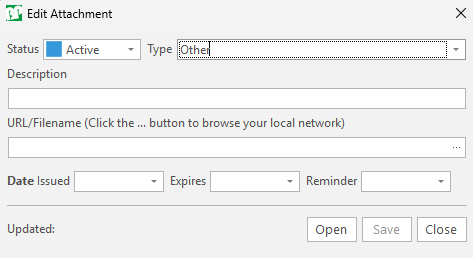
- Edit a transaction or record which supports Attachments.
- Click Actions (button) > Add Attachment or Add Attachment (button).
- Complete the form as follows:
- Status = Select a status for the attachment from the dropdown list.
- Type = Select a type from this list (the options vary slightly between records and transactions):
- Agreement
- Artwork
- Contract
- Finance
- Image (.jpg, .png)
- Notice
- Other
- Quotation
- Specification
- Signature
- Description = Enter a name for the attachment.
- URL = Paste a URL in the block provided (use Ctrl + C to copy the link and Ctrl + V to paste it). Or click the ellipses to the right of the URL/Filename block > navigate to the file on your local network and click Upload.
- Note: If you upload a file, start with Step 3d because many of the other fields are filled in with the details of the attached file.
- Complete the date fields by selecting dates on the calendars for whichever of these fields apply:
- Issued = Select the issue date, for documents such as certificates that have one.
- Expires = Select the expiry date, for memberships and other documents that expire.
- Reminder = Select the date on which you want to be reminded to renew the document or request updated information, for documents that expire.
- Click Save (button).
- Click Close (button).
How to Edit an Attachment
- Open the attachment, or
- Right-click the attachment and select Edit.
How to Delete an Attachment
- Right-click the attachment and select Delete.
How to Link to Google Drive Documents
Info
If your documents are stored in Google Drive, you can link to them by pasting the link in the URL field, instead of uploading them.
Online Google Drive Folder
When a document is uploaded to Google® Drive, a link can be generated as follows:
- Open your browser of choice such as Chrome or Edge.
- Enter https://drive.google.com/ into the URL field or search bar.
- Navigate to the applicable folder.
- Right-click the file to attach and select Copy Link.
- In BOS Professional, paste this link onto the URL field.
- Note: If the attachment form is not open, you can paste the link to a notepad and copy it from the notepad to paste into BOS Professional later.
Local Google Drive (G:) Location
Info
You can add a link to your Google Drive on your desktop computer using File Explorer. Set up this method as follows:
Setting up 'Drive for Desktop'
- Open your Google Drive location using your preferred browser or navigate to https://drive.google.com/.
- Select the Settings icon in the top right corner of the window, usually shown as a 'gear' icon.
- Select Get Drive for Desktop then select Download Drive for Desktop.
- Drive for Desktop creates a new Google Drive (G:) on your device, accessible through File Explorer.
Uploading a File
- Open File Explorer, then use the left panel to navigate to the newly created Google Drive (G:). Select the new drive, then navigate to My Drive or Shared Drives.
- Drag the files into the selected folder of the synchronised drive.
Generating a link to a File from Google Drive (G:)
- Open File Explorer, then use the left panel to navigate to the newly created Google Drive (G:). Select the new drive, then navigate to My Drive or Shared Drives.
- Locate the file to be created as an attachment, then right-click and select Copy Link to Clipboard.
- This option copies the link to the clipboard, which can then be pasted into the Attachment URL field in QuickEasy BOS Professional.