Service Manager - Setup and Settings
Overview
Use the Service Manager to manage issues or enquiries such as sales, account and production queries.
The Service Manager can be customised using the settings and features explained on this page.
Settings
General Settings
The defaults are the values for new databases and new users. Your database may have different values.
| Setting | Description | Default |
|---|---|---|
| Service Manager > Category for Sales Reporting | Select one of these options:
| Material |
| Service Manager > Enable editing Status and Assign to | Select Yes or No from the dropdown list. | No |
| Service Manager > Sales Messages |
| None |
User Settings
| Setting | Description | Default |
|---|---|---|
| Service Manager > Default Data Filter | Select one of these options for the default display:
| Today |
| Service Manager > Deleting - Access Allowed | Yes or No. Select Yes to allow access. | No |
| Service Manager > Edit Responses created by other Users | Yes or No. Select Yes to allow access. | No |
| Service Manager > Service Manager - Access Allowed | Yes or No. Select Yes to allow access. | No |
| Service Manager > Settings - Access Allowed | Yes or No. Select Yes to allow access. Refers to the settings available from the Service Manager's Menu button. | No |
| Service Manager > View all Customers | Yes or No. Select Yes to allow access. Select No to limit the user to tickets where they are the rep. | No |
Categories
Categories sort and organise service tickets. Category settings also determine what happens when a ticket is first opened.
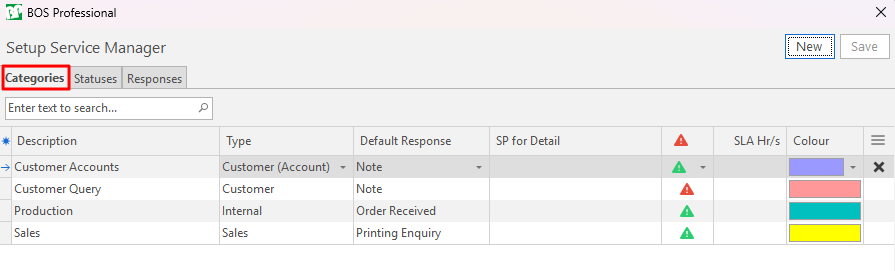
Fields marked in green (✎) can be edited.
| Field | Description |
|---|---|
| Description | Enter a description of the category. |
| Type | Provides a dropdown list to select one of these types:
|
| Default Response | Provides a dropdown list to select a response that is automatically added when a new ticket is created. |
| SP for Detail | Enter the name of a custom Stored Procedure which generates the information that appears on the Detail section. (Input = TICKETID Integer; Output = NOTE blob) The NOTE parameter can return rich text or plain text. |
| Severity | An icon which sets the default severity for the ticket. The options are:
|
| SLA Hr/s | The service level hours in which the SM ticket must be closed. |
| Colour | A colour picker to select the colour that appears in the list of tickets. It makes it easy to spot tickets in specific categories. |
| Menu (...) | Click the last column to display an X. Click the X to delete the category. Used categories cannot be deleted. |
Statuses
Use Statuses to manage tickets from inception to completion.
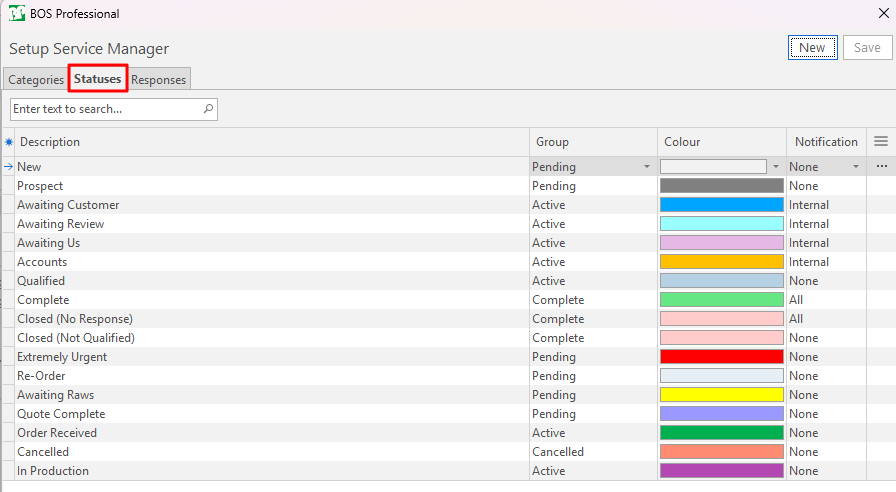
An unlimited number of statuses can be created; however, each status must be linked to a group. When the ticket has a status that is in the Complete or Cancelled groups, it can no longer be edited.
Additional people can be added to receive notifications from within a ticket > Menu (button) > View/Edit Subscribers.
| Status | Description |
|---|---|
| Description | Enter a description of the status. |
| Group | A dropdown list of status groups to select one. The options are:
|
| Colour | A colour chooser to select a colour for the status. |
| Notification | A dropdown list of options to send notifications. The options are:
|
| Menu (...) | Options to:
|
Responses
Responses are the information that is added to the ticket. It can also control the process, by automatically setting statuses and assigning the ticket.
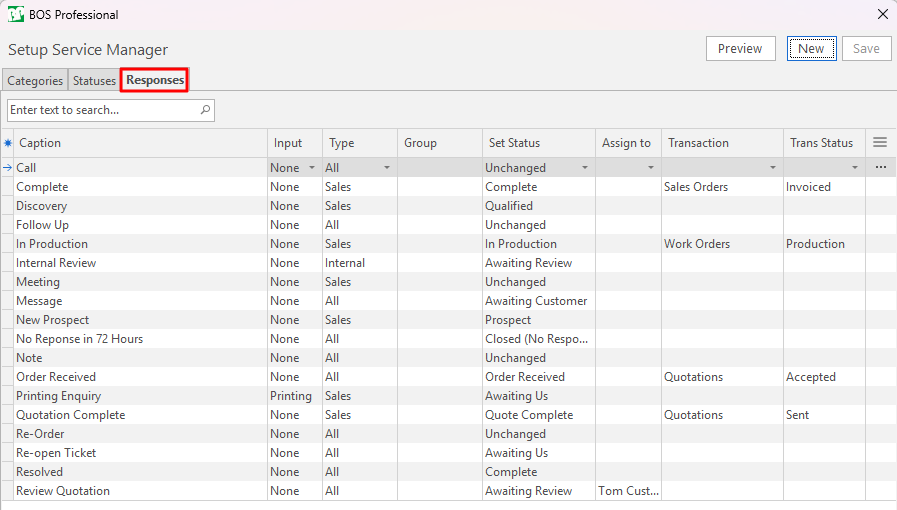
Fields marked in green (✎) can be edited.
| Field | Description |
|---|---|
| Caption | Enter a name for the response. |
| Input | Select None or Printing. Use Printing for printing enquiries. |
| Type | Select a type from this list:
|
| Group |
|
| Set Status |
|
| Assign to | Provides a dropdown list of staff to select a staff member to assign the ticket to. |
| Transaction |
|
| Trans Status |
|
| Menu (...) |
|
Lookup Lists
Lookup lists speed up completing a ticket. For example, instead of entering a reference, you select one from a dropdown list.
Lookup lists are created by entering the words or phrases on a notepad, one entry per line.
The following lookup lists can be created from the List View Menu button:
- Reference: Used to complete the reference field on the ticket.
- Lead Sources: Used to identify lead sources on sales tickets.
- Printing Size
- Printing Parts
- Printing Ink
- Printing Substrate
- Printing Finishing
Use the printing lists to complete a printing enquiry: