
Production Planning Dashboard Tutorial
Overview
- Production Planning assists organisations in managing all their production tasks.
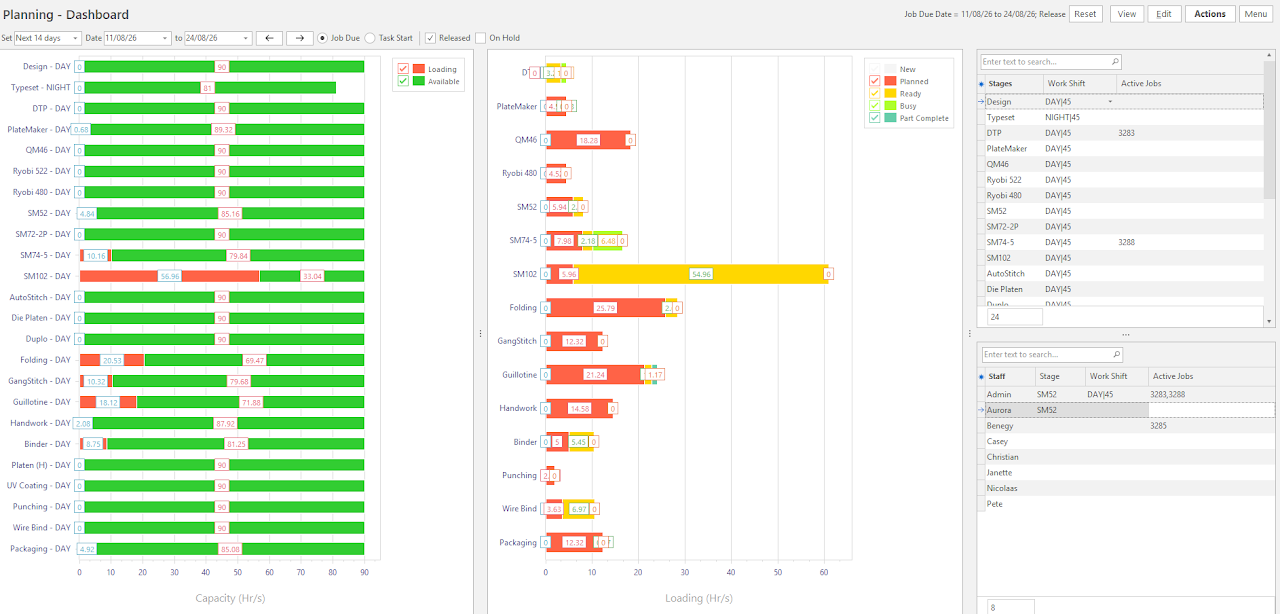
- The Planning Dashboard displays a visual representation of the current and upcoming jobs. It also includes a capacity chart.
The jobs are grouped by the different Stages. A legend appears in the top right corner.
💡These tutorials explain how the Dashboard works.
How to View the Capacity Dashboard
Info
This chart is on the left of the screen.
Red indicates the workstation (stage) is occupied.
Green indicates free capacity.
The filters can be reset by clicking Reset (button) on the top row of buttons.
The Loading and Available checkboxes can be checked or unchecked to only show one option.
- Navigate to Production Planning (Main Menu > Production > Planning Board).
- Click Menu (button) > Dashboard.
- Select the applicable filters on the left (e.g. Next 7 Days, Job Due).
- Click View (button).
How to View the Loading Dashboard
Info
This chart is in the middle of the screen and displays the jobs by stage and status.
- Navigate to Production Planning (Main Menu > Production > Planning Board).
- Click Menu (button) > Dashboard.
How to Use the Loading Dashboard
- Navigate to the Dashboard.
- On the right is a legend explaining what each status / colour means. The options are:
- New: A Work Order is issued but not yet in production.
- Planned: The job is planned.
- Ready: The job is ready to be produced.
- Busy: The job is currently being produced.
- Part Complete: Part of the job is completed. (E.g. production stops for the day and continues tomorrow).
- Check or uncheck the checkboxes on the legend to edit your view. The display is automatically updated.