
Keep Your Pricing Accurate with Regular Cost Centre Reviews
In BOS Professional, Cost Centres are central to estimating and production costing. Because they are often set up once and left unchanged, rates can easily become outdated over time.
That is why it is worth reviewing your Cost Centre calculations regularly. Even a quick check can help confirm that your pricing still reflects your actual operating environment.
What Is a Cost Centre?
A Cost Centre is any part of your business that generates cost. It could be a full department, a production activity such as stitching, or even a single printer.
In BOS Professional, each Cost Centre helps calculate an hourly rate for the workstation, machine or service linked to it. That hourly rate then feeds directly into your costing and estimating.

How to Check Your Cost Centres
Step 1: Review the List View
The Cost Centres list view is the quickest place to start because it helps you spot problems quickly. Start by looking for the two Fix columns:
- If the first Fix checkbox is checked, overheads are no longer being calculated automatically.
- If the second Fix checkbox is checked, the hourly rate is entered manually. As a result, it remains unchanged until someone updates it.
Next check the totals at the bottom of the list. The labour total should roughly match your direct labour costs, such as operators’ wages, and maintenance should roughly match the maintenance costs for the equipment included in your Cost Centres. If they do not match, do not worry — Step 2 helps you review and correct them.
Step 2: Review Each Cost Centre Individually
- Hours worked: Do the hours still reflect productive hours per week? Remember to exclude lunch, tea and bathroom breaks, and any other non-productive time. For example, if someone is at work for 9 hours a day but is only productive for 7 of those hours, you should capture 35 hours. You may also want to reduce the productive hours further to account for training, safety meetings or other activities that take the operator away from production.
- Weeks per year: Check that the weeks per year are still accurate. Include only the weeks during which the machine or service is actually operating. If your business closes over year-end or does not operate on public holidays, exclude those weeks. You might find that one Cost Centre operates for 47 weeks, while another operates for only 42 weeks because of maintenance requirements.
- Workstation: Check that the machines listed under each workstation are still accurate. Are there any replacement or additional machines? Also check that every machine on your factory floor that is used in production is allocated to a Cost Centre.
- Costs: Review the main cost items, which usually include equipment, labour and maintenance. Even if equipment is already paid off, you should still include a cost so the machine can be replaced when it becomes outdated or wears out. Verify that wages, maintenance contracts, electricity, fuel and other running costs are still accurate. If needed, you can add extra cost items that were not included when the Cost Centre was first created, such as the cost of a generator. You can also use the Cost Wizard to update values step by step. However, the wizard replaces your current costs, so take a screenshot first if you want to compare the before and after costs.
- Overheads: Overheads reflect the contribution the Cost Centre makes to the running costs of your business. Including overheads is optional. You could instead add an adjustment (for example, 10% of the calculated hourly rate) for overheads. Also keep in mind that Cost Centres calculate cost prices, not sell prices. Instead of doing complex calculations to cover your overheads here, you could build the cost recovery into your markup.
- Totals: Once the costs and hours are in place, BOS Professional calculates an hourly rate. Use your judgement to check whether the rate seems reasonable for the service offered. If it does not, review your costs again or add an adjustment. Perhaps generate a test Quotation to see the impact of the new costs on your final price. The ultimate goal is to recover your costs, make a profit and remain competitive.
Use Recovery Data to Measure Performance
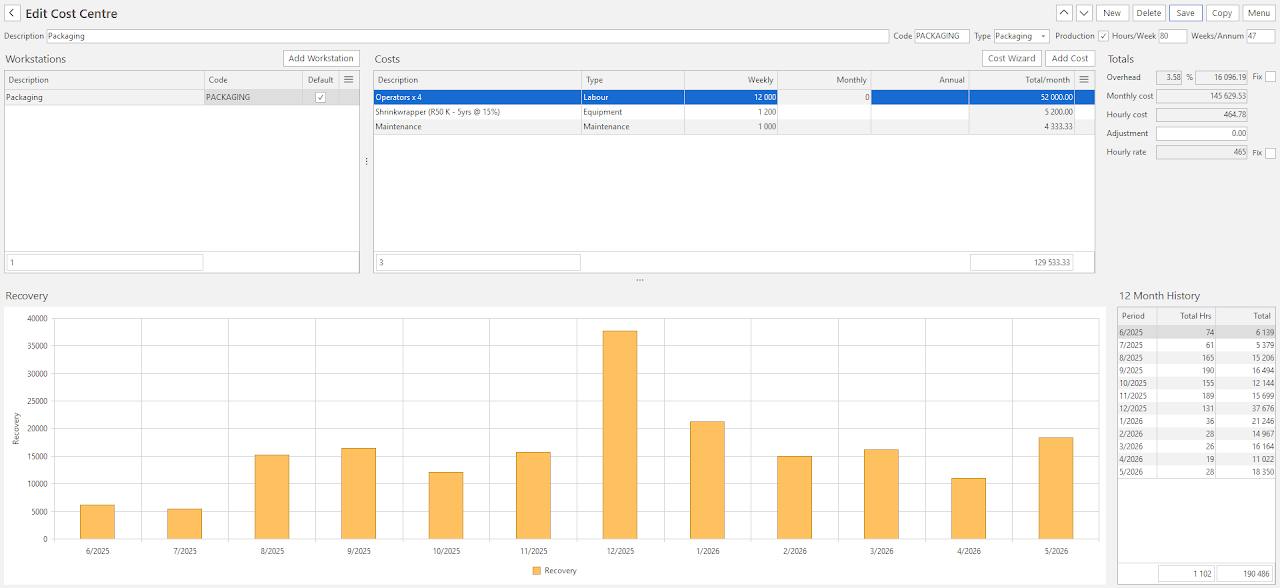
While you are reviewing the setup, consider how each Cost Centre is performing in practice. From editing a Cost Centre, click Menu (button) > Show Recovery to open a graph and summary showing how often the Cost Centre was used and how much cost was recovered. These recovery hours and amounts come from completed Work Orders.
A simple way to assess performance is to multiply the monthly cost by twelve and compare that figure with the total shown in the 12 Month History Recovery. If your recovery exceeds your costs, the Cost Centre is profitable.
Ready to Review Your Rates?
Reviewing your Cost Centres only takes a few minutes, but it can make a real difference to the accuracy of your pricing. If you would like help checking your setup or updating your figures in BOS Professional, our support team is happy to assist.
Not seeing these features? Contact support for assistance.