Output
Overview
Output refers to the documents (e.g. invoices and Quotations) that are generated for transactions and information.
Templates are created and linked to modules to generate the output.
From version 26.04, Email, SMS and Print All send or print only the rows shown in the grid. Check the grid before you send or print.
The e-invoicing (UAE) export uses the Name, Reg No. and VAT No. from this tab. Its address and tax details come from the e-Invoicing (tab).
How to Add Masthead Information
Standardise information (such as the company name, logo and address) can be formatted for display on documents.
- Navigate to Main Menu > Office > My Organisation > Output (tab).
- Fill in the following details by entering the information in the provided block:
- Name
- Reg No.
- VAT No.
- Tel
- Website
- Postal Address
- Street Address
- Bank detail
- Directors
- Click Edit Masthead (button) and enter all necessary information relating to your company (e.g. VAT registration number, contact details).
- Use the Editor to select the preferred font, font size, colour and alignment (Suggested: Calibri, 8px).
- Click Save (button) on the popup.
- This information appears on documents such as invoices.
- To insert an image of your company logo, right-click the Image1 block and select Load. If a cloud server is used, the image must be accessible from the server's file manager.
- Click Save (button).
Email Stationery: Settings
Users
Find the setting Email > Email Stationery and click Edit in the Value column to open an HTML editor. In this editor, you can create or edit a template.
Branch
Email Stationery can be customised per branch.
Find the setting Email > Email Stationery and click Edit in the Value column to open an HTML editor. In this editor, you can create or edit a template.
Default Email Stationery
Default Email Stationery can be created to use when no custom options exist.
Find the setting Output (Print, PDF, Email) > Email Stationery and click Edit in the Value column to open an HTML editor. In this editor, you can create or edit a template.
Setting Up Output Templates
Output Templates are documents which can be created or modified in the Form Designer. These documents can be previewed on screen, printed or emailed.
HTML Templates can be linked which generate the email text when documents are emailed. The HTML templates can be customised per user (see Default Email Stationery above).
User Settings
These settings work in conjunction with the access settings when templates are linked.
| Field | Description |
|---|---|
| Purchase Orders > Output Allowed | Options are None, User or Supervisor. |
| Work Orders > Output Allowed | Options are None, User or Supervisor. |
| Quotations > Output Allowed | Options are None, User or Supervisor. |
General Settings
Templates are created in Form Designer. Existing templates can be modified by opening them, editing them and saving the changes.
The last document you previewed is automatically opened when you access the Form Designer. For example, edit a Customer Invoice, click Output (button) > Preview > Tax Invoice. Close the preview form.
Click Main Menu > Setup > Form Designer. The Tax Invoice form appears.
The defaults are the values for new databases and new users. Your database may have different values.
| Setting | Description | Default |
|---|---|---|
| Output (Print, PDF, Email) > BCC emails to the following address | Enter an email address that receives copies of all emails. Only the sender sees the BCC entries. BCC (Blind Carbon Copy) are hidden from recipients. | Blank |
| Output (Print, PDF, Email) > Bulk SMS Password to be used in Email Subject | Enter a password. You can bulk send SMSs using services like bulksms.co.za. You send the SMS as an email (e.g. 0874472345@bulksms.co.za) and the account password must be inserted in the email subject. | Blank |
| Output (Print, PDF, Email) > Email Stationery | Click Edit to open an HTML editor to customise the email stationery. | None |
| Output (Print, PDF, Email) > Output Templates | Click Edit and select templates on the popup as follows:
| None |
| Output (Print, PDF, Email) > Use WYSIWYG HTML Editor | Yes or No. Version 26.05 and later. Yes lets you edit HTML emails, report email templates and Email Stationery as they will look to the recipient, on the Editor tab of the HTML Editor (see HTML Editor). The setting applies to the whole company. | No |
Linking Templates
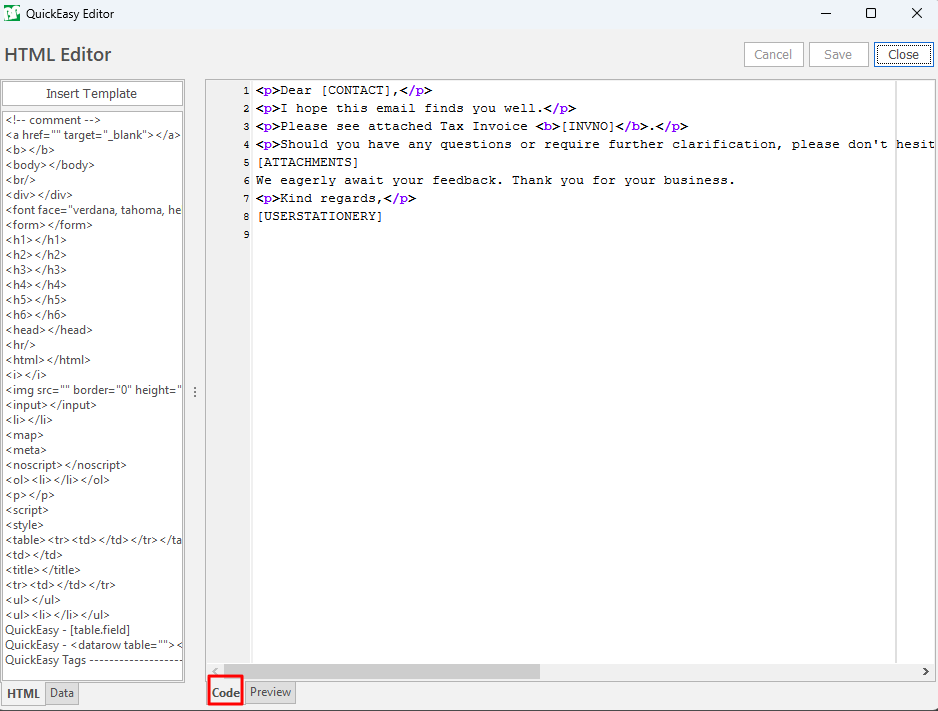
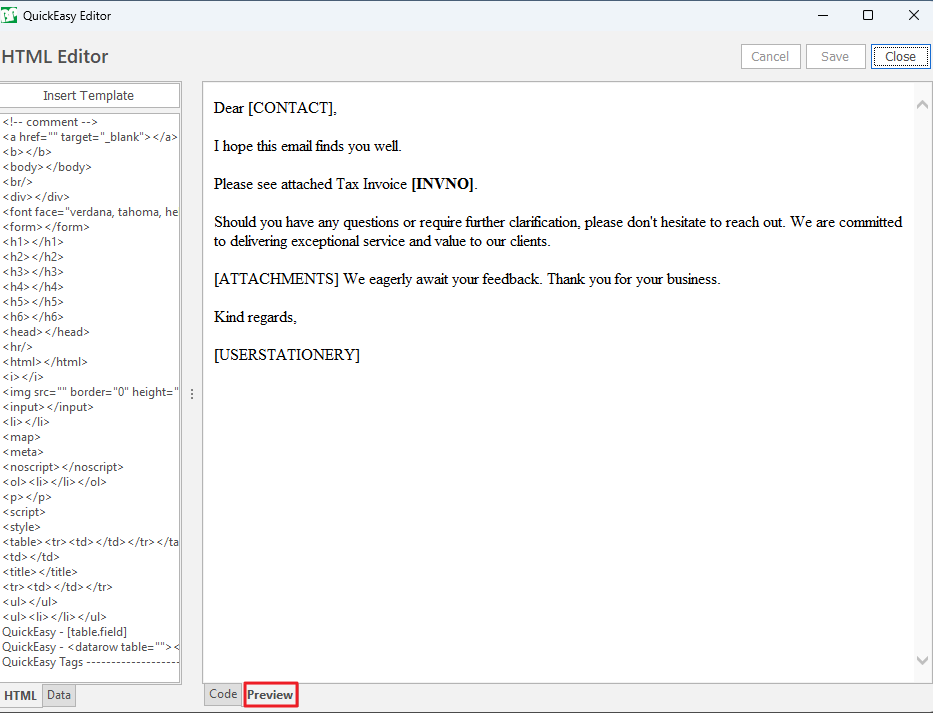
Email templates can be previewed and tested within the HTML editor (see examples below).
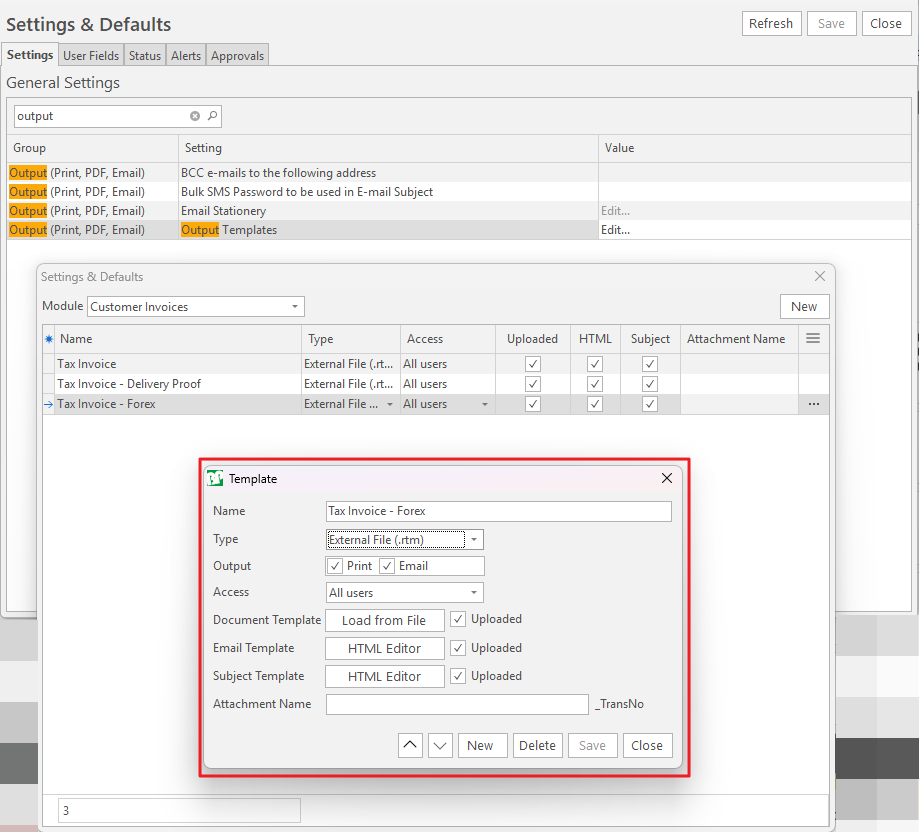
The fields on the popup (red block in screenshot) depend on the module.
| Field | Description |
|---|---|
| Name | The name of the template. This name appears when you click Output (button). |
| Type | Dropdown list to select:
|
| Output | Check the applicable output options or click both.
|
| Access | Select All users or Supervisor only. |
| Branch |
|
| Document Template |
|
| Email Template |
|
| Subject Template |
|
| Attachment Name |
|
| Status |
|
HTML Editor
The HTML Editor opens when you edit Email Stationery (user, branch or company), an output template's Email Template or Subject Template, a custom report's email body, or an email (Actions > Edit HTML).
With Use WYSIWYG HTML Editor set to Yes, emails are always sent as HTML, and attachment links (Actions > Link Attachments) show as [[Links Start]] and [[Links End]] markers.
On Email Stationery, add <!--Message--> on the Code tab where the email text must go (version 26.05 and later). Without it, the message is placed after the first paragraph.
HTML Editor Explained
| Tab or Button | Description |
|---|---|
| Editor (tab) | Version 26.05 and later, when Use WYSIWYG HTML Editor is Yes: you edit the content as it will look to the recipient. The toolbar has the font, size, bold, italic, underline, strikeout, text colour, alignment, bullets and numbering, indent, hyperlinks, and undo and redo. It has no table tools: existing tables are kept and you can edit their text, but change a table's layout on the Code tab. If the content has HTML the Editor cannot display, it says so and stays read-only. |
| Code (tab) | The HTML code. |
| Preview (tab) | Shows how the content will look. Hidden when Use WYSIWYG HTML Editor is Yes, because the Editor tab already shows it. |
| Merge fields | Listed in the left column. Click one, for example, [USERLISTNAME], to insert it at the cursor. From version 26.05, the column shows only the merge fields (the list of HTML tags was removed) and is hidden when there are none. See Tags - Email Stationery and Tags - Email Template. |
| Format (button) | Version 26.05 and later:
|
| Template (button) | Inserts a template. Version 26.05 moved Insert Template to this button, next to Format. |
Tags - Email Stationery
Use the following tags to include data from the Customer Contact Information:
- [FIRSTNAME]
- [SURNAME]
- [CODE] – Nickname of User
- [POSITION]
- [TELEPHONE]
- [MOBILE]
- [EMAIL]
- [POSTADDRESS] – Line breaks are replaced by commas
- [STREETADDRESS] – Line breaks are replaced by commas
Tags - Email Template
Select DATA (tab) in the HTML Editor for a list of fields that can be used in the Email Template.
The following tags are generic to all modules and are derived from the active User:
- [USERFIRSTNAME]
- [USERLISTNAME]
- [USEREMAIL]
- [USERPOSITION]
- [USERTEL]
- [USERMOBILE]
- [USERSTATIONERY] – The email stationery of the Active user
The following tag is available in the Quotations, Sales Orders, Customer Invoices, Purchase Orders and NCR email templates:
- [ATTACHMENTS] – Where links to attachments are inserted in the email body. For example, in an NCR email, click Actions > Link Attachments, select the attachments and click Link to Email.
Modules with Output Templates
- Bank Reconciliation (Accounting)
- Campaigns (Customers)
- Cost of Sales (Reporting)
- Customer Age Analysis (Accounting)
- Customer Credit Notes (Customers)
- Customers
- Customer Invoices (Customers)
- Delivery Notes (Customers)
- Inventory (Materials)
- Job Summary (Customers)
- Leave (HR)
- Ledger (Accounting)
- Material (Materials)
- Materials Movement (Materials)
- NCR (Office)
- PoS - Cashups (Accounting)
- Purchase Orders (Suppliers)
- Quotations (Customers)
- Sales Orders (Customers)
- Service Manager (Office)
- Statement of Financial Position (Accounting)
- Statement of Profit or Loss (Accounting)
- Stock Check (Materials)
- Supplier Age Analysis (Suppliers)
- Supplier Debit Notes (Suppliers)
- Suppliers
- Supplier Invoices (Suppliers)
- Supplier Payments (Suppliers)
- Timekeeping (Production)
- Transfer Orders (Materials)
- Trial Balance (Accounting)
- VAT Recon (Accounting)
- Work Orders (Production)
- Workspace