
Production Planning Outwork Tutorial
Overview
Production Planning assists organisations in managing all their production tasks. The Outwork View displays all the jobs that are outsourced.
💡These tutorials explain the Outwork View and the related functions.
How to View a List of Outwork Transactions
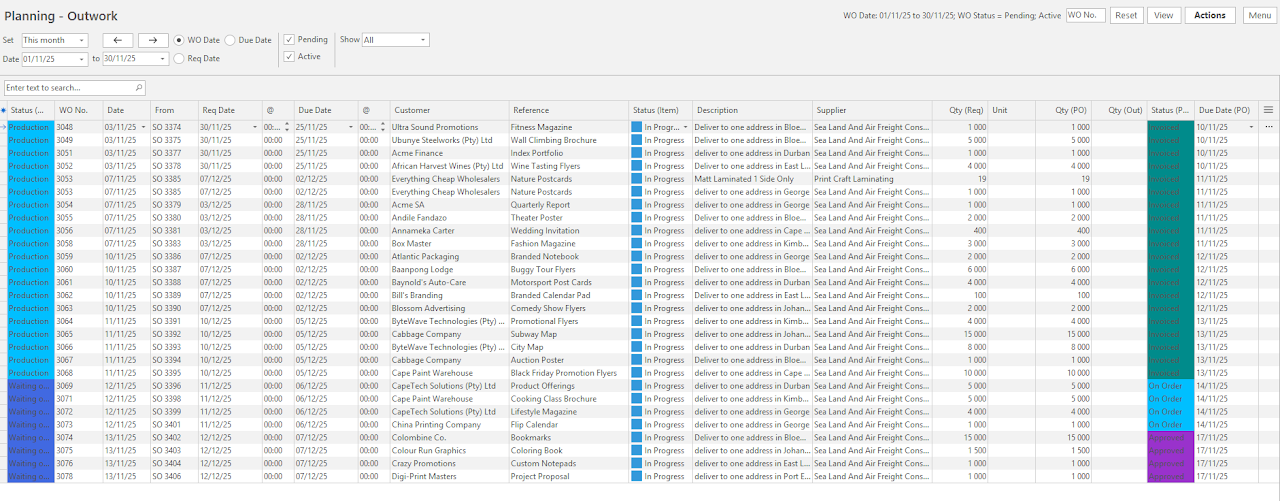
- Navigate to Main Menu > Production > Planning Board > Menu (button) > Outwork.
- Adjust the filters as required.
- Click View (button).
How to Change Outwork Statuses
- Display a list of Outwork transactions.
- Select the entries you want to change. Use Shift + left-click to select a continuous block. Use Ctrl + left-click to select random records.
- Click Actions (button) > Batch Update.
- Update = Select Status (Item).
- Select a Status from the dropdown list in the adjacent block.
- Click Update (button).
- Confirm the change on the popup.
Filtering Views
How to View Outwork According to their Due Dates
- Navigate to Outwork.
- Set = Select a date option.
- Click Due Date (radio button).
- Click View (button).
How to View Outwork According to their Required Dates
- Navigate to Outwork.
- Set = Select a date option.
- Click Req Date (radio button).
- Click View (button).
How to View Outwork According to their Work Order Dates
- Navigate to Outwork.
- Set = Select a date option.
- Click WO Date (radio button).
- Click View (button).
How to View Outstanding Outwork
- Navigate to Outwork.
- Set = Select a date option.
- From the dropdown list next to Show, select Outstanding.
- Click View (button).
How to View Completed Outwork
- Navigate to Outwork.
- Set = Select a date option.
- From the dropdown list next to Show, select Complete.
- Click View (button).
Viewing Detailed Information
How to View or Edit All the Components of a Job
- Display a list of outwork transactions.
- Right-click an entry and select View/Edit Job.
- You are switched to the View/Edit Job interface. This view lists all the stages the job must go through, along with the expected times, quantities and progress.
How to View an Outwork's Costing Information
- Display a list of outwork transactions.
- Right-click an entry and select View Job Summary.
- On the Job Summary, which opens on the right, click Costing (tab).
- Note: You can drag the Job Summary panel to the left using the vertical ellipses in the centre to increase the width. You can double-click the Job Summary tab on the right to close the Job Summary.
- Use the included functions to customise the costing display as follows:
- Use the + - to expand or collapse the view.
- Check the checkbox next to Qty to display quantities instead of values.
- Check the checkbox next to Values to display values instead of quantities.
How to View the Linked Work Order
- Display a list of outwork transactions.
- Right-click an entry and select Open Work Order.
- The Work Order opens.