
Mobile App - Service Manager
Overview
The mobile app opens in a browser on a mobile device or desktop computer. It links to the same database as BOS Professional.
If you are linked to more than one database, you select one when you sign in.
- You can manage all the service tickets that you have access to from the Service Manager option on the mobile app.
- You open it from the SM tile on the home screen, which is only available if Service Manager - Access Allowed is on for you.
- The View all Customers setting controls whether you see every customer's tickets or only your own.
Service Manager consists of the list of tickets, a ticket detail screen with four tabs, and a response form where you record work notes (and, for printing-type responses, parts and finishing).
List of Tickets
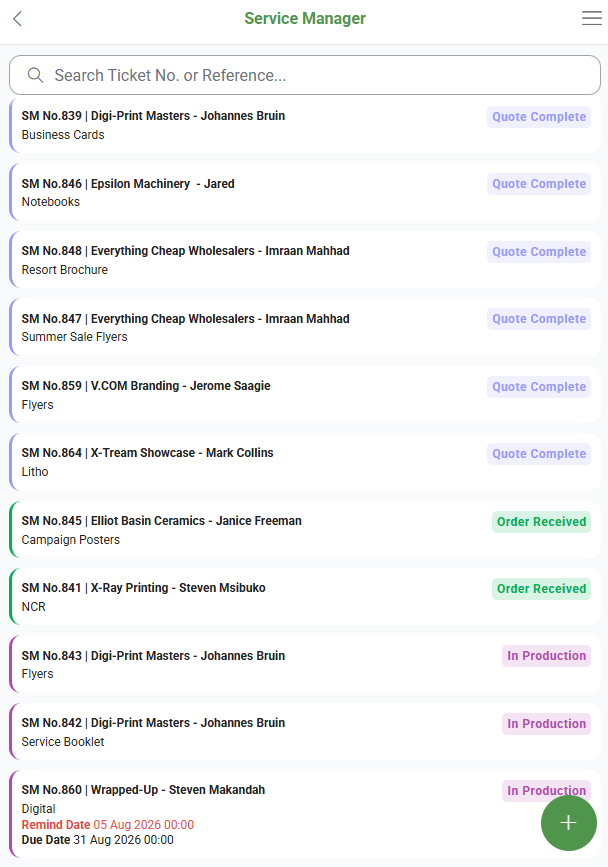
Displays a list of open tickets – those with a Pending or Active status – that you have access to. Each ticket shows the following information:
- SM No. (ticket number) | Name of Customer (or Supplier) - the company's contact person.
- The colour-coded status of the ticket (on the right).
- The Reference field filled in on the ticket.
- The remind date, which appears in red if it is in the past or is not set.
- The due date, which appears in red if it is in the past or is not set.
Use the search box at the top of the list to filter the tickets by ticket number or reference.
Buttons Explained
| Button | Description |
|---|---|
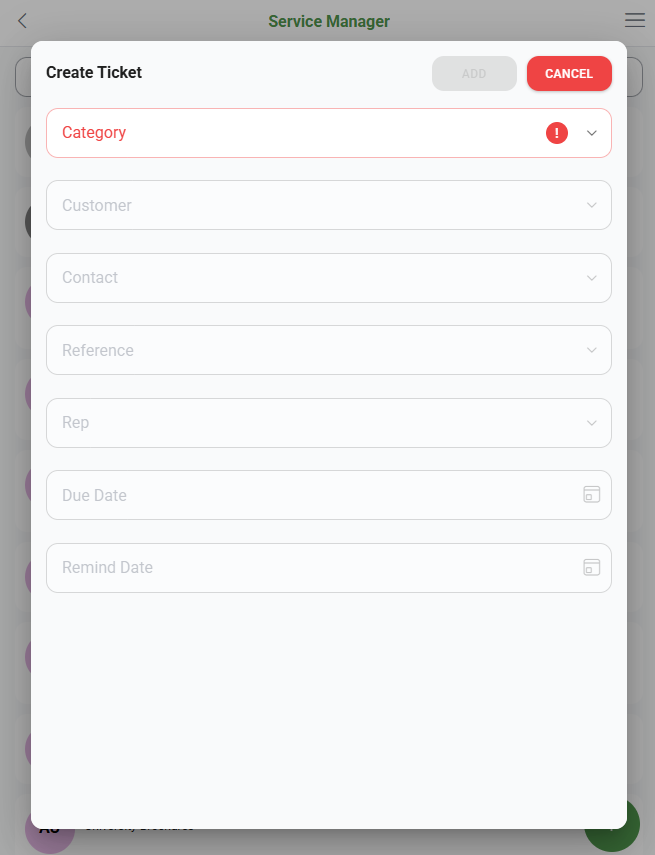
| + | Opens the Create Ticket popup, which allows a service ticket to be added (see Ticket Form). |
| Ticket | Tapping a ticket on the list opens a menu with the following options:
|
Ticket Detail
- The screen is divided into four tabs – Information, Responses, Transactions and Tickets.
- Each of the last three shows the number of entries it holds, for example, "Responses (3)".
- The back button returns you to the list of tickets.
If you open a ticket you just created, the Responses tab and the response form open automatically so you can add the first response.
Information Tab
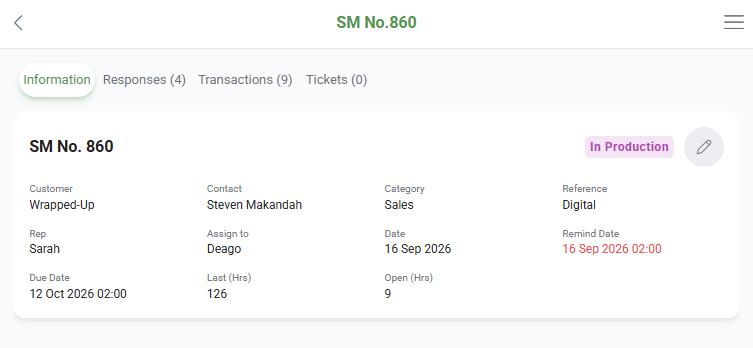
- Displays the SM No., the colour-coded status of the ticket and a pencil (edit) icon.
- Displays the following ticket information:
- Customer (not shown for internal-type tickets)
- Contact
- Category
- Reference
- Rep
- Assign to
- Date
- Remind Date (red if it is in the past)
- Due Date (red if it is in the past)
- Last (Hrs)
- Open (Hrs)
- Tapping the pencil icon opens the ticket form, which lets you edit the following fields (see Ticket Form):
- Category
- Customer
- Contact
- Reference
- Rep
- Due Date
- Remind Date
Responses Tab
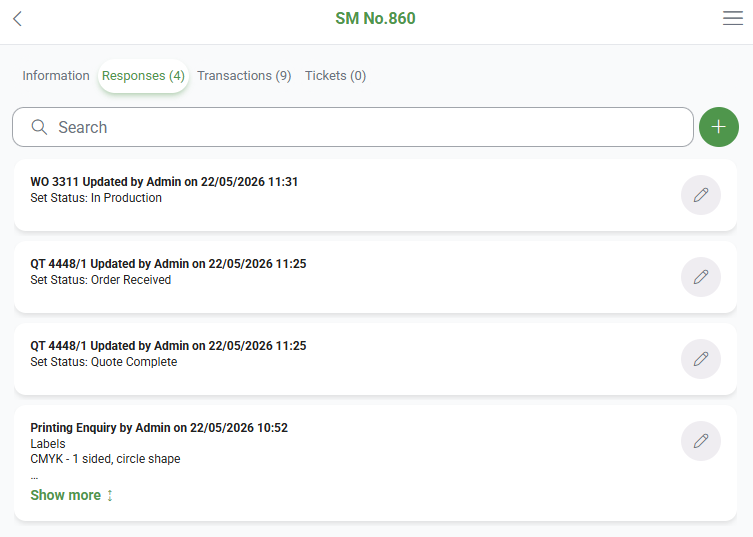
- This tab lists all the responses added to the ticket. Each response shows "<Description> by <user> on <date>" and the note.
- Use the search box to filter the responses by note, description, user or date.
- Tap the + (Add Response) button to add a response (see Response Form).
- To edit a response, tap the pencil icon next to it. The pencil icon only appears on your own responses, unless Edit Responses created by other Users is on for you.
- Long notes are shortened to three lines. Tap Show more to view the whole note and Show less to shorten it again.
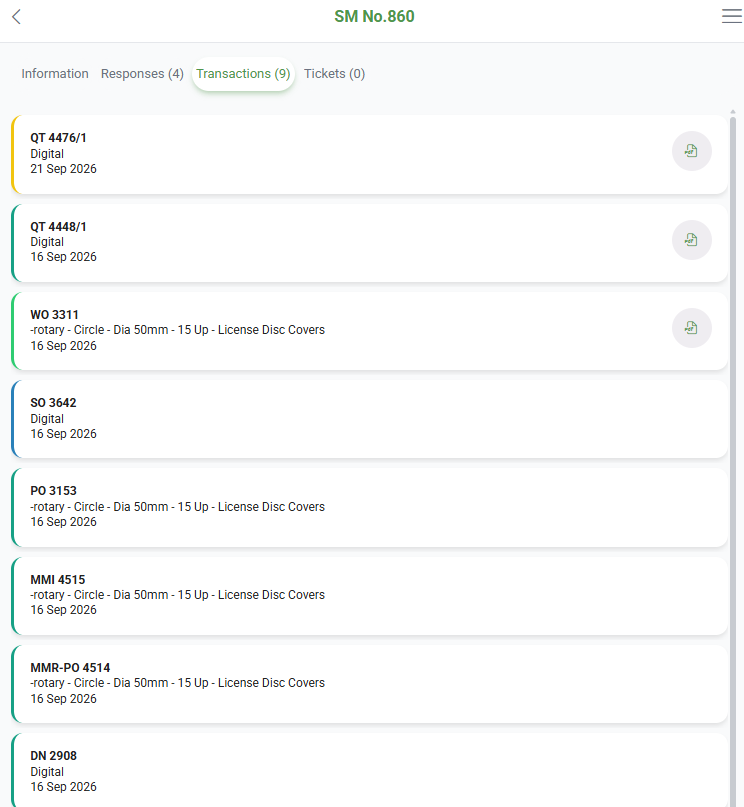
Transactions Tab
- Lists all the transactions linked to the ticket, showing the Transaction No., Reference and Date of each.
- For Quotations and Work Orders, a View Pdf button opens the transaction's PDF in a new tab.
- This tab is for information purposes only and has no editable fields.
Tickets Tab
- Lists any other tickets linked to the ticket flow (any other tickets created for transactions linked to this ticket).
- Each ticket shows its SM No., Reference and Due Date.
- Tap View Ticket to open that ticket's detail screen.
- This tab is for information purposes only.
Ticket Form
Buttons Explained
| Button | Description |
|---|---|
| Add / Save | Creates the ticket or saves your changes. The button is only available once a category is selected and something changes. |
| Cancel / Close | Closes the form without saving. |
Fields Explained
If View all Customers is off for you (so you only see your own tickets) and you change the Rep to someone else, saving removes the ticket from your list. You are returned to the list of tickets.
| Field | Description |
|---|---|
| Category | The ticket category, shown with its colour-coded indicator. Required. |
| Customer | The customer the ticket is for. Not available until a category is selected, or for internal-type tickets. |
| Contact | The customer's contact person. |
| Reference | A searchable list of references. You can also enter a new reference. |
| Rep | The rep for the ticket. Only shown when editing a ticket, and not available for internal-type tickets. |
| Due Date | The date the ticket is due. Only shown when editing a ticket. |
| Remind Date | The date to be reminded about the ticket. Only shown when editing a ticket. |
Response Form
Select Response Popup
- When you add a response, the Select Response popup opens first. It lists the response types, with a search box to filter them.
- Tapping a response type creates a draft response of that type and opens the response form.
- Tapping Cancel closes the popup without creating anything.
Response Fields
The form is headed "Add Response" or "Edit Response", with "Topic: <response type>" below the heading.
Buttons Explained
| Button | Description |
|---|---|
| Add / Save | Saves the response. The button is only available once something changes. |
| Cancel / Close | Closes the form without saving. On a new response, tapping Cancel also deletes the draft response that was created when you selected the response type. |
Fields Explained
| Field | Description |
|---|---|
| Assign To | The user the ticket is assigned to. Only shown for a new ticket or a new response. |
| Status | The ticket status. Only shown for a new ticket or a new response. |
| Description | A description of the print job. Printing-type responses only. |
| Size | The size of the print job. You can select a size from the list or enter your own. Printing-type responses only. |
| Qty | The quantity. Printing-type responses only. |
| Parts | The parts of the print job. Printing-type responses only (see Parts and Finishing). |
| Finishing | The finishing for the print job. Printing-type responses only (see Parts and Finishing). |
| Note | The response note. |
Parts and Finishing
Printing-type responses have a Parts section and a Finishing section, each headed with the number of entries it holds, for example, "Parts (2)".
| Section | Description |
|---|---|
| Parts |
|
| Finishing |
|