
Presses
Overview
A Press is a printing machine used on Standard Estimates. Its setup holds the machine's sheet sizes, its rate, the Running Options that set its speeds, make-ready times and waste, and the Pre-press Services it needs.
Each Press is linked to a Printing Type. Printing Types separate the estimating setup to use specific Parts, Colours, Press Types and Substrates, and set up printing configurations, for example, printing on sheets or reels. The following setups must be linked to a Printing Type:
- Parts
- Ink Groups
- Presses (this page)
Setups Screen
Presses is a tab of the Setups screen, with the other standard estimating setups.
Buttons Explained
| Button | Description |
|---|---|
| Refresh | Reloads the open tab. |
| Menu | The grid layout options:
|
List View
The Presses tab lists every Press. Double-click a Press to edit it.
Buttons Explained
| Button | Description |
|---|---|
| New Press | Creates a Press and opens Edit Press. |
Fields Explained
| Column | Description |
|---|---|
| Description | The Press's name. |
| Provider | The Cost Centre or Supplier that does the printing. |
| Rate/hr | The provider's hourly rate. |
| Type | The Printing Type. |
| Menu (...) | A submenu with these options:
|
Edit Press
Buttons Explained
| Button | Description |
|---|---|
| Up and down arrows | Move to the previous or next Press. |
| New, Copy, Delete | Create, copy or delete a Press. Copy also copies the Running Options, Pre-press Options and Cylinders, and adds " - Copy" to the name. |
| Save, Close | Save your changes, or close the Press. Changes are also saved when you close it or move to another Press. |
Fields Explained
Fields marked in green (✎) can be edited.
| Field | Description |
|---|---|
| Name | The Press's name. |
| Type | The Printing Type. Its Run Type and Ink settings decide which fields the Running Options show. |
| Provider: Cost Centre | The Cost Centre that runs the Press. Its rate per hour (R/hr) comes from the Cost Centre and is not editable here.
|
| Provider: Supplier, R/hr | The Supplier and its rate per hour. |
| Sheet sizes (mm): Max (DxW), Min (DxW) | The largest and smallest sheet the Press can print, as Depth x Width. |
| Waste margins (mm): Grip, Tail, Side | The unprinted margins on the sheet. These fields are hidden when the Printing Type's Ink is Not Printed. |
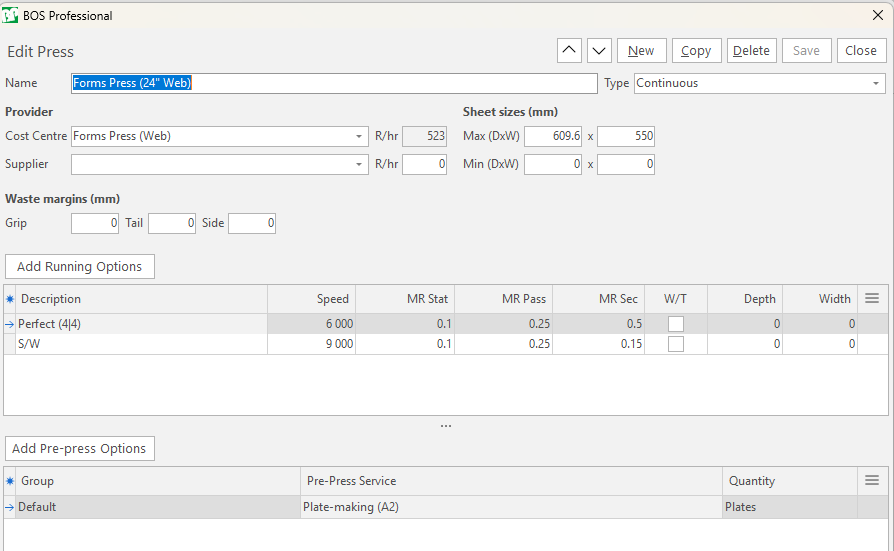
Running Options
- Running Options are the ways the Press can run a job, for example, Perfect (4|4) or CMYK - Front only (SRA3).
- Click Add Running Options to add one, and double-click an option to edit it.
- The Actions column offers Edit and Delete.
| Column | Description |
|---|---|
| Description | The option's name. |
| Speed | The running speed. |
| MR Stat | The Change plates time. |
| MR Pass | The Set colour and register time. |
| MR Sec | The Set feed & delivery or Make-ready time. |
| W/T | Whether the option is Work & Turn. |
| Depth, Width | The default work size. |
Edit Running Option
The fields depend on the Printing Type's Ink setting.
| Field | Description |
|---|---|
| Description | The option's name. |
| Work & Turn | Use Ink Groups only. Check it for a work-and-turn option. |
| Default Work size (DxW) | The work size for this option, in mm. Hidden when the Ink is Not Printed. See Press Selection. |
| Colours Front, Colours Back | Use Press Options only. The colours printed on each side. |
| Printing stations used: Front, Back | Use Ink Groups only. The number of stations used for each side. |
| Wastage: MR overs | The make-ready waste per part and, for Use Ink Groups, per station. |
| Wastage: Run overs (% of WS) | The running waste, as a percentage of the worksheets. |
| Production times (hrs) |
|
The units of the Speed and MR overs fields follow the Printing Type's Run Type:
- Sheetfed - Sheets/hr and Web - Sheets/hr: sheets per hour, and sheets per part or station.
- Sheetfed - sq.m/hr: square metres per hour, and sheets per part or station.
- Web - m/hr: metres per hour, and metres per part or station.
- Web - sq.m/hr: square metres per hour, and metres per part or station.
Linked Material Items
Add the materials the option uses, for example, a click charge or ink. Select a material and click Add. Enter the Setup Qty and Unit Qty, and select the Qty Type:
- Fixed Qty
- User Qty
- Plate Qty
- Signature Qty
- Worksheet Qty (Inc MR Overs)
- Run Qty (Exc MR Overs)
- No. of Passes
- Print Area (sq.m)
- Print Length (m)
Pre-press Options
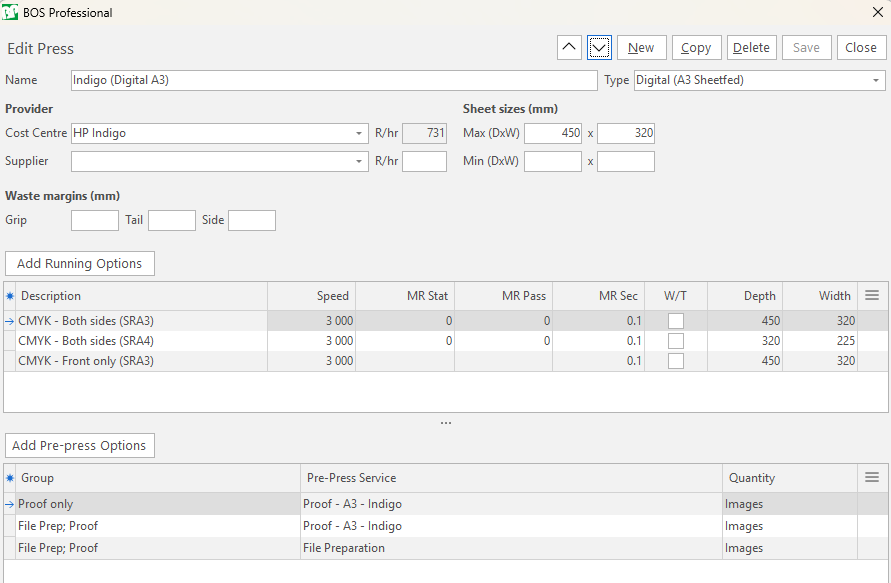
Pre-press Options are the Pre-press Services the Press needs, for example, platemaking or proofs. Click Add Pre-press Options to select a Service.
| Column | Description |
|---|---|
| Group | When you add a Part to an estimate, the Pre-press list shows the Groups (see Selecting Items on Estimates). When you select a Group, all its Services are included, and each Service is listed separately. You name the Groups, for example, Proof only or File Prep; Proof. New Services are in the Default group. |
| Pre-Press Service | The Service. |
| Quantity | How the Service quantity is calculated:
|
Press Selection
- If a Press is linked to the Part, it is selected by default.
- If Ink is added to one side only, the Work and Turn and Perfecting options are not returned.
- For imposition purposes, the Work size is set to the maximum Press size.
- If the default work size on the Press's Running Option is smaller than the maximum Press size, it is applied instead.
- The max imposition is based on the Running Type and calculated as follows:
- N/A (Sheeting): Imposition defaults to 1 up.
- Sheetfed - Sheets/hr: Part Size on Work Size.
- Web - Sheets/hr: Part Size on Work Size. The Part Depth must divide exactly into the Work Depth.