
BOS Professional Features
Overview
BOS Professional is a feature-rich business operating system with integrated accounting functions. It includes extensive estimating features for the print and manufacturing industries.
This list briefly describes some of the key features. See the Alphabetical Content List for more features.
Table of Contents
Accounting
Bank
- Import .OFX files exported from your online banking directly into the ledger.
- Perform bank reconciliations.
Customer Invoices
- Receive full or partial payments.
- Allocate receipts, discounts and credit notes to invoices.
- Group multiple Sales Orders on one Invoice.
Customer Credit Notes
- Issue credit notes against invoices.
- Receive returned inventory (Returned Items).
Supplier Invoices
- Allocate debit notes, discounts and payments to invoices.
Supplier Debit Notes
- Issue debit notes against invoices.
- Return goods to inventory.
General Ledger
- View the ledger by transaction or as a conventional detailed ledger.
- Create unlimited, custom Entry Types (e.g. payroll journal, general journal).
Customer Age Analysis
- Sort, group and filter the age analysis across multiple fields.
- Drilldown to the Detailed Customer Ledger.
- Record comments and set reminders.
- Batch email statements.
- Batch email account payment reminders.
- Customise statement formats.
Supplier Age Analysis
- Sort, group and filter the age analysis across multiple fields.
- Drilldown to the Detailed Supplier Ledger.
- Record comments and set reminders.
- Issue supplier statements (on behalf of suppliers) or remittance advices.
VAT Control
- Customise the VAT Types and percentages.
- Supports multiple VAT Types (e.g. India (GST), South Africa, United Arab Emirates, Thailand).
- Perform a VAT Reconciliation to complete a VAT return.
Trial Balance
- Sort and filter the display.
- Drilldown to the Detailed Ledger and Transactions.
- Identify transactions with debit and credit imbalances (Trial Balance errors).
Income Statement / Statement of Profit or Loss
- Sort and filter the display.
- View comparative or progressive periods side-by-side (Max. 12 periods).
- Display visual graphs with key categories.
- View budget comparisons.
Balance Sheet / Statement of Financial Position
- Sort and filter the display.
- View comparatives.
- Display visual graphs.
Accounting Close-Off by Period
- Close-off of accounting periods to prevent further transactions.
Customer Order Management
Sales Orders
- Create from Quotations or from scratch.
- Create checklists and alerts when data is incomplete.
- Use status and location management to move the Sales Order through production.
- Update the Sales Order from the linked Quotation.
- Displays Sales Orders by transactions or by line items.
- Copy transaction items as follows (resolve):
- Purchase: Items are copied to a Purchase Order.
- Reserve: Items are copied to Material Movements (Issue Stock).
- Produce: Items are copied to a Work Order.
Drilldown and Summary Views
- Customer Summary displays contacts, account statuses and transactions.
- Supplier Summary displays contacts, account statuses and transactions.
- Staff Summary displays productivity, and leave.
- Material Summary displays costs and pricing, inventory, dependencies and transactions.
- Job Summary displays estimated and actual costs.
- Audit Summary displays transaction updates.
- Linked Transactions displays a shortcut to all linked transactions (e.g. Quotation > Sales Order > Purchase Order > Work Order > Delivery Note > Customer Invoice).
Estimating and Quoting
Quotations
- Create checklists and alerts when data is incomplete or estimating errors are made.
- Use statuses and forecast dates to manage the Sales Pipeline.
- Create Quotation templates for fast quoting on standard products.
- View the Direct Cost, Value Added, Profit and Margin for each line item.
- View a combined Cost Summary for all the Quotation entries (items).
- Copy Quotations for repeat jobs.
- Create Quotation versions for variations of the same job.
- Display Quotation lists in detail (item lists) or summary (transaction lists).
Pricing Strategies
- Can use unit prices, adjustments and markups.
- Can use fixed prices (not quantity dependent) and unit prices (multiplied by quantity).
- Can use pricing options for ranges (e.g. Qty 1–10 = $10.00; Qty 11–20 = $8.00).
- Can use single or batch pricing (e.g. cost for 1, 100 or 500).
- Can use VAT inclusive or exclusive prices.
- Can create multiple Price Lists with varying markups.
Items
Add any, and any combination of these items to Quotations:
- Material Items (Finished Goods)
- Service Items
- Custom Items
- Printing Estimates
- Outsourced Estimates
- Generic Estimates
Estimates
- Capture internal notes.
- Enter individual adjustments on each quantity.
- Use the quantity generator to create Price Lists (e.g. Qty 100 to 10 000 with step of 100).
- View the summary of costs, adjustments, percentages, direct costs and value-added.
- View the costs page which displays every Service and Material and the estimated hours to complete the job.
- Override the unit or total prices.
- Hide sensitive data (e.g. profit earned) from junior staff using access controls.
- View transaction-specific changes to materials or services on the Audit page.
- Create estimate descriptions automatically (which can be overridden).
- Use Estimate Types and Costings to automatically add materials linked to a Service to the estimate and adjusted according to the service quantity.
- Re-use and update estimates from setups for repeat jobs.
- Create/update finished goods from estimates.
Printing Estimates
- Step through the estimate in the same order you would produce the job: Pre-press > Printing > Finishing > Despatch.
- Estimate internally produced jobs, outsourced jobs or both.
- Use the automatic numbering calculator.
- Set up / link Presses to automatically generate pre-press services.
- Set up / link Parts to automatically generate finishing services.
- Drilldown to a Material Summary to check stock or pricing.
General Estimates
- Use for services, materials and despatch.
- Use for estimating jobs such as design and layout, signage installations and products with square metre pricing.
Fixed Reporting
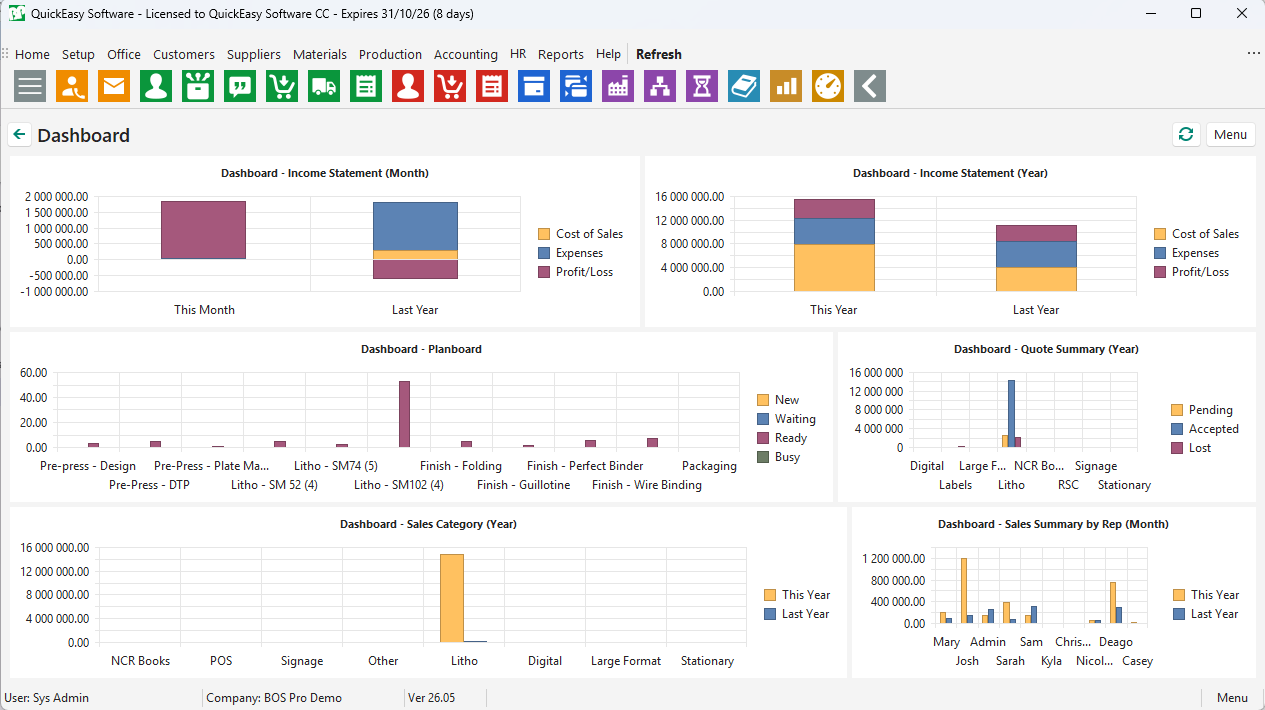
Dashboard
- Display charts and graphs customised to each user.
Inventory
- Default view: Displays inventory movement and values by date.
- Price Update view: Displays inventory pricing with features to bulk update the pricing.
- Stock Check: Records and updates stock quantities.
- Transaction view: Displays every transaction that updates Inventory.
- Replenishment View: Displays items to order (below minimum quantity) with actions to create Purchase Orders and Work Orders to replenish.
- Detailed Register view: Displays all transactions linked to a material or to a specific Location on a material.
- Inventory Ageing view: Displays Inventory by quantity and value, grouped by age.
- Batch Tracking view: Displays Batch or Serial Number tracking information.
Cost of Sales
- View Job Costing at a Sales- or Work-Order level.
- Display transaction totals or details (items).
- Drilldown to Timekeeping, Purchase Orders and Stock Movements (Material Issues).
Custom Reports
- Use SQL to create custom reports which can access all the data in the database, including custom tables (e.g. a job history imported from another application).
- Drilldown to customers, suppliers, materials and transactions from the custom reports.
Materials & Inventory
Materials
- Create multiple units with conversion quantities.
- Link multiple Supplier Prices to a material.
- Link costings for finished goods.
- Download paper prices from the online library (South Africa only).
Material Price Manager
- Batch update prices and adjustments.
- Display and peruse all the price changes.
Inventory
- Track inventory stored in multiple locations.
- Calculate prices using weighted average costing.
- Enter minimum and reorder quantities.
- Use the replenishment manager to order stock.
- Perform a stock take.
Materials Movement
- Receive or issue materials.
- Create stock-movement transactions manually or automatically (e.g. from Sales, Work or Purchase Orders).
- Use for inventory and non-inventory items.
- Manage Outwork including receiving and delivering goods.
Transfer Orders
- Manage transferring inventory between locations.
- Use the Tracker app for onsite management.
Purchase Orders
- Create Purchase Orders from Sales or Work Orders or from scratch.
- Add custom items to Purchase Orders.
- Create checklists and alerts when data is incomplete.
- Prevent orders being sent out until approved.
- Prevent editing approved transactions (senior staff can override blocks).
Multiple Users, Branches and User-friendly Layouts
- Allow multiple users to use the software.
- Control access to every module using built-in user-access features.
- Use multiple branches. Users can be locked into a branch or have access to all the branches.
- Display reports and transactions on interactive, summarised Grid Views that support customising, grouping, sorting and filtering.
- Access links to transactions that are copied from each other on the provided shortcuts.
- Display data on the dual panel workspace for easy side-by-side comparisons.
Output: Print, Preview, Email
- Print, email or preview, customised documents and reports.
- Use the built-in form designer to create or customise documents such as invoices and statements.
- Control who and when documents can be sent (e.g. Quotations, invoices) using statuses and user access.
Production
Work Orders
- Create Work Orders by copying Quotations, Sales Orders or directly.
- Assign jobs to a Controller.
- Group, sort and view the work-in-progress (WIP).
- Use statuses to manage Work Orders.
- Use locations to manage work-order processes.
- Set and manage due dates.
- Group multiple jobs that can be produced together, on one Work Order.
- Update the Work Order from a Quotation (e.g. to change the press) without affecting the Sales Order.
- Display Work Order material reports:
- Purchase or reserve stock.
- View available stock quantities.
- View outstanding stock.
- View the linked Services: Group, sort, filter by type, component, provider (Cost Centre/Supplier).
Planning Board
- Sort work-order tasks into Production Stages.
- View colour-coded jobs, tasks and outstanding requirements.
- Enter Work Order due dates and use the built-in features to update task dates.
- Display a Kanban Board.
- Move tasks across stages using drag-and-drop.
- Highlight all the tasks linked to a job.
- Drilldown to the Job Summary and Work Order.
- View active tasks and actual times worked in real time if job-tracking is done online (can be logged offline and uploaded later).
- Customise actions and the interface, (e.g. group jobs by colour).
- Select the Production Stages to display including defaults for each user.
- Split tasks across multiple stage (e.g. a large job which is run on multiple presses).
Job Tracking
- Use the Tracker app with its intuitive touch interface.
- Issue stock directly from the warehouse.
- Start or stop timekeeping on the app.
- Display job queues based on Planning Board stages.
- Update the Planning Board with the statuses (Busy) and actual times.
Job Summary
- View and filter estimated versus actual costs and revenue (actual costs include Purchases, Stock Issues, Stock Returns and Production time logs).
- View summaries of items from Sales Order to Work Order, including services and materials on the Work Order.
- Drilldown to Transactions and Timekeeping.
Sales
Customers
- Create customer records as companies or individuals.
- Link multiple contacts to a customer.
- Link multiple delivery and billing addresses.
- Capture custom data using custom fields.
- Send birthday emails.
- Opt-in/Opt-out of promotional emails.
- Set markups, Price Lists and discounts for each customer separately.
- Drilldown to Quotations, Work-in-Progress or Account Summaries.
Contacts Viewer
- View all the contacts in one place: Customers, Suppliers and Staff.
- Search for a contact by name, surname, phone number or email address.
- Use the built-in actions to drill down to reports or to create new transactions and workflows.
Sales Management
- Display sales activity.
- Set reminders.
- Follow up on Quotations and provide reasons for Quotations being accepted or rejected.
- Manage targets and budgets.
- Manage commissions.
Bulk Emails
- Create static or dynamic Contact Groups.
- Create HTML email templates (pre-written emails).
- Send customised emails to Contact Groups or individuals.
Point of Sale
- Manage Point of Sale on a user-friendly touch interface.
- Integrate Point of Sale with Sales Orders and Accounting.
- Perform and record a daily cash-up.
Workflows
- Group and link transactions, notes and files.
- Set reminders.
- Manage and link the processes from enquiries to creating transactions.