
Customer Budgets Tutorial
Overview
- Customer budgets are sales targets that are set per customer.
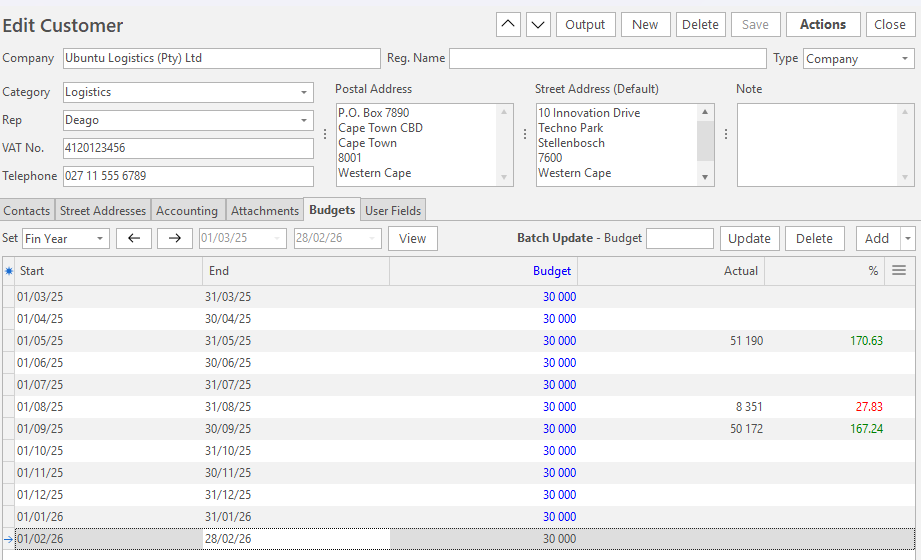
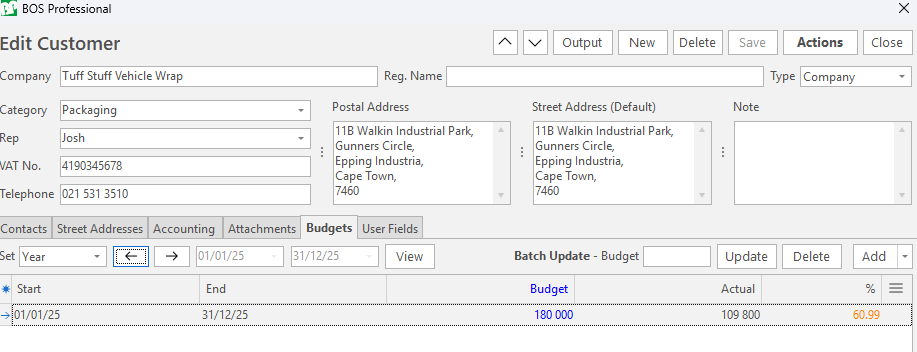
- A comparison of the budgeted versus actual sales can be seen on the customer's budget tab and on the Service Manager.
- Actual sales are calculated by adding all the invoices issued to the customer and deducting any credit notes.
💡These tutorials explain how to create and edit customer budgets.
How to Create a Customer Budget
- Open a Customer Record and click Budgets (tab).
- Set = Select a period from the dropdown list (No Date, Year, Fin Year) and use the arrows to adjust the date to the previous or next year if necessary.
- Click the arrow on Add (button) and click Add monthly budgets for the selected period.
- In the Budget column, type the budgeted sales for each month.
- Note: If Actual figures are available, they appear in the Actual column to use as a guide.
- If you are entering the same amount for every month you can speed up the process as follows:
- Click the first entry.
- Hold down shift key and click the last entry.
- Batch Update - Budget = Enter the budget amount above the entries.
- Click Update (button).
- Confirm that you want to update the records.
- Individual entries (such as annual budgets) can be added by clicking Add (button) to open a single line to complete:
- Start = Enter the start date. This date must be the first day of the month. If the dates overlap, a warning appears.
- End = Enter the end date. This date must be the last day of the month.
- Click Save (button).
How to Edit a Customer Budget
- Open a Customer Record and click Budgets (tab).
- Set the dates as needed.
- Click View (button).
- Overtype any entry in the Budget column.
- To delete an entry: click the final column to display an X. Click the X to delete the record.
How to Delete a Customer Budget
- Open a Customer Record and click Budgets (tab).
- Set the dates as needed.
- Click View (button).
- Click the first entry.
- Hold down shift key and click the last entry.
- Click Delete (button) next to Batch Update.
- Confirm that you want to delete the records.