Mobile App Sign In and Basic Features Tutorial
Overview
The mobile app opens in a browser on a mobile device or desktop computer. It links to the same database as BOS Professional.
If you are linked to more than one database, you select one when you sign in.
💡These tutorials explain how to sign in to the mobile app, change or reset your password, switch to or from Dark Mode and customise the Home screen.
Tap means tap the screen, or left-click with your mouse if you use a computer.
How to Sign In to the Mobile App
The first time you sign in, the Change Password screen opens so that you can choose a new password and enter it again to verify it (see How to Change Your Password at First Sign In). The password must include at least one uppercase letter, one lowercase letter, one number and one special character (e.g. *!@#$).
Tip: If you create a password on your desktop, check that your mobile device has easy access to the special characters you use.
- Open your preferred Browser.
- In the URL field, enter: https://bospro.quickeasysoftware.com/ or tap this link.
- On the Sign In screen, enter your Email and Password.
- Note: Tap the eye icon to show or hide the password you entered.
- Tap Sign In (button) or press Enter.
- Note: If a field is blank or the email address is invalid, a message such as "Please Input Email", "Incorrect format" or "Please Input Password" appears above the Sign In button. For all the messages, see Troubleshooting: Mobile App.
- Note: If your account must change its password, the Change Password screen opens (see How to Change Your Password at First Sign In).
- If you are linked to more than one database, the Select Database popup opens:
- Database = Select the database from the dropdown list.
- Tap Confirm (button).
- The Home screen opens.
How to Change Your Password at First Sign In
The Change Password screen opens automatically when you sign in to a new account, or with a new password sent to you by email. You cannot skip it.
- Sign in to the Mobile App as explained above.
- On the Change Password screen, enter a New password.
- Note: Each password rule not yet met is listed below the field (for example, "At least one special character") and disappears once the rule is met.
- Enter the same password in Verify Password.
- Note: "Passwords do not match" appears until the two passwords are the same.
- Tap Save Password (button).
- Note: The button is only available once both fields are filled in, every rule is met and the passwords match.
- If you are linked to more than one database, select the database in the Select Database popup and tap Confirm (button).
- The Home screen opens.
How to Reset Your Password
- Open your preferred Browser.
- In the URL field, enter: https://bospro.quickeasysoftware.com/ or tap this link.
- Tap Forgot Password (link).
- Enter your Email address.
- Tap Send email (button).
- Note: A new password is emailed to you and the Sign In screen opens.
- Note: Tap the back arrow to return to the Sign In screen without sending anything.
- Open the email and sign in with the new password.
- Change your password as explained in How to Change Your Password at First Sign In.
How to Switch to/from Dark Mode
- Sign in to the Mobile App as explained above.
- Tap Menu (three lines in the right corner).
- Tap Dark Mode or Light Mode whichever is not currently active.
- You are switched to the selected mode.
How to Customise Your Display
If all the tiles are hidden, the Home screen displays "Your dashboard is empty." and an Edit Layout prompt instead of the tiles. Tap the box to switch to edit mode and restore the tiles.
- Sign in to the Mobile App as explained above.
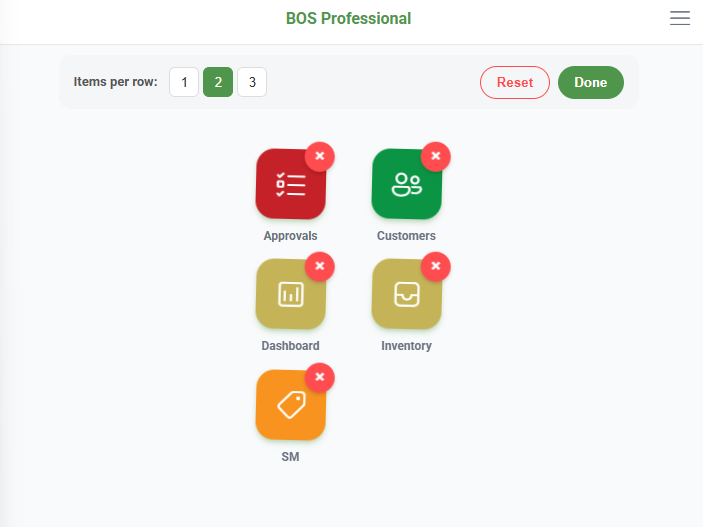
- Press and hold anywhere on the tiles for about half a second to switch to edit mode.
- Customise the display as follows:
- Items per row = Tap 1, 2 or 3 to display 1, 2 or 3 tiles per row.
- Drag a tile to move it to a new position.
- Tap the × on a tile to hide it. Hidden tiles are listed under Hidden Menus (Tap + to restore).
- Tap the + on a hidden tile to restore it.
- Tap Reset (button) to restore the default layout (all tiles, two per row).
- Tap Done (button) to save the layout and return to the Home screen.
- Note: The layout is saved on the device you are using. For details, see Home Screen.