
Cost of Sales Report
Overview
The Cost of Sales report tracks the costs and profits associated with each job at a transaction, customer or item level.
Detailed information about the costs is available for each entry from the right-click context menu.
How Costs Are Calculated
A job's actual cost is built up from these records, each linked to a Sales Order or Work Order item:
- Stock issued: Materials issued to the Sales Order, the Work Order's materials, or a Materials Movement (Issue) linked to them, at the unit price recorded on the issue.
- Stock returned: Returns are deducted from the stock issued.
- Purchases: Purchase Order items linked to the Sales Order or Work Order, at the Purchase Order line total. Purchase Orders in a Cancelled status are left out.
- Timekeeping: The actual time multiplied by the rate (see Timekeeping).
- Expenses: Ledger expenses allocated to the Sales Order or Work Order (see Expenses).
A Sales Order's cost includes the costs of the Work Orders created from it. The records update as soon as the issue, Purchase Order or timekeeping record is saved or changed.
Settings
Accounting Settings
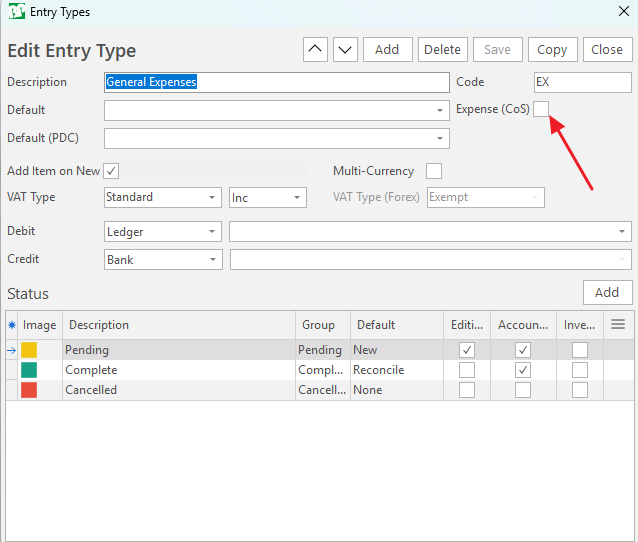
Check the Expense (CoS) checkbox to enable an expense to be allocated to cost of sales (see screenshot below).
User Access
- Accounting > Cost of Sales Module - Access Allowed: The options are Yes or No. (Default = No).
Filters Explained
| Filter | Description |
|---|---|
| Date | Preset or custom dates can be selected. |
| Radio Buttons | These buttons work with the date fields and display:
|
| SO / WO | Select Sales Orders or Work Orders. |
| Qty / Value | Items View only. Checkboxes to view Estimated vs Actual by quantity (Qty, the default) or by value (Value). Only one can be selected at a time. |
Search Filters
- Trans No: Enter a Transaction Number to find a Sales Order or Work Order as selected from the adjacent dropdown list.
- Text Search: Enter a Reference to find a Sales Order or Work Order by Reference. (Appears after you click View (button) and the transactions appear).
Transaction View
Displays the costs per transaction and includes a summary of the profit earned.
Transaction Band
- Includes fields from the transaction's header.
- Invoiced: Displays the date of the last Customer Invoice linked to the transaction.
Summary Band - Sales Orders
| Field | Description |
|---|---|
| Invoiced | The sum of all the linked Customer Invoices less the sum of all linked Credit Notes. |
| SO Total | The total (excl VAT) of the Sales Order. |
| Var (CI-SO) | The difference between the Invoiced amount and the amount on the Sales Order. |
| Cost | The total Cost associated with the Sales Order. |
| Direct Cost | The cost of materials, outwork and expenses. |
| Value Added (Contribution) | The markup or adjustment (the profit that should be made). Calculated by deducting Direct Costs from the Total Costs. |
| VA% | The Value added as percentage of the total. |
| Profit | The actual profit made on the order. Calculated by deducting the Total Costs from the Invoiced Amount. This field is blank if the Sales Order is not yet invoiced. |
| GP% | The Profit as a percentage of the Invoiced amount. |
Summary Band - Work Orders
| Field | Description |
|---|---|
| Total | The Work Order's total. |
| Cost | The total Cost associated with the Work Order. |
| Direct Cost | The cost of materials, outwork and expenses. |
| Value Added (Contribution) | The profit earned on the Work Order. Calculated by deducting Direct Costs from the Total Costs. |
| VA% | The Value added as percentage of the total. |
| Profit | The actual profit made on the Work Order. Calculated by deducting the Total Costs from the Total. |
| GP% | The Profit as a percentage of the total. |
Items View
- Displays the costs and profit per transaction item.
- Compares the estimated Services and Materials against the Actual Costs incurred through Stock Issues and Returns, Purchases and Timekeeping.
- Use the Qty or Value checkbox in the data filter to view Estimated vs Actual by quantity or by value. Qty is selected by default, and the band heading changes to Qty or Value to match.
- The columns are grouped in the Transaction, Item, Qty (or Value), Costs and Summary bands.
Customer View
- The Customer View summarises the costs and profit per customer.
- The report calculates Sales Orders linked to the customer and the Date filter works on the max Invoice Date linked to the Sales Order.
- Warning: The report can be slow to generate because it does a lot of calculations in the background.
Expenses
You can assign expenses to specific projects (SO and WO) in the ledger using the Allocate Expense menu item, accessed by right-clicking an expense item.
This allocation can only be done using the local currency.
The following columns can be added to the Ledger Items View to provide an indication of the allocated expenses:
- Expense Allocation: Lists the transactions to which the expense was allocated.
- Allocated Total: The total amount that was allocated.
These fields are highlighted in red when the Allocation does not match the item total.
How to Allocate Expenses in the Ledger
Expenses can only be allocated when the transaction is still in an editable state.
- Right-click an expense item that you want to allocate in the Ledger.
- Select Allocate Expense from the popup menu.
- Select a transaction to which the expense is allocated and click Add Allocation. You can select any Sales Order or Work Order that is not cancelled.
- By default, the allocated amount is set to the outstanding amount of the expense item, and you can manually change the amount if needed.
- Repeat the process to allocate an expense to multiple transactions.
Output
For the data available on output templates, see Output Data Pipelines.