
Materials Price Manager Tutorial
Overview
The Materials Price Manager is a snapshot of each material's sales and costing prices. It is a quick way to view, edit or amend the prices.
💡These tutorials explain how to navigate through the Materials Price Manager and use all its features to update prices in batches.
How to Customise the Materials Price Manager
- Navigate to the Materials Price Manager.
- Use all or any of these functions to customise the report:
- Click the Field Chooser (*) and select/unselect the available columns.
- Click any column heading to sort the column by that heading (click it again to change the sort order).
- Click the small filter icon next to any column and check the items you want to show.
- Click View (button).
How to View Supplier Prices
- Navigate to the Materials Price Manager.
- View = Select Supplier Prices from the dropdown list.
- Click View (button).
- Supplier = Select a supplier from the dropdown list or select All.
- Check Price expired to show materials with expired prices (a price that was last updated more than 30 days ago is considered expired).
- Check Active to only see active materials.
How to View Materials Without Prices
- Navigate to the Materials Price Manager.
- View = Select Materials without Prices from the dropdown list.
- Click View (button).
- Note: If nothing appears, all the materials have prices.
How to View Units and Prices
- Navigate to the Materials Price Manager.
- View = Select Units & Prices from the dropdown list.
- Click View (button).
How to View Material Prices by Category
- Navigate to the Materials Price Manager.
- Option A = Select a Category from the dropdown list next to Category.
- Click View (button).
- Option B = Select All from the dropdown list next to Category.
- Click View (button).
- Right-click the Category caption and select Group By This Field.
- Click the arrow next to any of the categories to expand that group.
- To cancel the grouping, right-click the category heading and select Remove from grouping.
How to Update a Group of Materials
- Navigate to the Materials Price Manager.
- View = Select Units & Prices from the dropdown list.
- Click View (button).
- Select several materials. Use Shift + left-click to select a continuous block. Use Ctrl + left-click to select random records.
- Click Actions (button) > Batch Update, choose an option from the dropdown list next to Batch Update and enter the required information:
- Use in Estimates (Est) = Check (use) or uncheck (do not use) the block next to it.
- Qty (Fixed Qty / Price Range) = Enter the quantity in the first block, the start price in the second block and the end price in the last block.
- VAT = Select a default VAT Type the first block, and if applicable, select Exc (excluding) or Inc (including) in the second block.
- Cost Adj % = Enter a percentage change in the first block.
- Cost Price (Exc) = Enter a new VAT exclusive price in the first block.
- Adjust Cost Price by % = Enter a number in the first block (e.g. 5 for 5%).
- Sell Price (Amount) = Enter an amount in the first block to change the sell prices to that amount.
- Adjust Sell Price by % = Enter a number in the first block to add that percentage to existing sell prices (e.g. 5 for 5%).
- Adjust Cost Price (Set Cost) = Change how the price is set by selecting an option from the dropdown list: Manual or Auto - Highest.
- Adjust Sell Price from Cost Price:
- Select Markup (MU – adds the percentage to the cost price) or Gross-Profit percentage (GP – the percentage of sales that is profit) in the first dropdown list.
- Enter a number (e.g. 5 for 5%) in the second block.
- Select whether to round the VAT Exclusive (Exc) or Inclusive (Inc) price in the third dropdown list.
- Enter a number (e.g. 1 to round to the nearest major currency, or 5 to round to the nearest 5) in the fourth block.
- Click Update (button).
- Confirm the change on the popup.


How to Change Prices to Estimate Prices
- Navigate to the Materials Price Manager.
- View = Select Units & Prices from the dropdown list.
- Click View (button).
- Select one or more materials. Use Shift + left-click to select a continuous block. Use Ctrl + left-click to select random records.
- Change the Cost Price: Click Actions (button) > Update Cost Price from Estimate.
- Change the Sell Price: Click Actions (button) > Update Sell Price from Estimate.
- Confirm on the popup that you want to change the prices.
How to Delete Selling Prices
- Navigate to the Materials Price Manager.
- View = Select Units & Prices from the dropdown list.
- Click View (button).
- Select one or more materials. Use Shift + left-click to select a continuous block. Use Ctrl + left-click to select random records.
- Click Actions (button) > Delete Selling Prices.
- Confirm the deletion on the popup.
How to Export the Prices
- Navigate to the Materials Price Manager.
- Click View (button).
- Click Menu (button) and select one of these options:
- Email Excel to open the default email template with the prices in .xlsx format attached, or
- Export Grid to choose a save location.
How to View General Information About the Prices
Info
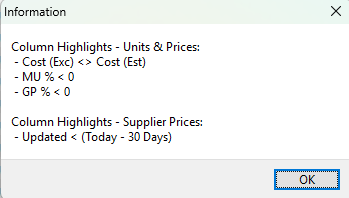
The info button explains why certain fields are highlighted.
- Navigate to the Materials Price Manager.
- Click the info button (i) on the top right.
How to Edit Individual Materials
- Navigate to the Materials Price Manager.
- View = Select Units & Prices from the dropdown list.
- Click View (button).
- Right-click any entry and select Open linked Material Item.
- Edit any of the fields as needed.
How to View a Material Summary
- Navigate to the Materials Price Manager.
- View = Select Units & Prices from the dropdown list.
- Click View (button).
- Right-click any entry and select View Material Summary.
- Note: The summary opens on the right. Click the tab name (Materials) to close the summary.