
Product Estimate Tutorial
Overview
The Estimating model in BOS Professional captures a product specification which reduces the skill level required to complete an estimate.
The code for the Product Estimate type is EPD.
Once a product is created (Main Menu > Setup > Products) it can be added to a Quotation to create an estimate.
💡These tutorials explain how to create a product estimate.
How to Create a Product Estimate
A customer must be selected for a Quotation. However, customer records can be created or edited by clicking Actions (button) > Add new customer or Edit Customer.
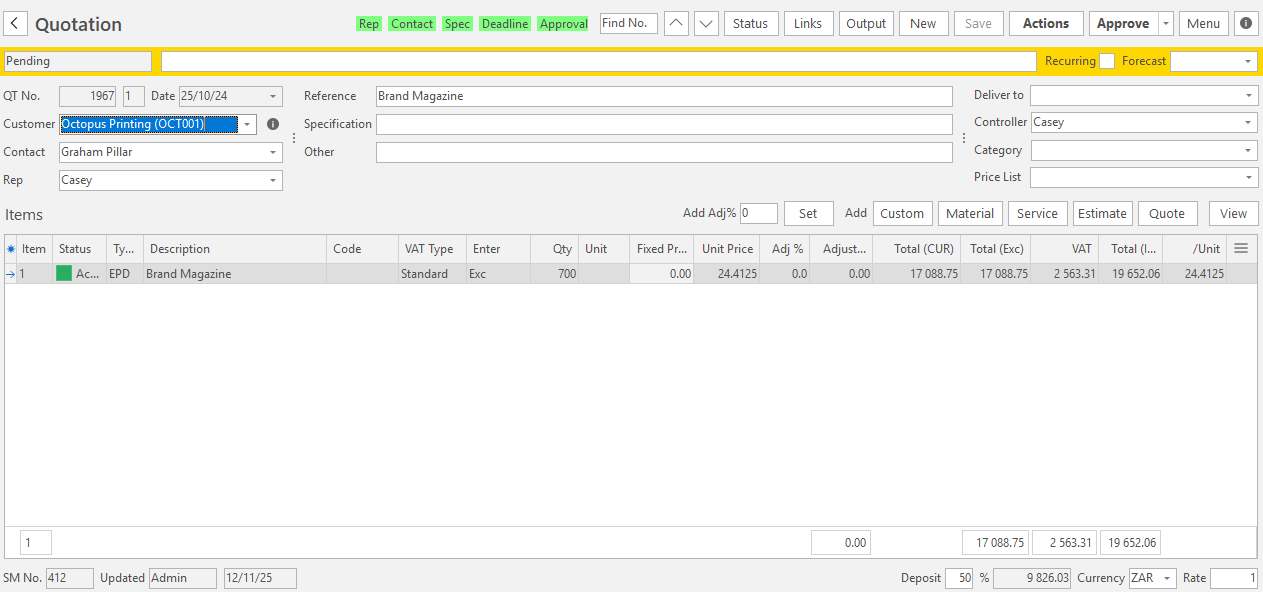
- Navigate to Quotations (Main Menu > Customers > Quotations).
- Click New (button) to create a blank Quotation.
- Note: The Quotation number (QT), Version number and today's Date are prefilled.
- Customer = Select a customer from the dropdown list.
- Click Save (button) to prefill the fields from the customer's record.
- Contact = Select a contact from the dropdown list.
- Rep = Select a rep from the dropdown list.
- Reference = Enter a brief description of what the Quotation is for.
- Deliver to = Select the customer's delivery address.
- Controller = Select the applicable staff member from the dropdown list.
- Category = Select a category for the Quotation from the dropdown list.
- Price List = Select a Price List if one is not already filled in.
- Click Estimate (button) > Product and select a product from the dropdown list.
- An estimate is opened. Complete the following information:
- Description: Defaults to the Product Name but can be edited.
- Override = Check this checkbox if you want to override the description.
- Code = Enter a brief description of the product.
- Category = Select a category from the dropdown list.
- Quantity = Enter the quantity in the block next to the Add Qty button. Click the Add Qty button after entering the quantity.
- Uncheck the Adjust checkbox in the Costing tab to exclude items from the overall adjustment.
Specification / Input (tab)
Process
Tabs are available for each component that was selected when the Product Estimate Type was created.
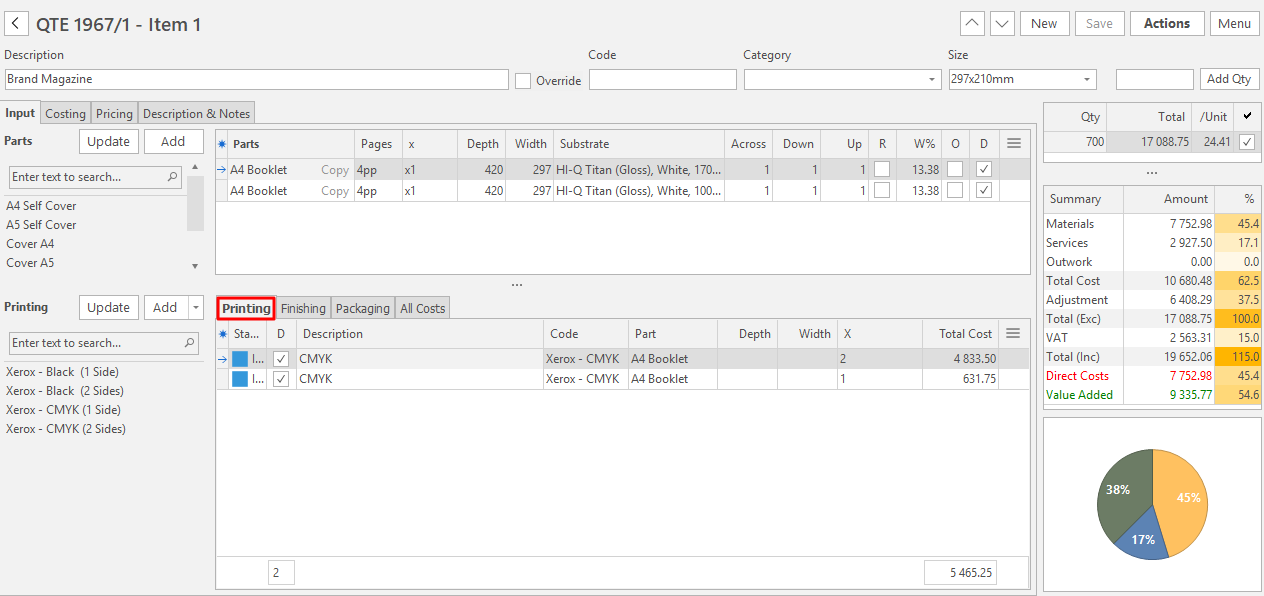
- On the top section, click Add (button) next to Parts to add parts (e.g. A4 Booklet, White Gloss 170 gsm).
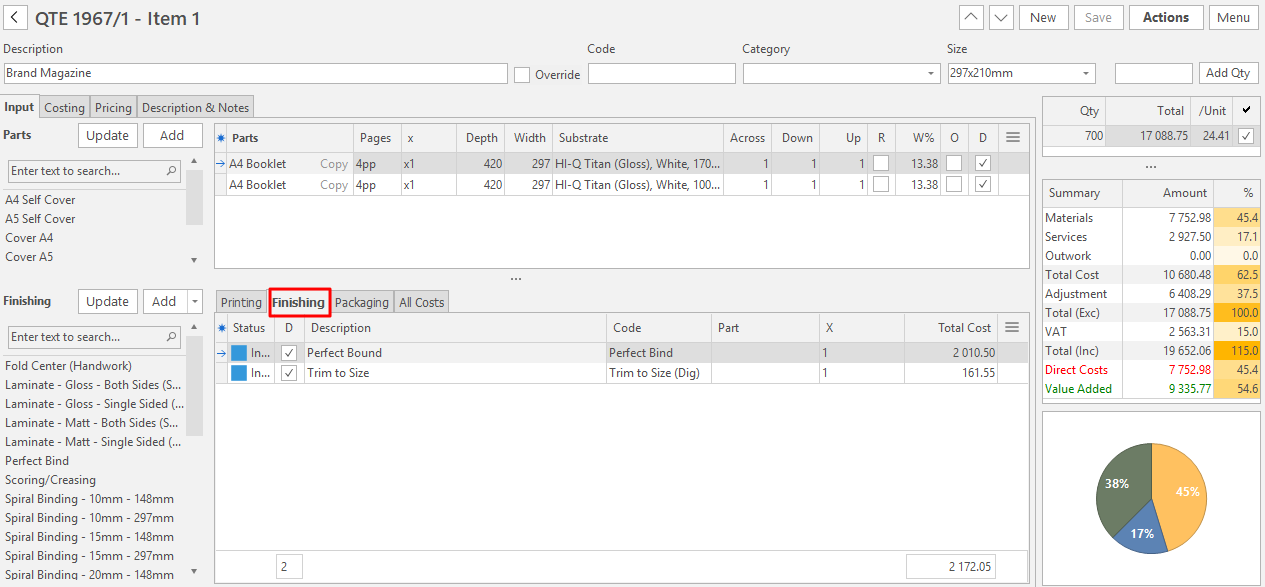
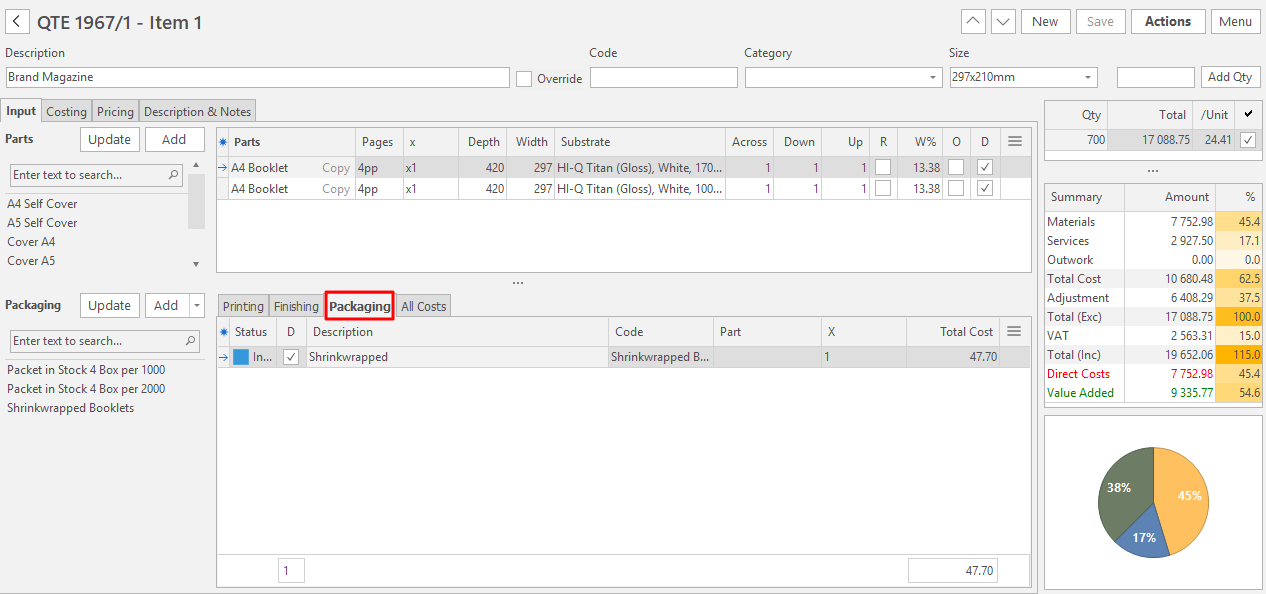
- On the bottom section, click each of the tabs and add the components. For example:
- Printing = Add ink by clicking one or more of the items below Printing and clicking Add (button).
- Finishing = Add any trims or binding by clicking multiple items below Finishing and clicking Add (button).
- Packaging = Add any packaging requirements such as shrink wrap by clicking the item below Packaging and clicking Add (button).
- For any of the tabs, custom items can be completed by clicking the arrow on the Add button and clicking Custom Item. A form is opened for you to complete all the information.
Parts
- When you select the Substrate, the Imposition and Waste Percent (W%) indicator are visible on the dropdown list.
- The W% field indicates the cutout wastage and is highlighted in red when the waste exceeds 20%.
- Reel widths that are less than the Die width cannot be selected.
- If you change the Die after selecting the Substrate, a warning appears if the Die Width is greater than the Reel Width.
- If you create a new Part, you can right-click the part and select Add Part to Product Setup to add it to the Part setups linked to the selected Product.
Examples
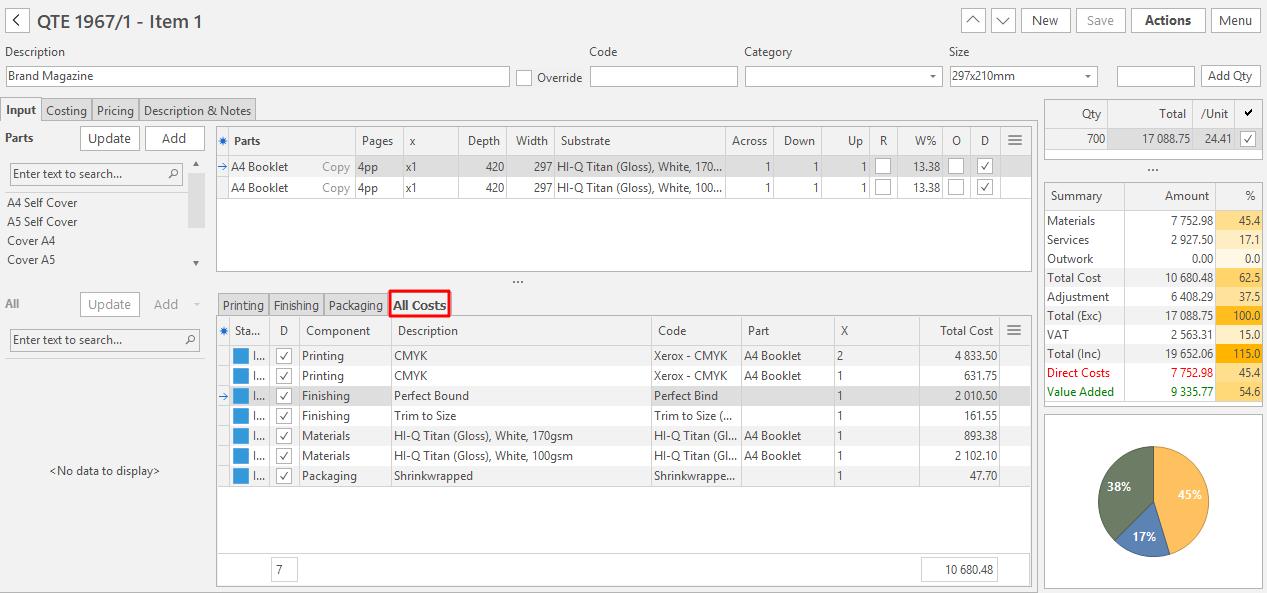
Costing (tab)
- The costing tab summarises all the costs of the components selected on the Input tab.
- The % field is the cost of the item as a percentage of the total cost of the Estimate.
Group By
- Group the items by clicking Group By (button) and selecting one of these options:
- None
- Part
- Group
- Type
- Provider
- Component
- Description
Update
- Update the items by clicking Update (button) and selecting one of these options:
- Update from Costings: The selected costings are updated, and materials revert back to their setups.
- Update Costs from Materials and Cost Centres: The selected entries are updated from the linked materials and Cost Centres.
Context Menu
Features that are unavailable for the selected item are greyed out. Certain features only apply to pre-created materials.
- A right-click Context Menu is available with the following functions:
- Edit Item: Lets you edit the costing including the supplier or Cost Centre.
- Zero Cost: Clears the cost, but not the production hours, on the selected item.
- Zero Waste: Sets the Waste Qty to zero for the selected costing.
- Delete Cost: Deletes the entry.
- View/Edit Note: Lets you create or edit a note.
- View Material Summary: Displays the material's summary.
- Open linked Material: Opens the linked material.
- Open linked Costing: Opens the linked costing.
Edit Costing
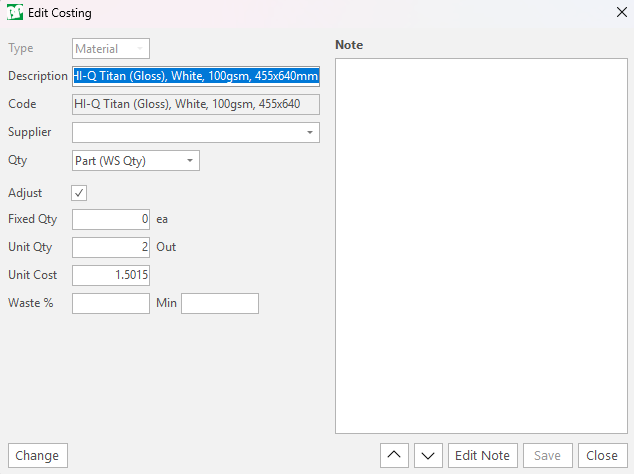
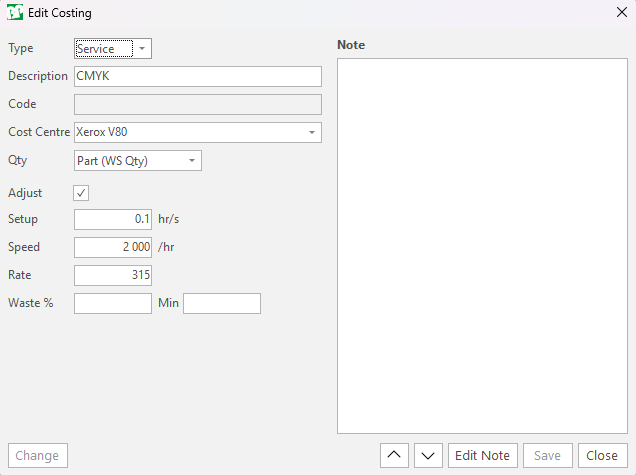
- Double-click an entry to open an Edit Costing form.
- This form lets you override the Unit Cost, Fixed Cost, Min Cost, Fixed Qty/Fixed Hrs and Unit Qty/Unit Hrs.
- Click Change (button) to select a different material, for example, to change a generic Ink to a specific Ink colour.
Pricing (tab)
- If the Cost on the Estimate is zero, the selling price is always zero (you cannot enter an adjustment or selling price if the estimate has no cost).
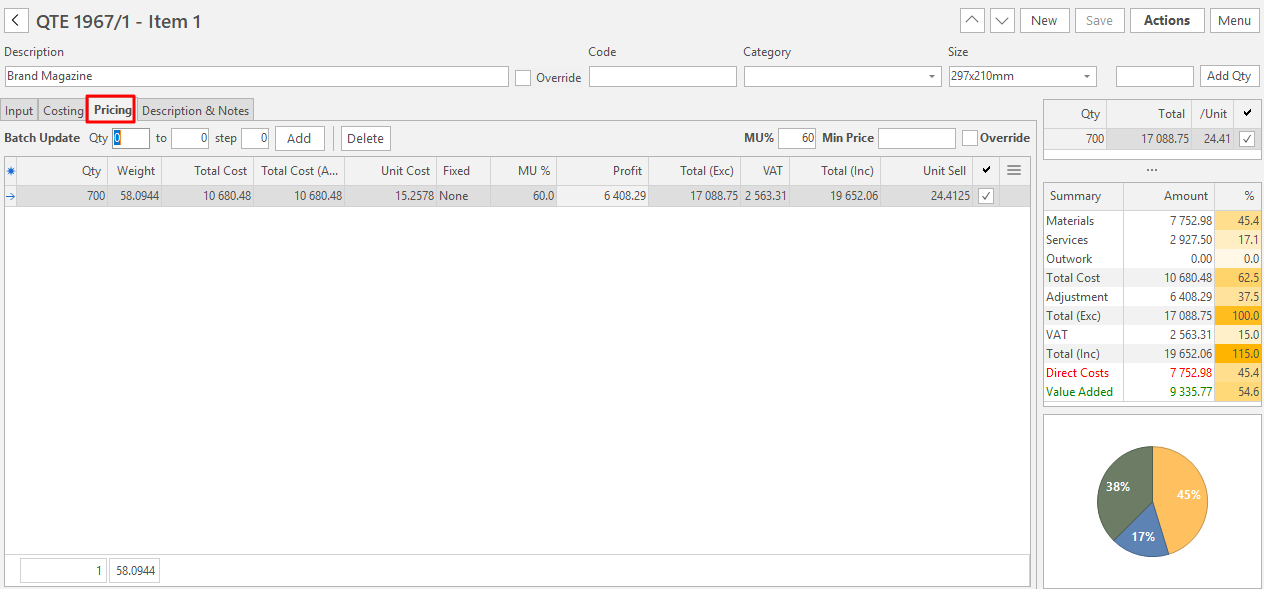
- The Prices tab displays the Mark Up percentages, costs, profits, commissions and sell prices.
- Note: From version 26.05, a product can add a commission on top of the markup: the C %, C Type and Comm. columns show it per quantity, and changing the MU % recalculates the quantity straight away (see Pricing (tab) in Estimating).
- It allows a range of quantities to be added by completing the fields next to Batch Update and clicking Add (button):
- Qty: The start quantity (e.g. 100).
- Qty to: The end quantity (e.g. 1 000).
- Step: The gaps between each quantity (e.g. 100 which adds 100, 200, 300 … 900, 1 000).
- The default quantity can be selected on the summary section or the prices tab by clicking the checkbox.
Description and Notes (tab)
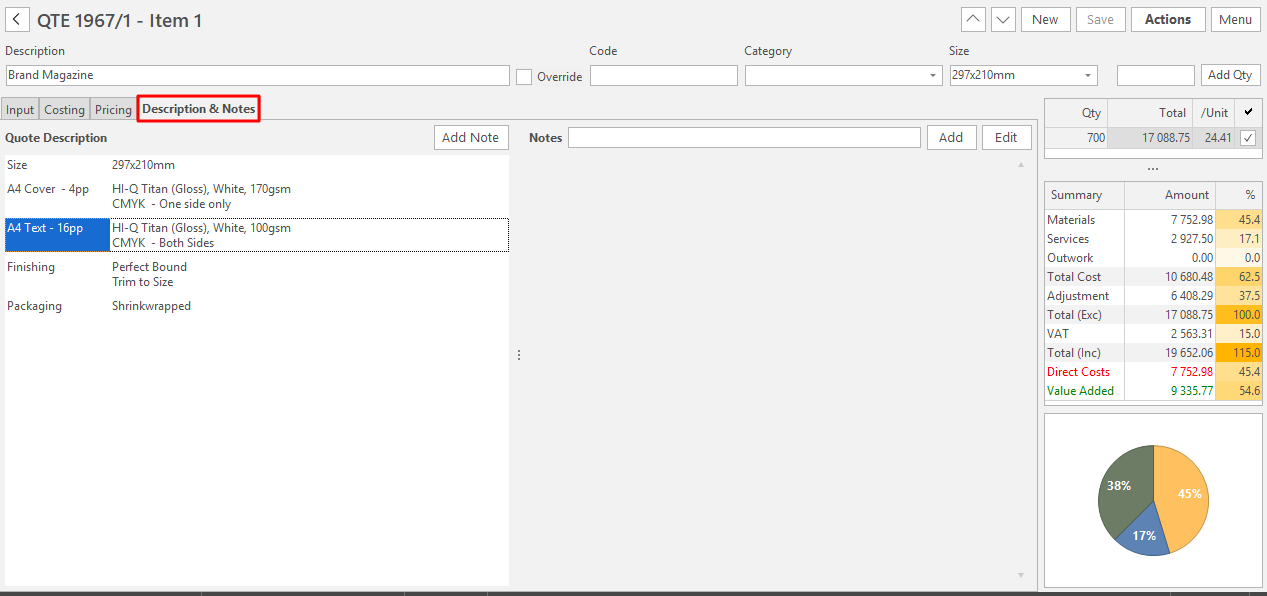
- The description is automatically generated. Each part adds a line according to its Desc setting, and the part lines pick up changes to the part name and size unless the line is overridden.
- Right-click an entry on the description and select one of these options:
- Auto: The auto-generated description.
- Override: Lets you edit the description. The description is highlighted in yellow to indicate it is overridden.
- Hide: Hides the specific entry.
- You can add Notes for internal use, which are copied to the Work Order.
Quantity Up (Qty Up)
- When printing on Reels, the Qty Up is not displayed because it is the same as the Estimate Qty.
- When printing on Sheets, the Qty Up is the number of parts on a Worksheet.
Output
For the data available on output templates, see Output Data Pipelines.