Products
Overview
- The Product Estimating model uses products to define which Parts, Substrates, Printing and Finishing elements can be added to an Estimate.
- On Digital A3 Products, it is assumed that all the available Substrate Costings are for a specific Work Size – mostly SRA3.
- The Costing can include pre-cutting costs.
- The Product list can be ordered by moving items up or down. The same order is used in the Estimating menus.
Settings
User Settings
The defaults are the values for new databases and new users. Your database may have different values.
| Setting | Description | Default |
|---|---|---|
| Setups > Costing & Products - Access Allowed | Yes or No. Whether you can open Products and Costings. | No |
List View
- The list shows every product.
- Click View to refresh it and Reset to clear the filters.
- New creates a product, and Menu offers Show Notes and the grid layout options.
- In the Menu (...) column, Move Up and Move Down set the order of the products on the Quotation's Estimate menu, where each product is listed by its Code.
| Column | Description |
|---|---|
| Description, Code | The Product's name and code. |
| Status | Active or Inactive. Only Active Products are listed on the Quotation's Estimate menu. |
| Type | The Product type (see Type). |
| MU%, Min Price | The default markup and minimum price. |
| Submenu | The submenu the product appears under on the Estimate menu. |
| 90 days, 60 days, 30 days, Last Used | How often the product was used on estimates in the last 90, 60 and 30 days, and when it was last used. |
| Note | The Product's note. |
| Menu (...) | A submenu with these options:
|
Edit Product: Header Information
Click Edit to change a product, and Save when you are done.
Buttons Explained
| Button | Description |
|---|---|
| Edit, Save | Start and save your changes. |
| New, Copy, Delete | Create, copy or delete a product. |
| Costings | Opens the Costings. |
| Menu |
|
Fields Explained
| Field | Description |
|---|---|
| Description, Code | The Product's name and code. |
| Type | How the Product's parts are used and assembled (see Type). |
| Status | Active or Inactive. |
| Submenu | Groups the product on the Estimate menu. When it is blank, the product is listed under Products. |
| Groups | The sections included in the Product (see Edit Product: Radio Buttons). |
| Waste Min Qty, % | The waste allowance (see Waste). |
| Depth, Width | Your own captions for the Depth and Width fields on the Product's Parts and estimates. |
| Note | A note about the product. |
| Created, Updated | Who created and last changed the product, and when. |
Type
This setting determines if multiple parts are used and how they are bound or assembled. Certain products have settings which can be accessed from Edit View > Menu (button) > Settings.
Options include:
| Field | Description |
|---|---|
| Standard | Single or multi-part Part. |
| Bookwork | Provides for inputting a Page No. which calculates the number of Parts required. The Page Count is added to the Part Name in the Quote Description (e.g. Cover - 4pp; Text - 16pp). |
| Corrugated Boxes | Calculates the Parts Size by inputting the Box type and dimensions. |
| Labels (Digital) or Labels (Flexo) | Used for label printing. |
| Outsourced | For work printed by a supplier. The Parts tab lists outsourced parts with their Printing Front, Printing Back and Substrate. |
| Signage | For signage, priced by area (see Signage). |
The Type is not editable if Parts are added to the Product.
Waste
- Waste factors can be added to ensure that you are covered for spoils:
- Waste Min Qty: The minimum quantity that is wasted.
- %: The percentage that is wasted.
- The percentage waste is calculated first and if the Waste Qty is less than the minimum waste quantity, it is adjusted to the Min Qty.
Edit Product: Radio Buttons
Click the arrow next to Groups in the header. Select the sections to include from there. Each included section has its own radio button and fields for completion.
Costings
- Sets the components that make up the estimate.
- Link Costings to each Component to select on the estimate.
- Use the Group filter to simplify the selection process.
- Parts: Also known as Components.
- Substrate: The surface (e.g. paper or board) that is printed on.
- Pre-press
- Printing
- Finishing
- Services: This option can be used in lieu of specific Services such as Pre-Press, Printing or Finishing.
- Materials
- Packaging
- Delivery
- The Description checkbox (D) determines whether the component is added to the Quote Description by default. On Parts, it is a Desc dropdown instead: None (no line in the description), Desc (the part name) or Desc (Size) (the part name followed by its size, for example, Cover (210x297mm)).
- The Submenu field in the header groups menu items when you have many Products. When this field is blank, items are grouped under Products.
The Components tab lists the linked costings in three grids: services, printing and materials.
| Column | Description |
|---|---|
| Costings, Component | The linked costing. |
| D | Whether the component is added to the Quote Description by default. |
| Link | The Part the component is linked to. |
| Input | What the estimate asks for. On services: Laminating, Embossing, Varnishing, Rewinding, Die Cutting or Assembly/Foiling. On printing: Variable Data, Printing, Plate Changes or Colour Changes. On materials: Cores, Die or Plate. |
| Printed | Printing only:
|
| Depth, Width, X | The component's default size and quantity. |
| Run Waste%, Setup Waste (m) | The waste added for the component (see Waste). |
| Menu (...) | A submenu with these options:
|
Pricing & Accounting
- Sets the default Markup %, Minimum Price and default Sales Account.
- Override (checkbox): If checked, overrides the Price List adjustments.
- Use Commission (checkbox, version 26.05 and later): Adds a commission on top of the markup on new estimates for the product, as in Standard Estimating. Select the default C % and what the commission is calculated on:
- % of Profit
- % of Value Added: the selling price less materials and outwork.
- % of Selling Price
- % of Cost Price
- 2nd Adjustment: a second markup on the cost plus profit.
- N/A: no commission.
- Note: After the upgrade to 26.05, Use Commission is unchecked for every product, so existing products and estimates are priced as before.
The Pricing tab also lists the Price Lists, with an Adj % for each and an Override checkbox, so a product can have its own adjustment per Price List.
Parts
- Parts can be created in the Products module for selection on an estimate.
- Parts can be linked to a Work Size which also identifies the Substrate Type (Reel or Sheet).
- When Substrate is selected in the estimate, the lookup is filtered to the selected Stock Type and Work Size.
- If Parts are not enabled on an Estimate (in the Product setup), the invalid Part... Qty Types are unavailable in the Qty Type lookup. The same is true for Qty Types that are only used in Materials and Printing.
- Repeats can be set on Parts. Decimal values can be added to the Repeats value on a Part. Decimal Repeats are useful when working with Reels (e.g. to set a factor for the fluting part when estimating Corrugated Board).
Fields Explained: Parts (tab)
Fields marked in green (✎) can be edited.
| Field | Description |
|---|---|
| Description | A descriptive name that appears on the Quote letter. (Exclude fields such as Page Count and Size.) |
| Code | Used to select a Part in the estimate. Must include fields such as Size, Page count and be sorted logically. |
| Size | A text field that populates the Estimate Size when the part is selected. (It only populates the size if it is blank.) |
| Depth / Width | Enter the flat size of the Part. The captions for Depth and Width can be customised (see the header to the right just below the status bar). |
| Bleed | This value is added to all sides as a trimming margin to allow for bleed on the artwork. |
| Work Size | Select from a lookup of valid work sizes linked to the product. The work size filters the substrate lookup in the estimate. |
| Qty | The default repeat quantity that is applied to the estimate. |
| Allow R (Rotate) | Used to control whether the Part can be rotated for a better imposition on the substrate. Uncheck the checkbox if the part cannot be rotated (e.g. when printing on a fluted board). |
| Default | When checked, the Parts are added by default when the estimate is created. |
| D (Description) | When checked, the Part, with its linked services and materials, is added to the Quote Description. |
| Qty Type | Select Est Qty or Fixed Qty. |
| Cover | (Type = Bookwork only) Marks the Part as the cover. |
| Spine | (Type = Bookwork only) The spine width. |
| Pages | (Type = Bookwork only) Enter the number of pages that fit on the Part size. (e.g. A4 Cover, Size = 450 x 320 mm; Pages = 4). |
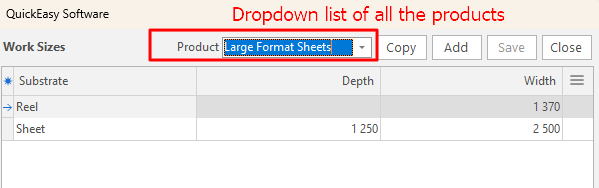
Work Sizes
- Each Product requires a distinct list of Work Sizes for Sheets and Reels.
- To add or update the Work Sizes click Menu (button) > Edit Work Sizes.
- When Parts are linked to a default Work Size, the Substrate lookup filters according to Sheets/Reels that match the Work Size.