Product Estimate Type Tutorial
Overview
💡This page explains how to optimise the Product Estimating setup, emphasising the creation of precise, product-specific estimates.
By starting with a more general estimate and refining it to incorporate more standardised products, this system ensures efficiency and accuracy in pricing. This setup/optimising approach of Product Estimating requires more effort upfront. However, it simplifies the skill level required for ongoing estimating, reduces the risk of human error, and improves efficiency and accuracy in estimations.
Post-setup, the system demands minimal maintenance, limited to updating Material Prices and Cost Centre Rates, but not Outwork. Moreover, training requirements for new users become less demanding.
How To Create a Product Estimate
Create one estimate per product. First create a general Estimate, then copy the estimate and refine and tailor each estimate to the specific product requirements.
The Depth and Width captions can be customised.
- Click New (button) to add a new product or Copy an existing Product (open the product and click Copy (button)).
- Complete the header information as follows:
- Status = Select Active from the dropdown list. If Inactive is selected, the product cannot be used in estimations.
- Description = Enter a description. This description is visible to customers on documents such as Quotations.
- Code = Enter a code. The code is for internal use and is required to build the estimate.
- Type = Select one of these types:
- Standard
- Bookwork
- Corrugated Boxes
- Labels (Digital)
- Labels (Flexo)
- Outsourced
- Signage
- Groups = Determine which sections are available. Select all the groups that apply from this list:
- Parts
- Substrate
- Pre-press
- Printing
- Finishing
- Services
- Materials
- Packaging
- Delivery
- Submenu = Enter a name to group the Products when creating an Estimate in a Quotation (e.g. Signage, Packaging).
- Waste Min Qty = Enter the minimum quantity that is wasted, and the percentage quantity in the two blocks provided. The percentage is used unless it is lower than the minimum quantity in which case the minimum quantity is used.
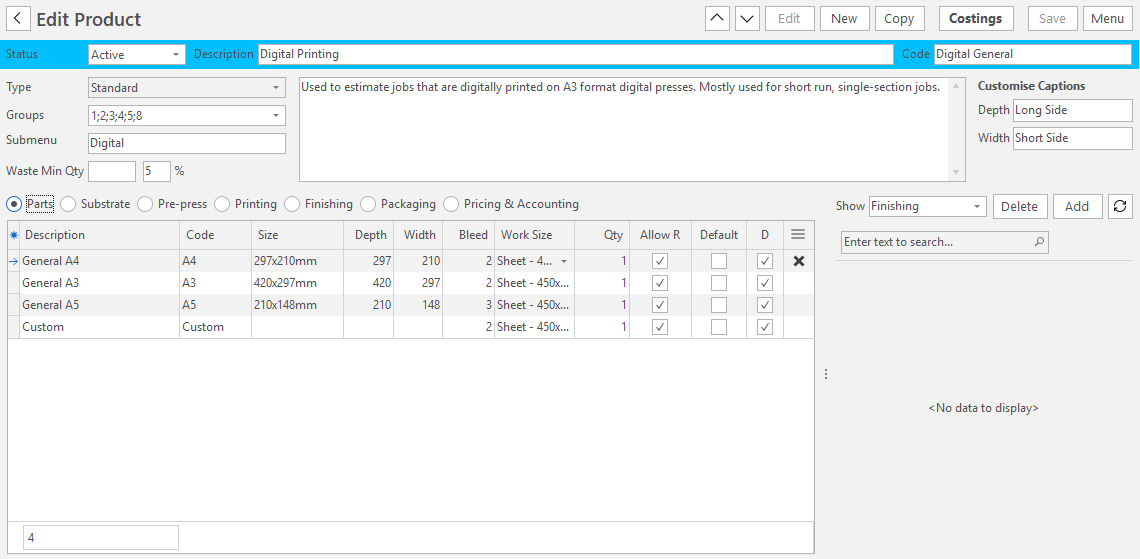
Parts
Add standard Products. For example: Flying Banner; Flyer Banner Bag. Note: Default = False.
Add an item for custom Products (Description = Custom). Note: Default = False.
- Click the radio button next to Parts.
- Select an item from the dropdown list next to Show from this list:
- All
- Boxes
- Despatch
- Digital
- Finishing
- Labels
- Large Format
- Pre-press
- Printing
- Click Add (button).
- Complete the row that was opened as follows:
- Description = Enter a description for the part.
- Code = Enter a brief description for the part.
- Size = Enter the part's size (e.g. 560 x 280 mm).
- Depth = Enter the part's depth (e.g. 560).
- Width = Enter the part's width (e.g. 280).
- Bleed = Enter the bleed (e.g. 3).
- Work Size = Enter the work size (e.g. Reel 520 mm).
- Qty = Enter the quantity of the part that is needed.
- Allow R = Check the checkbox if rotation is allowed.
- Default = Check the checkbox if this is a default part.
- Desc = Select how the part appears in the estimate description: None (no line in the description), Desc (the part name) or Desc (Size) (the part name followed by its size, for example, Cover (210x297mm)).
- Menu (...) = Click the X to delete the part.
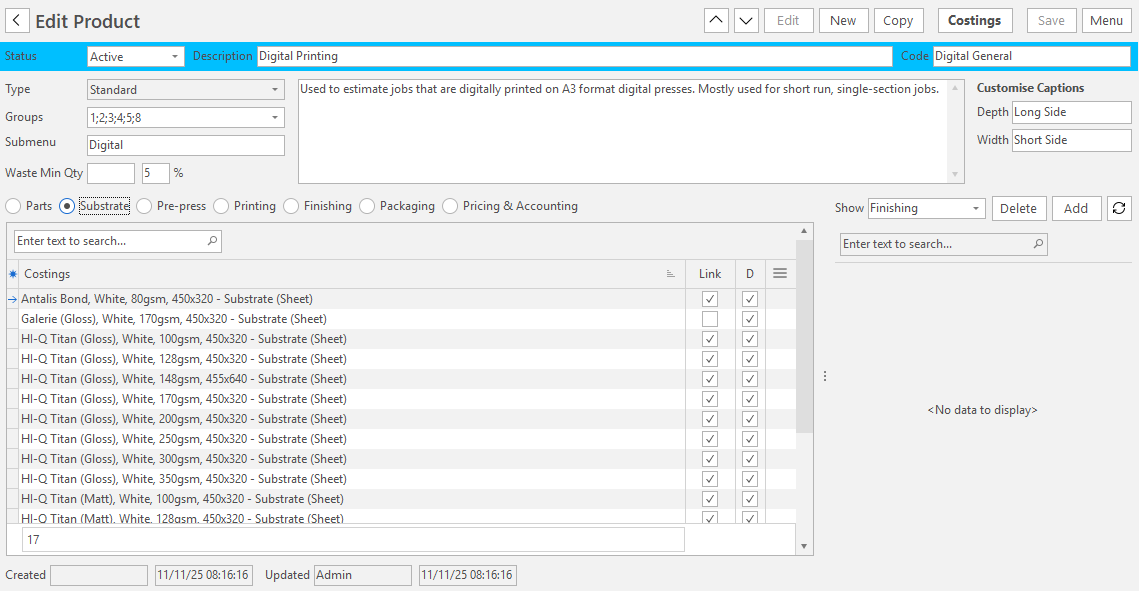
Substrate / Printing / Finishing / Materials / Packaging / Delivery
- Click the various radio buttons.
- Select an item from the dropdown list next to Show from this list:
- All
- Boxes
- Despatch
- Digital
- Finishing
- Labels
- Large Format
- Pre-press
- Printing
- Click Add (button).
- Refine the Costing (left panel) list to include applicable options for the specific Product only.
- Remove Costings that do not apply to the Product. Multi-select the Costings in the left panel (Ctrl + left-click), right-click an entry and select Delete. Confirm the deletion.
Pricing & Accounting
- Click the Pricing & Accounting radio button.
- Complete the defaults:
- Markup % = Enter a percentage markup in the provided block.
- Min. Price = Enter the minimum price that the product can cost.
- Account = Select a general ledger account from the dropdown list (e.g. Sales > Products) to which the invoice must be posted.
- Price Lists:
- Price Lists are linked to customers.
- Enter the default Adjustment percentage that must be applied to each Price List.
- The adjustment can be positive or negative (e.g. Silver = 0%; Gold = -10%; Platinum = -15%).
- If you deviate from the created Price Lists, the override checkbox is automatically checked.
- This adjustment is applied when estimating.
Example Product - Digital Cartons (Flute Board)
Header information
| Field | Description |
|---|---|
| Status | Active. |
| Description | Digital Cartons (Flute Board). |
| Code | Dig. Cartons (FB). |
| Type | Corrugated Boxes. |
| Groups | 2; 4; 5; 7; 8; 9. |
| Submenu | Packaging. |
| Waste Percentage | W% = 10%. |
Parts
- Custom
- Capture a Description, Code and Bleed only
- RSC 200 x 200 x 300 mm
- Description = RSC; Code: RSC 200 x 200 x 300 mm; Size = 200 x 200 x 300 mm; D = 600; W = 1035; Bleed = 10
Substrate
- Only include Flute Board options.
Printing
- CMYK
- Black
- White
- CMYK + White
Finishing
- Die Cutting: Only include machines that can cut the size and material.
- Slit
- Stitch
- Handwork
- Glue + Assemble
Materials
- None
Packaging
- Strapping
- Bundle & Shrink wrap
Delivery
- Delivery to Cape Town within 10 km radius
- Delivery to Cape Town within 20 km radius
- Courier
Pricing & Accounting
- Defaults
- Markup % = 25%
- Min. Price = 0
- Account = Sales
- Price Lists:
- Silver = 0%
- Gold = -10%
- Platinum = -15%
Example Screenshots